LinkFinder AI - Data Sync workflow
This guide will walk you through the steps to using Linkfinderai, Google and Google Docs.
Go to linkfinderai.com
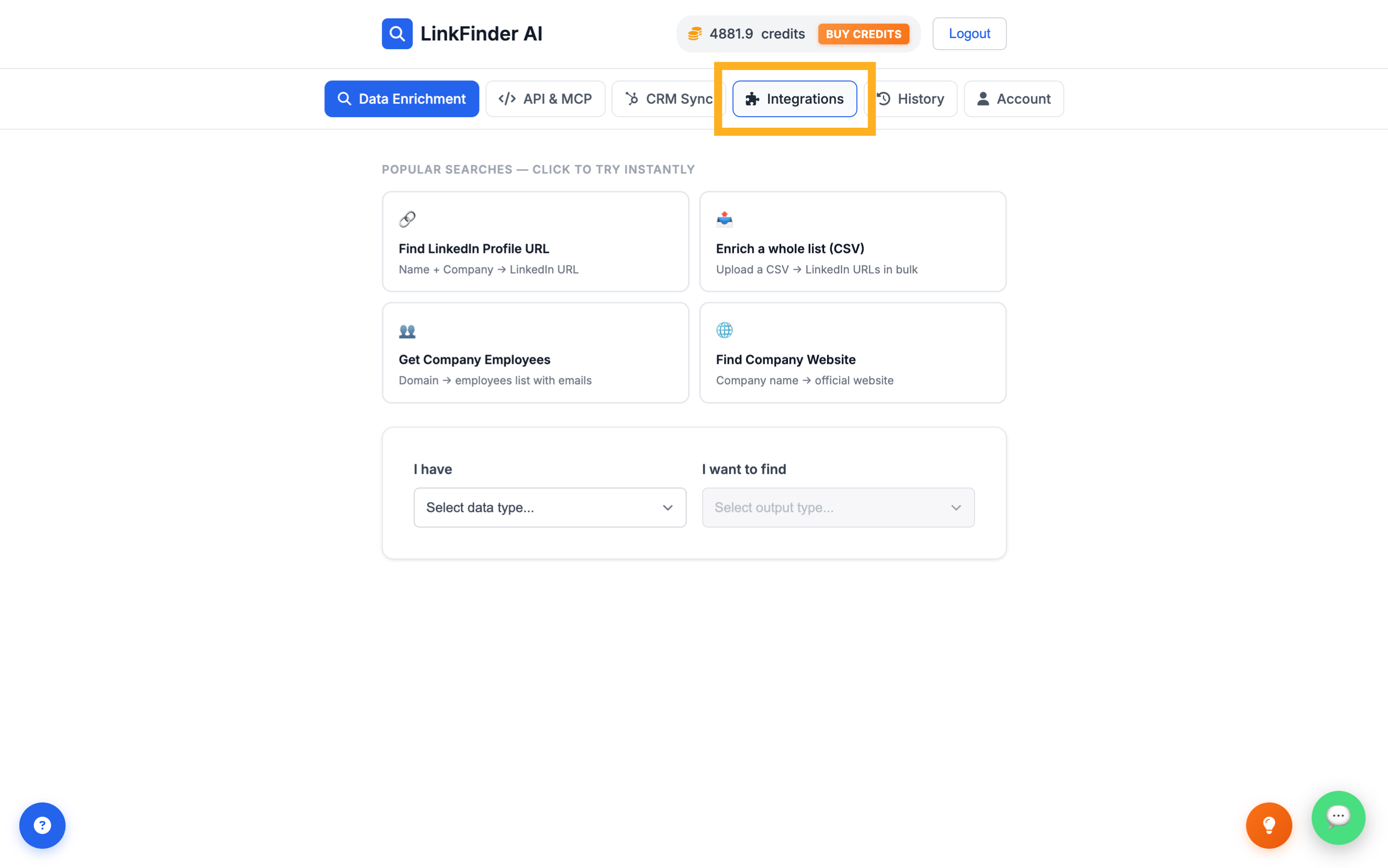
1. Click "Integrations"
Click on "Integrations"
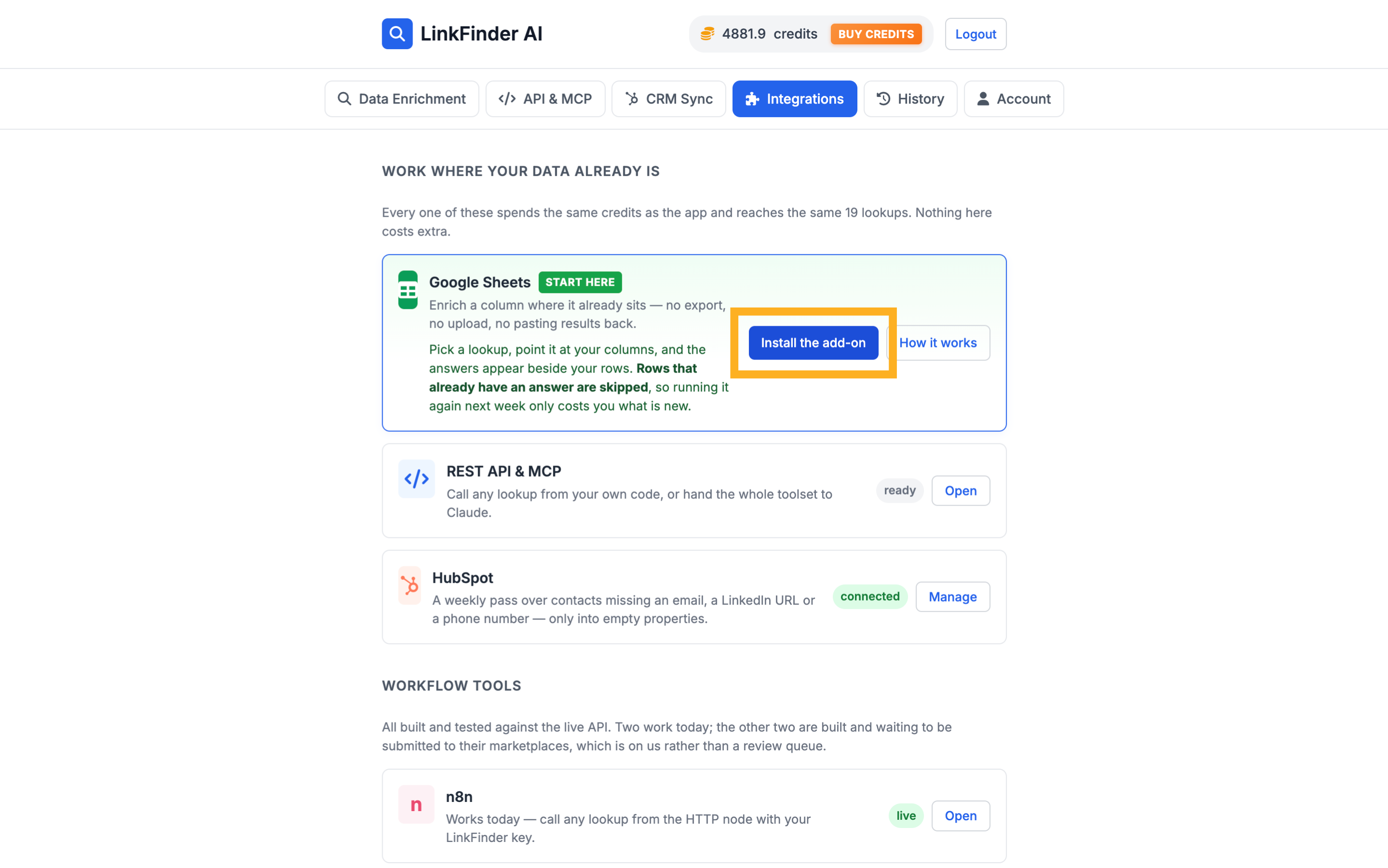
2. Click "Install the add-on"
Navigate to "Install the add-on"
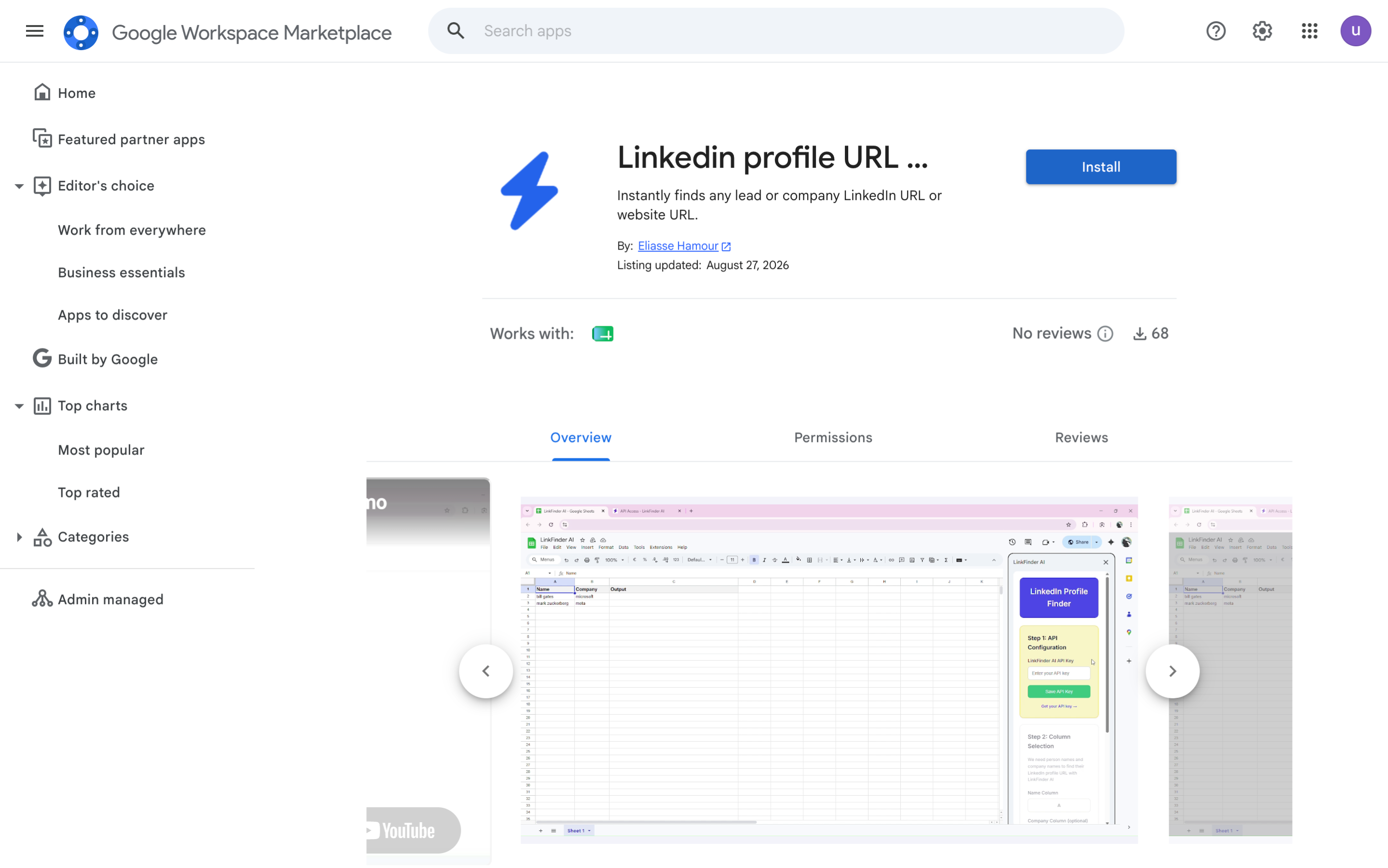
3. Switch to "workspace.google.com"
Switch to "workspace.google.com"
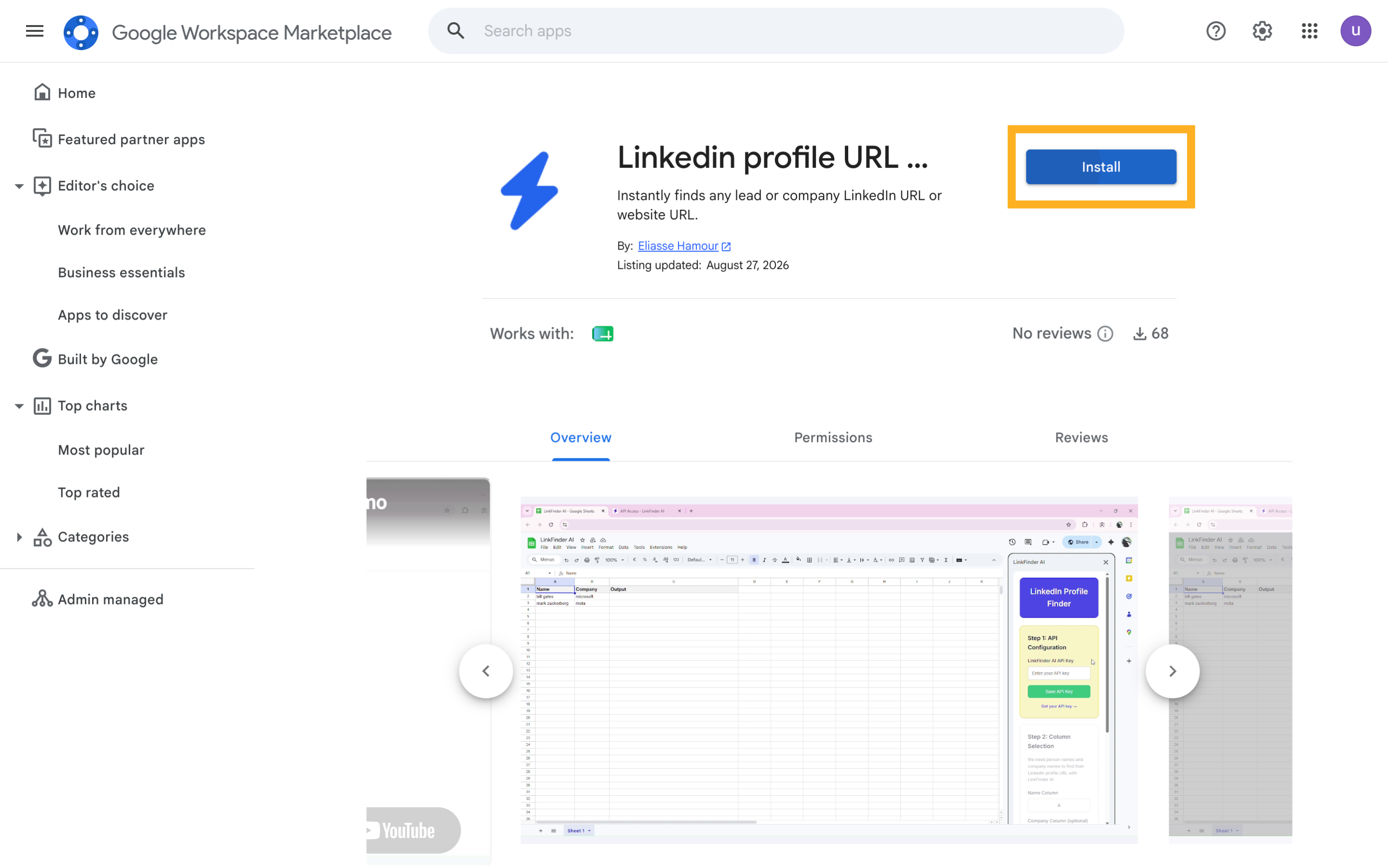
4. Click here
Click here
5. Switch to "accounts.google.com"
Navigate to "accounts.google.com"
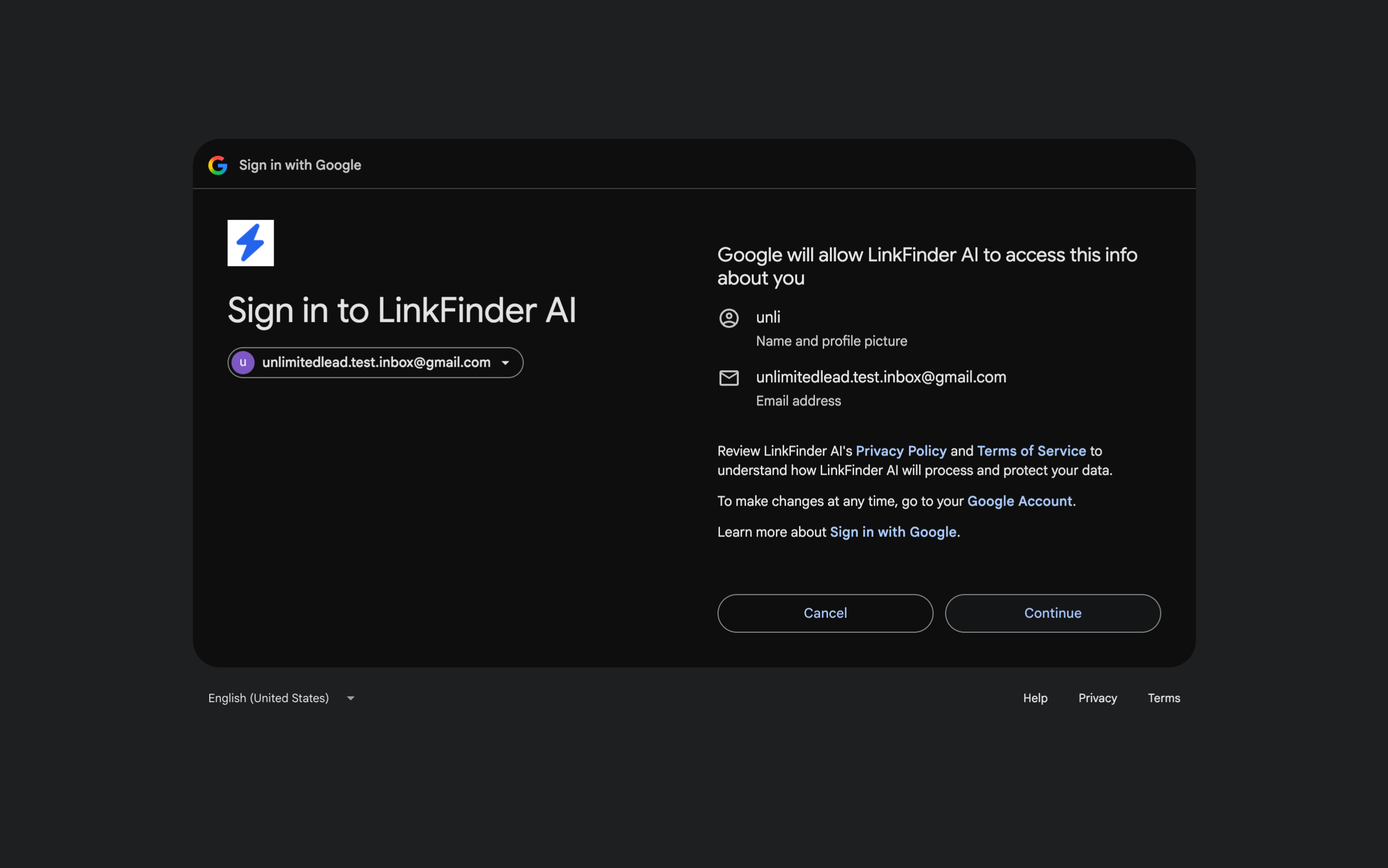
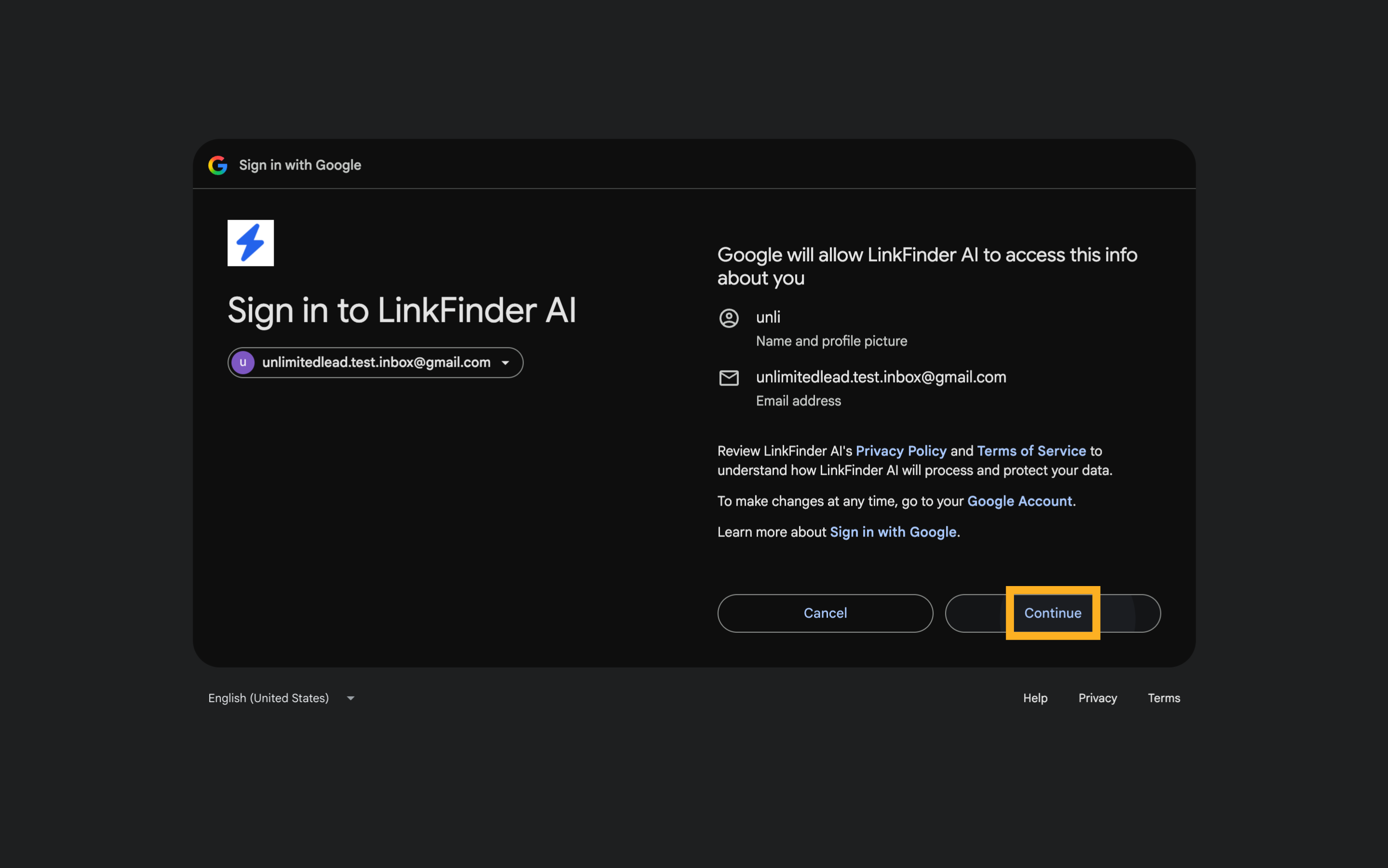
6. Click "Continue"
Select the "Continue" option
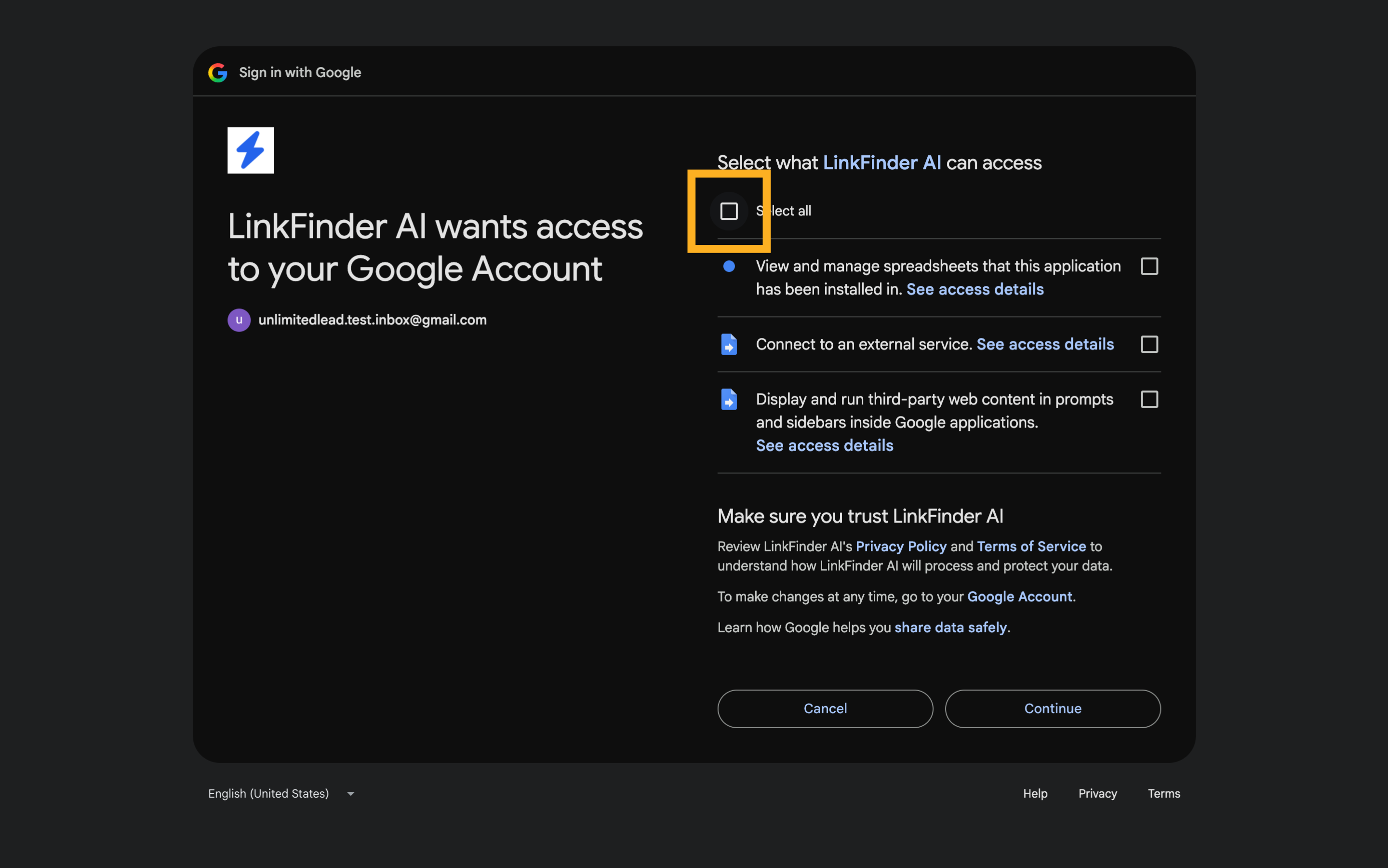
7. Click "Select all"
Choose the "Select all" option
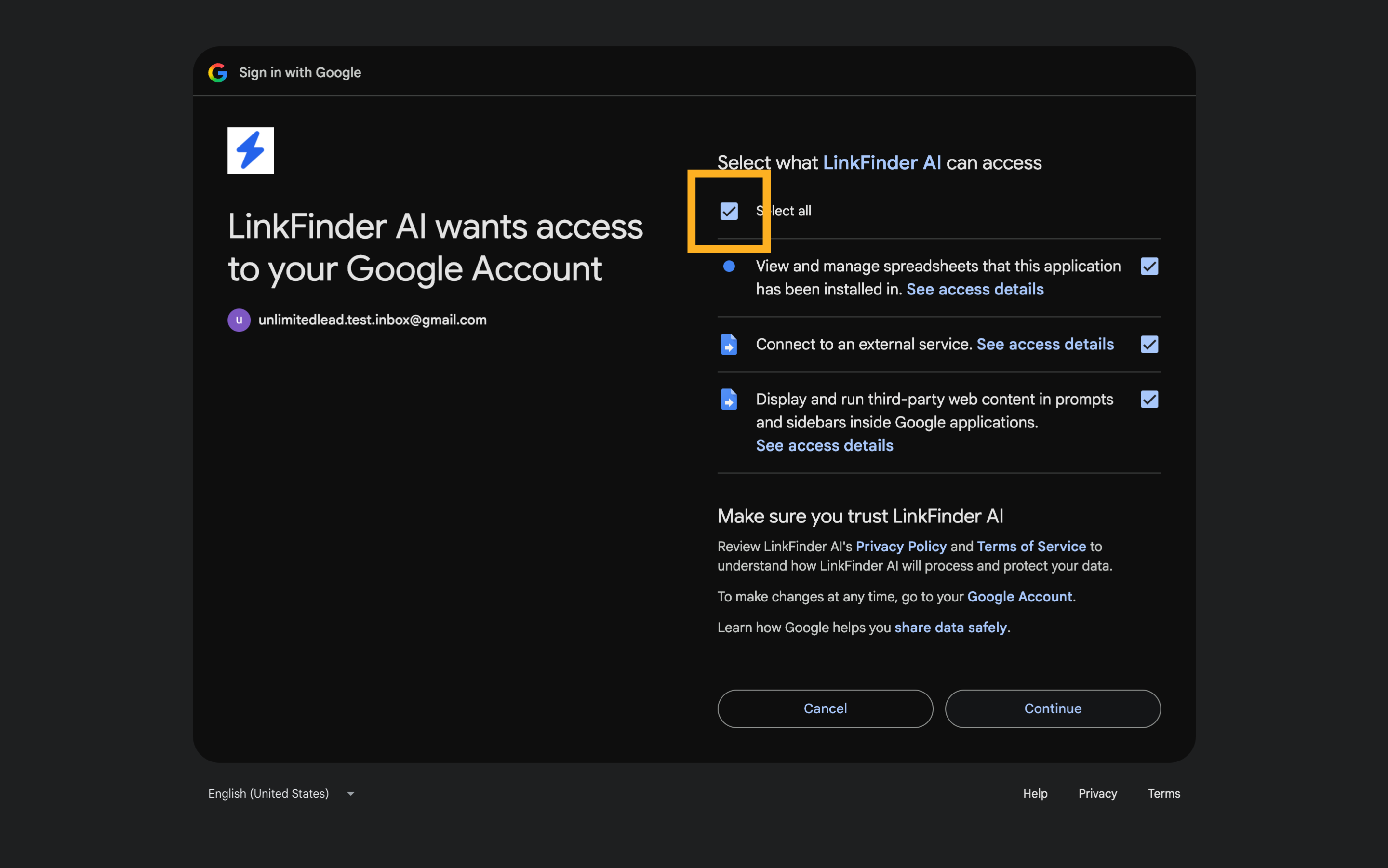
8. Fill "on"
Fill in "on"
9. Switch to "docs.google.com"
Go to "docs.google.com"
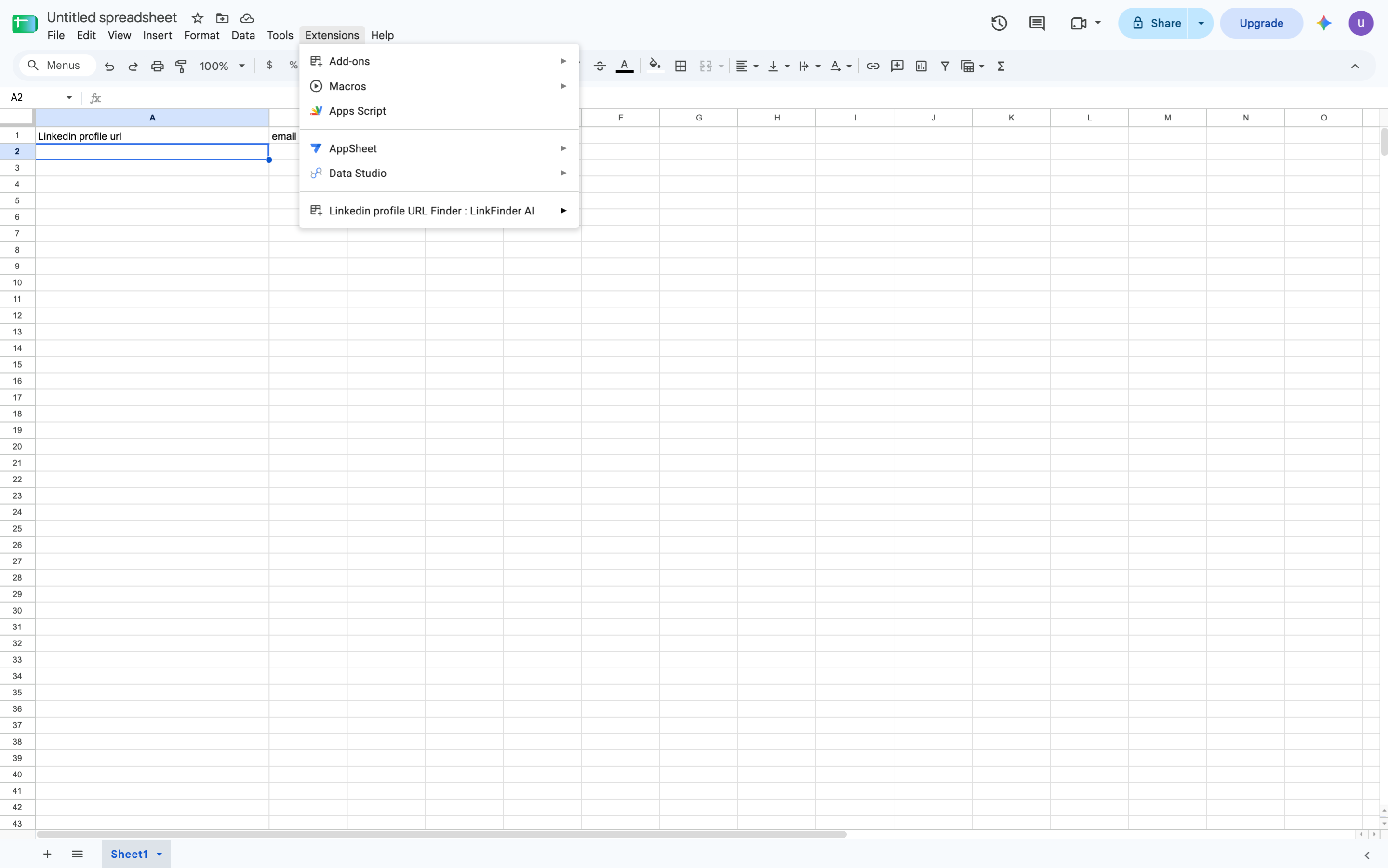
10. Click "Extensions"
Click on the "Extensions" field
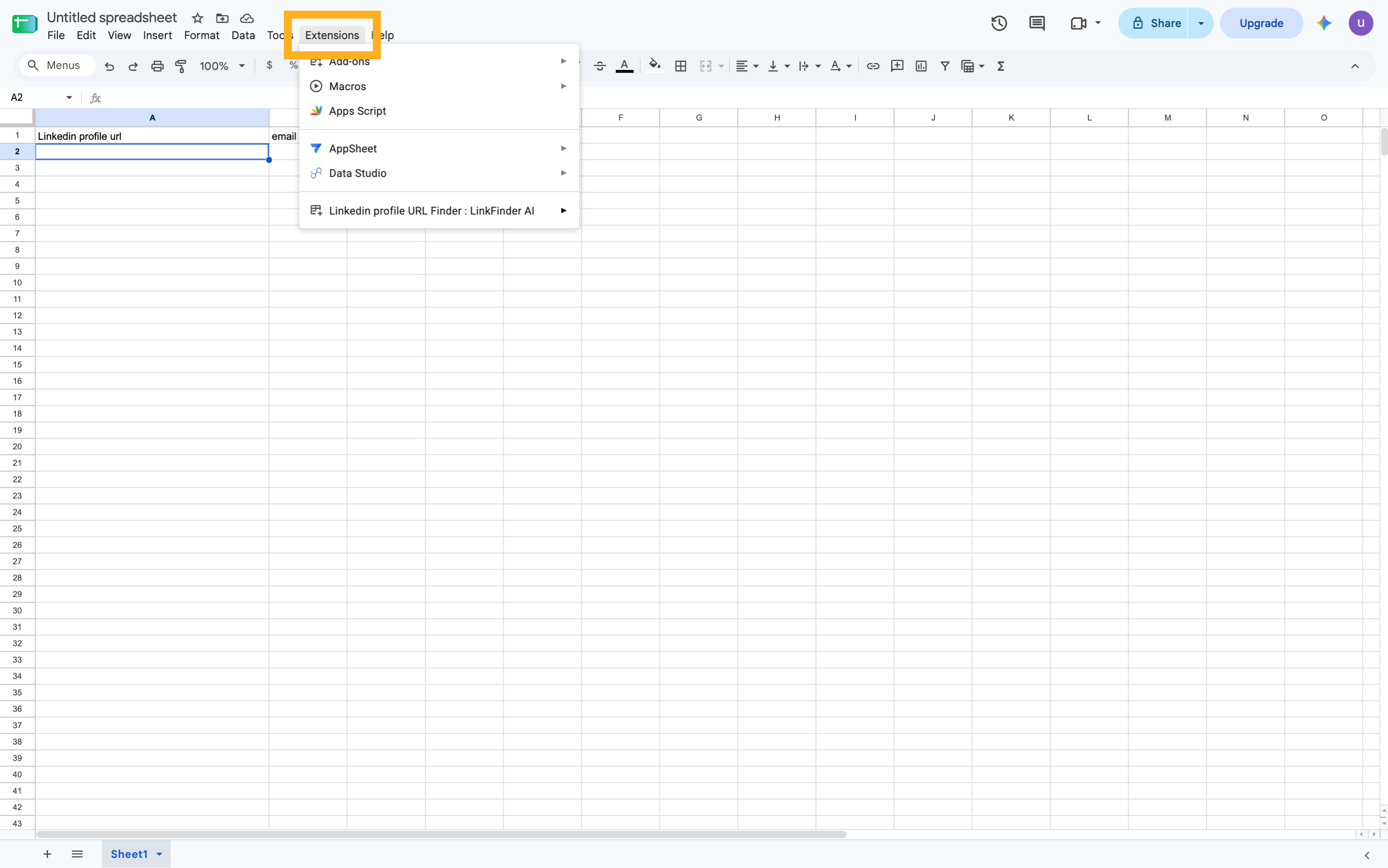
11. Click "Enrich a column"
Select the option to "Enrich a column"
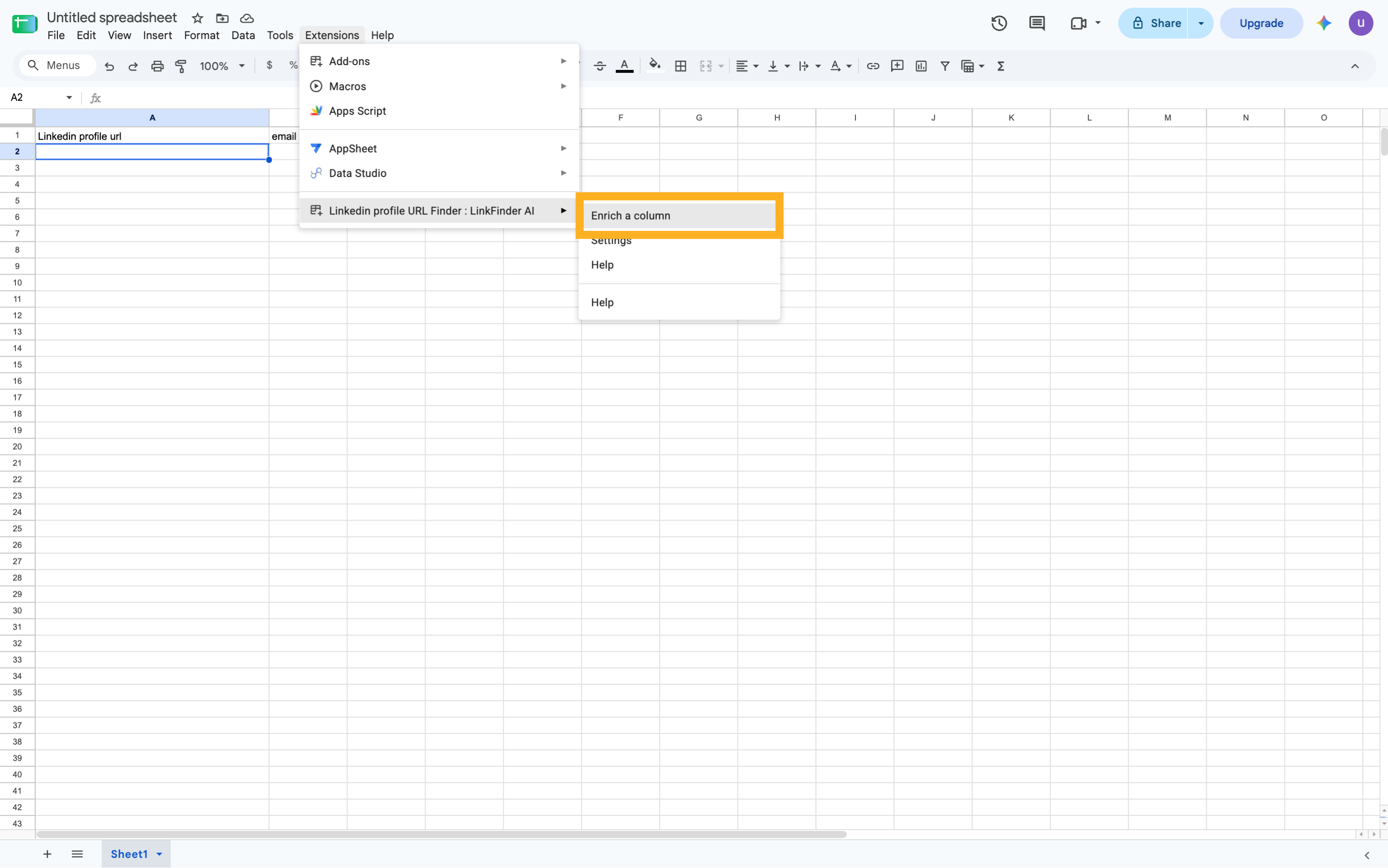
12. Switch to "linkfinderai.com"
Open "linkfinderai.com"
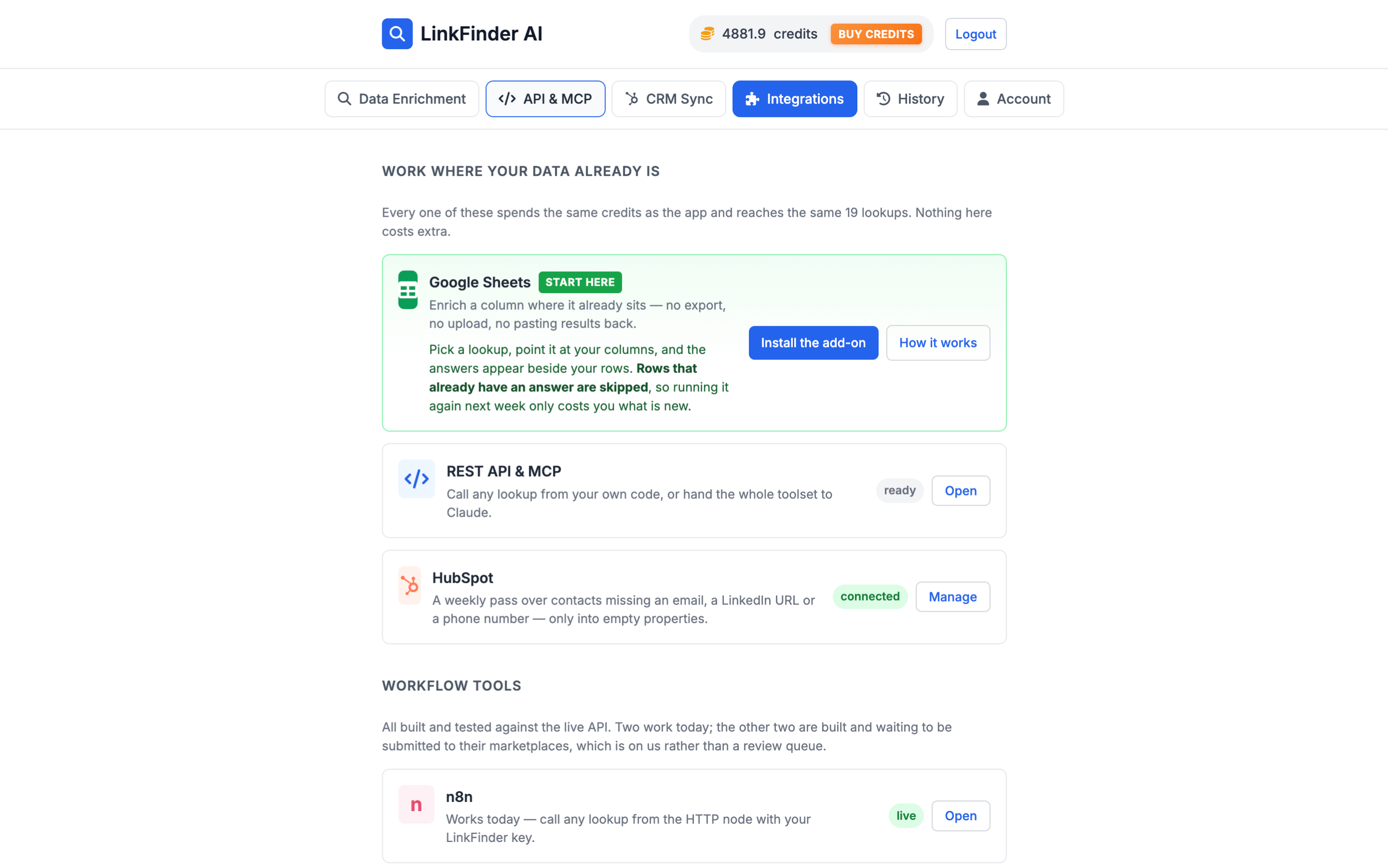
13. Click "API & MCP"
Navigate to the "API & MCP" section
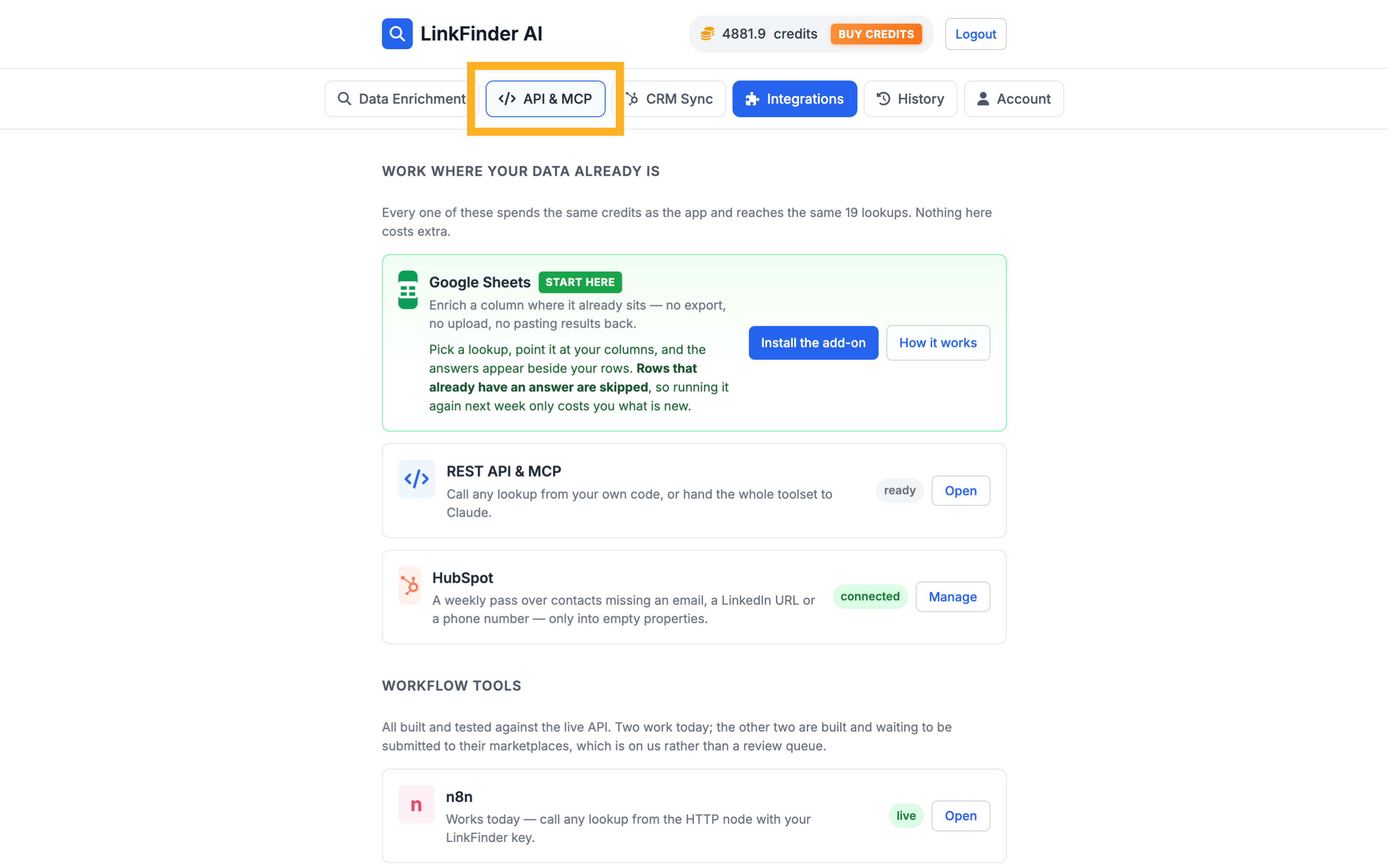
14. Click here
Click the selected button
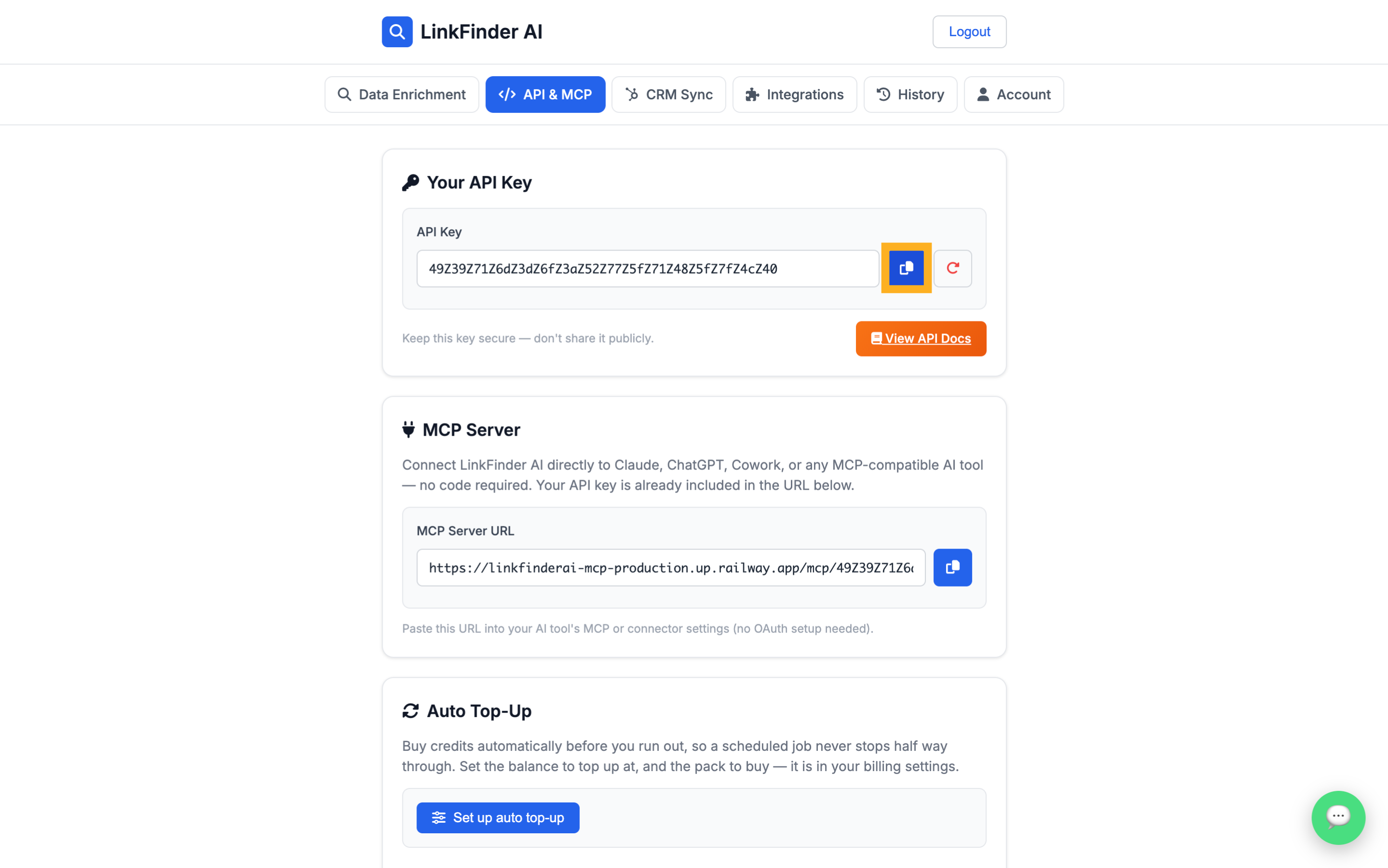
15. Switch to "docs.google.com"
Navigate to the "docs.google.com" app
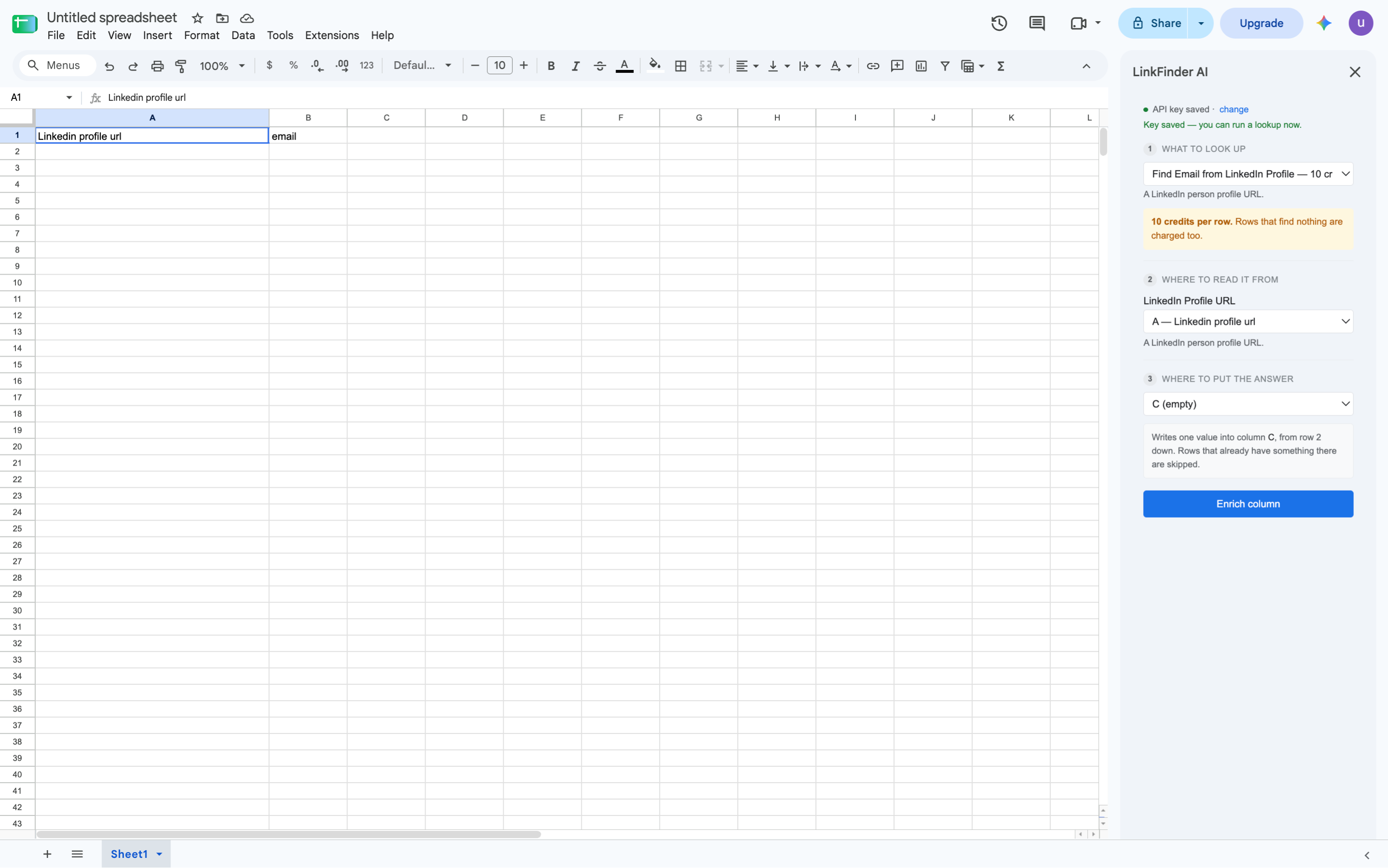
16. Click here
Click the selected option
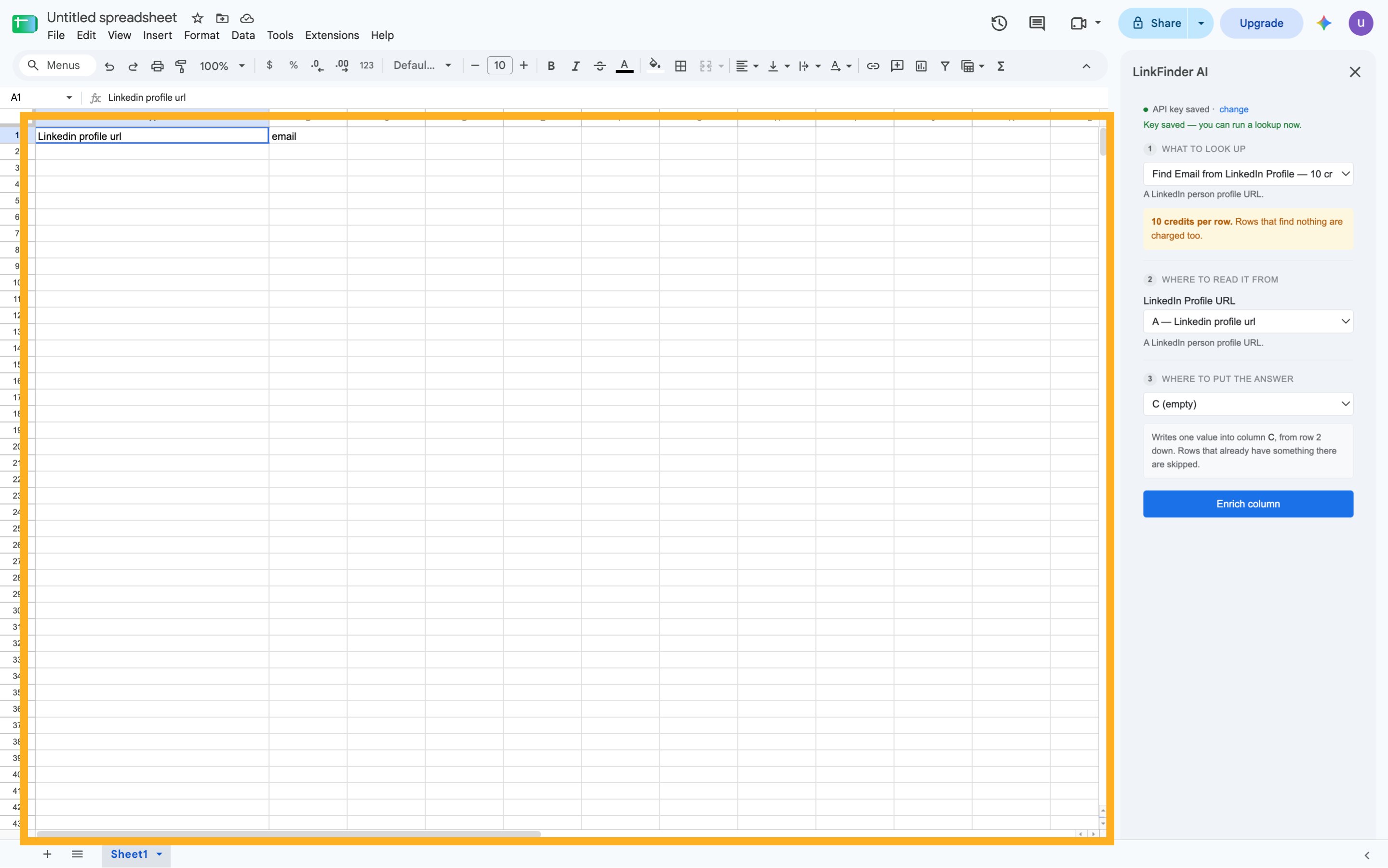
17. Click here
Select this field
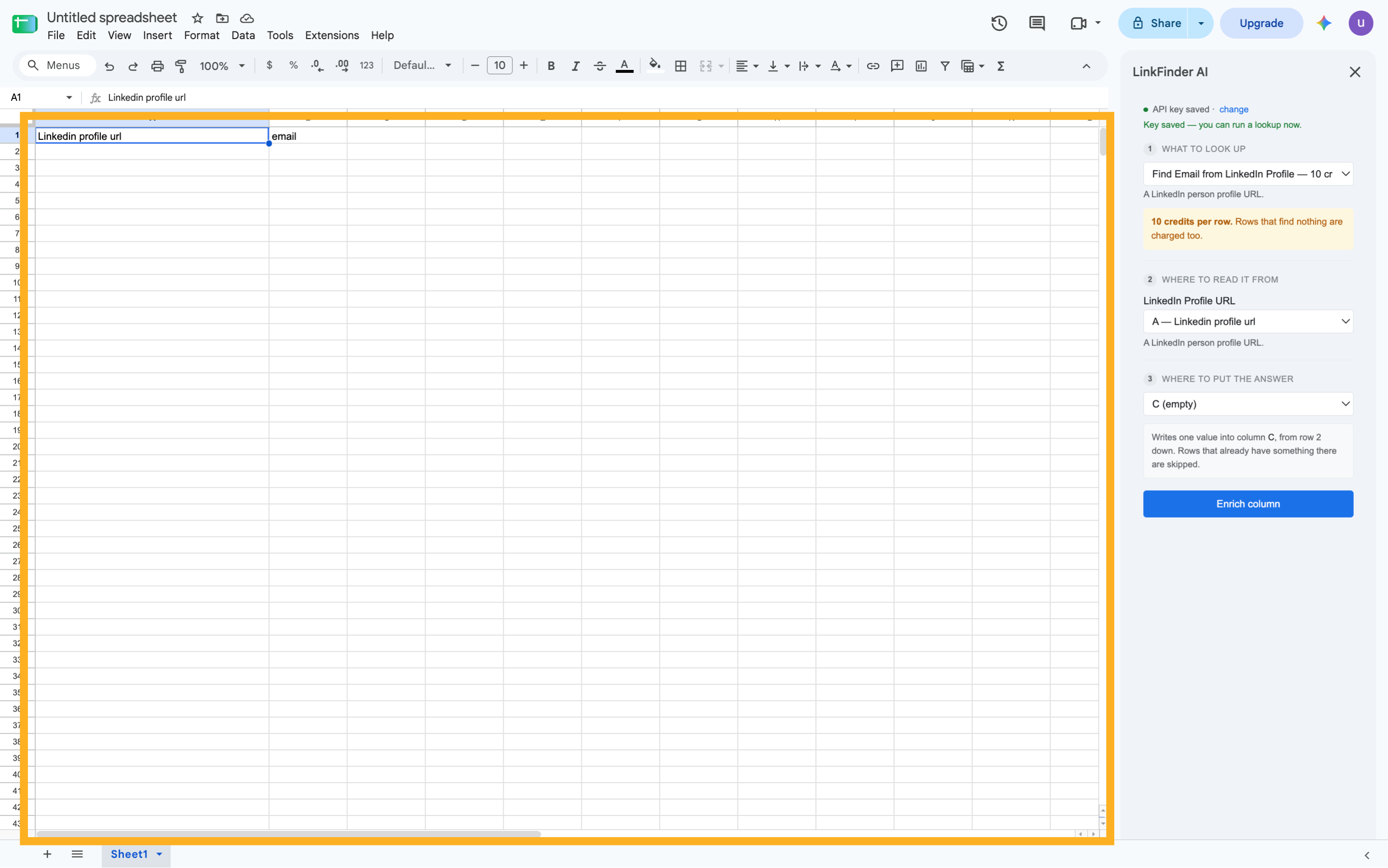
18. Click "Linkedin profile url"
Click the selected location
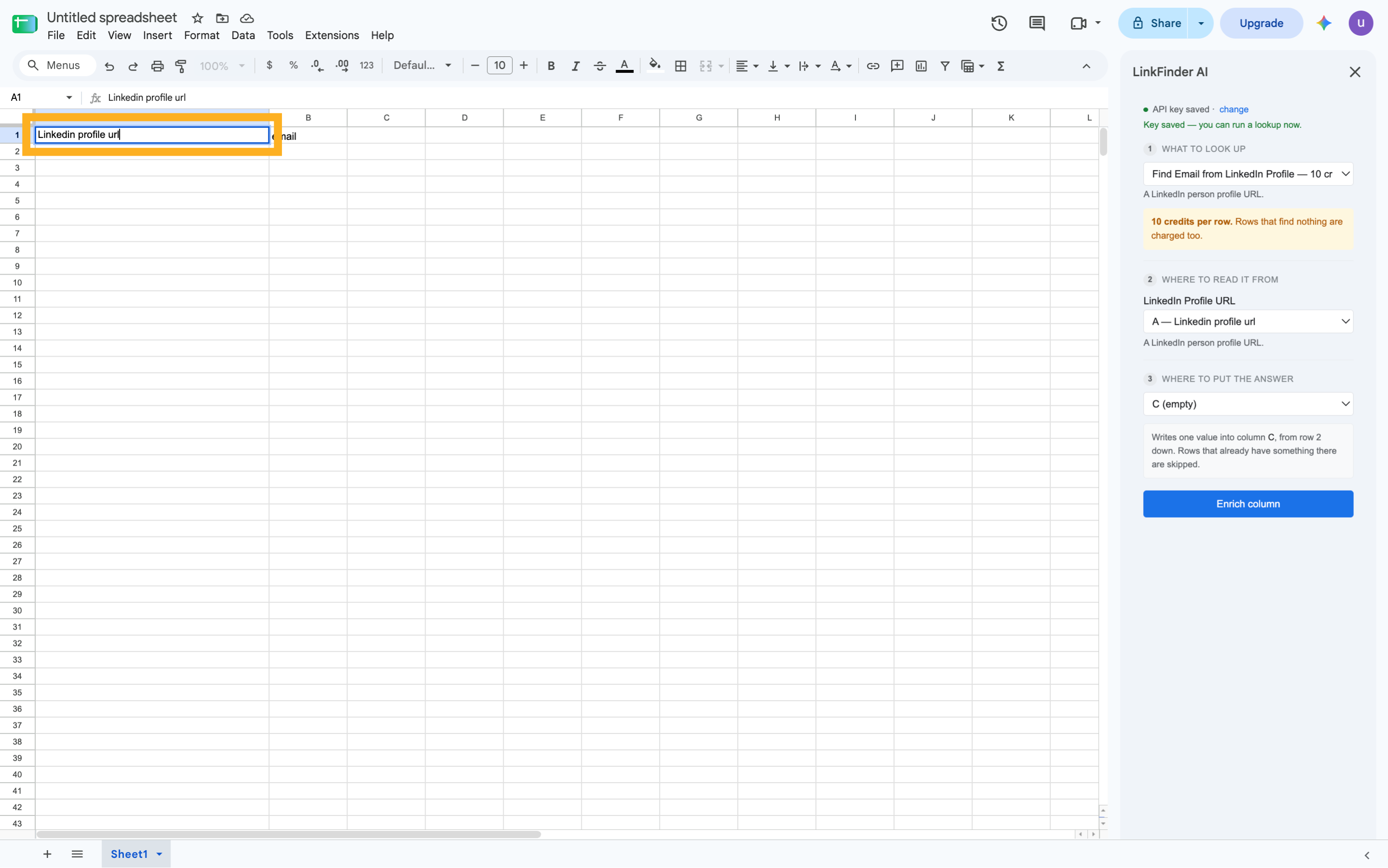
19. Click here
Navigate to this section
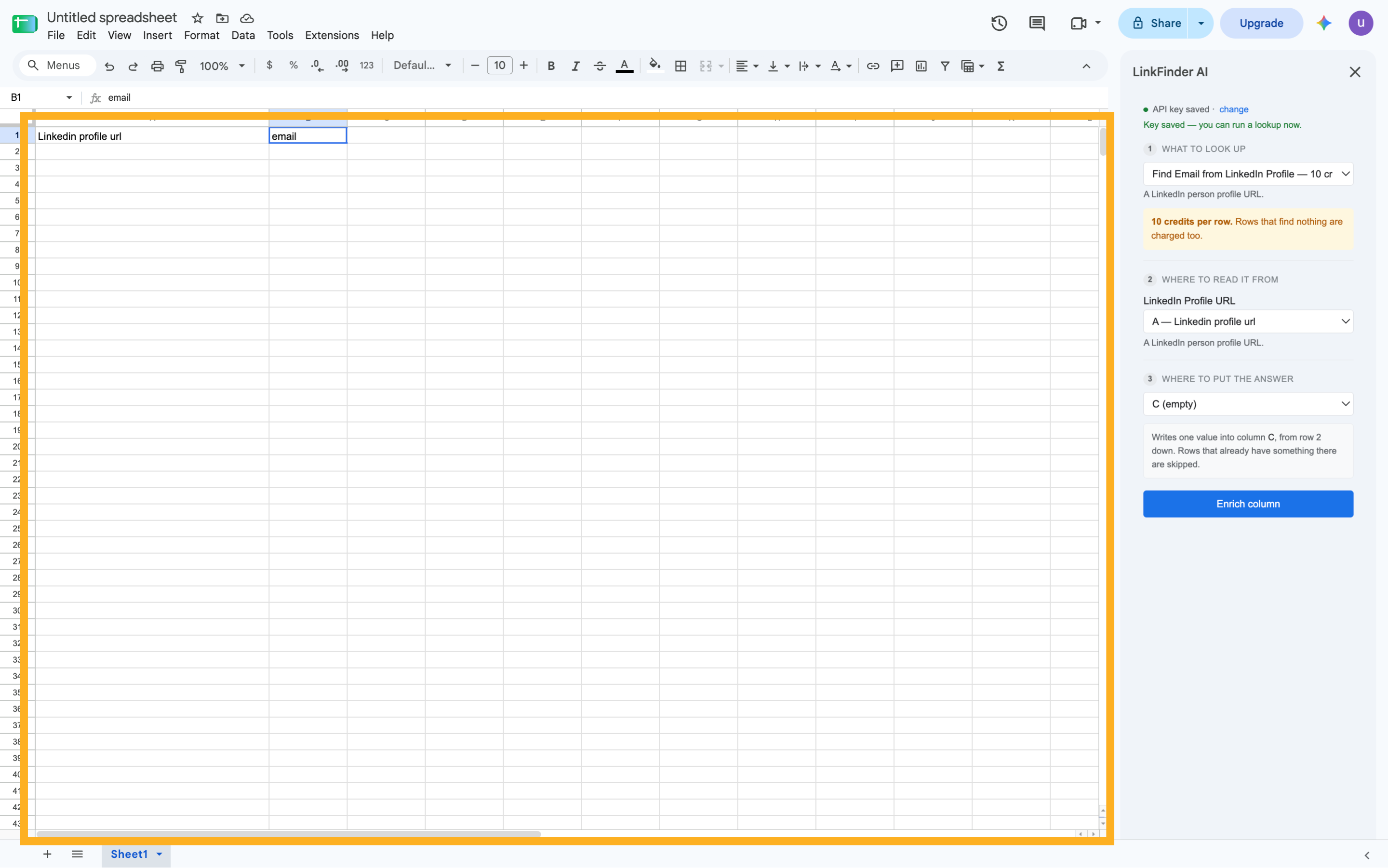
20. Click here
Select this option
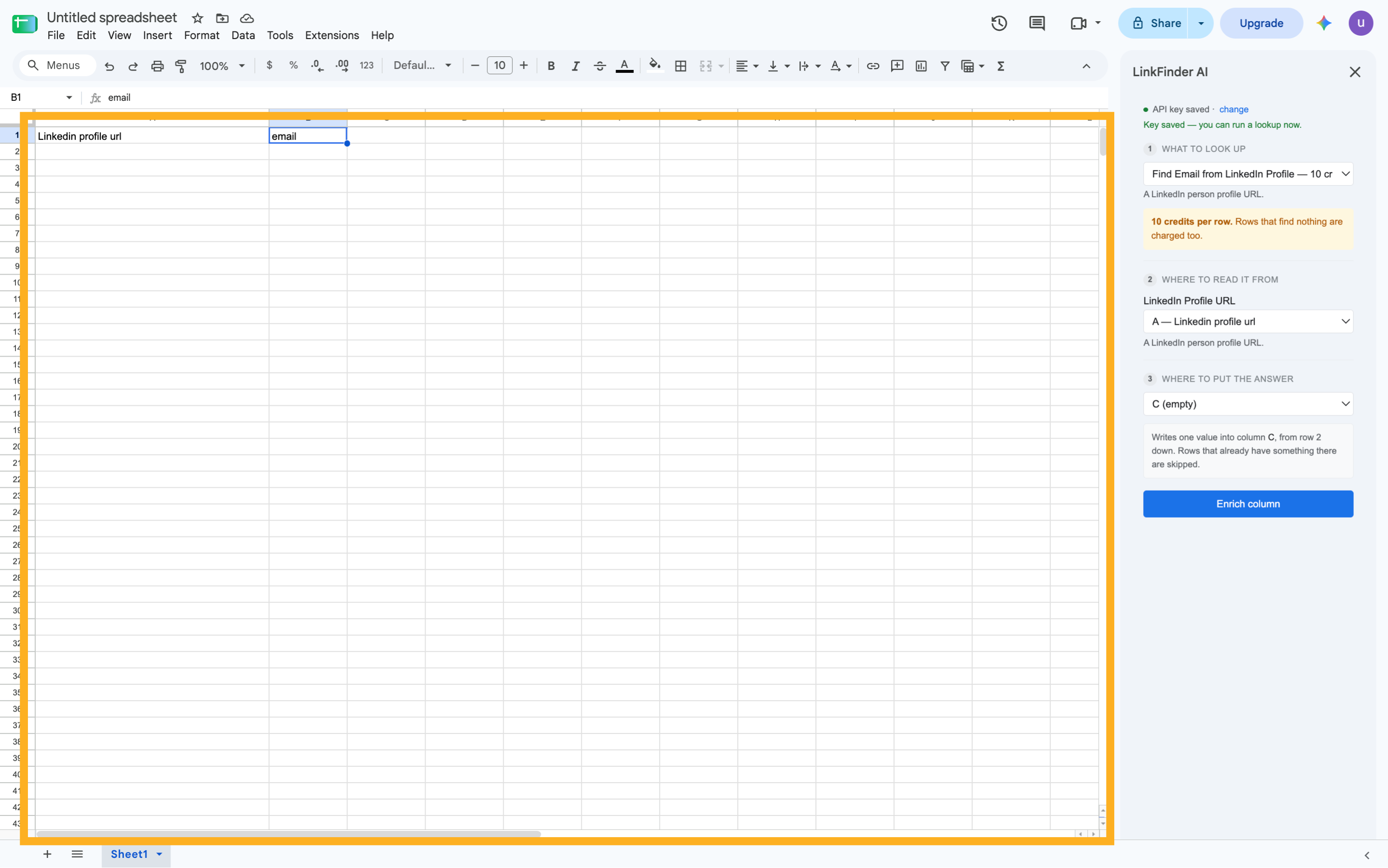
21. Click here
Navigate here
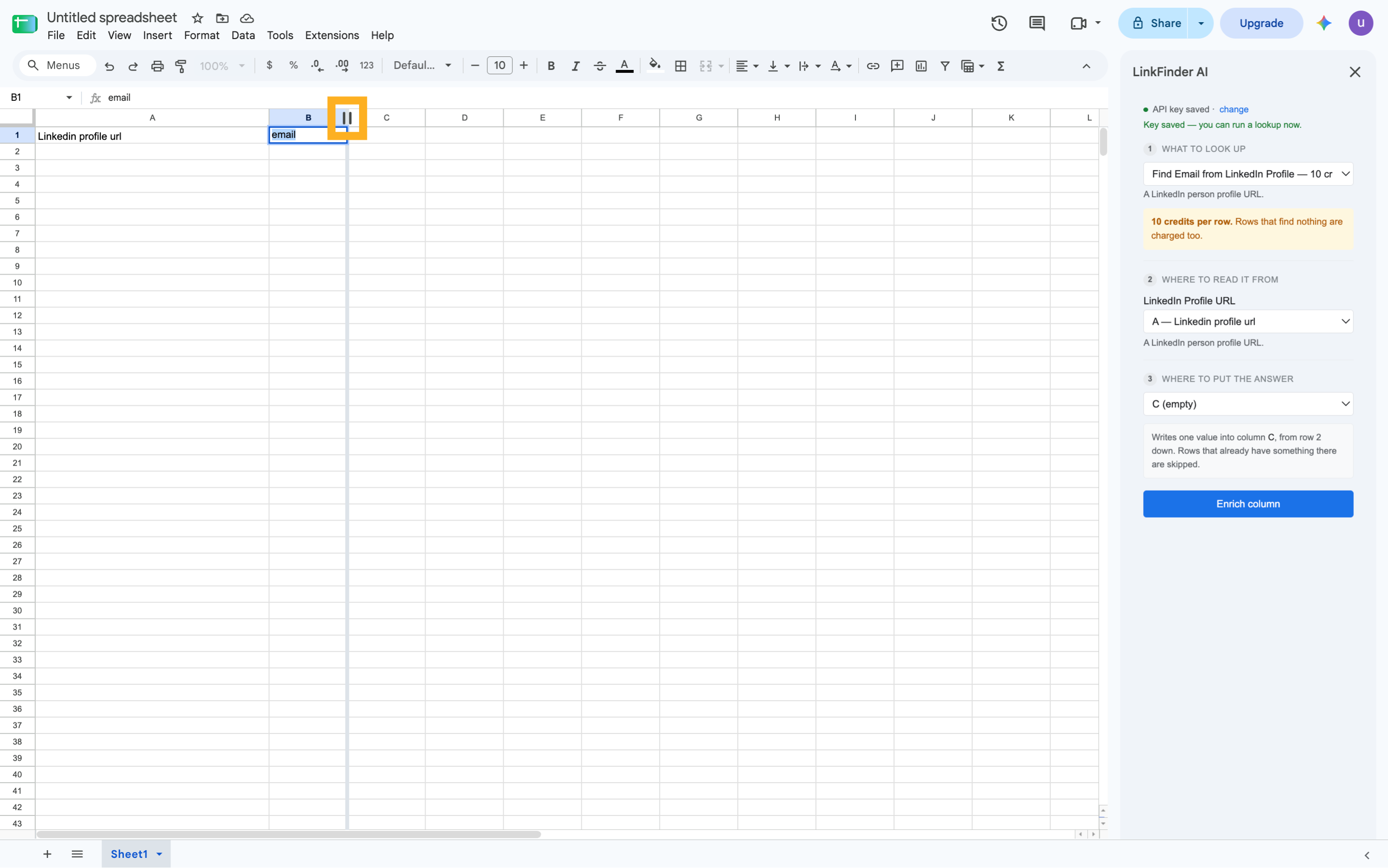
22. Click here
Click here
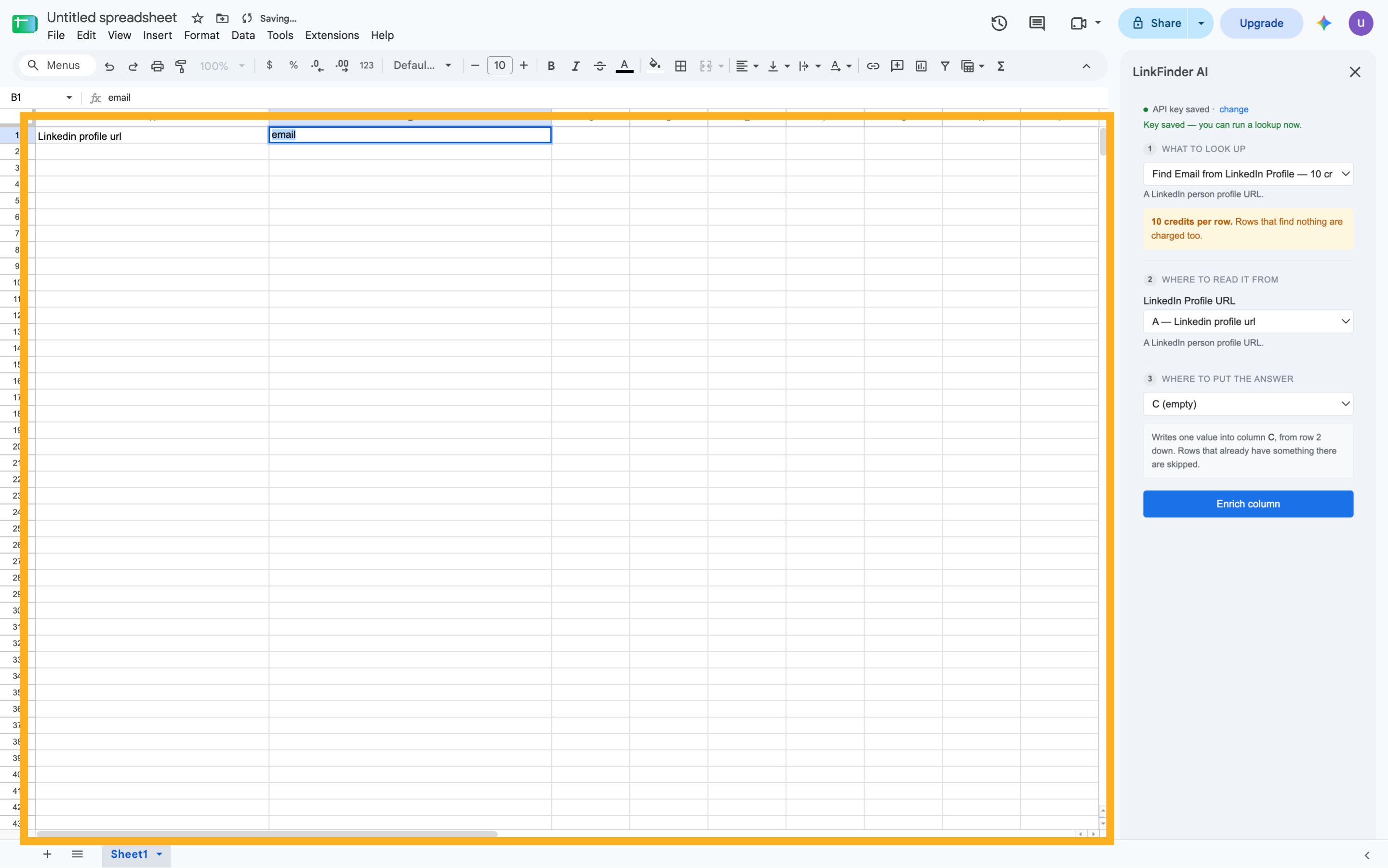
23. Click here
Click the selected button
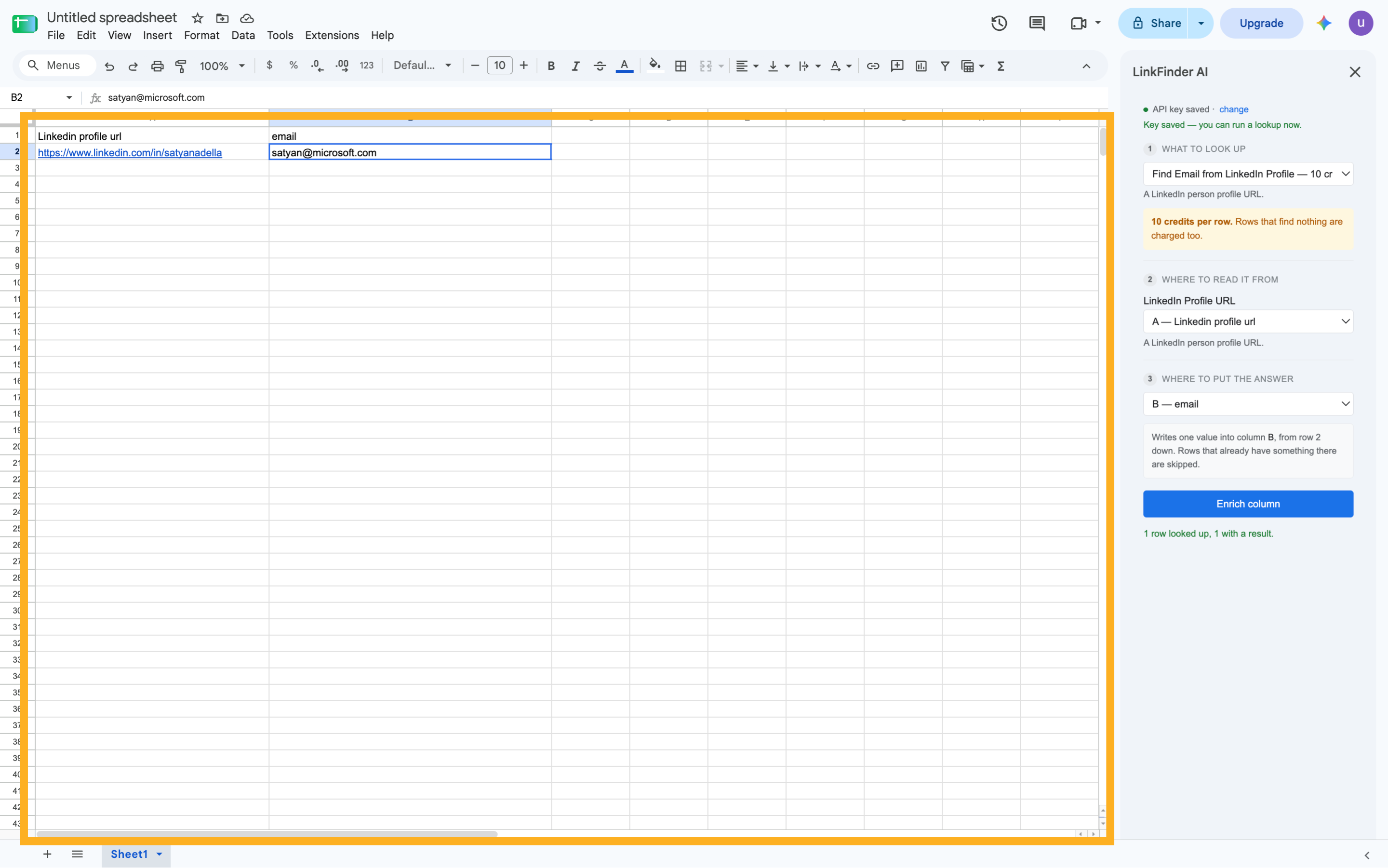
24. Click here
Click the selected option
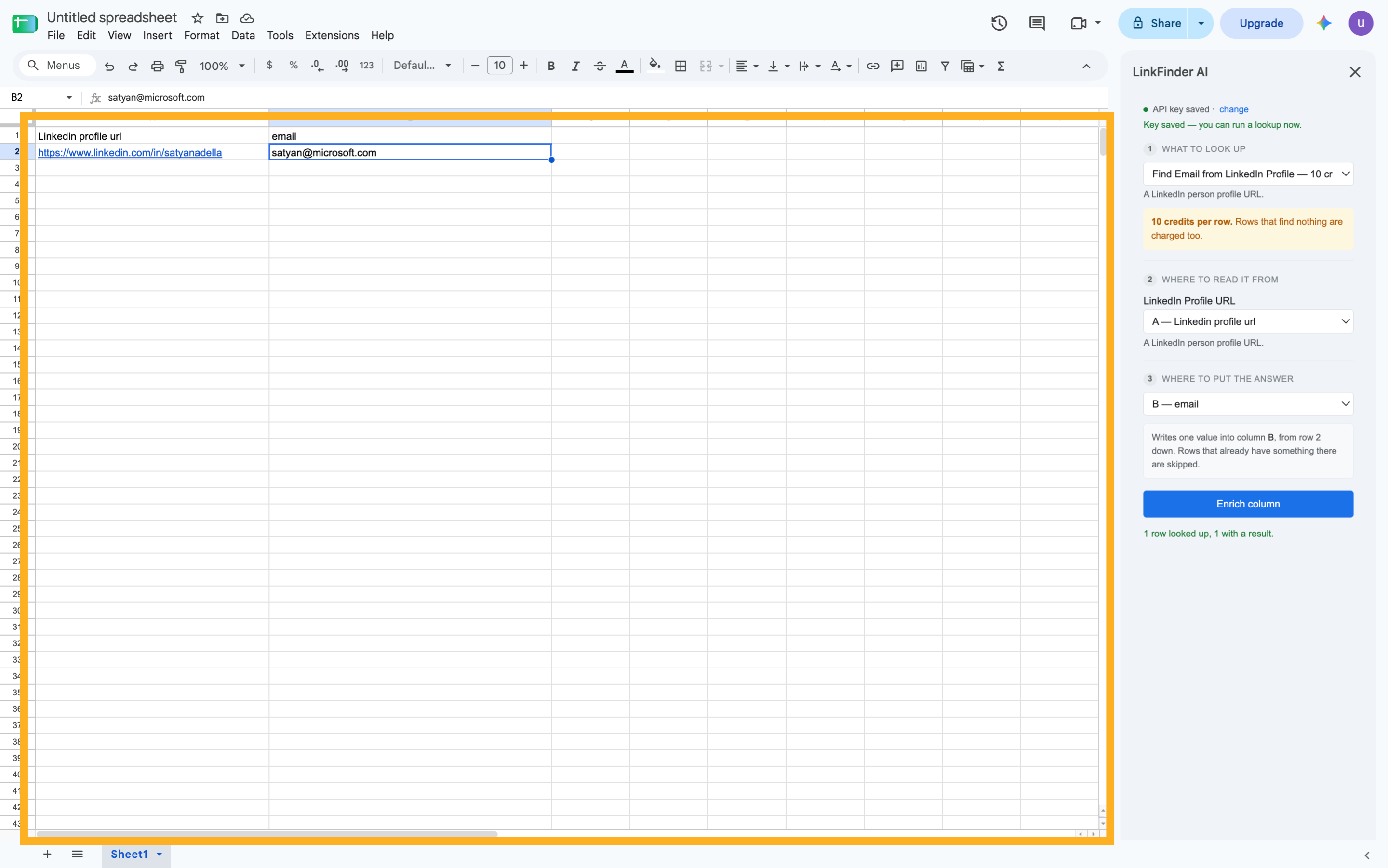
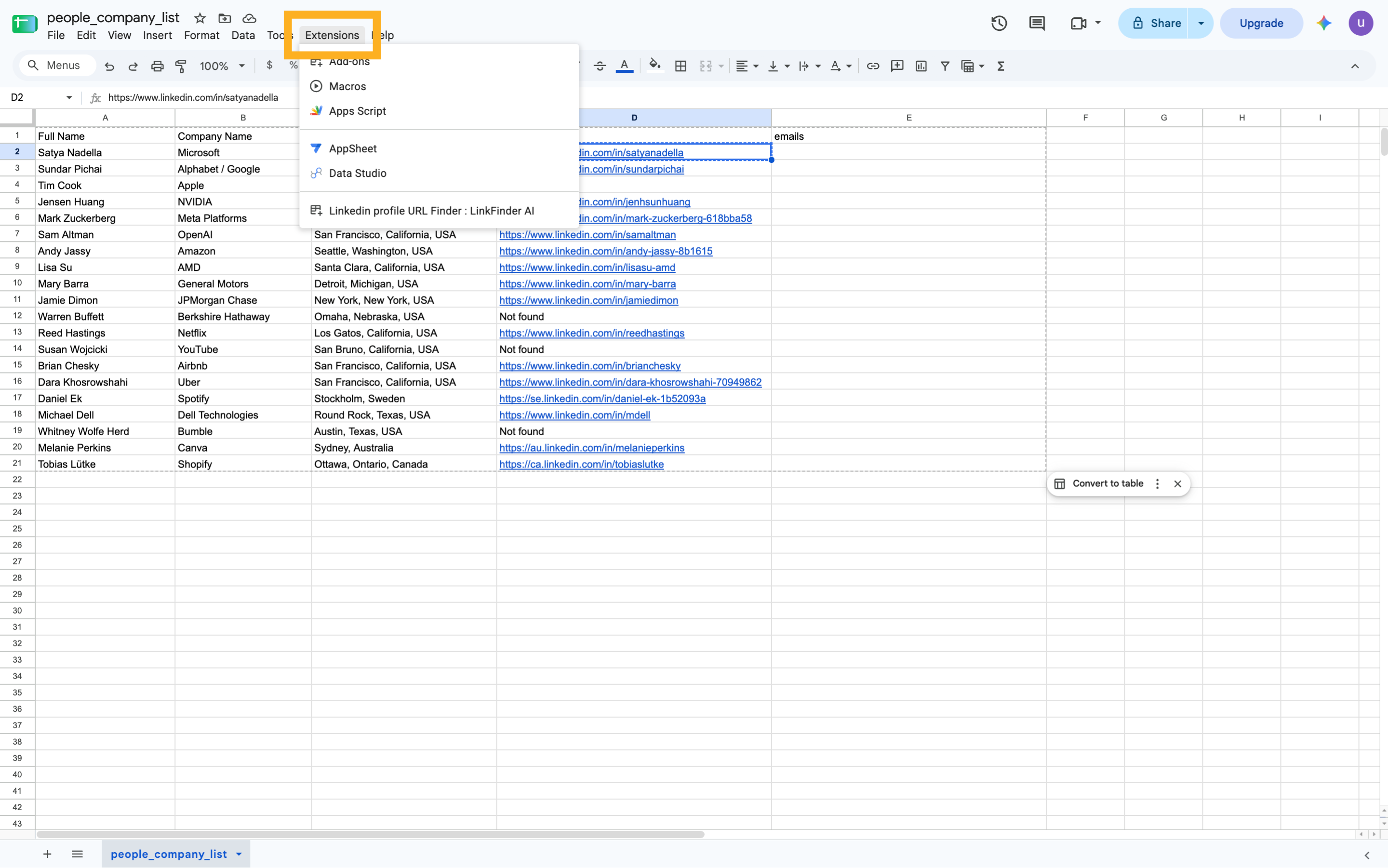
25. Click "Extensions"
Click on "Extensions"
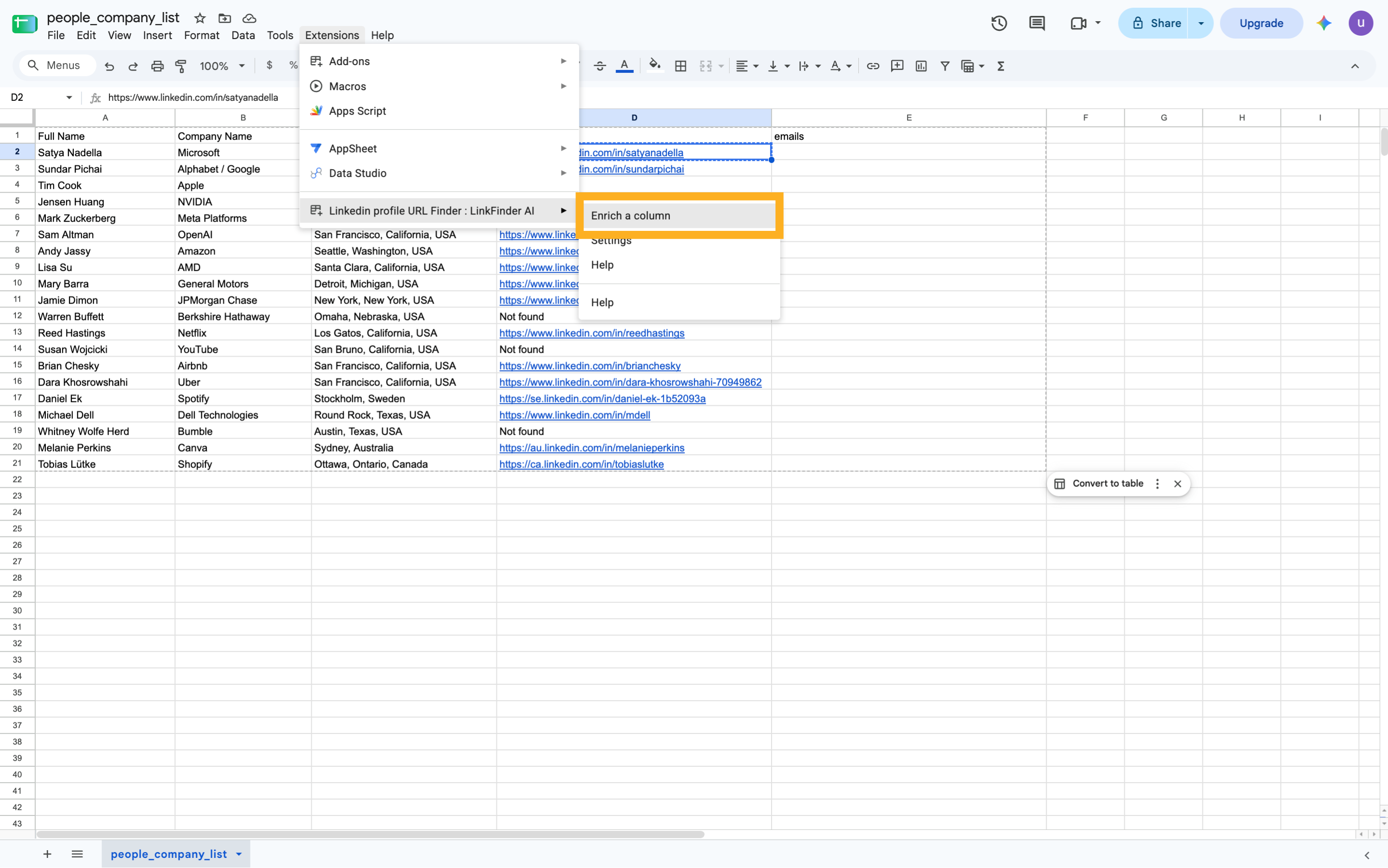
26. Click "Enrich a column"
Navigate to "Enrich a column"
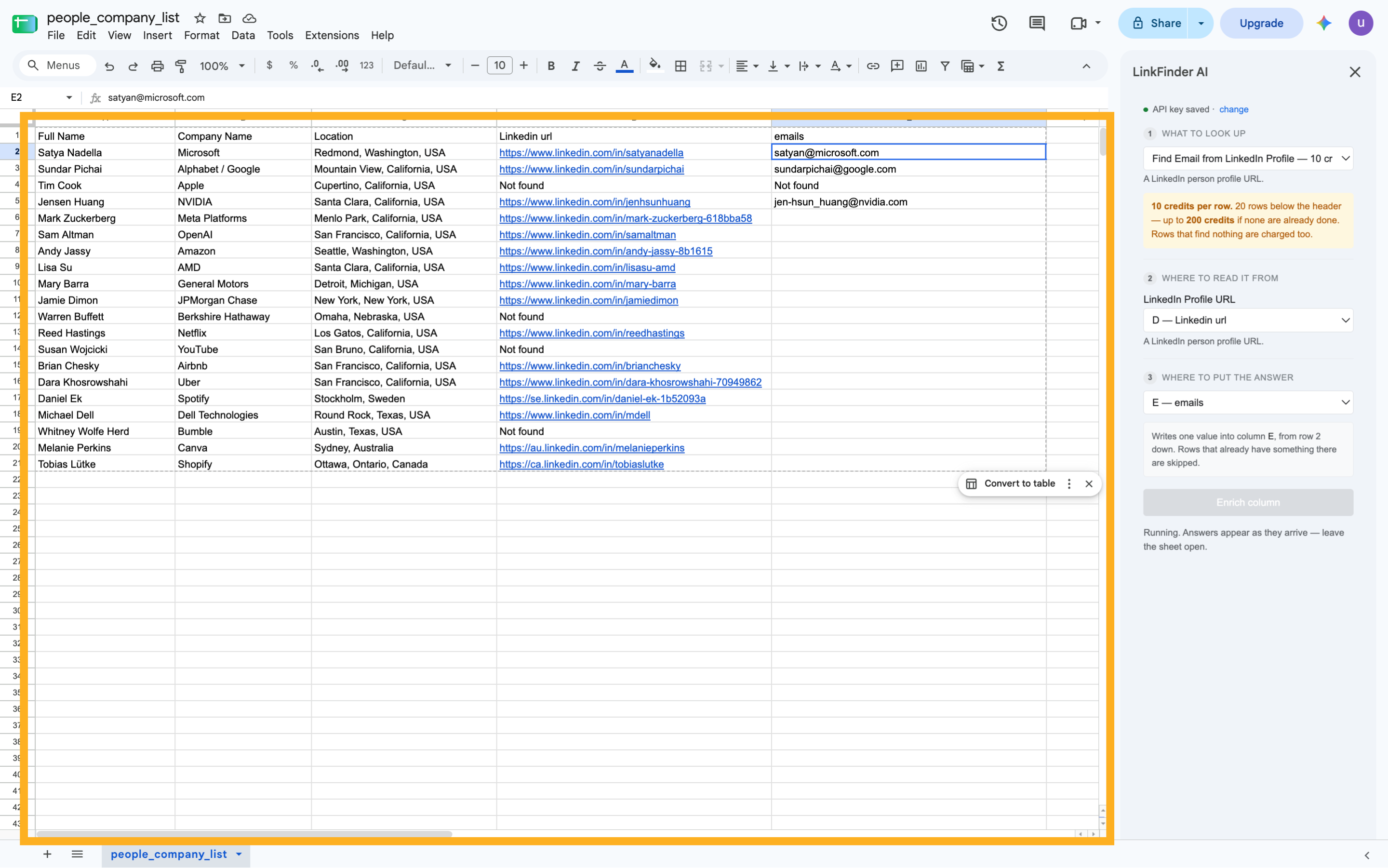
27. Click here
Select this field
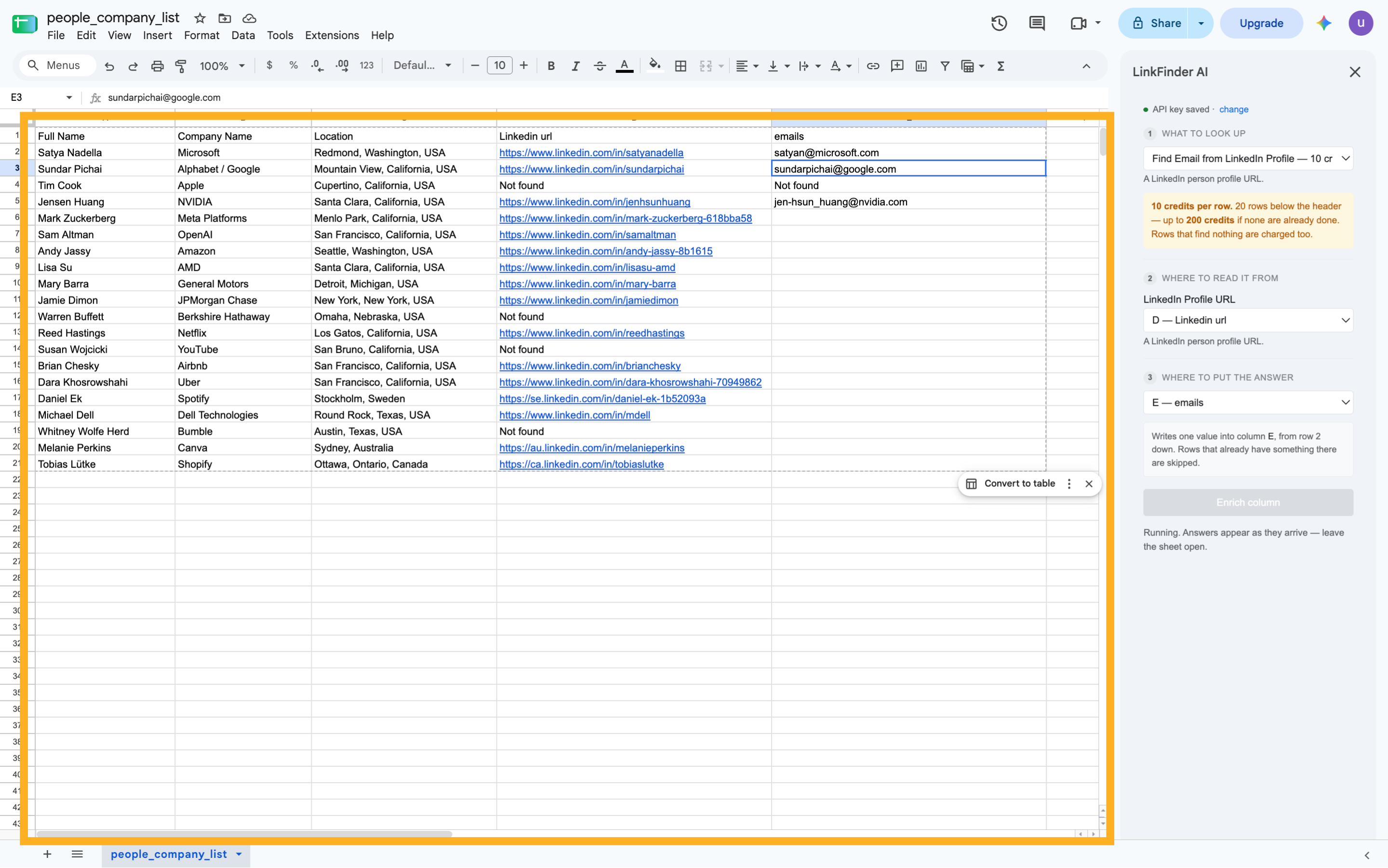
28. Click here
Navigate to this section
29. Click here
Select this option
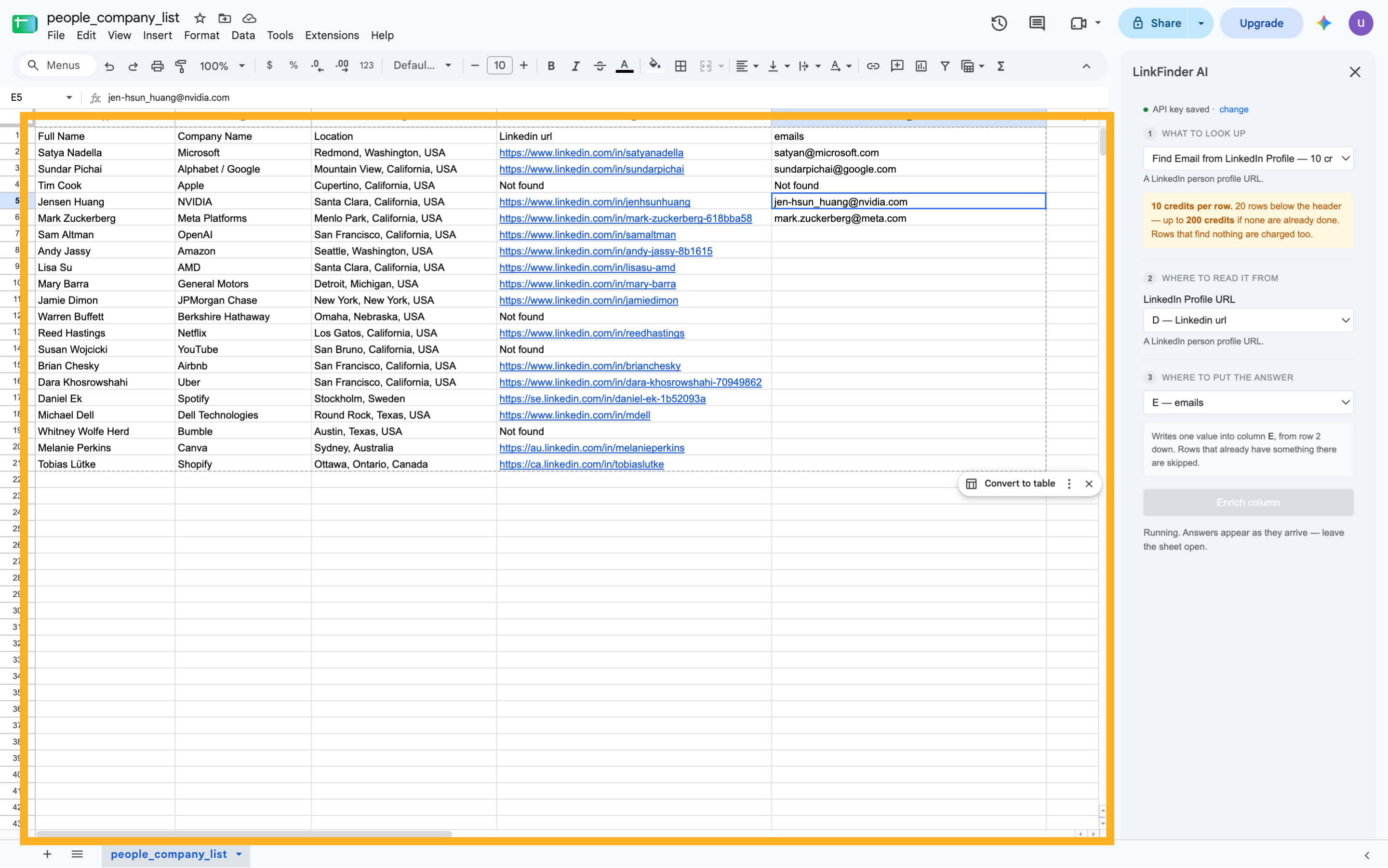
30. Click here
Navigate here
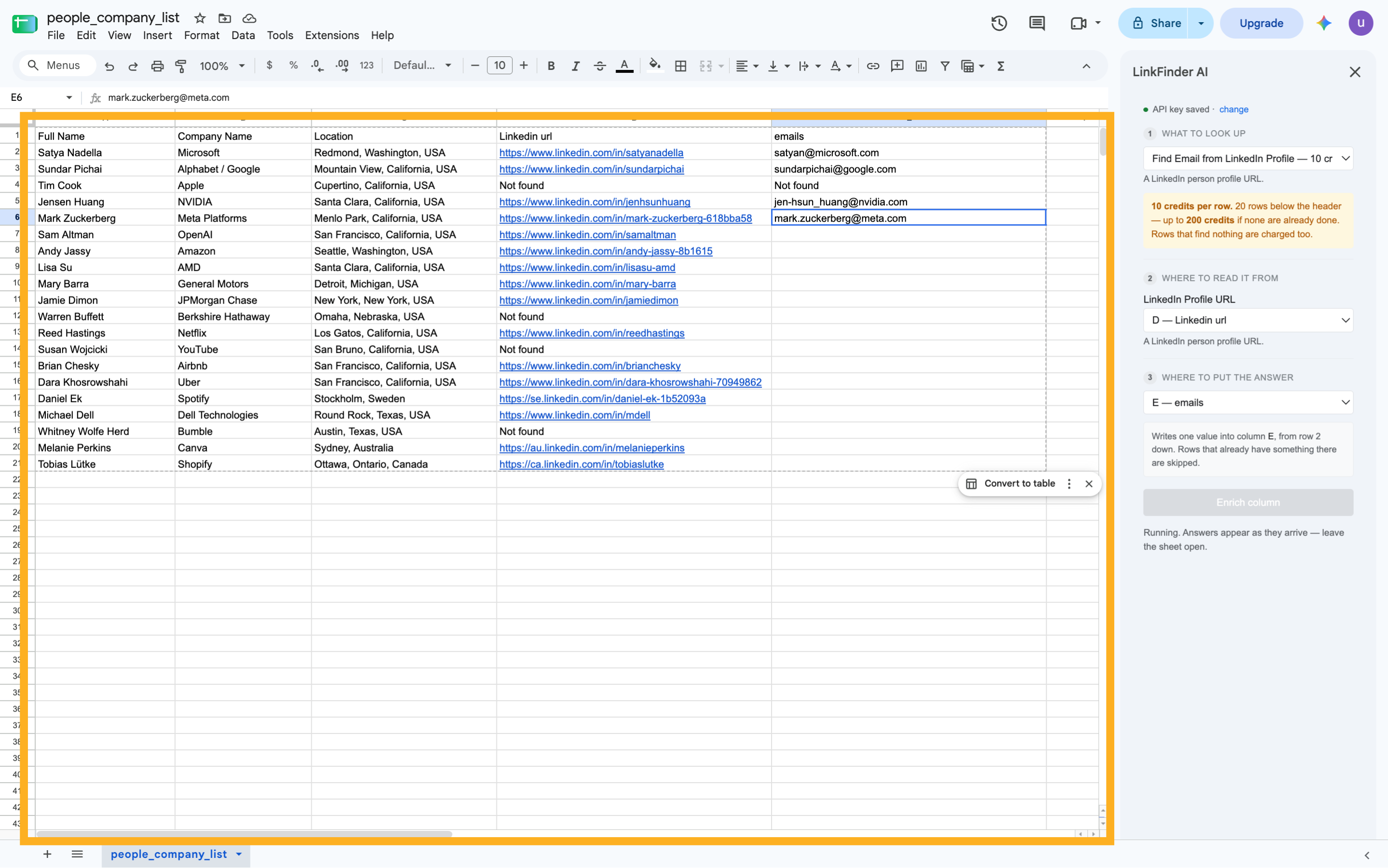
31. Click here
Click here
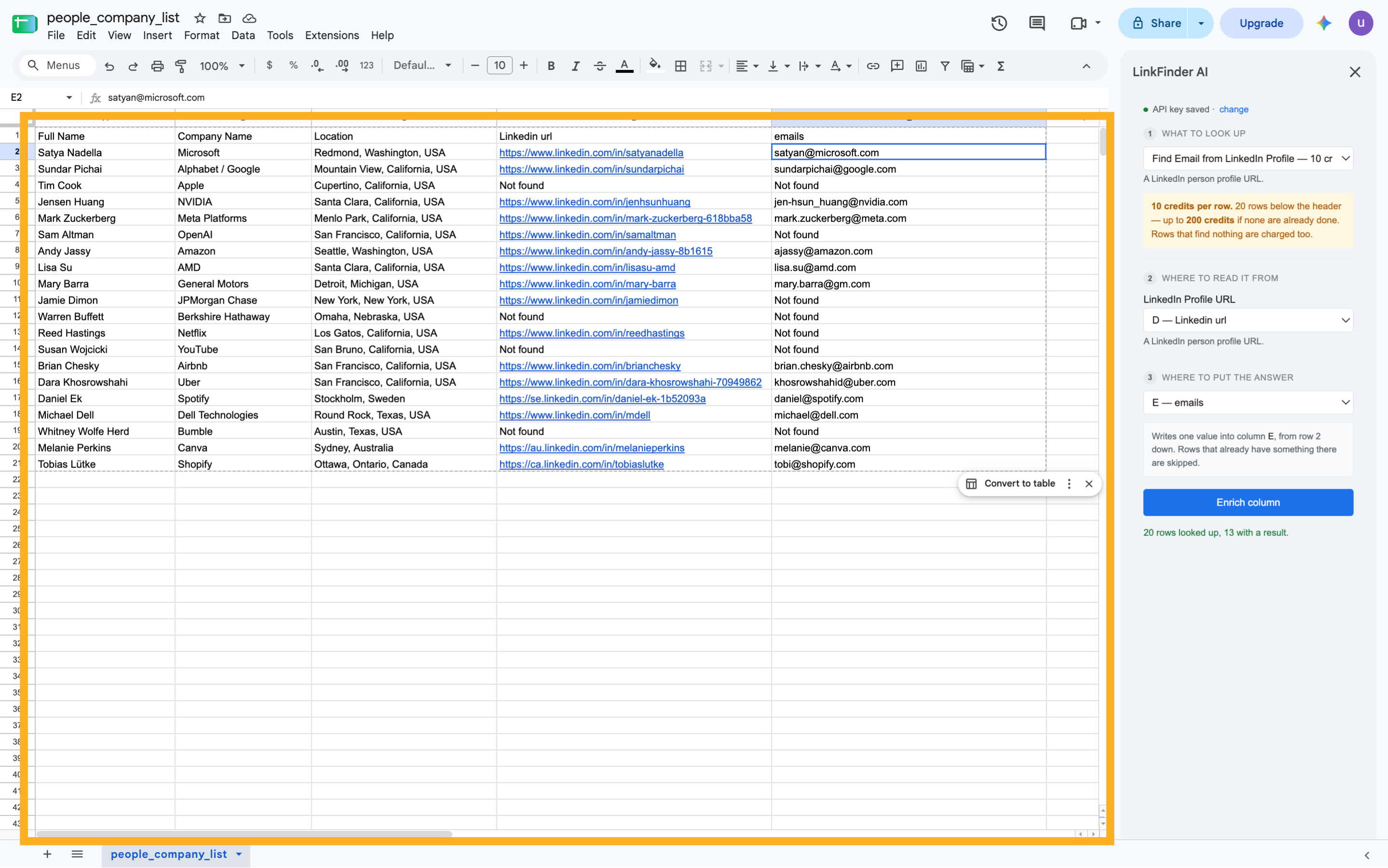
This guide covered the steps required to in Linkfinderai, Google and Google Docs.
Get started