Discover LinkedIn URLs Using LinkFinder AI Integration
You can find anyone's LinkedIn URL from names in Google Sheets. This demo shows how LinkFinder AI integrates seamlessly to enrich your data with LinkedIn profiles.
Go to linkfinderai.com
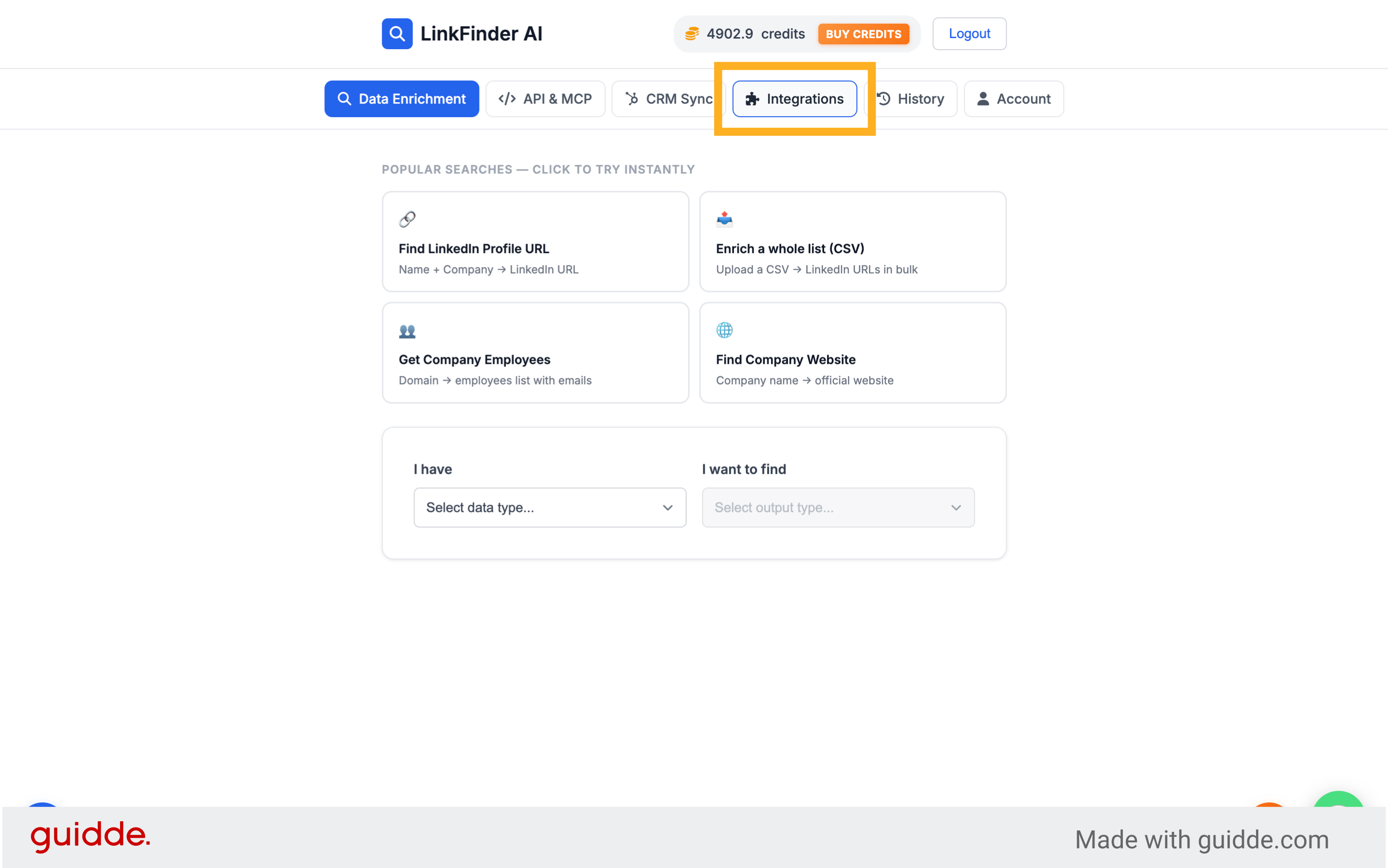
1. Access Integrations Section
In LinkFinder AI, go to the integration section to start connecting your tools.
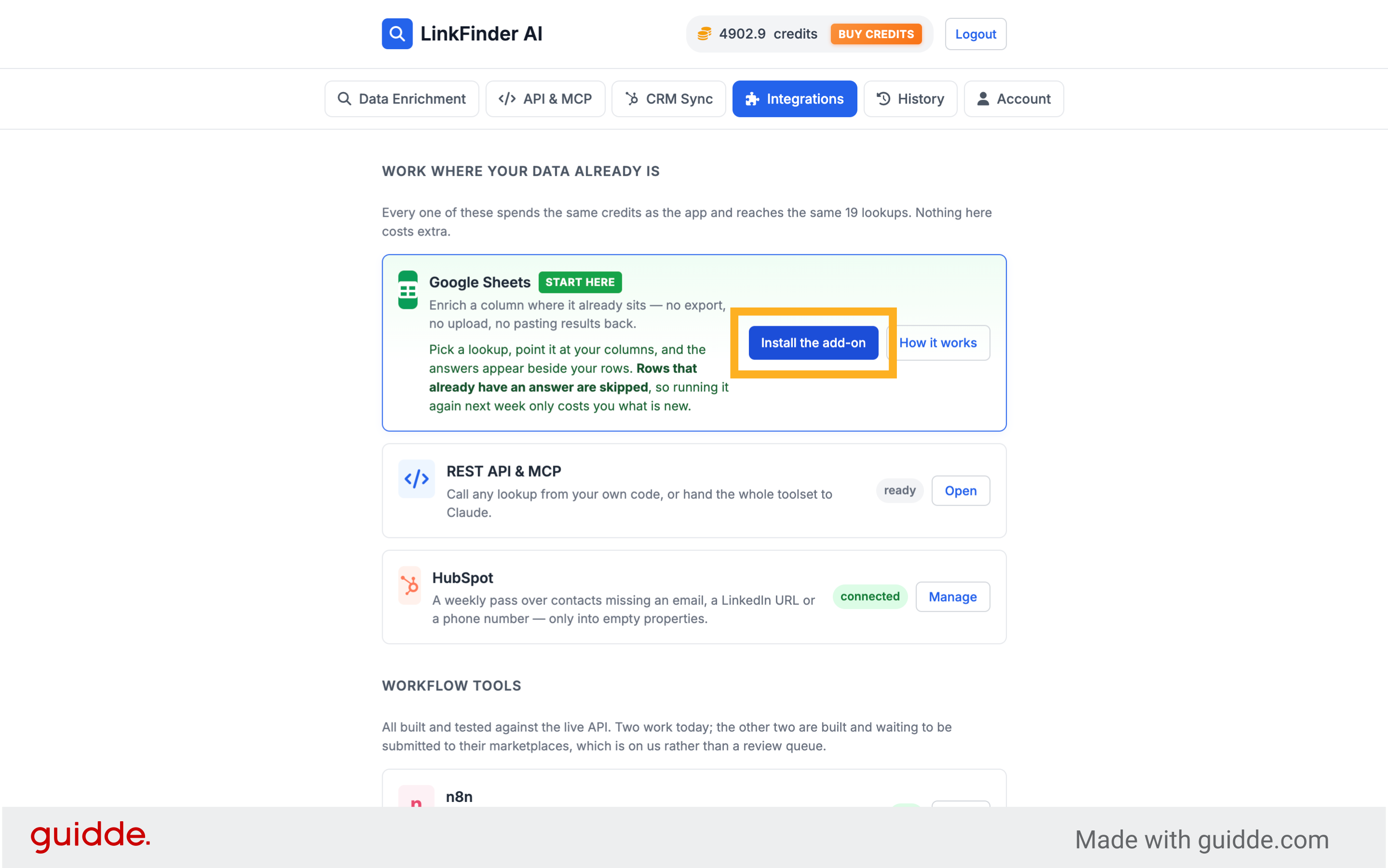
2. Install Google Sheets Add-On
Click "Install the add-on" to add the Google Sheets integration for LinkFinder AI.
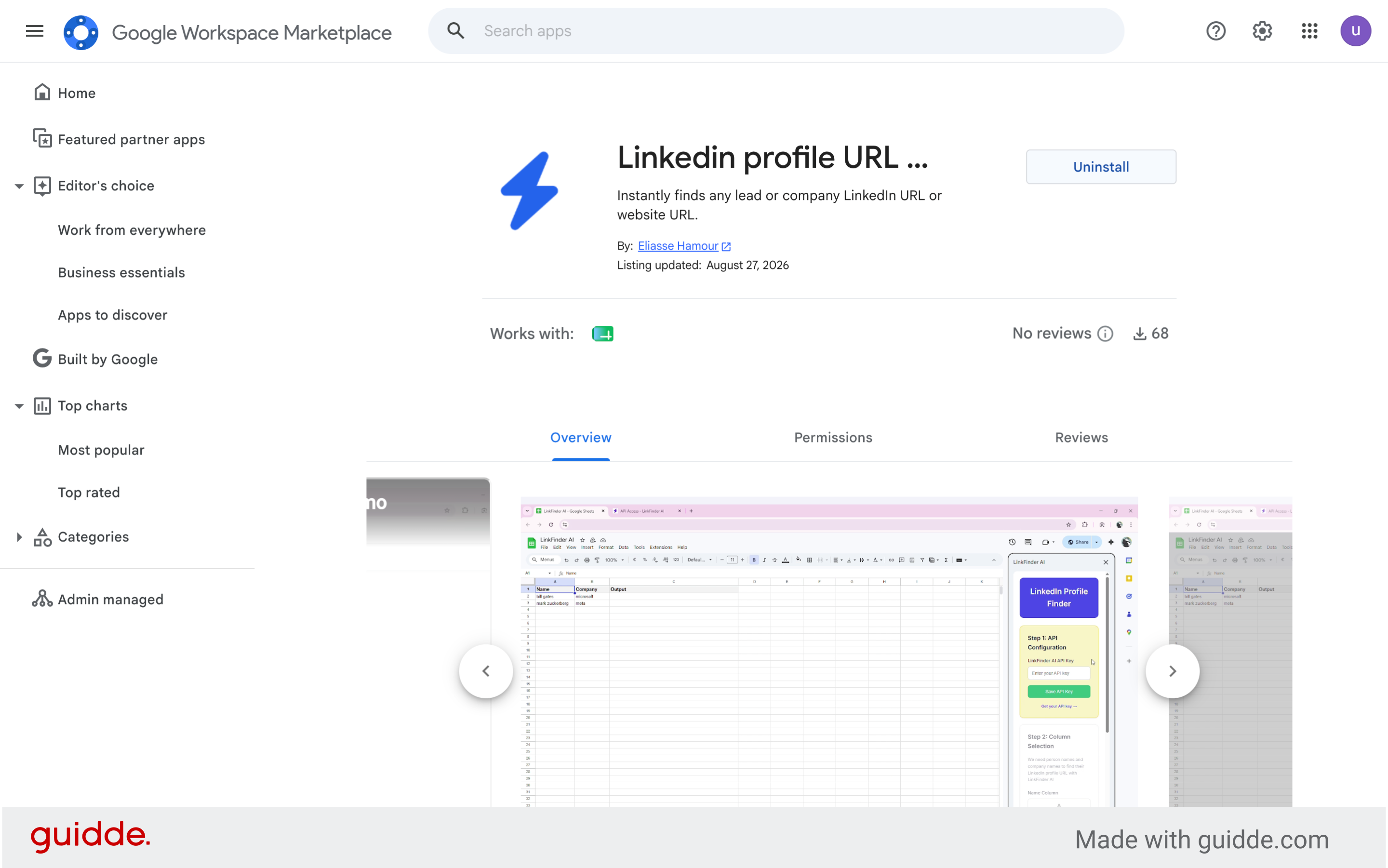
3. Open Google Workspace Marketplace
Switch to the Google Workspace Marketplace to find the LinkedIn profile URL Finder add-on.
4. Open Add-On Details
Click here to view the add-on details and installation options.
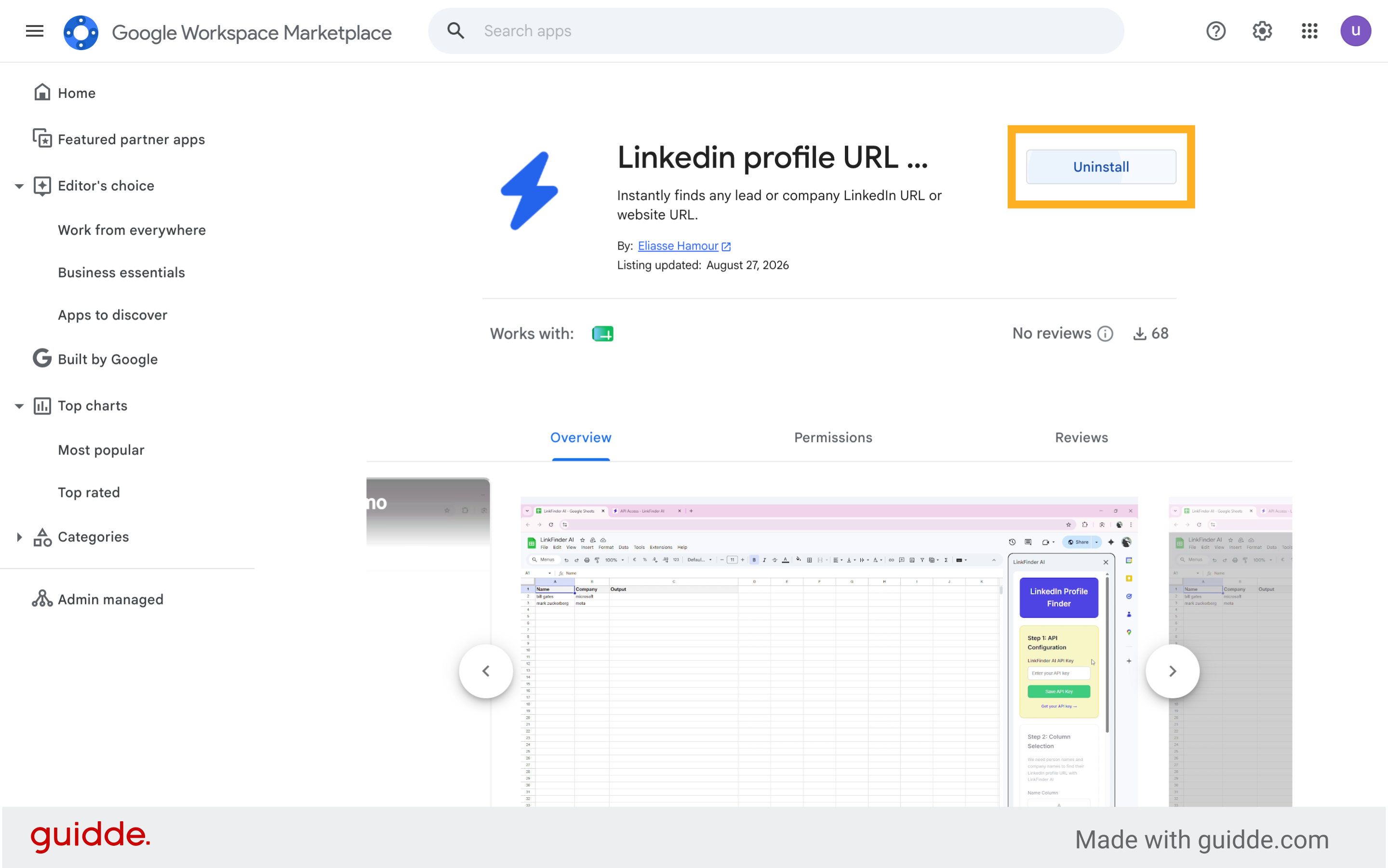
5. Proceed with Installation
Click here to continue with the installation process of the add-on.
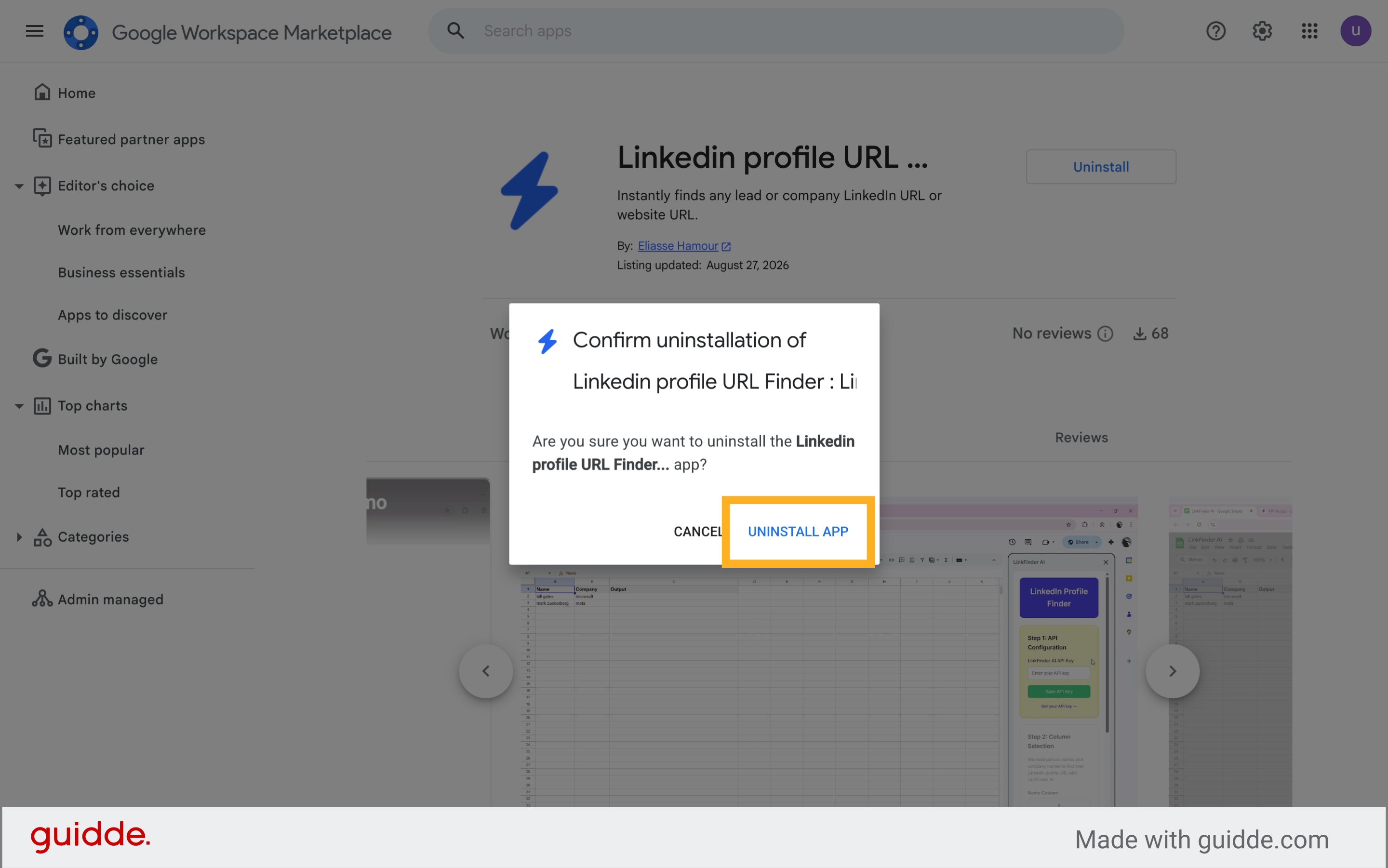
6. Confirm Add-On Installation
Click "Install" to add the LinkedIn profile URL Finder add-on to your Google Sheets.
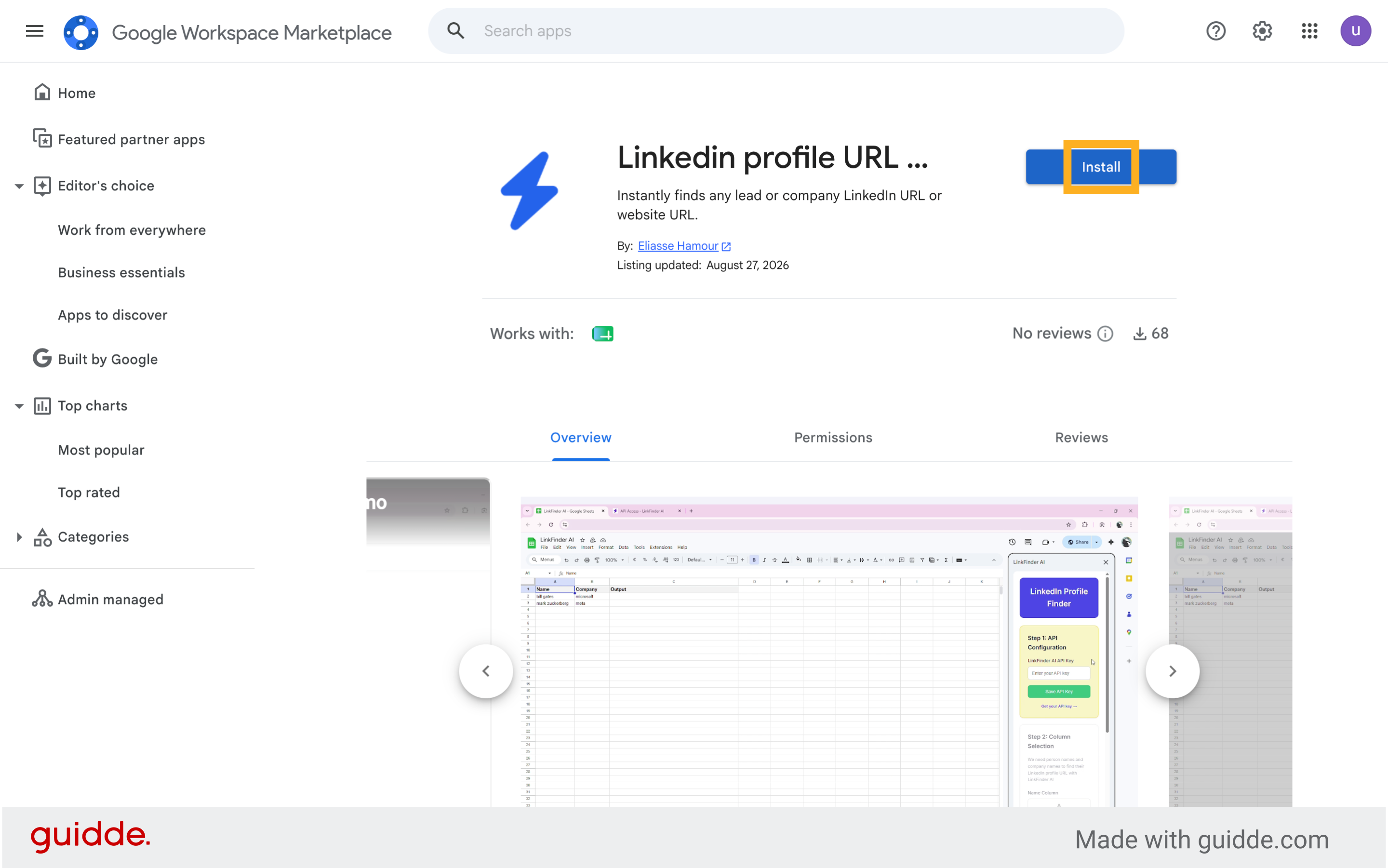
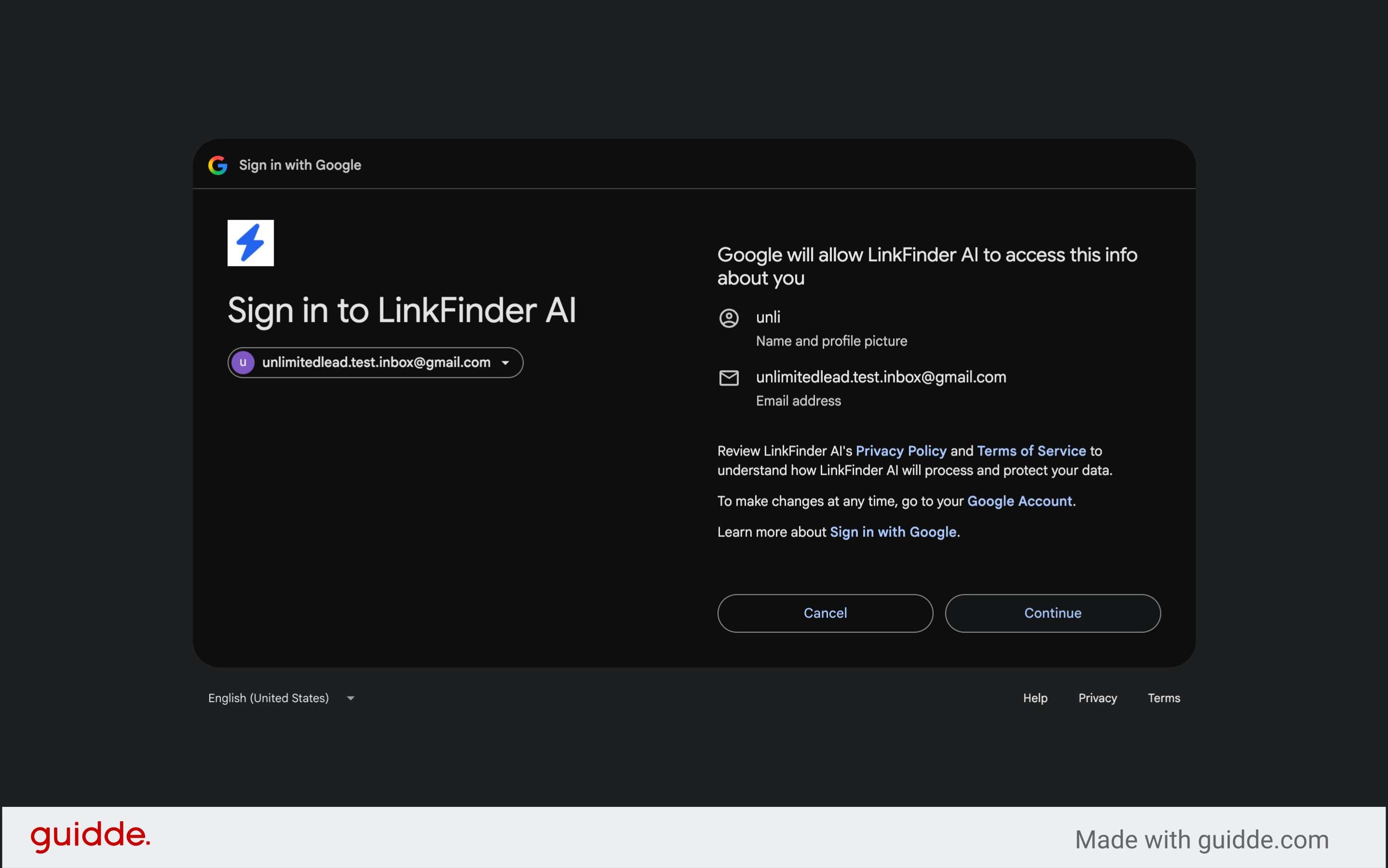
7. Sign In to Google Account
Switch to the Google Accounts sign-in page to authorize the add-on.
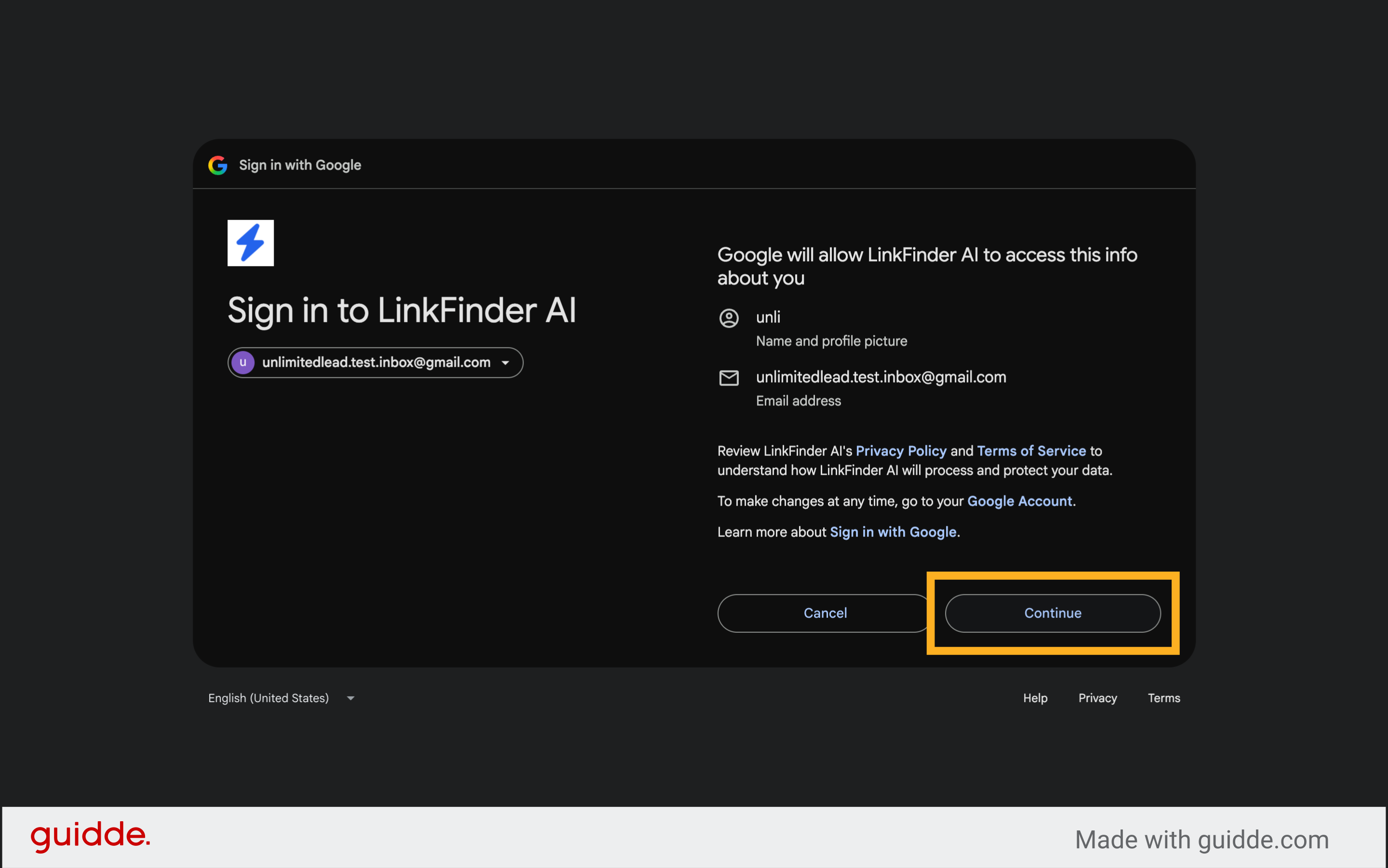
8. Authorize Access
Click here to proceed with account authorization for the add-on.
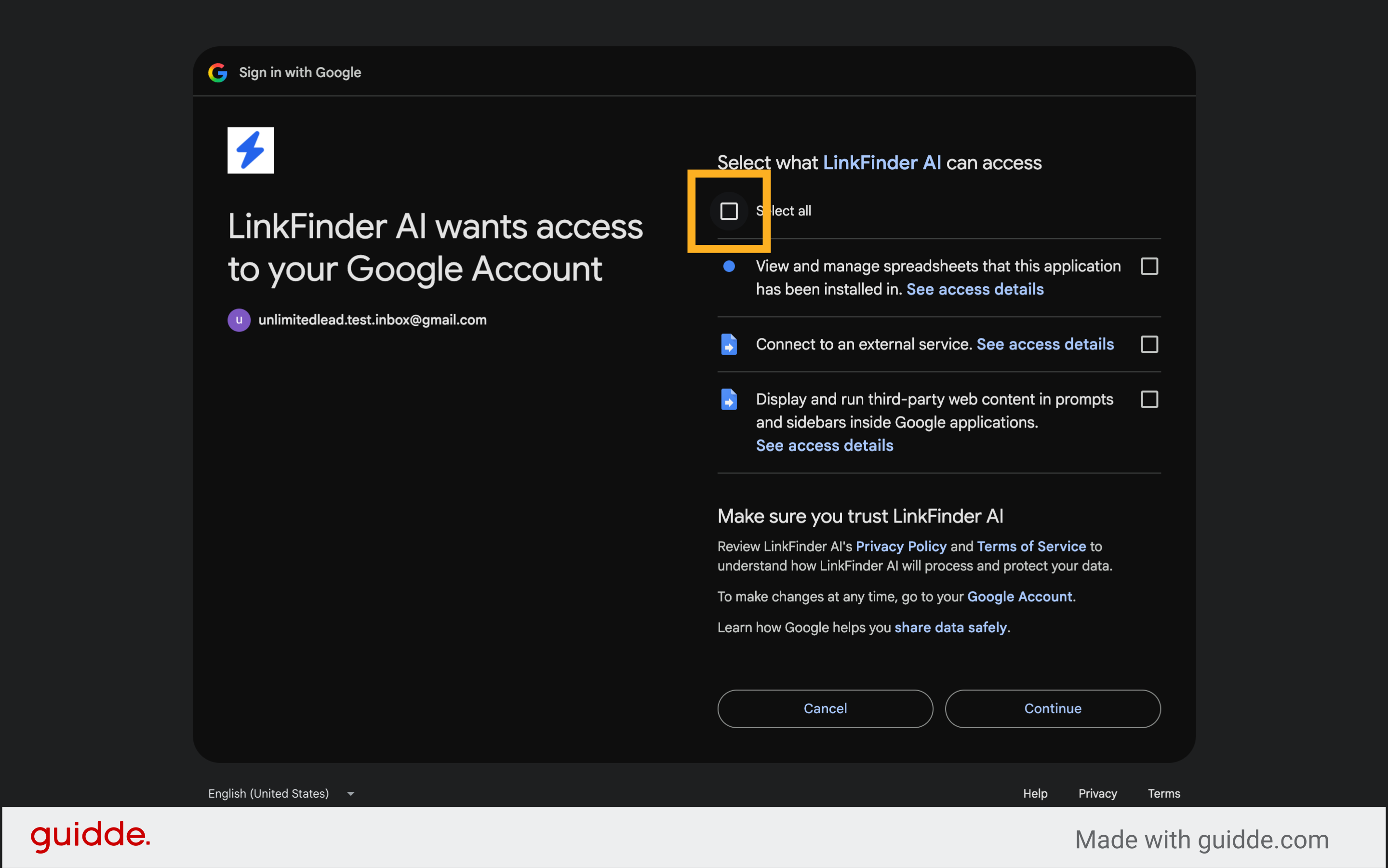
9. Select Permissions
Click "Select all" to grant the necessary permissions for LinkFinder AI to operate.
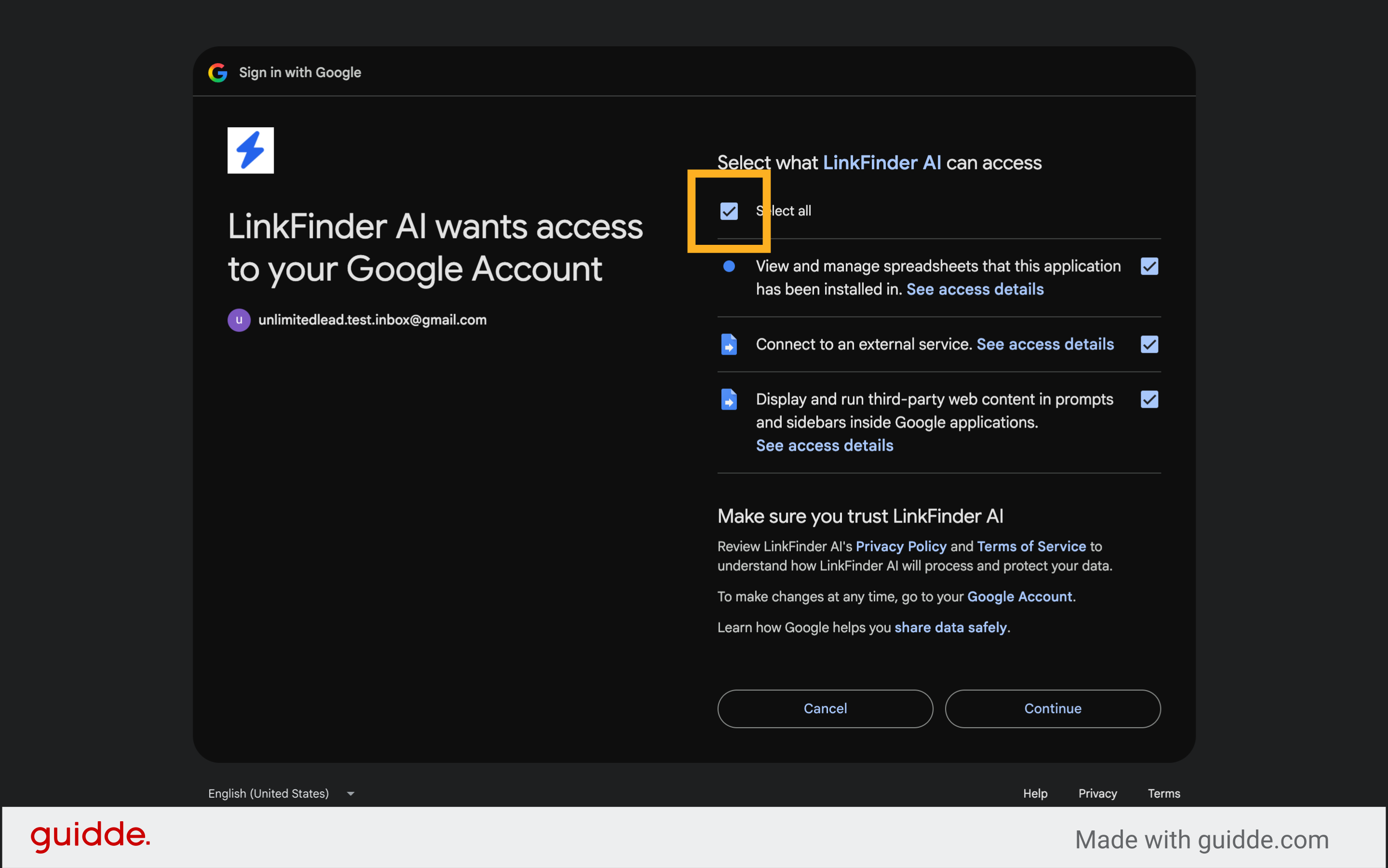
10. Enable Add-On Access
Fill "on" to enable the add-on's access within your Google account.
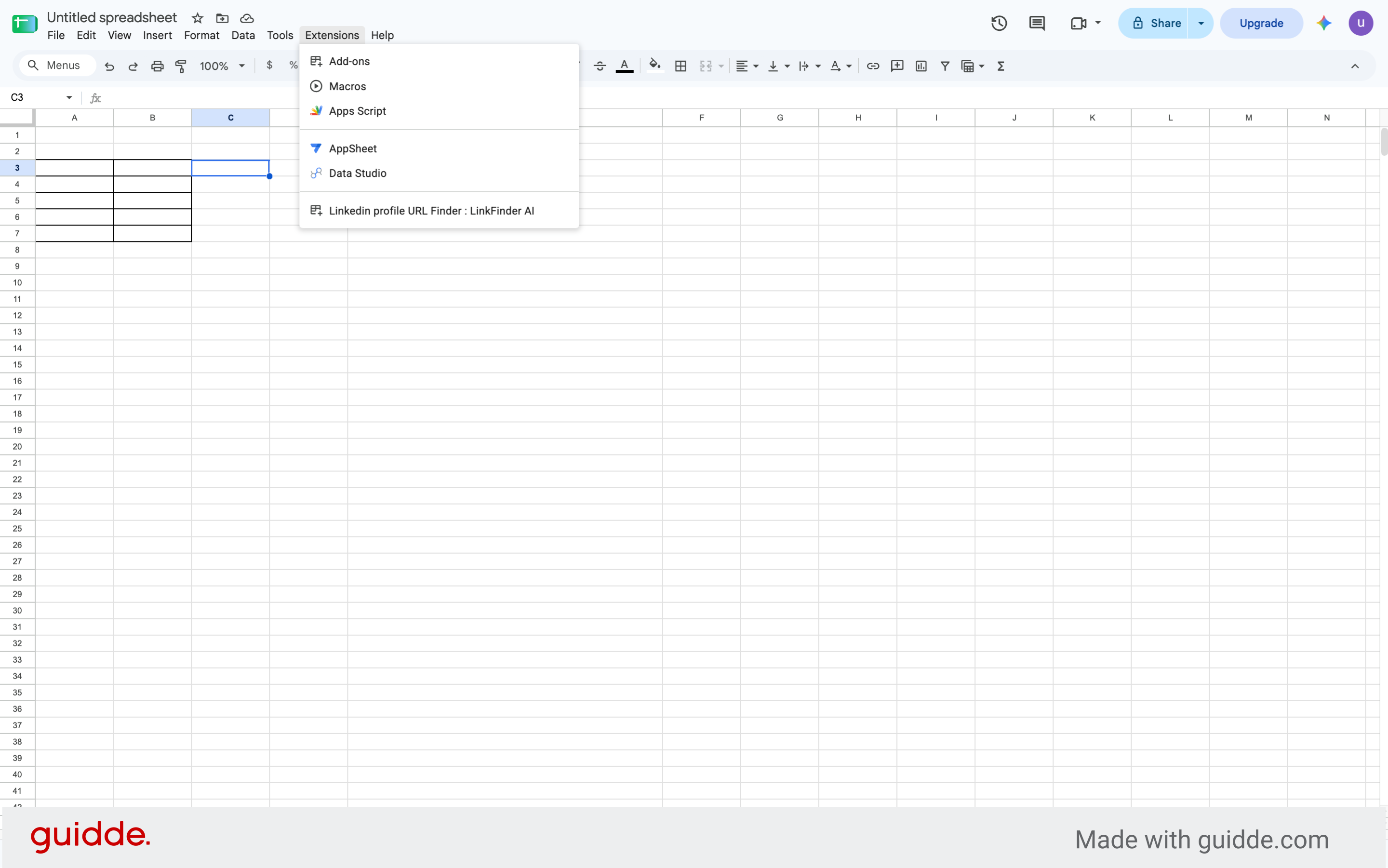
11. Open Google Sheets
Switch to your Google Sheets document where you want to use LinkFinder AI.
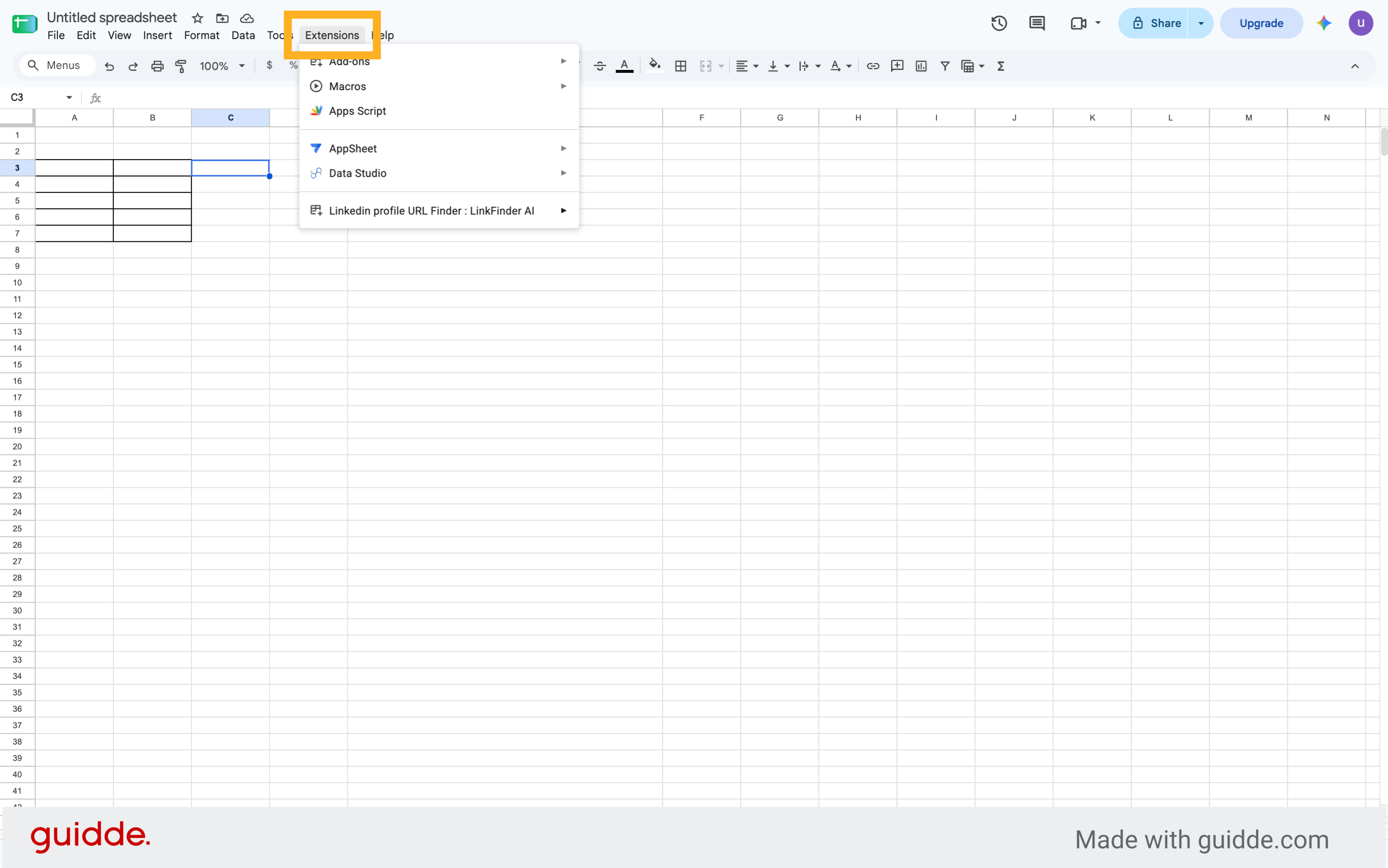
12. Access Extensions Menu
Click "Extensions" in the Google Sheets menu to find installed add-ons.
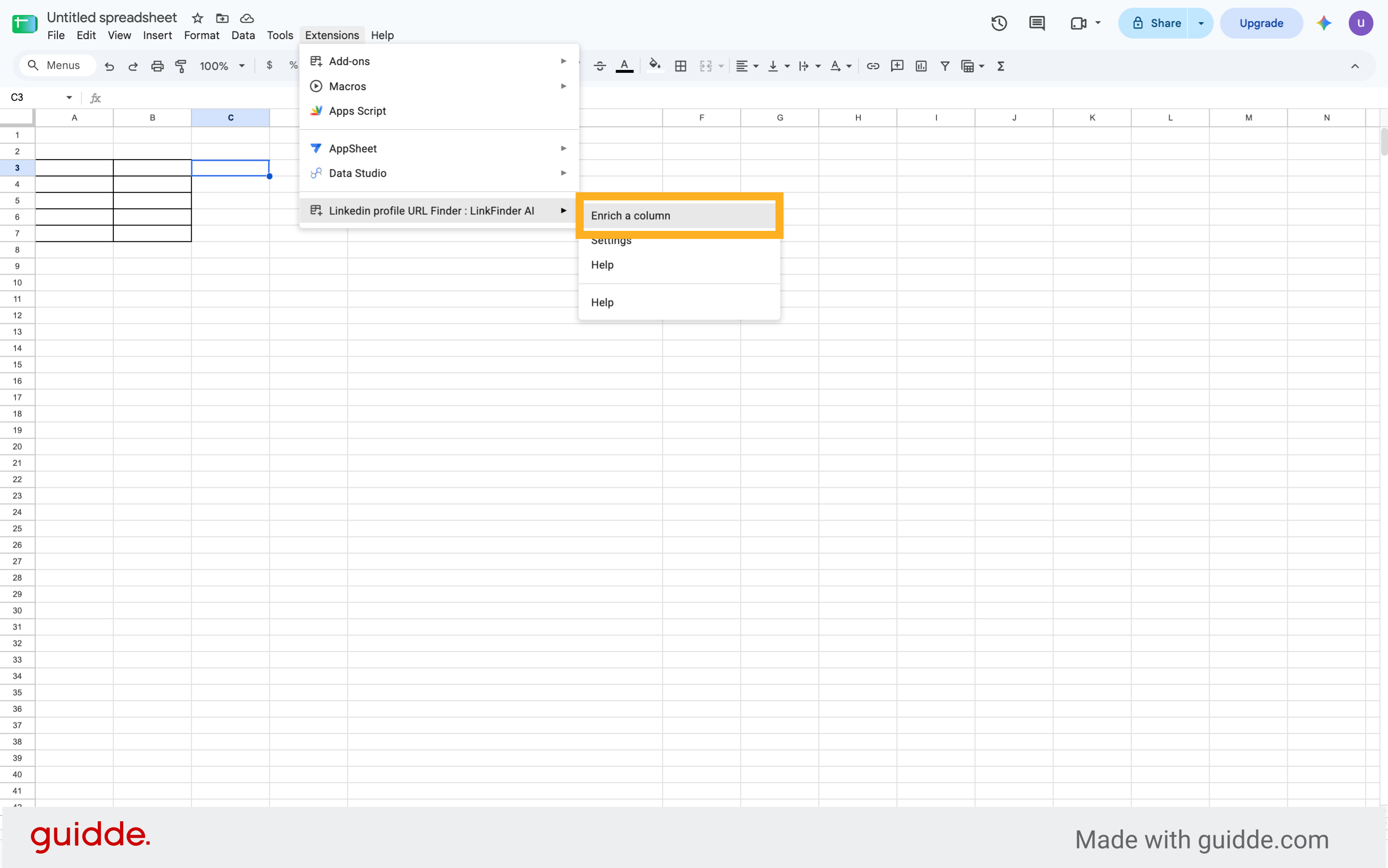
13. Launch Enrich Column Feature
Click "Enrich a column" to start enriching your spreadsheet data with LinkedIn URLs.
14. Return to LinkFinder AI Website
Switch back to the LinkFinder AI website to retrieve your API key.
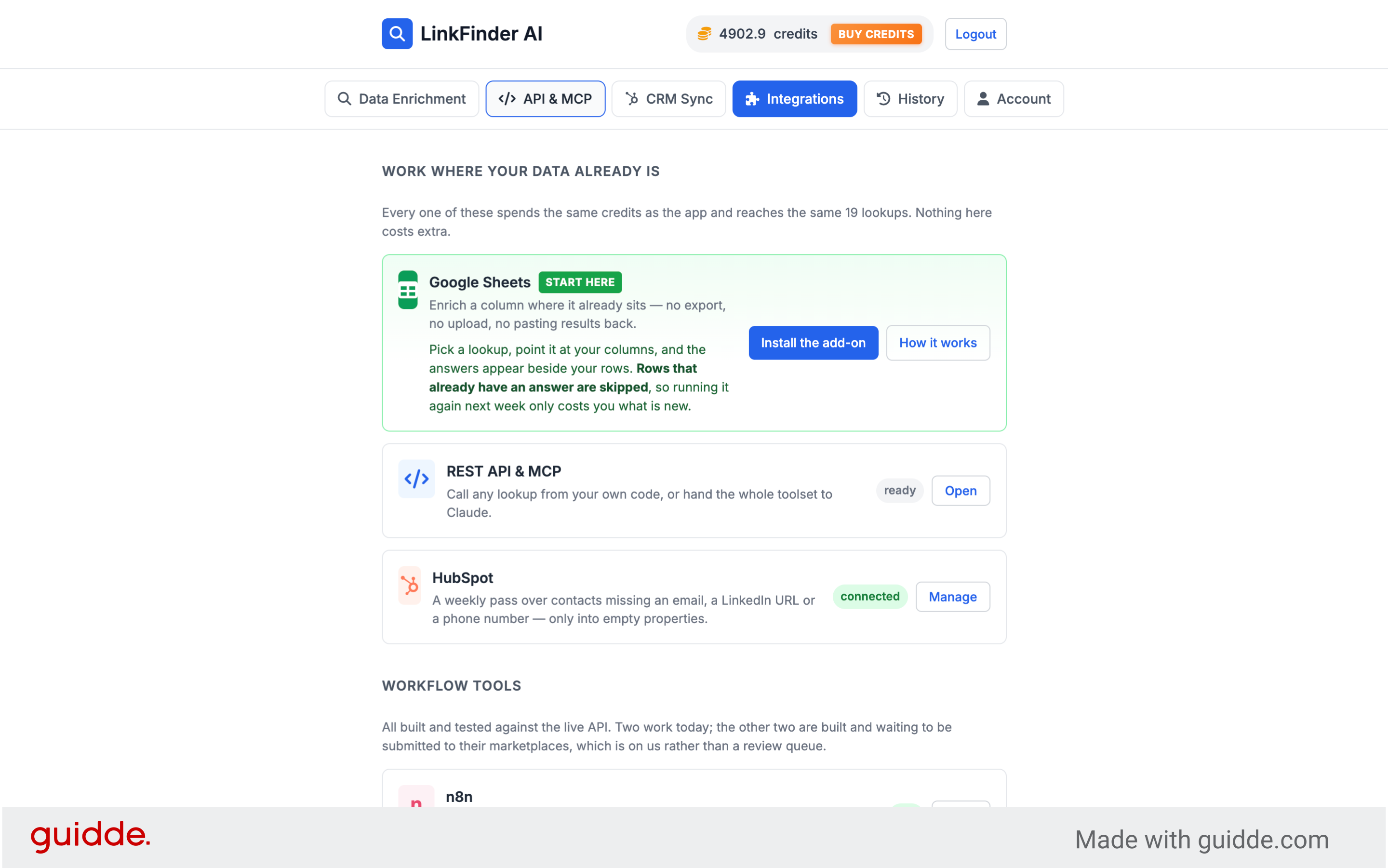
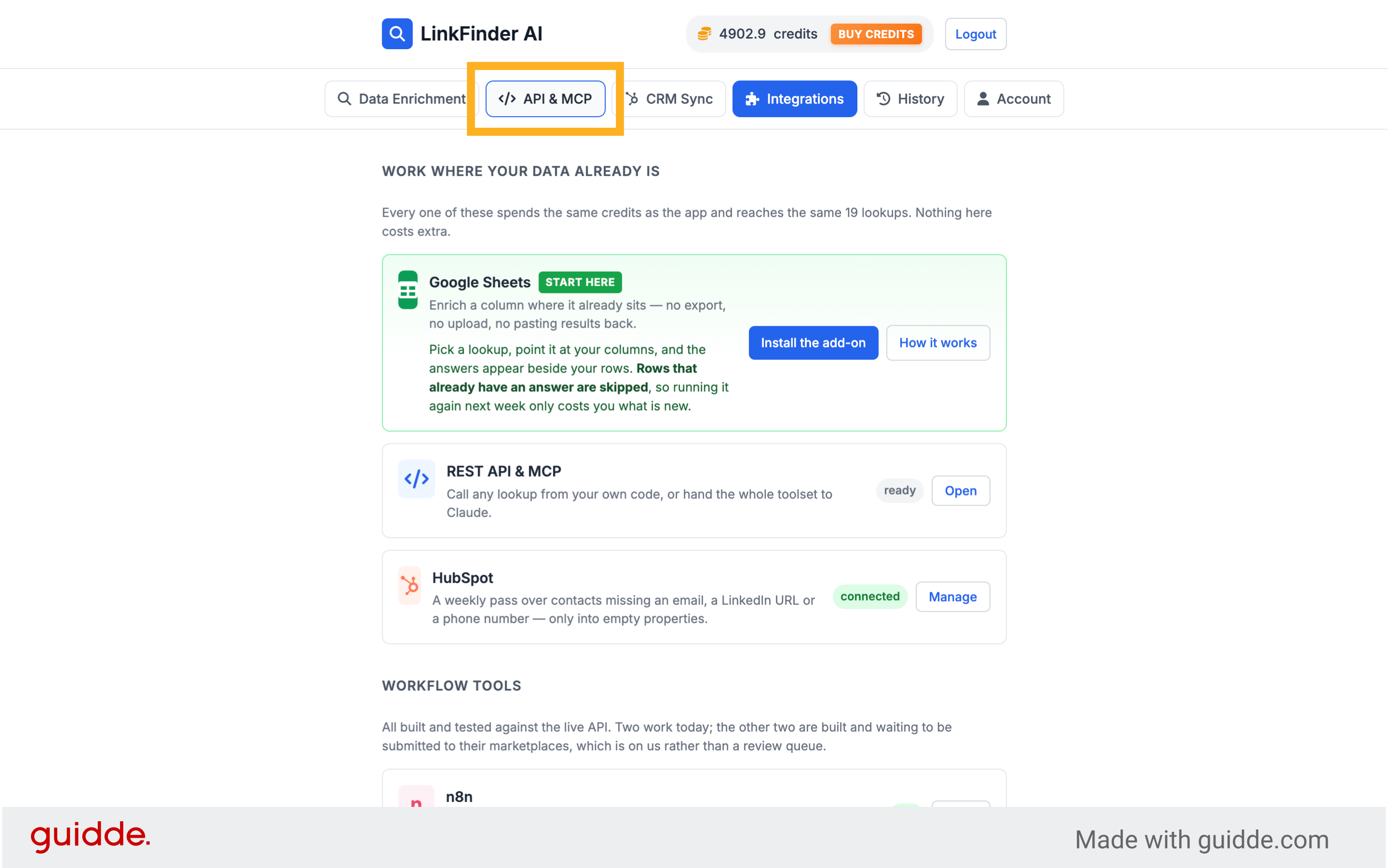
15. Open API & MCP Section
Click "API & MCP" to access your API credentials and settings.
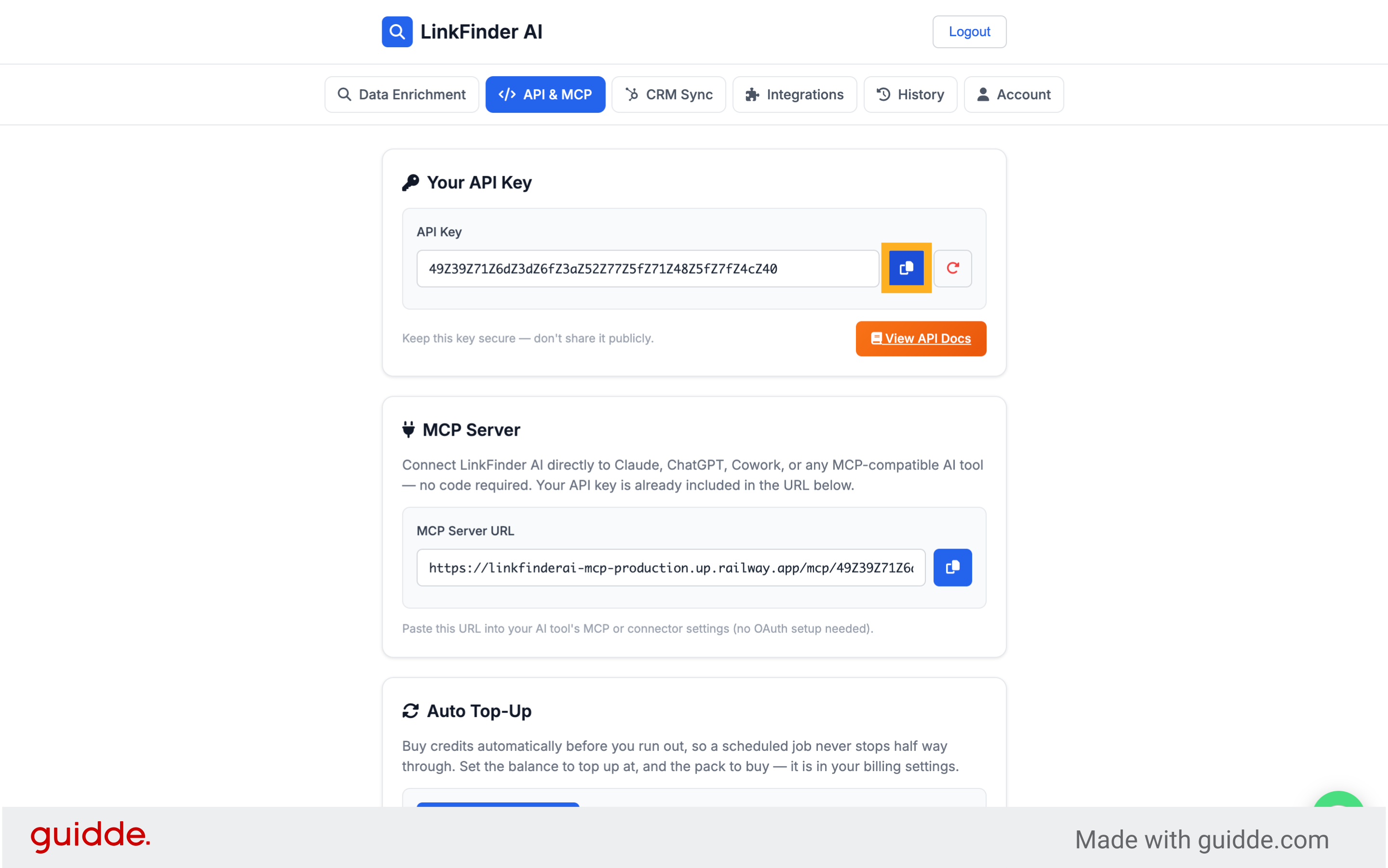
16. Copy API Key
Click here to copy your API key for use in the Google Sheets add-on.
17. Return to Google Sheets
Switch back to your Google Sheets document to enter the API key.
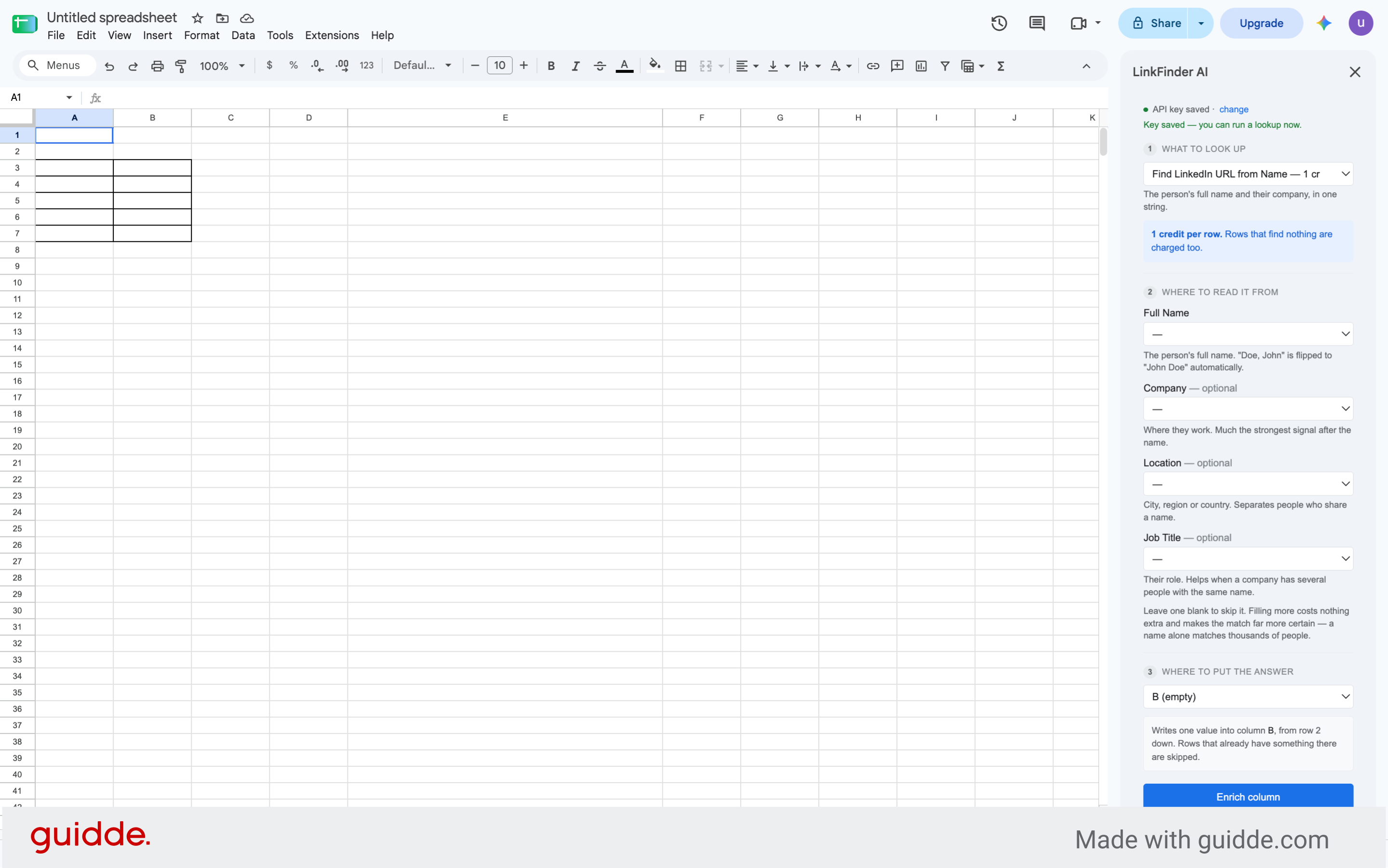
18. Open Add-On Settings
Click here to open the LinkFinder AI add-on settings within Google Sheets.
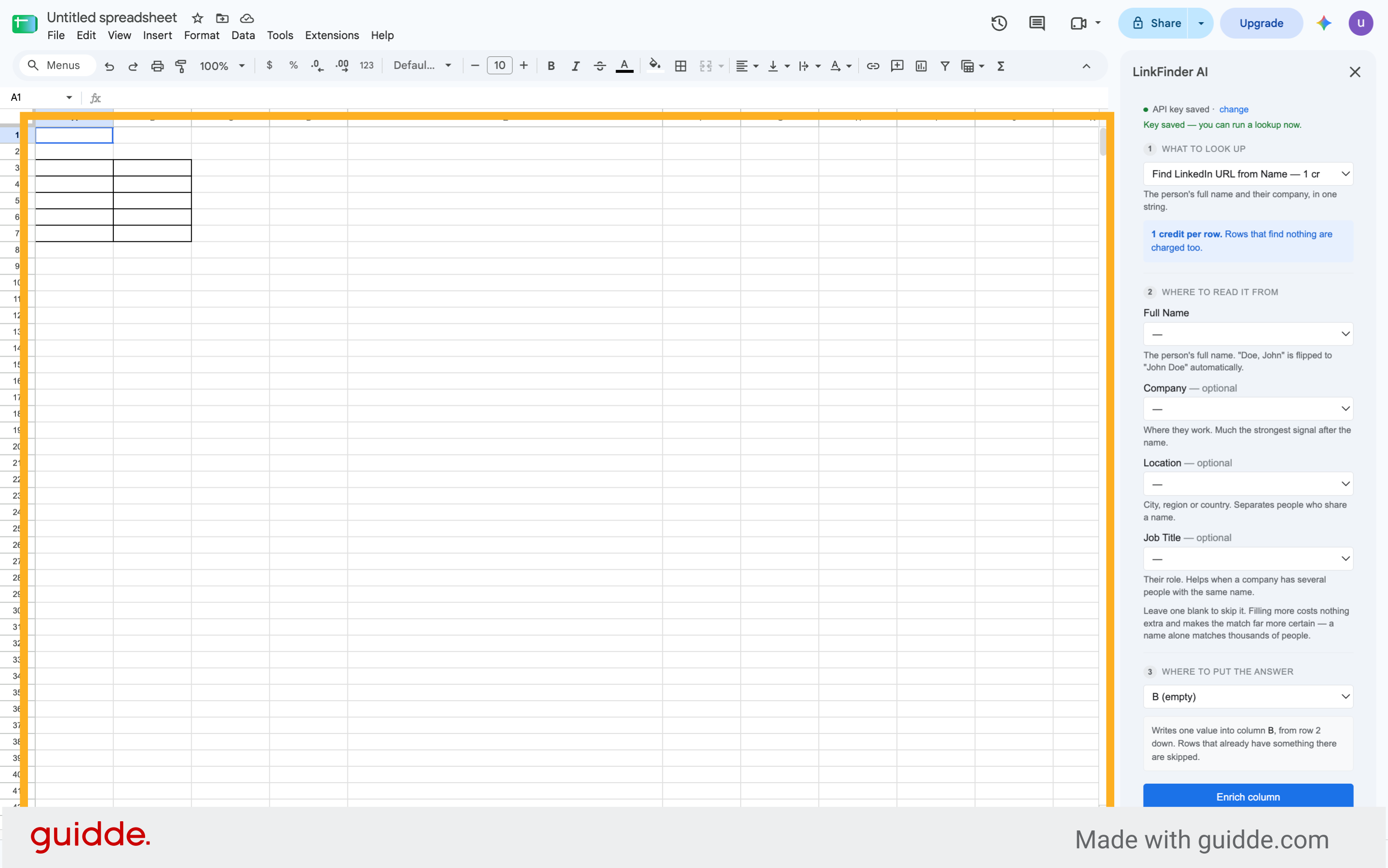
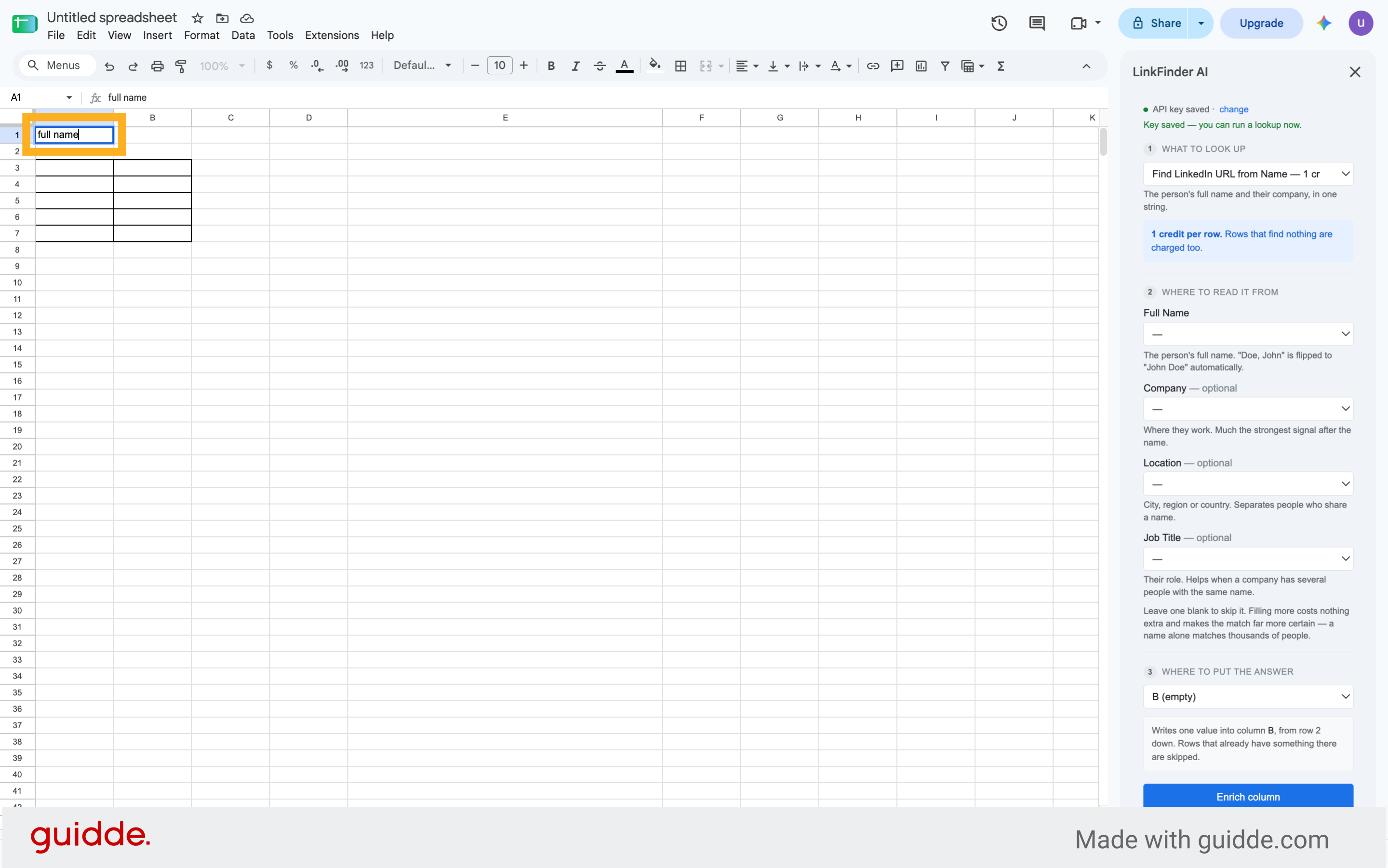
19. Enter Full Name Column
Fill the full name column with the names you want to find LinkedIn URLs for.
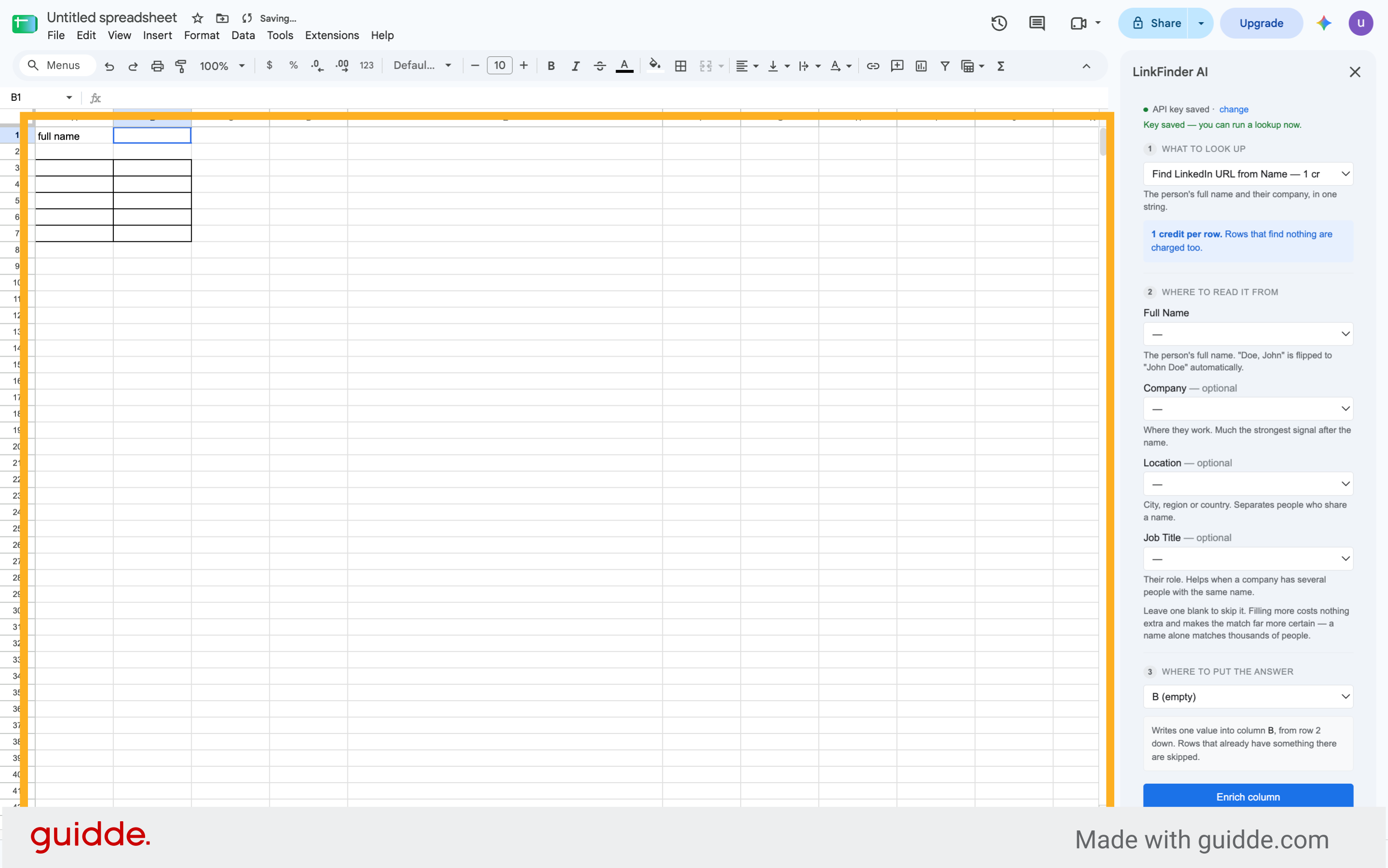
20. Select Next Cell
Click here to move to the next input field in your spreadsheet.
21. Enter Company Name
Fill the company column with the lead's company name to improve search accuracy.
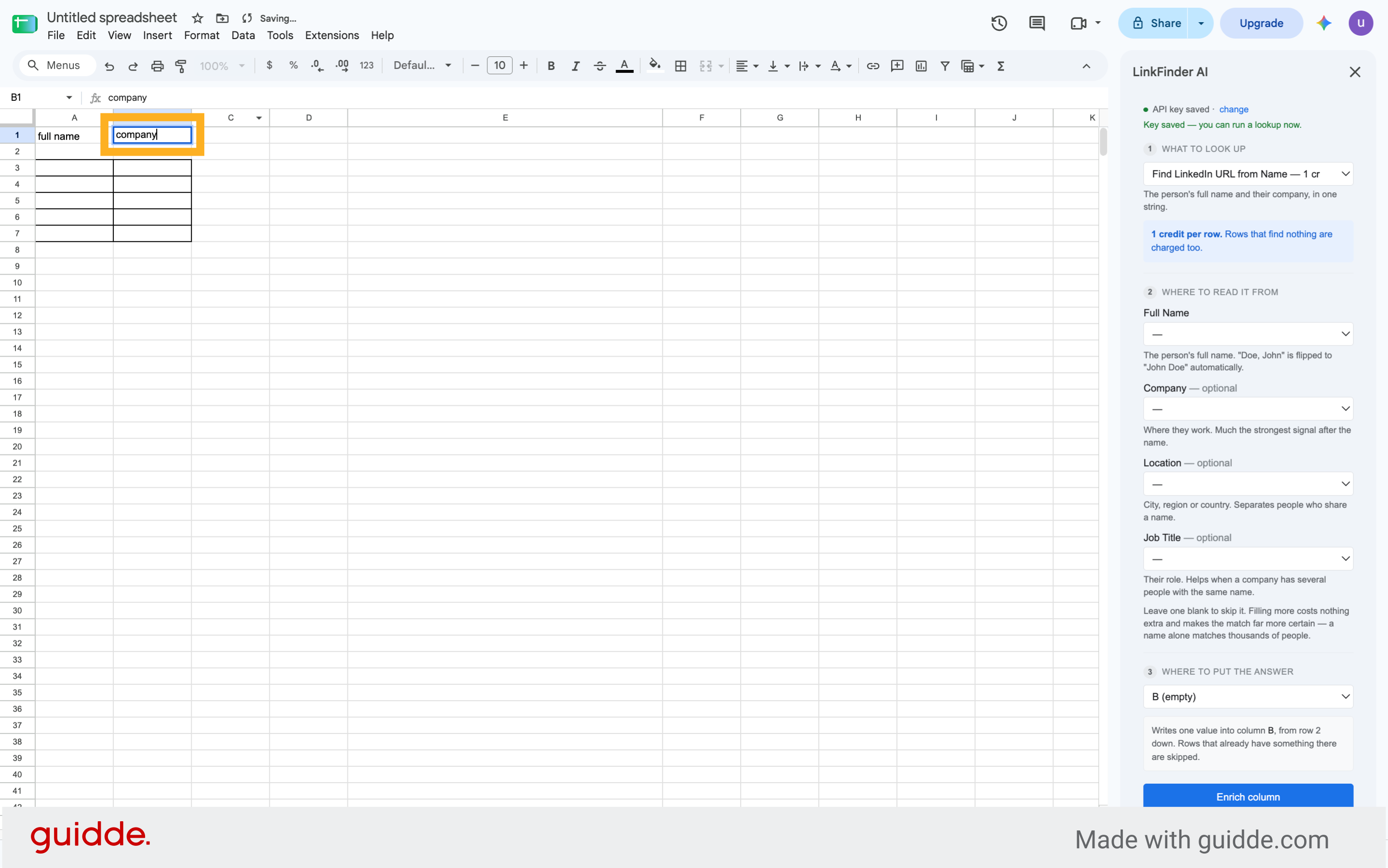
22. Select Next Cell
Click here to proceed to the following input field.
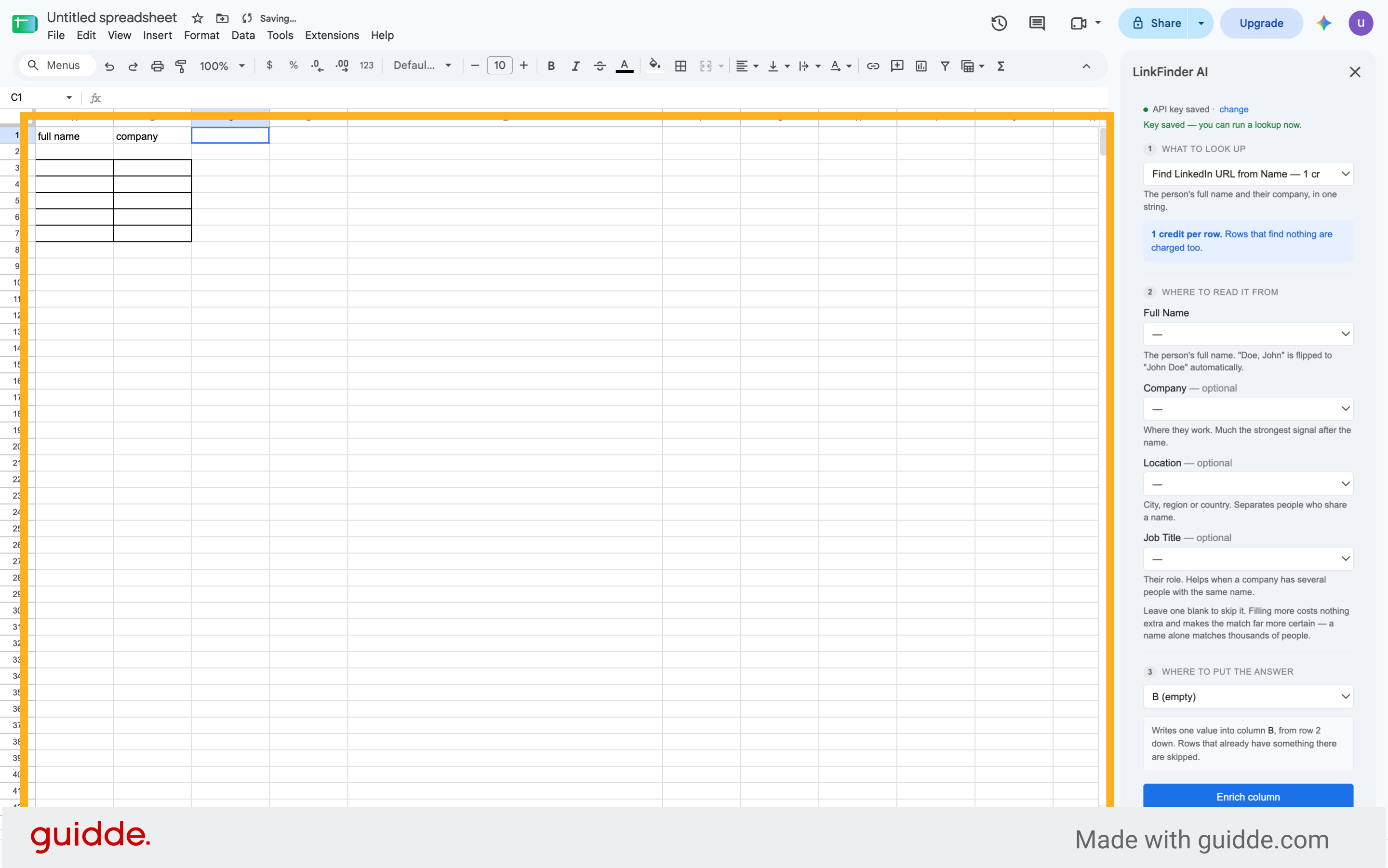
23. Select Next Cell
Click here to continue navigating through the spreadsheet fields.
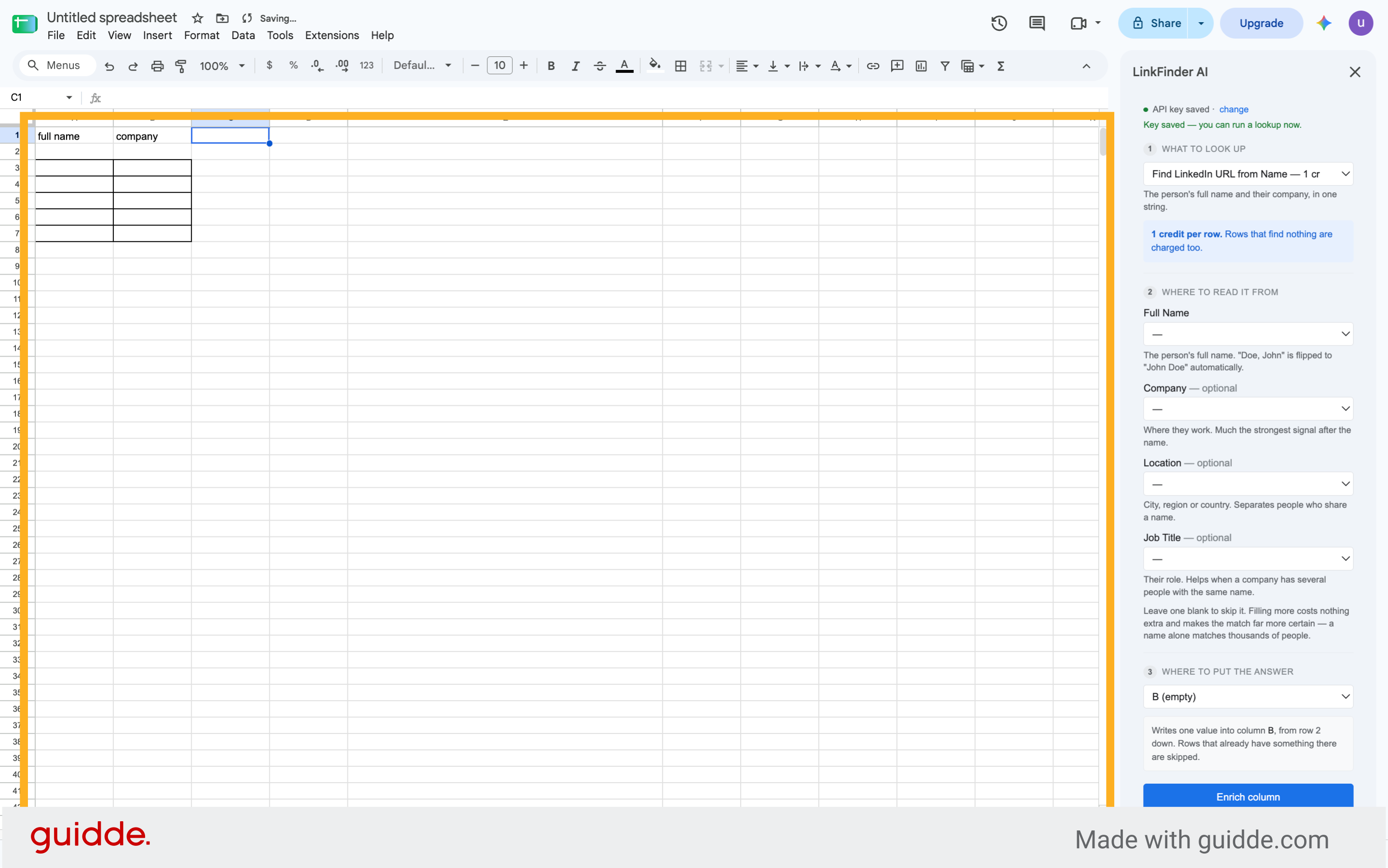
24. Enter Location Data
Fill the location column to provide additional context for the LinkedIn search.
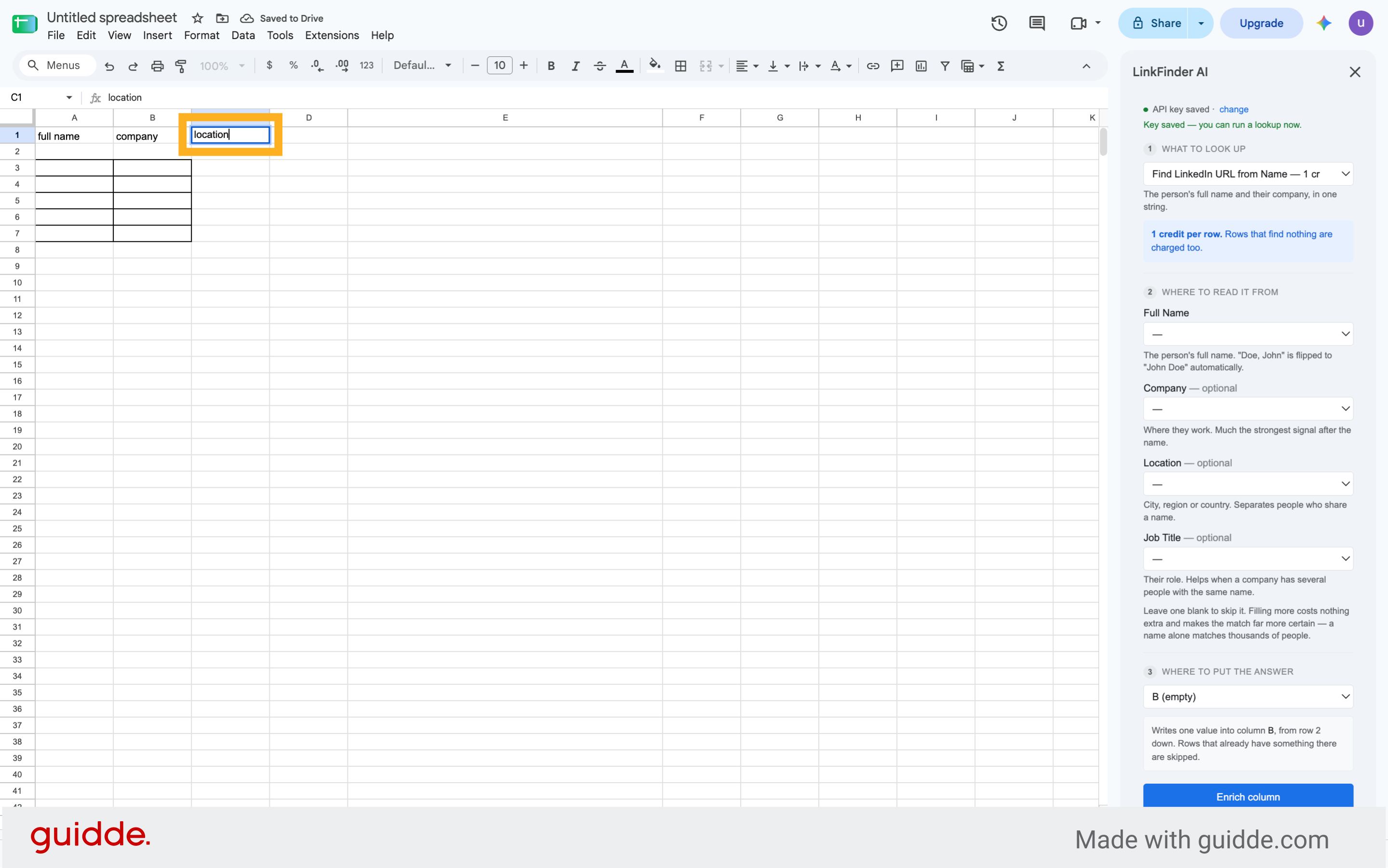
25. Select Next Cell
Click here to move forward in the spreadsheet data entry.
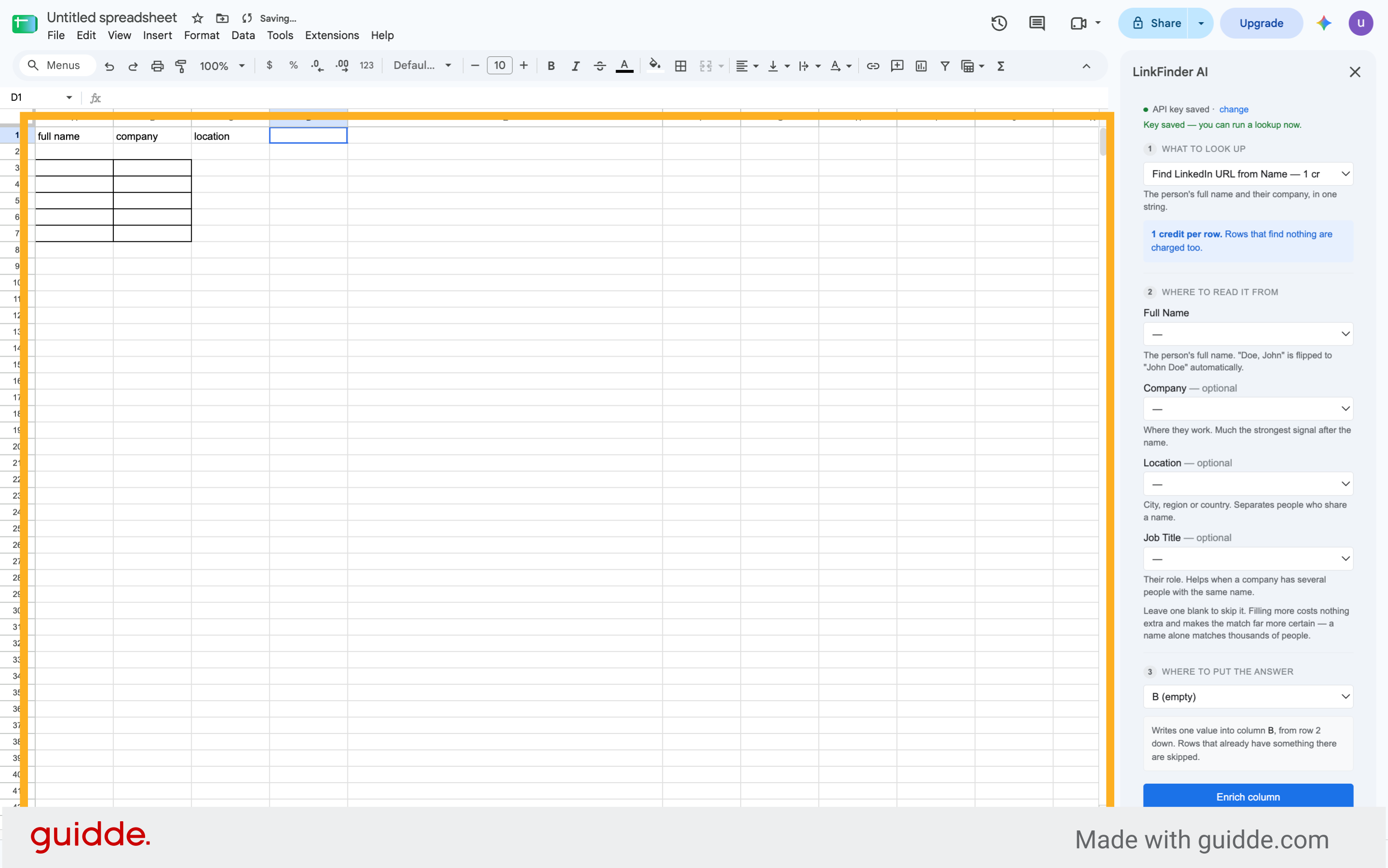
26. Enter Job Title
Fill the job title column to further refine the LinkedIn profile search.
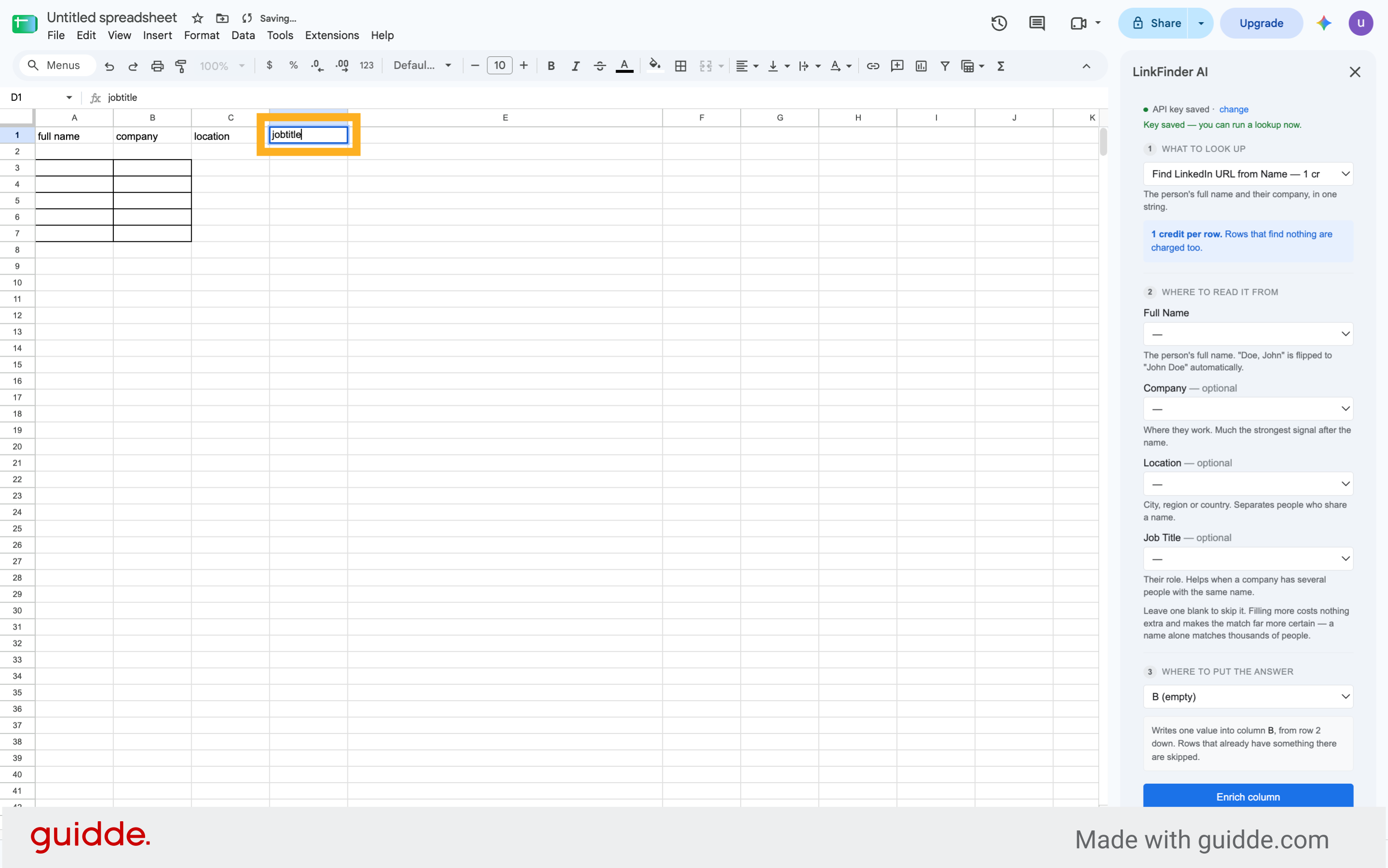
27. Select Next Cell
Click here to continue through the spreadsheet fields.
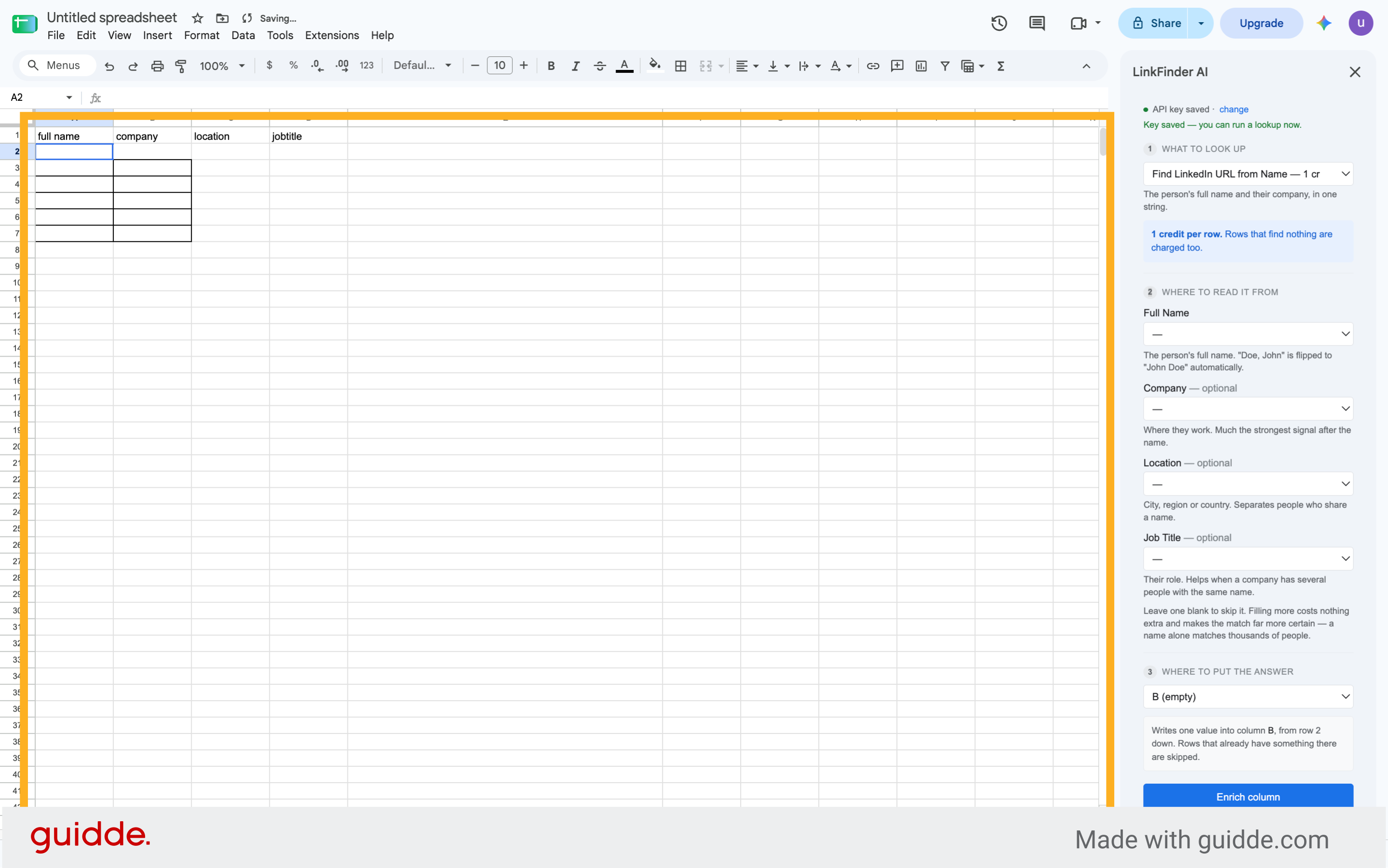
28. Select Next Cell
Click here to proceed to the next data entry point.
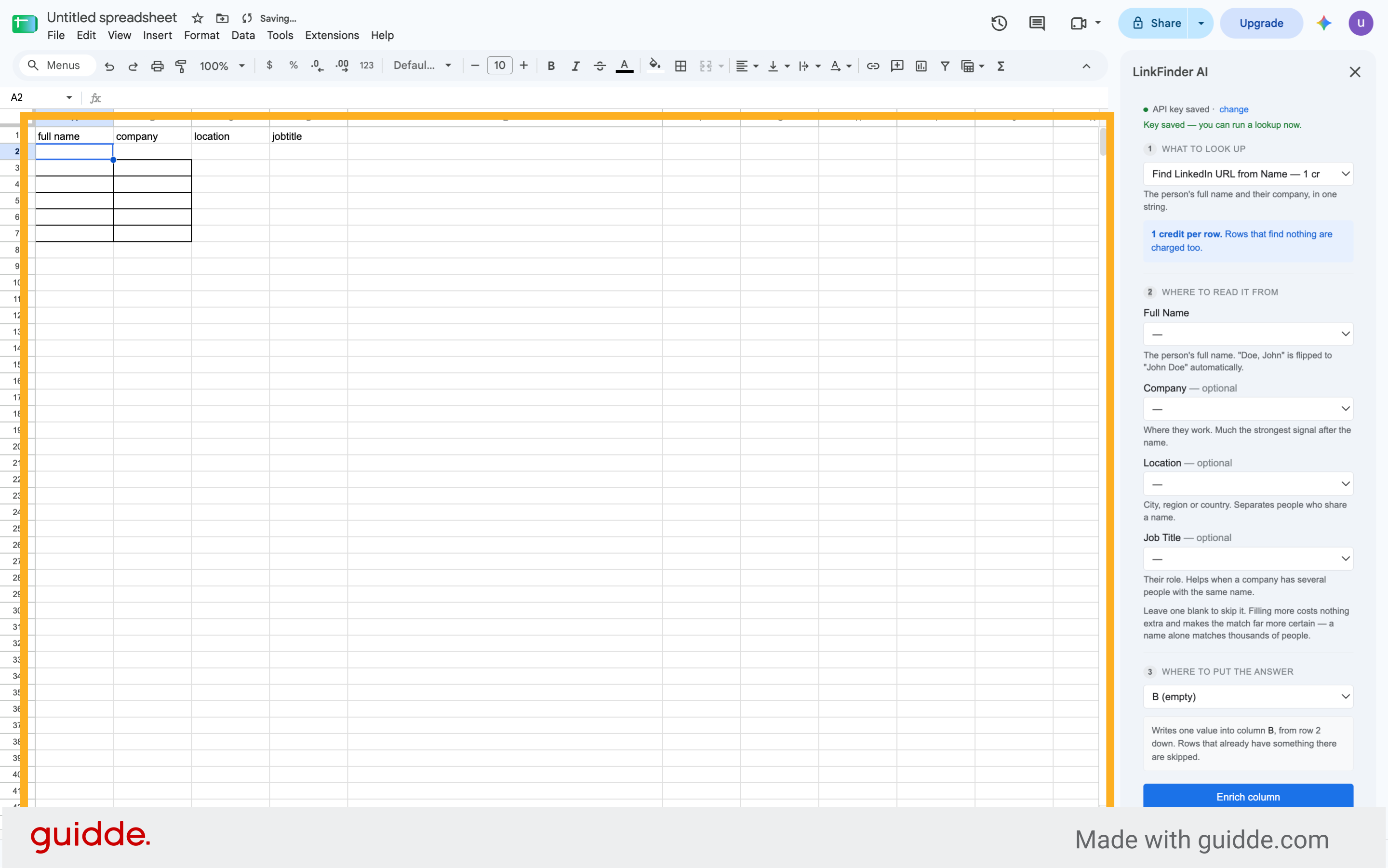
29. Select Next Cell
Click here to advance through the spreadsheet columns.
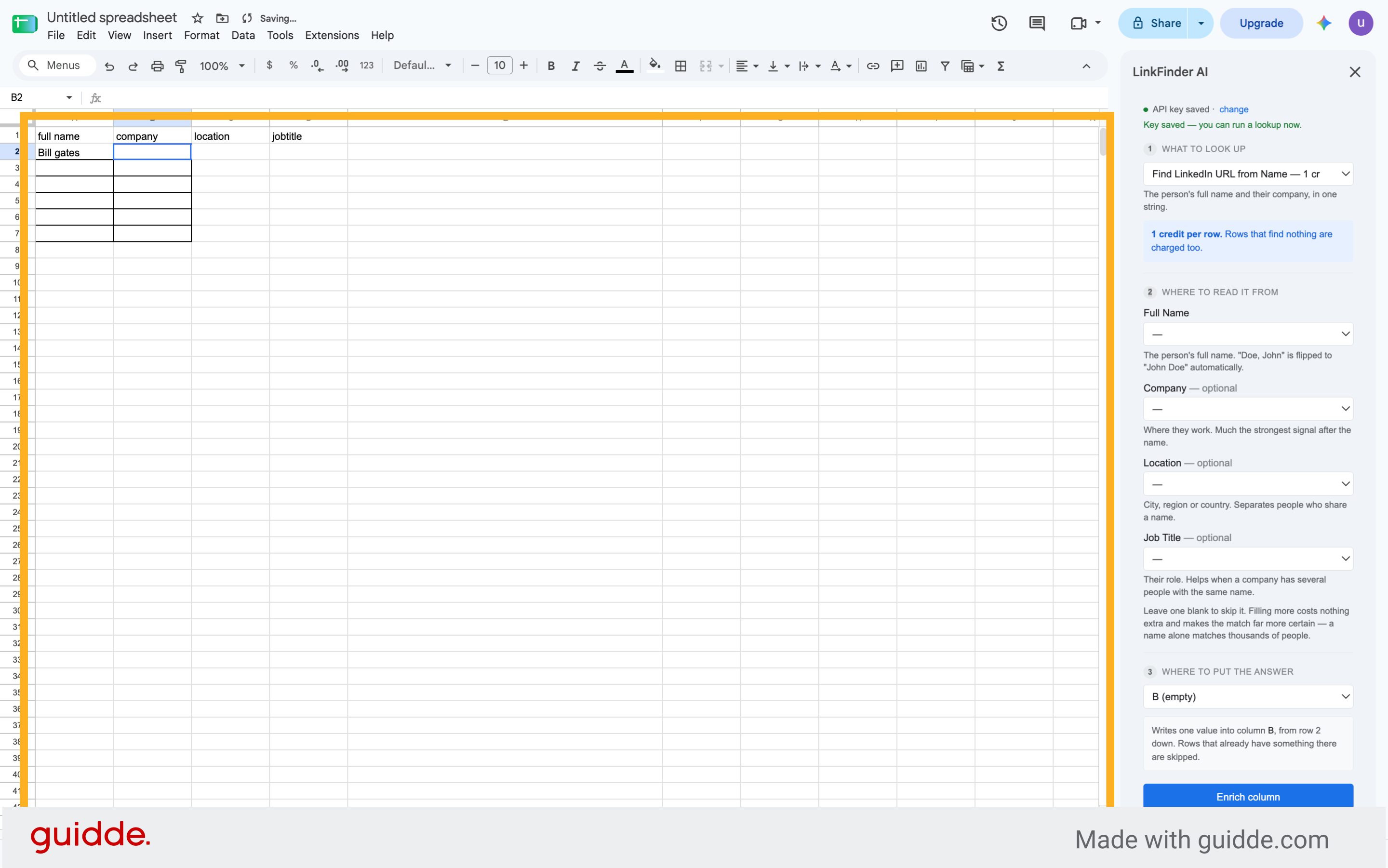
30. Select Next Cell
Click here to continue navigating the spreadsheet.
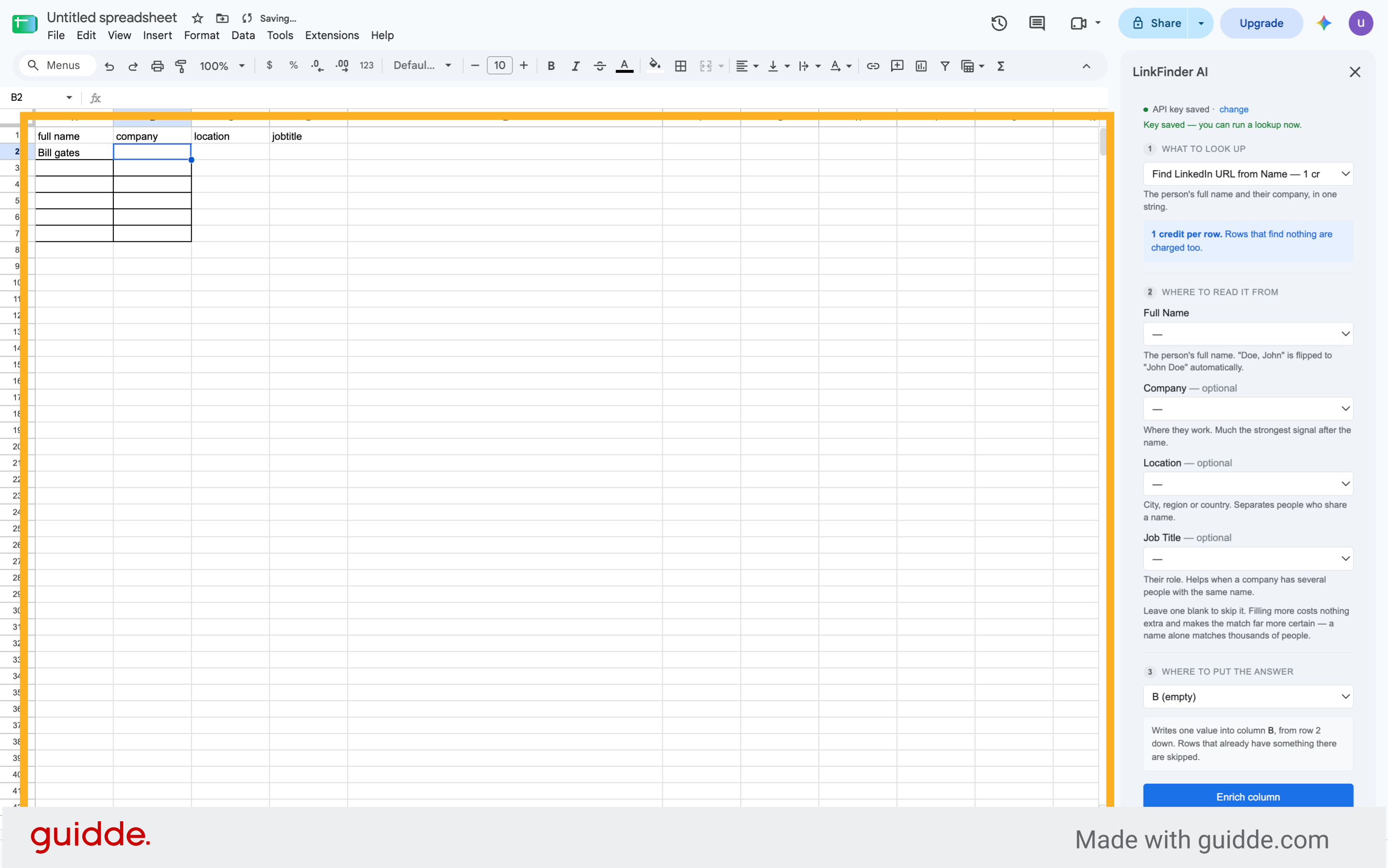
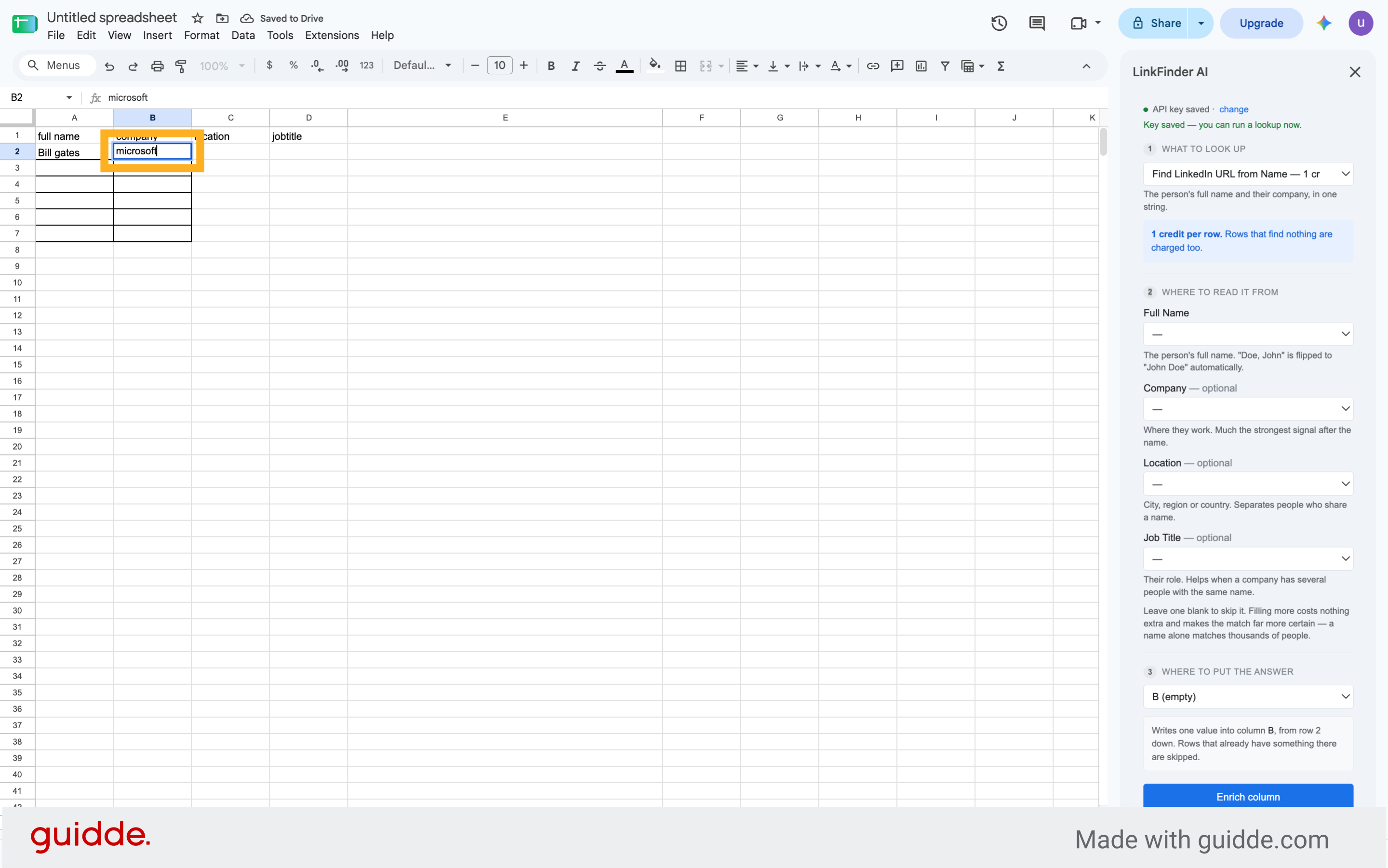
31. Enter Company Name Example
Fill the company field with "Microsoft" as an example lead company.
32. Select Next Cell
Click here to move to the next input field in the spreadsheet.
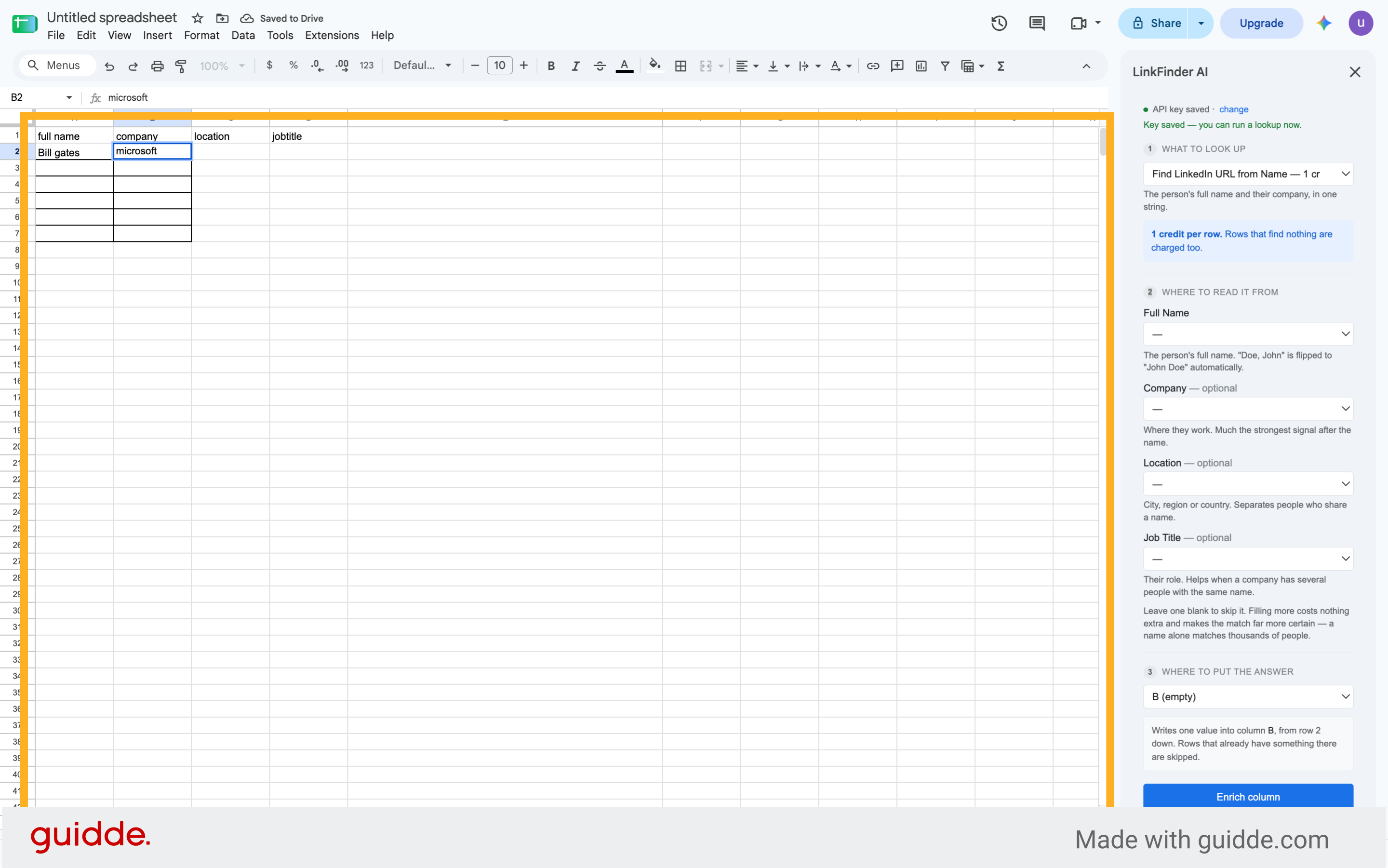
33. Select Next Cell
Click here to continue through the spreadsheet data entry.
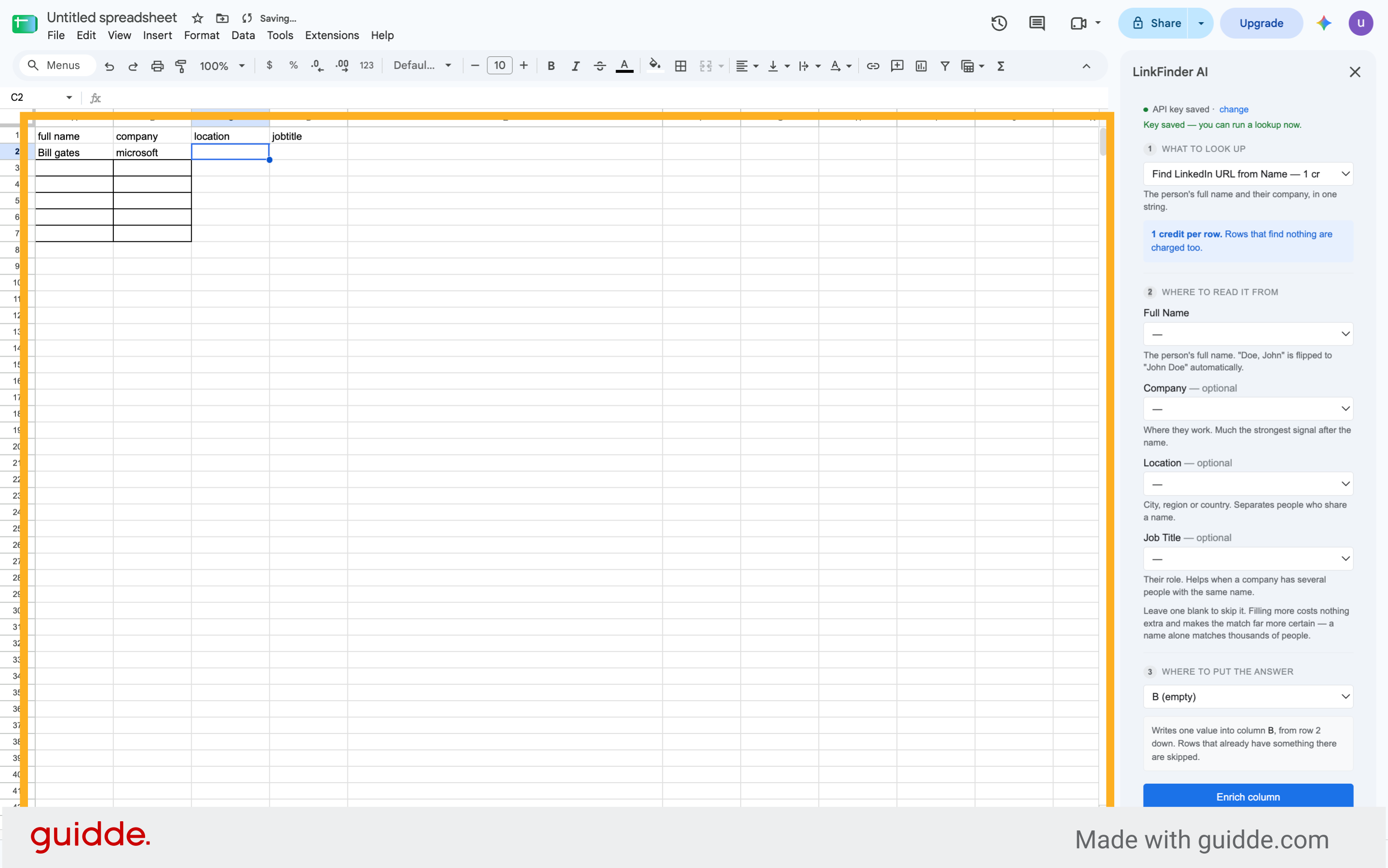
34. Enter Location Example
Fill the location field with "USA" to specify the lead's location.
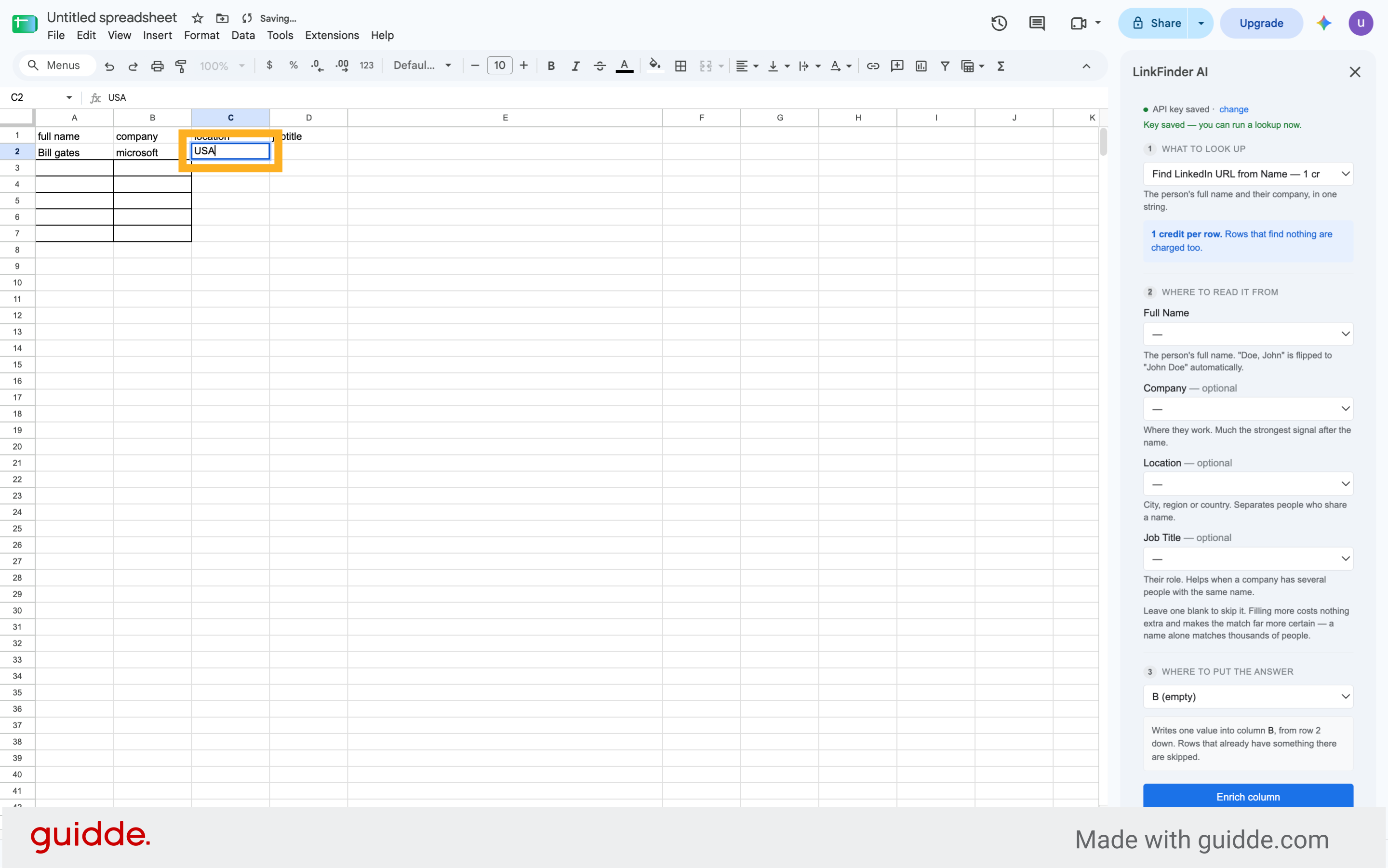
35. Select Next Cell
Click here to proceed to the following spreadsheet cell.
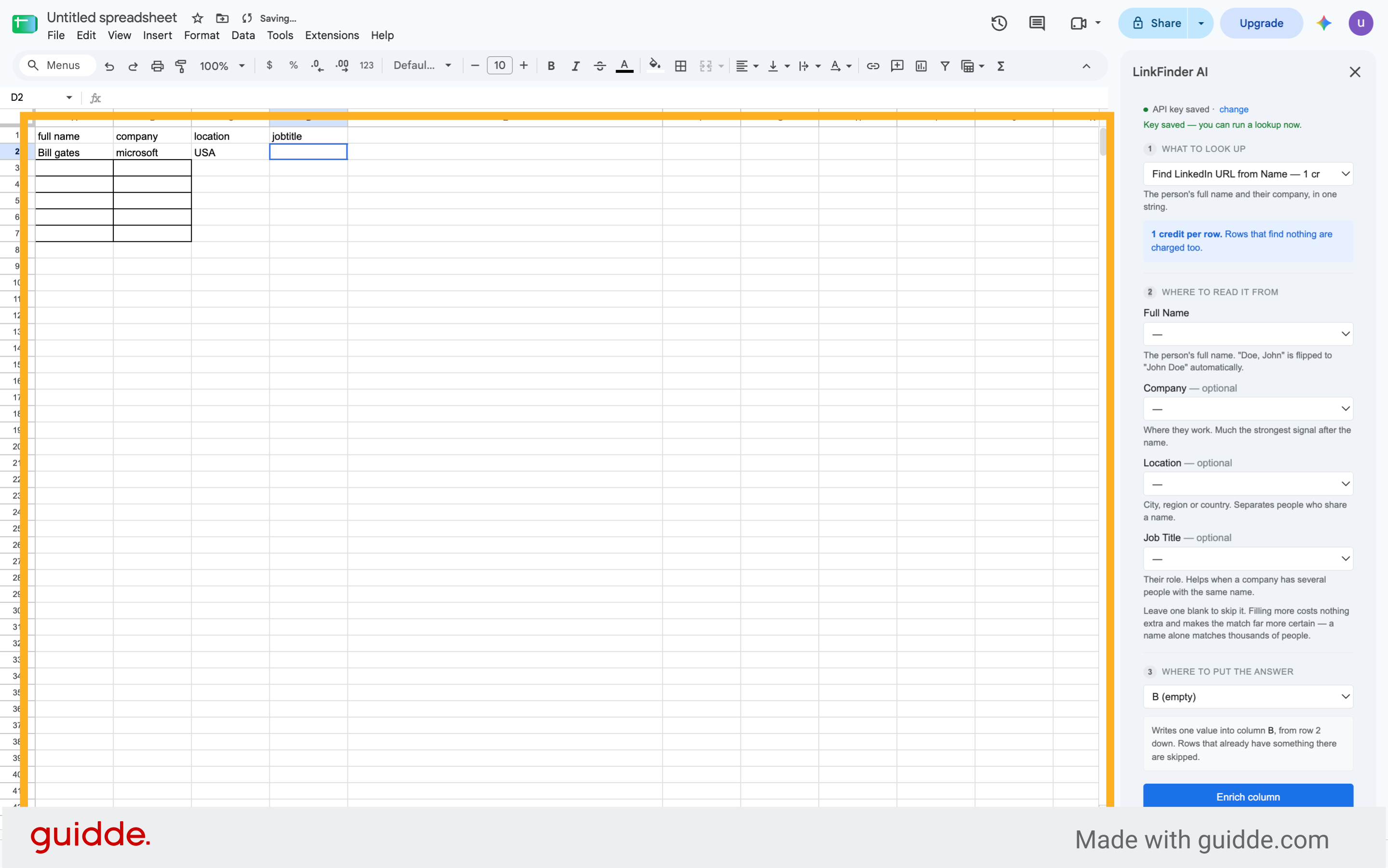
36. Enter Job Title Example
Fill the job title field with "CEO" as an example position.
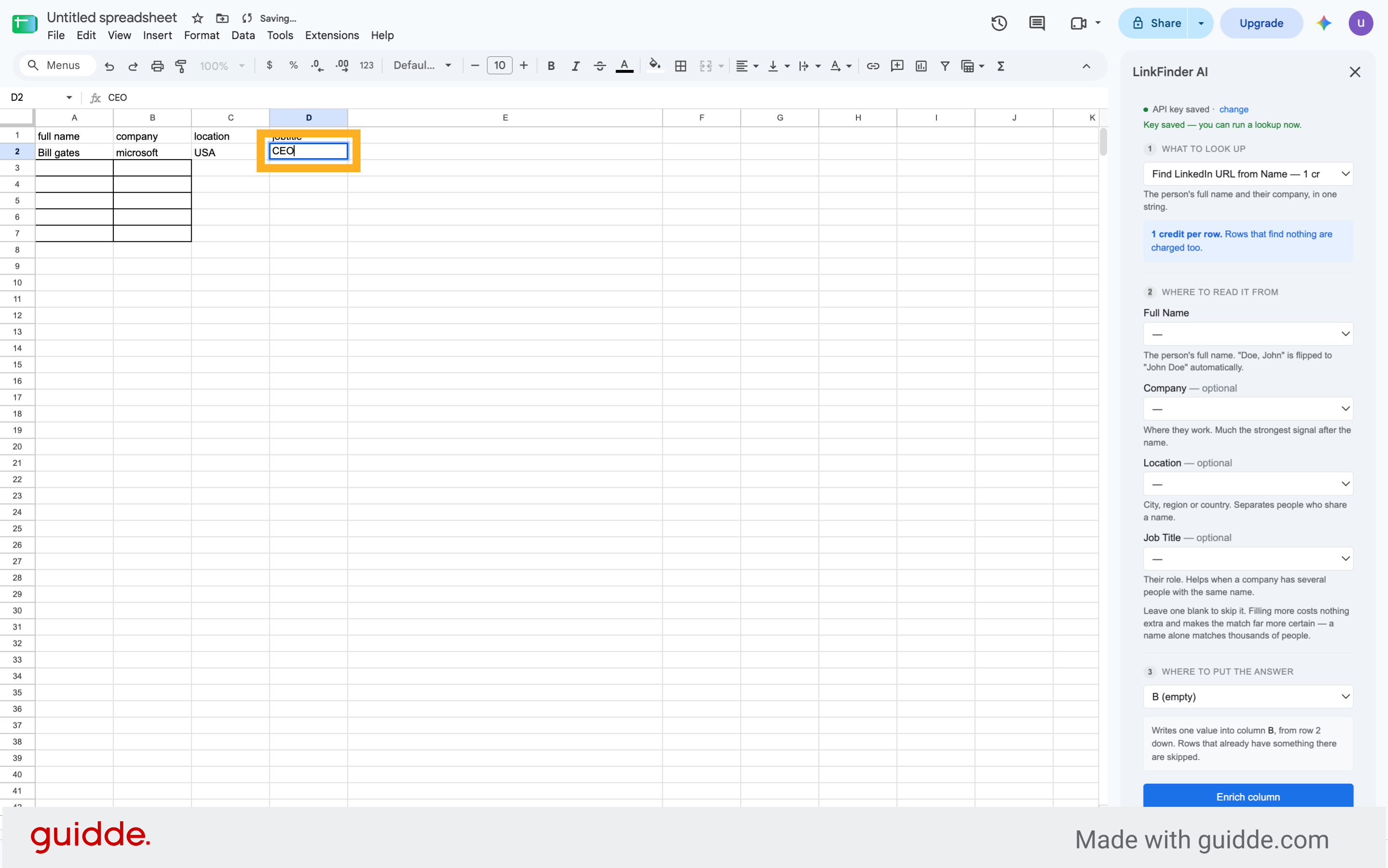
37. Select Next Cell
Click here to continue navigating the spreadsheet.
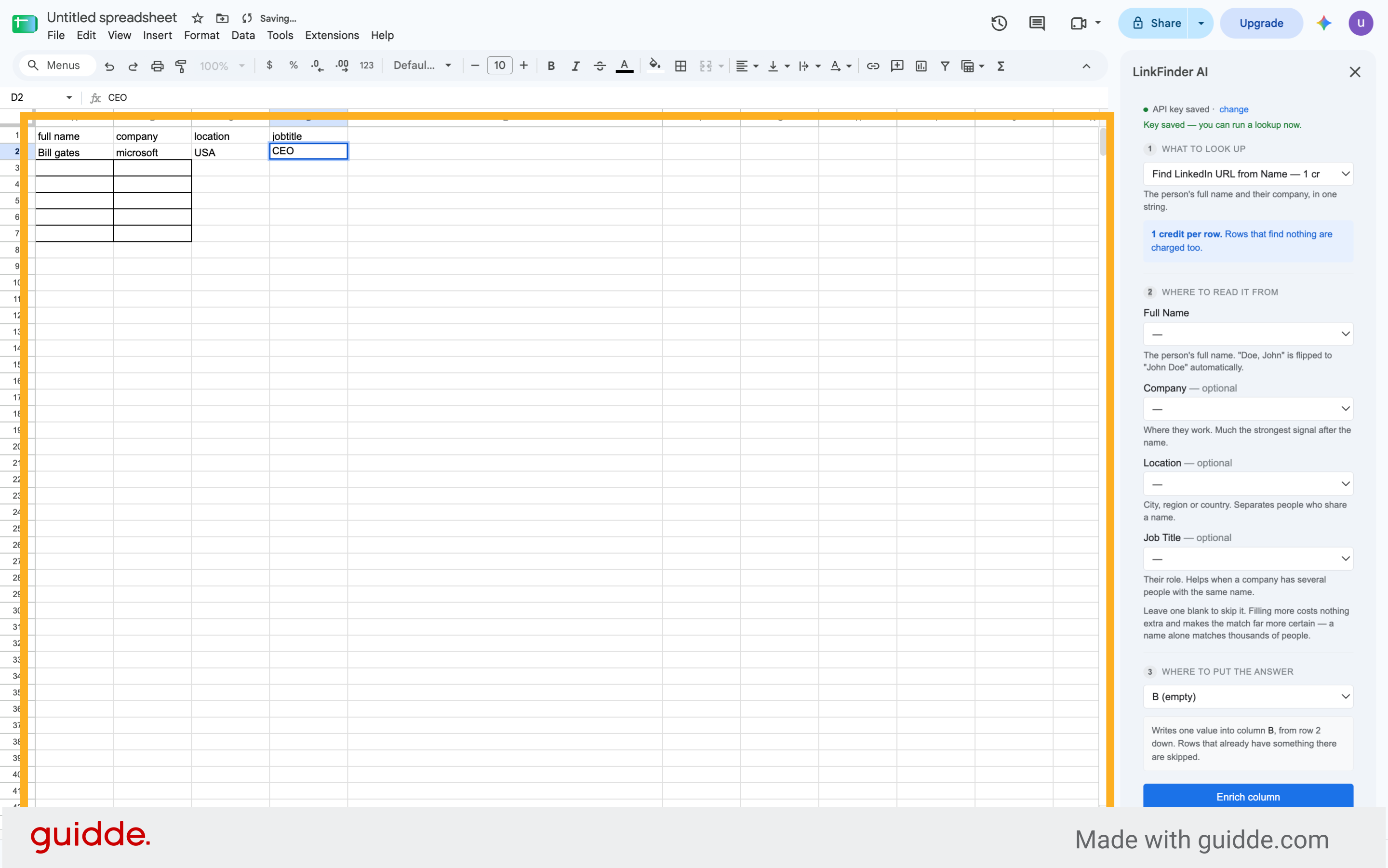
38. Enter LinkedIn URL Column
Fill the LinkedIn URL column where the found URLs will be displayed.
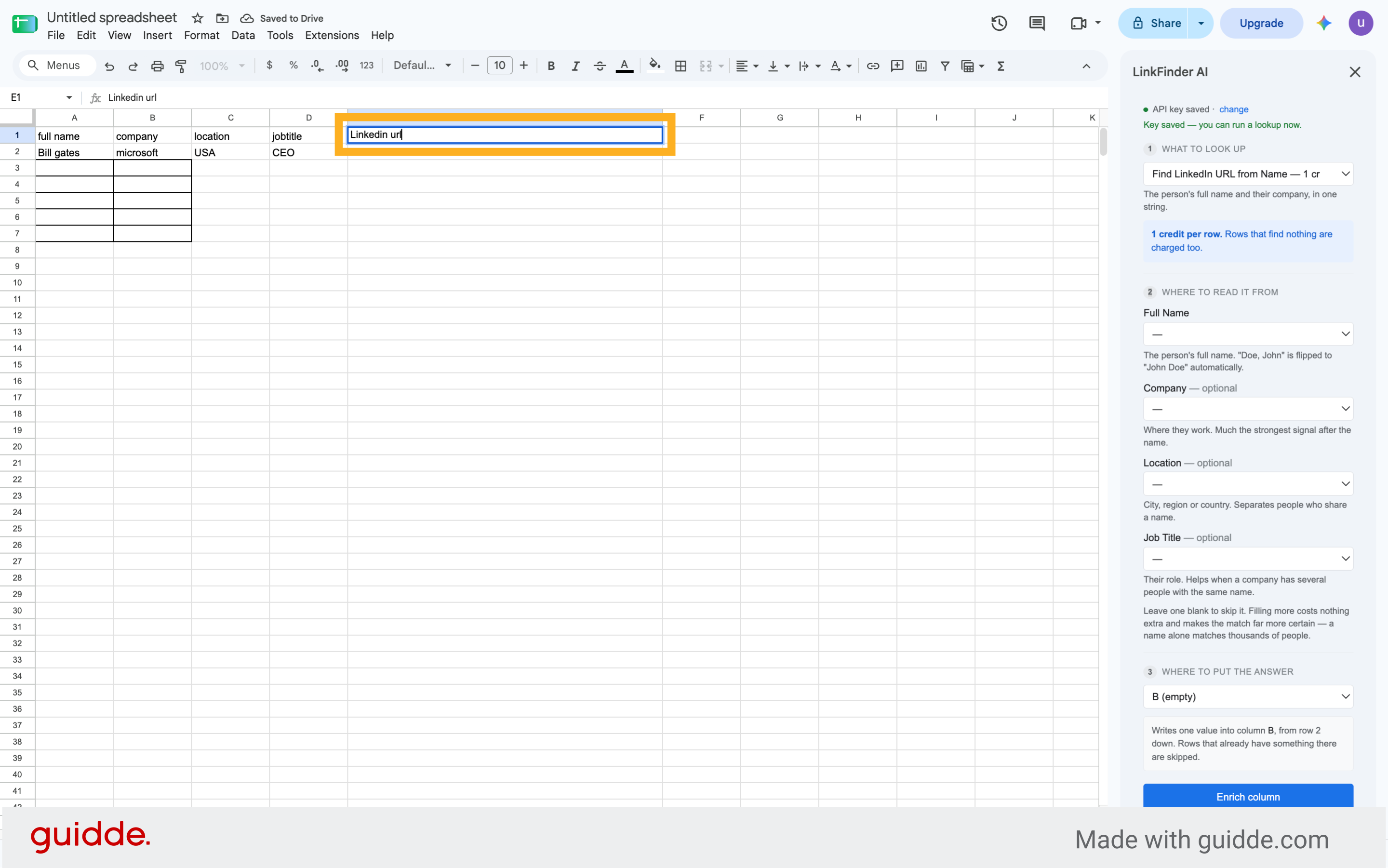
39. Select Next Cell
Click here to move forward in the spreadsheet data entry process.
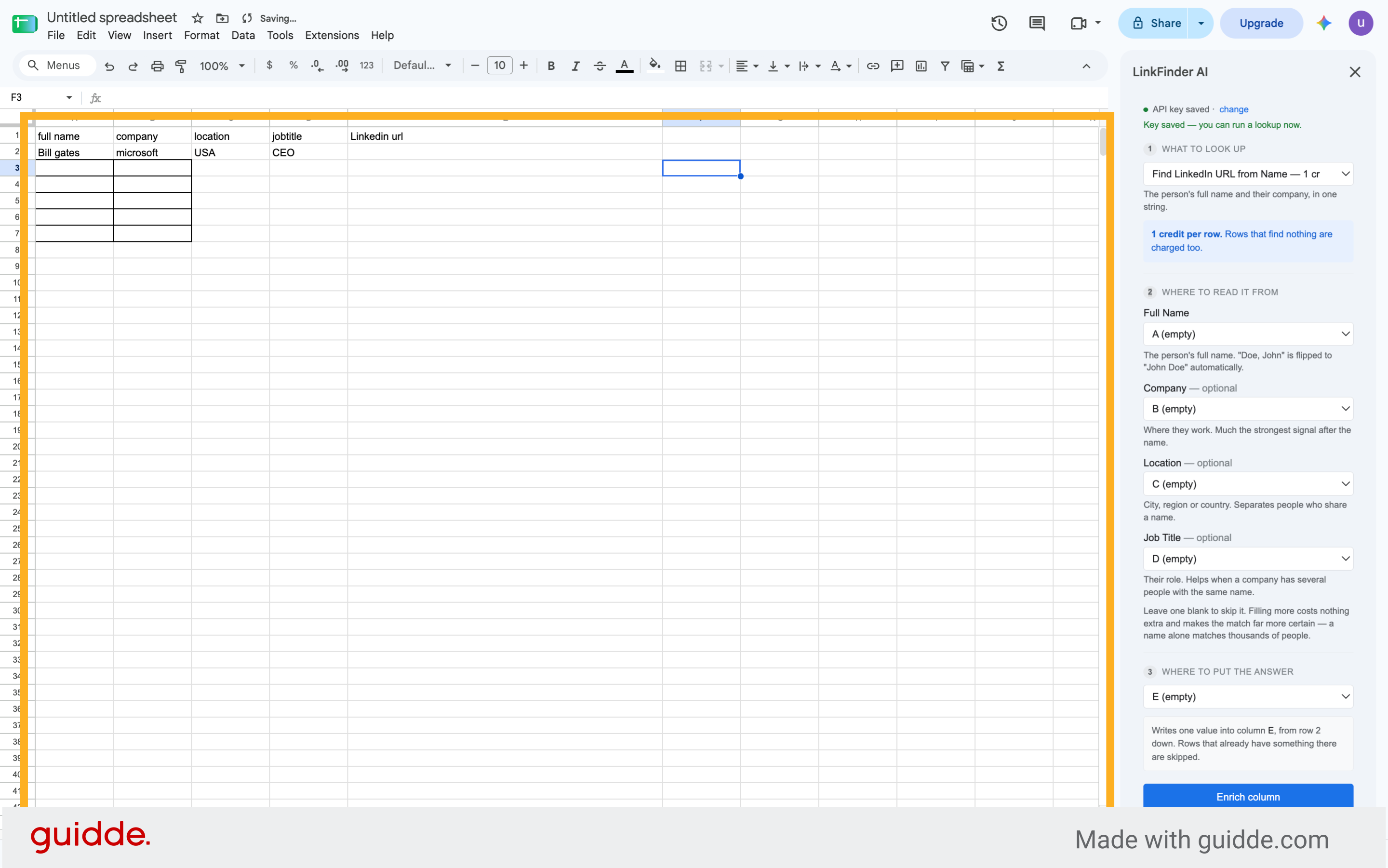
40. Select Next Cell
Click here to continue through the spreadsheet fields.
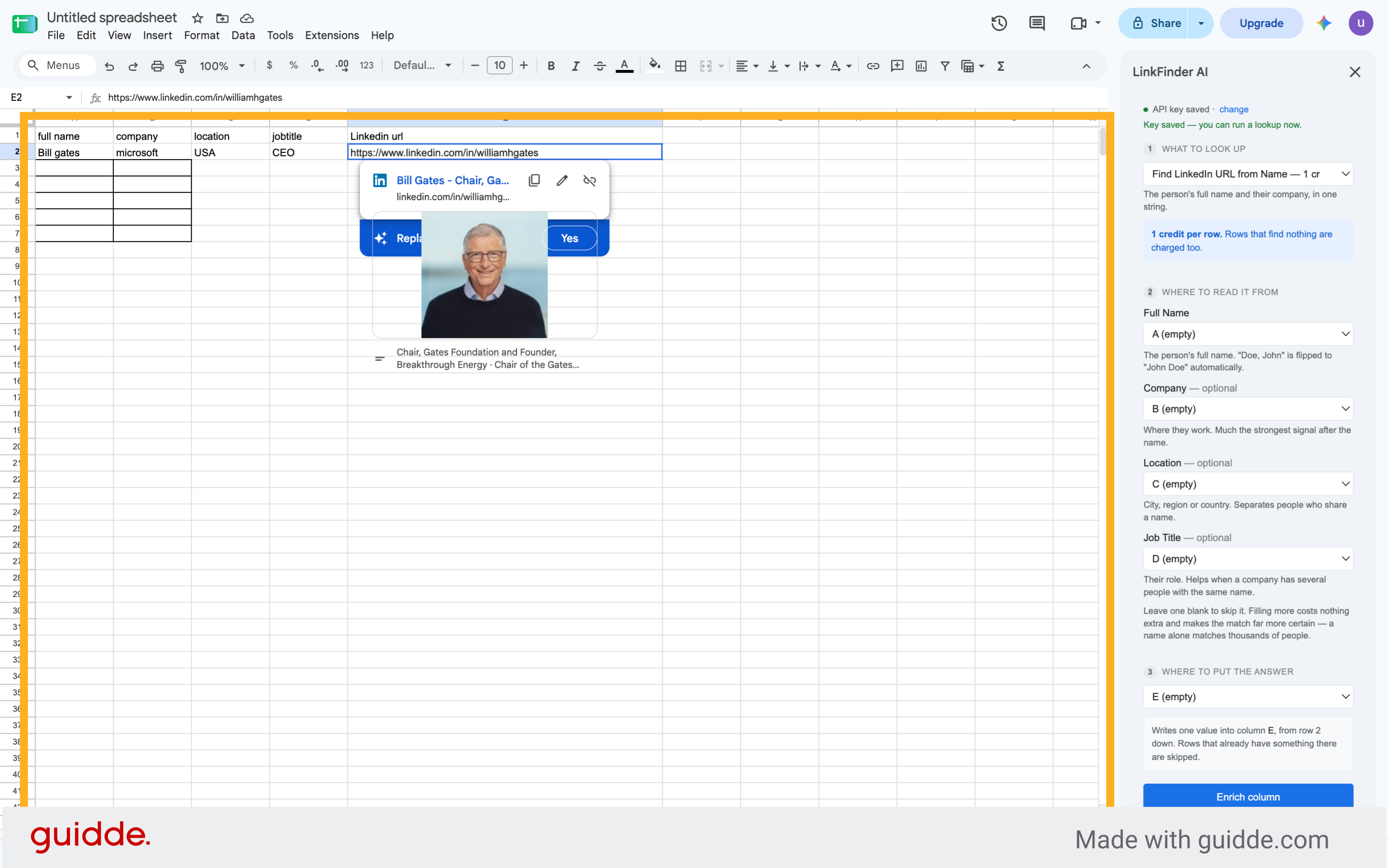
41. Start Enriching Column
Click "Enrich column" to begin finding LinkedIn URLs for your leads.
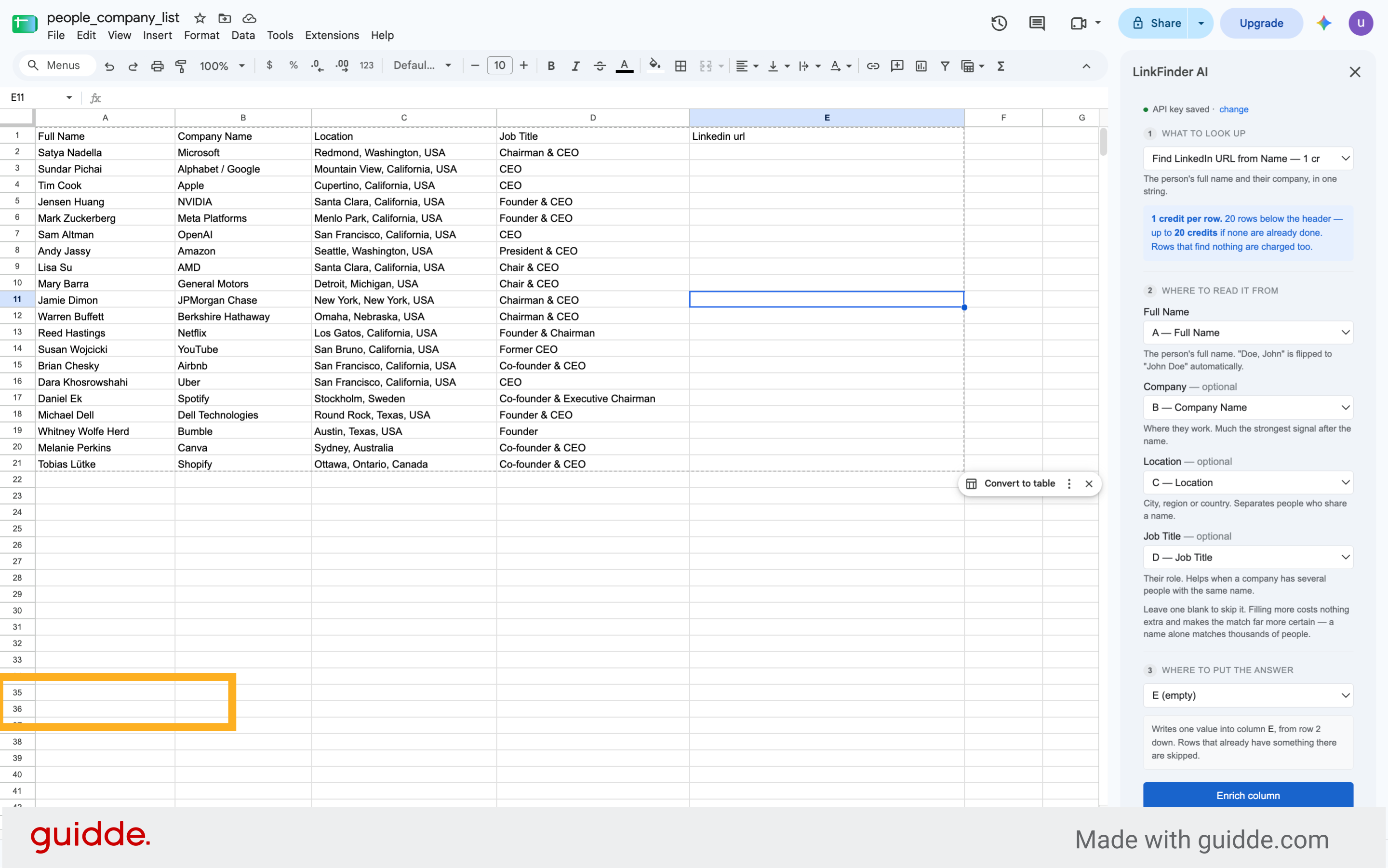
42. Select Next Cell
Click here to proceed after starting the enrichment process.
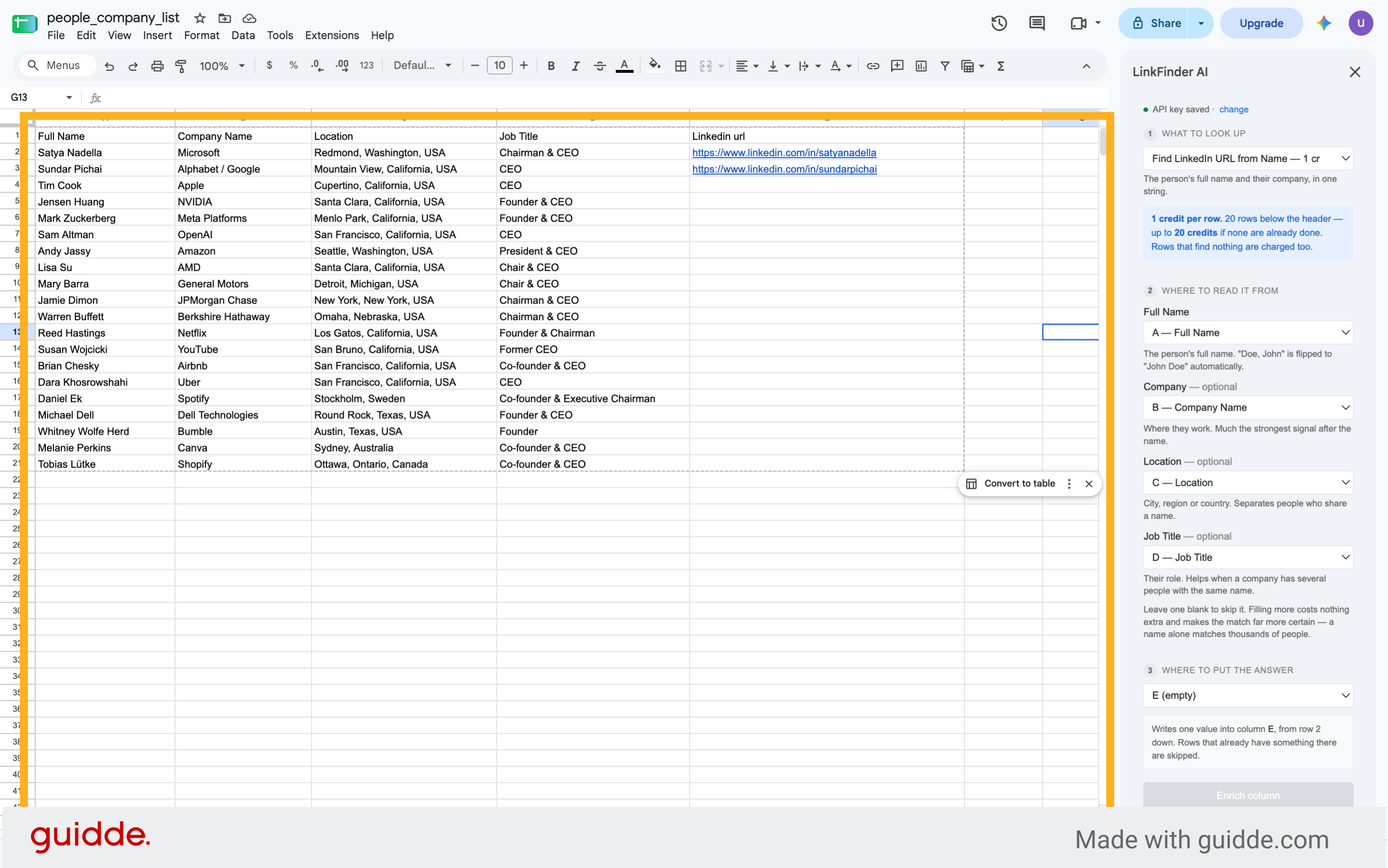
43. Select Next Cell
Click here to continue navigating the spreadsheet.
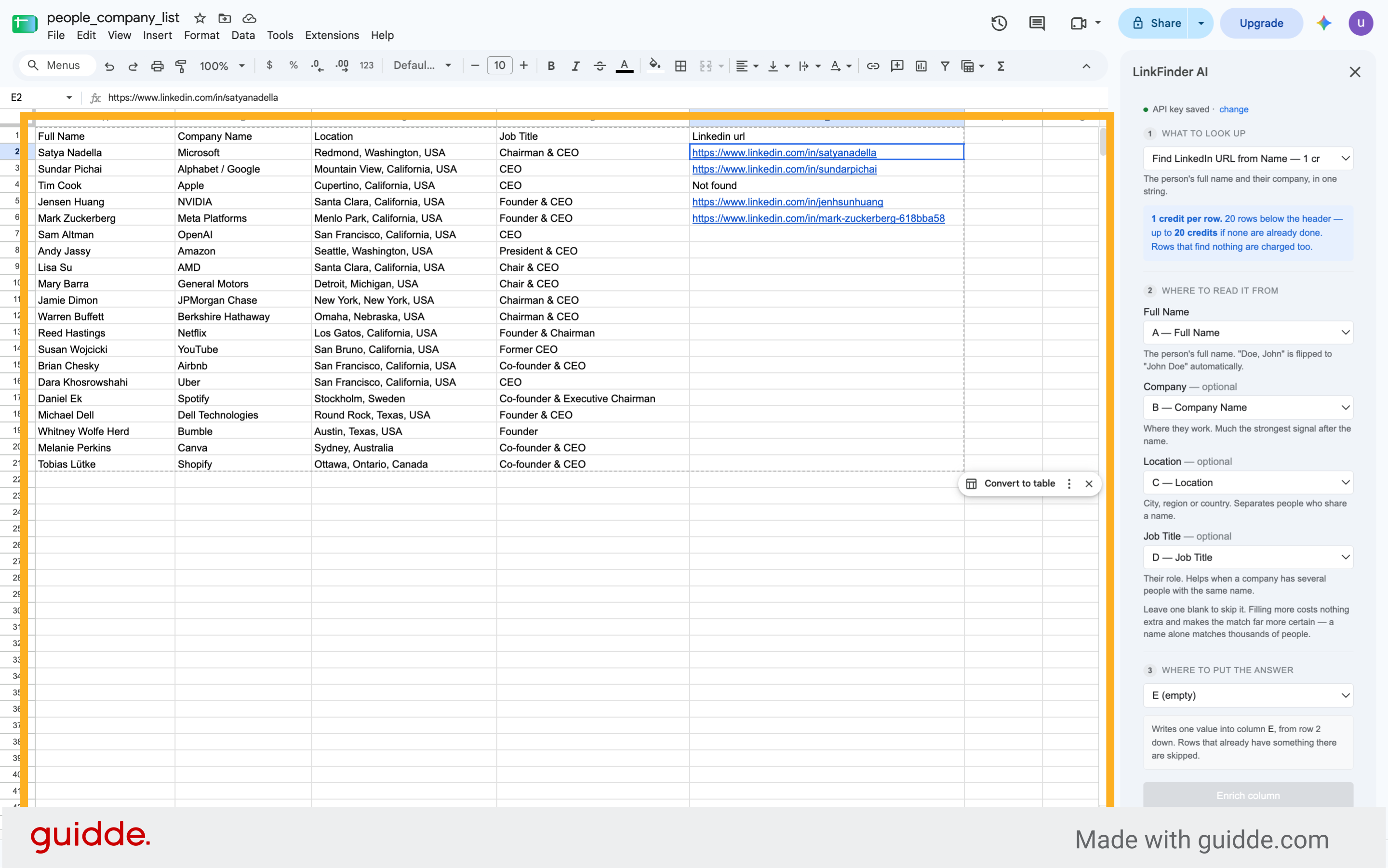
44. Select Next Cell
Click here to move forward in the data enrichment workflow.
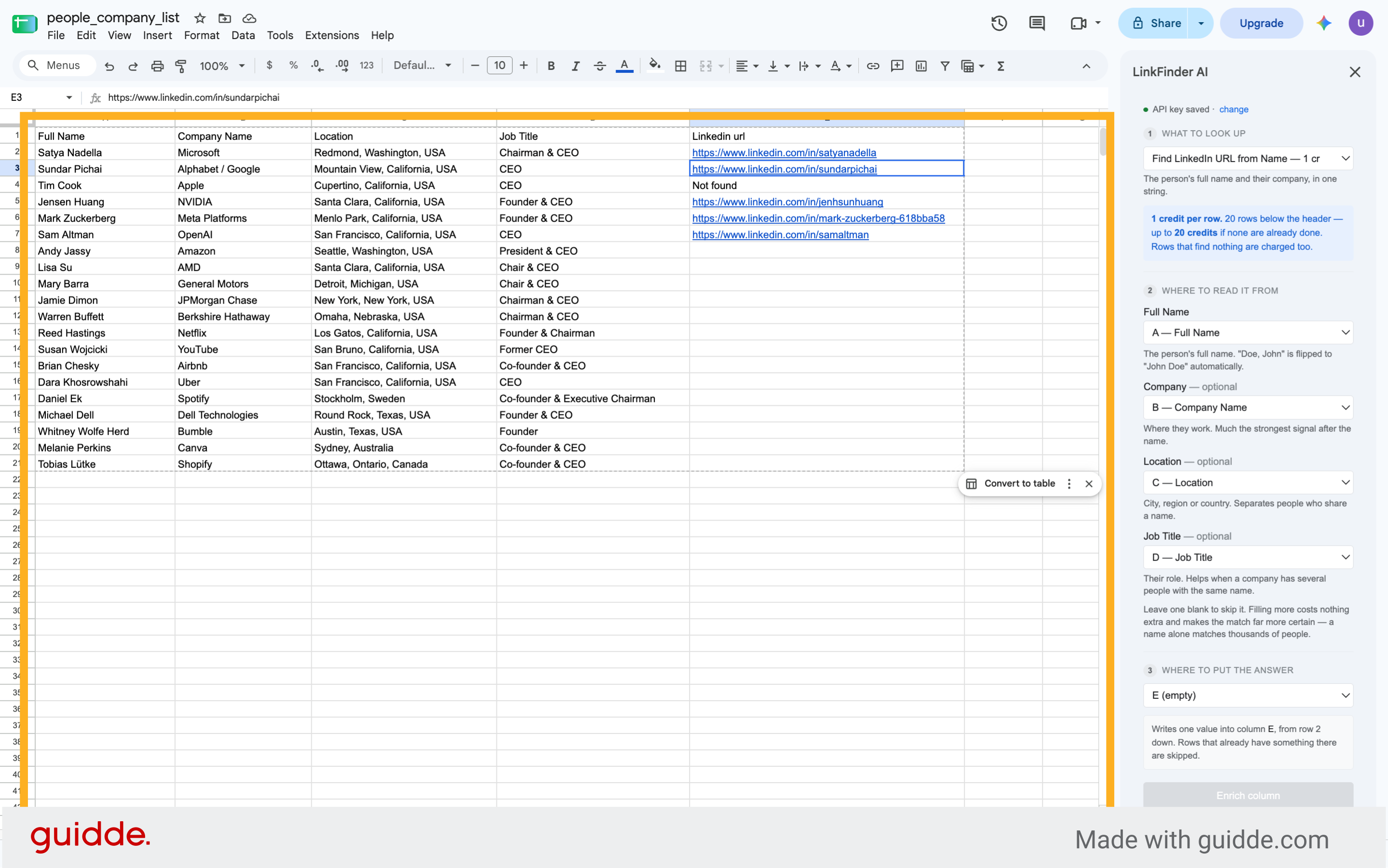
45. Select Next Cell
Click here to proceed to the next step in the spreadsheet.
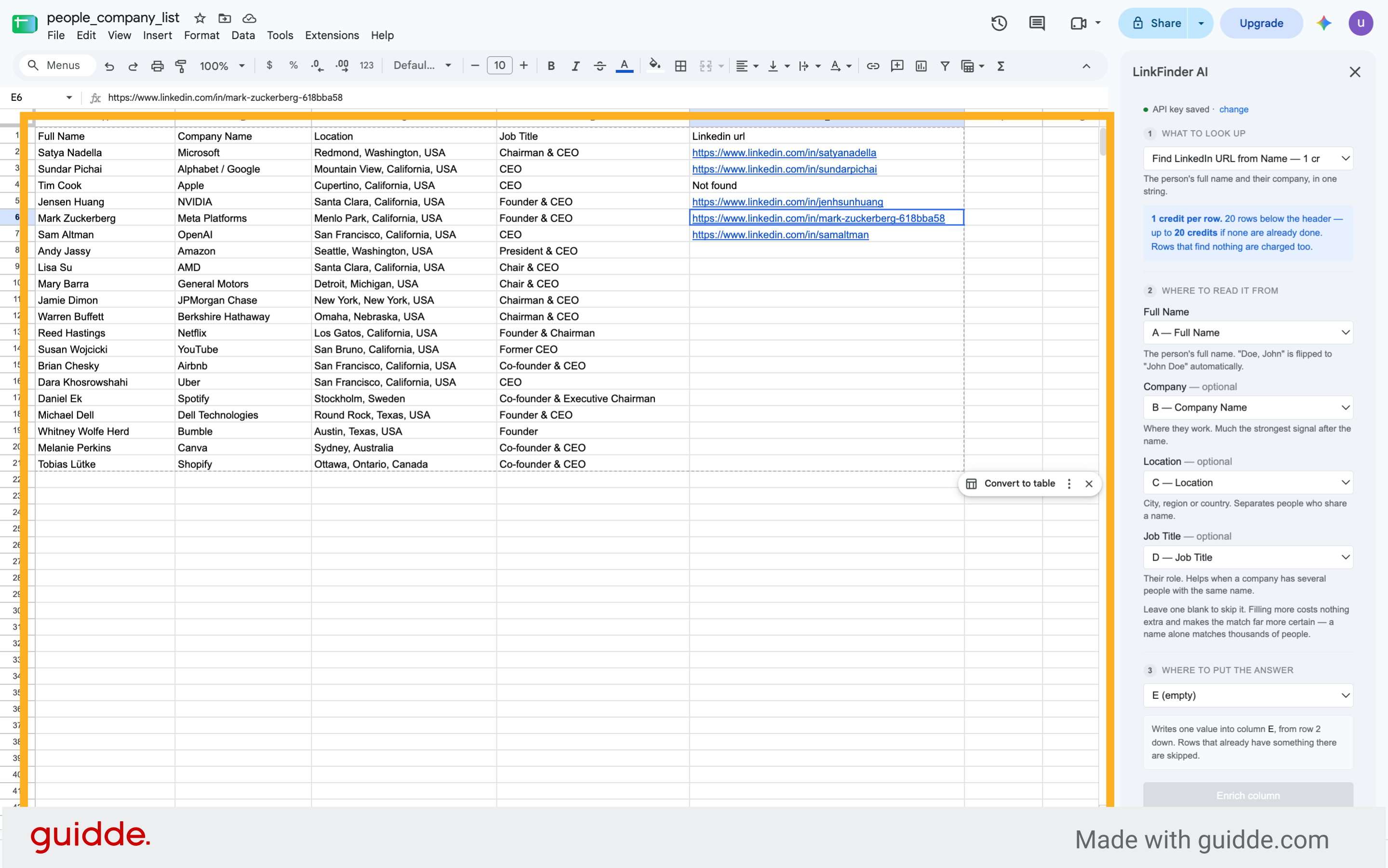
46. Open LinkFinder AI Add-On
Click "LinkFinder AI" to access the add-on and view enriched LinkedIn URLs.
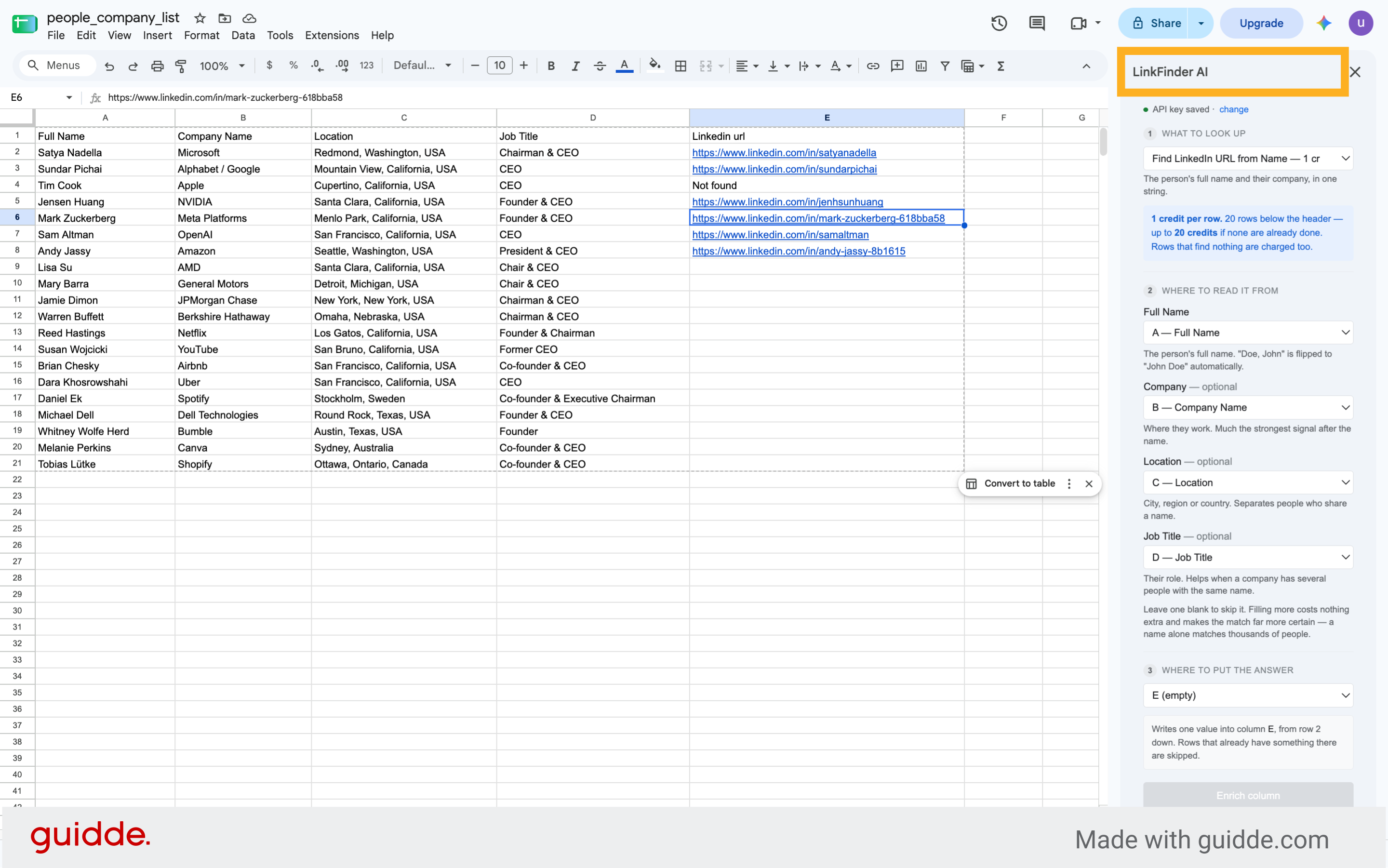
This demo showcased how to integrate LinkFinder AI with Google Sheets to automatically find LinkedIn URLs from names and company data. Start enriching your spreadsheets today to streamline your lead generation process.
Get started