Scrape LinkedIn Profile Data Using LinkFinder AI API
This tutorial explains how to scrape LinkedIn profile data using an API.
Go to www.youtube.com
1. Introduction
You will learn to set up and use LinkFinder AI to extract professional information efficiently.
2. Access LinkFinder AI Website
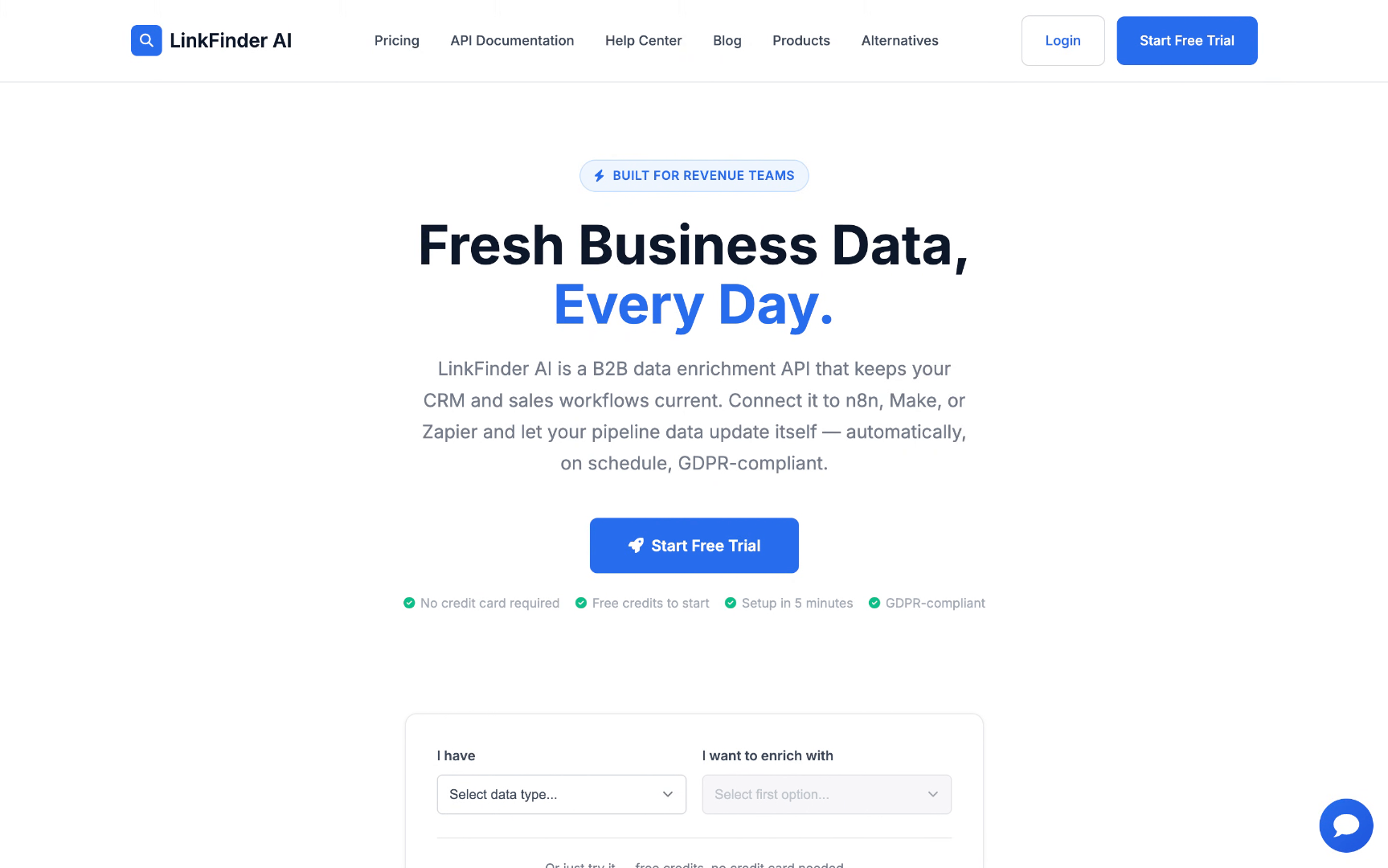
First, go to the video description and click on the first link in the video description. This will redirect you to the LinkFinder AI website.
3. Switch to LinkFinder AI Tab
Switch to the linkfinderai.com tab to continue the process.
4. Start Free Trial
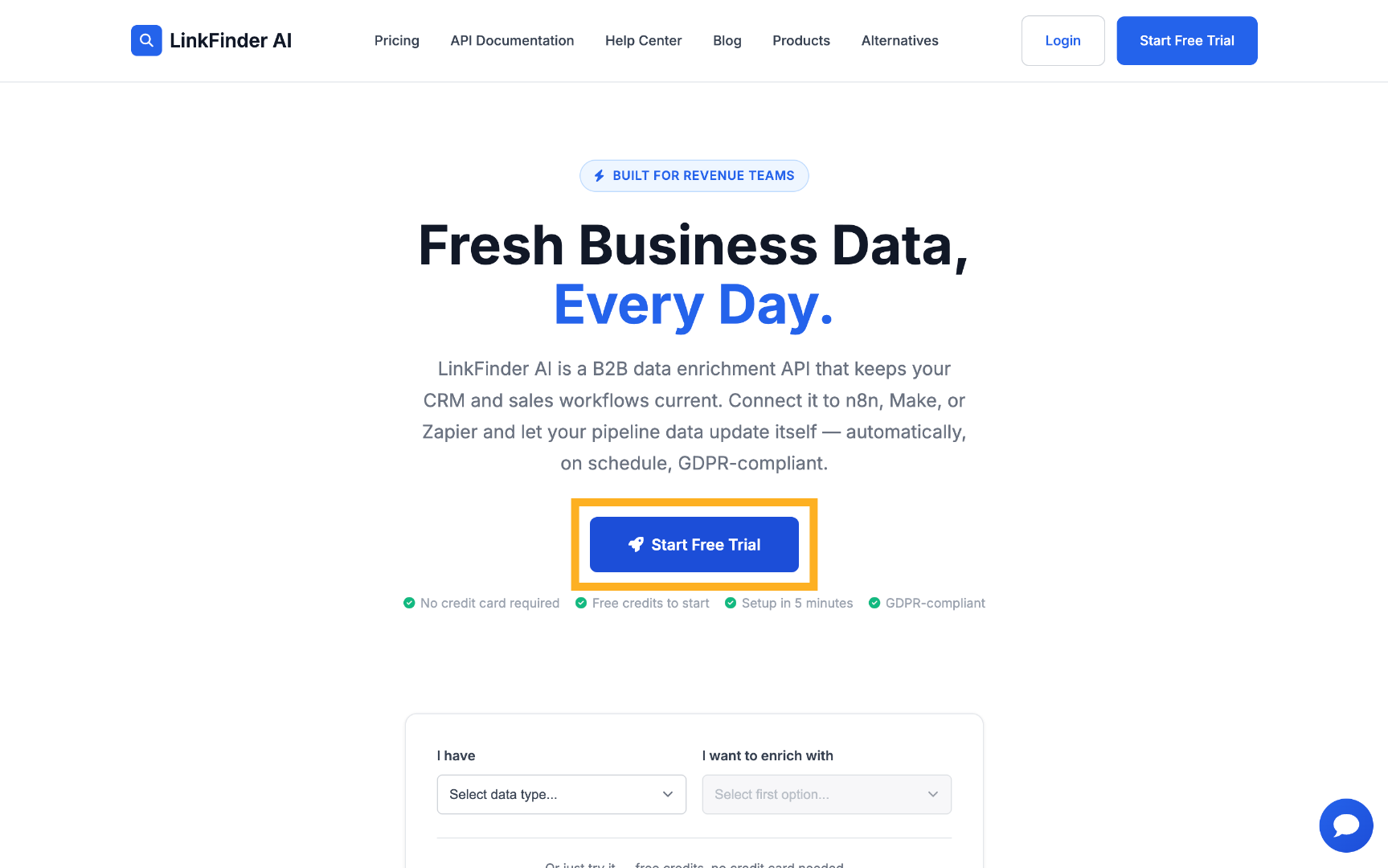
Here you can create an account by clicking on Start Free Trial and creating your account.
5. View Free Credits
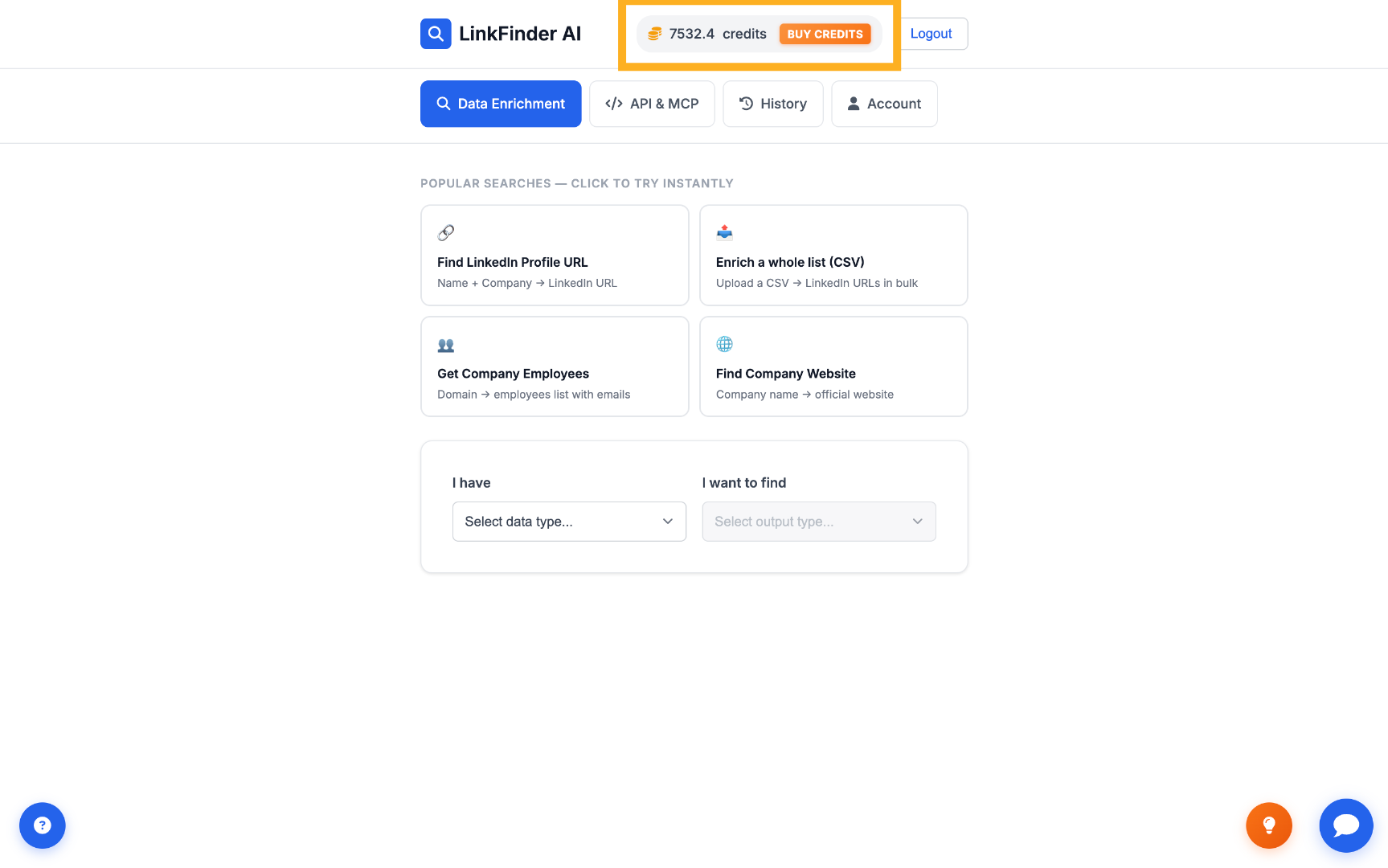
Once you've created your account on LinkFinder AI, you will be granted some free credits that you can use in the tool.
6. Access API & MCP Section
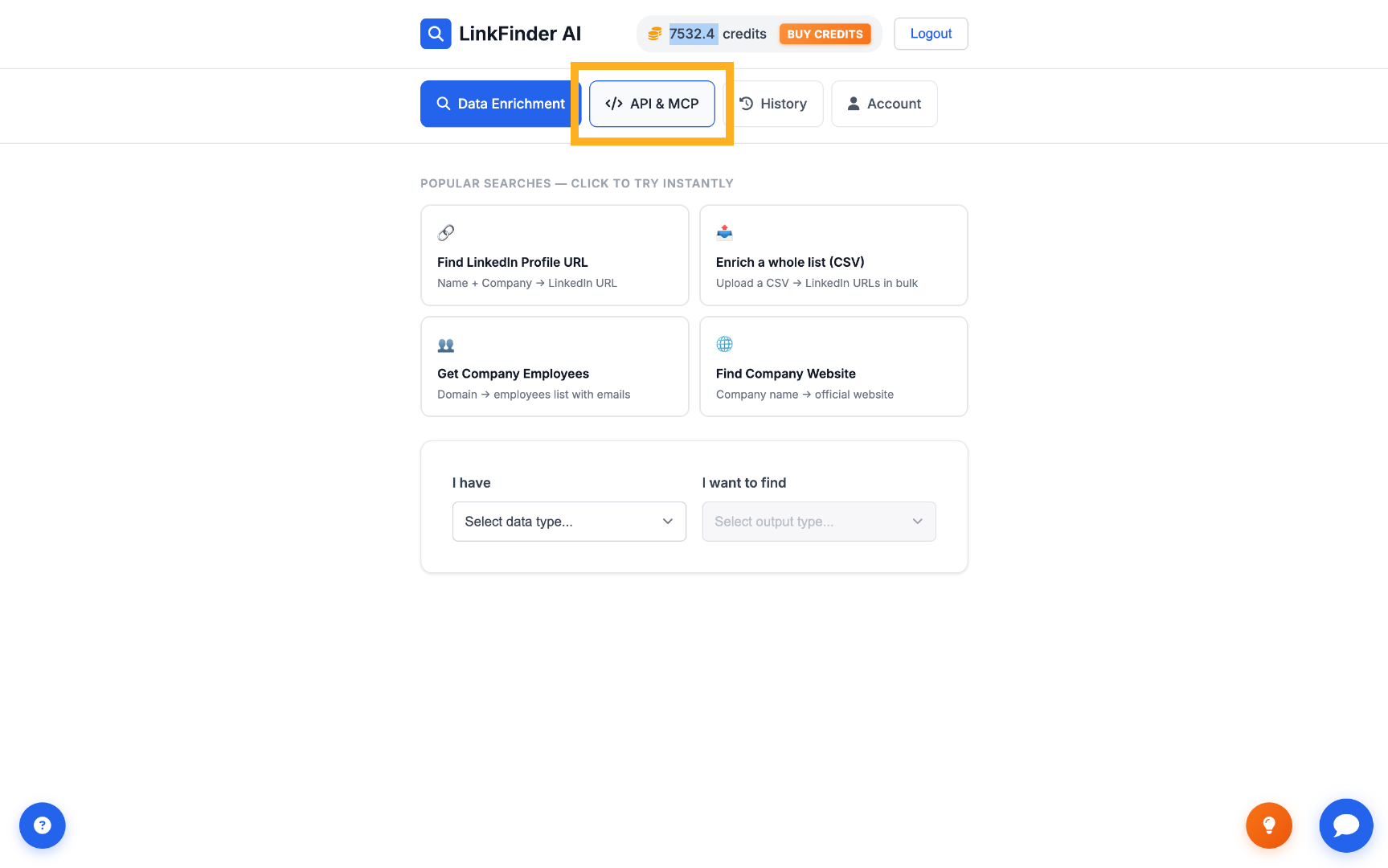
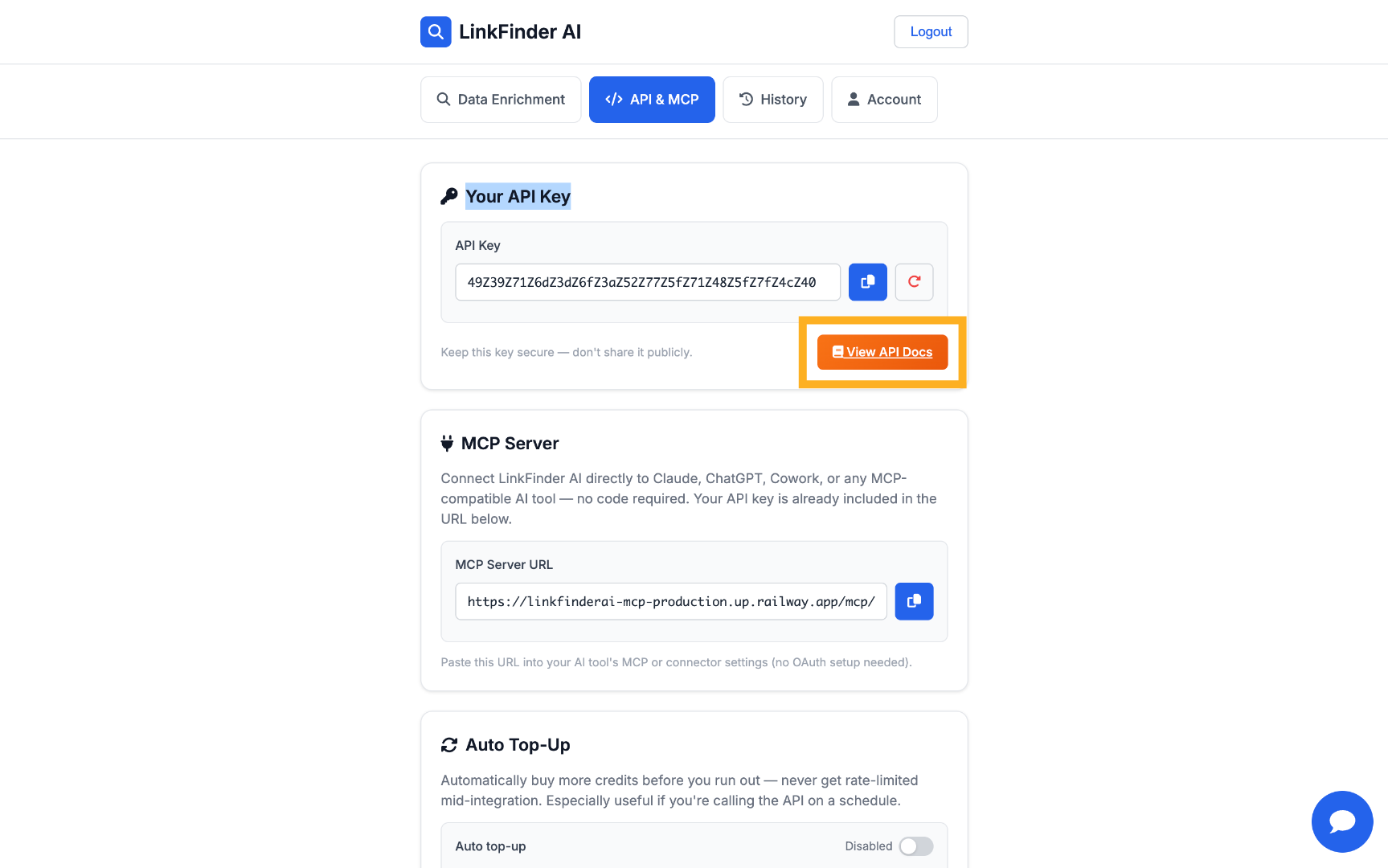
To start doing API calls and scrape LinkedIn profiles with the API using LinkFinder, go to the API and MCP section.
7. View Your API Key
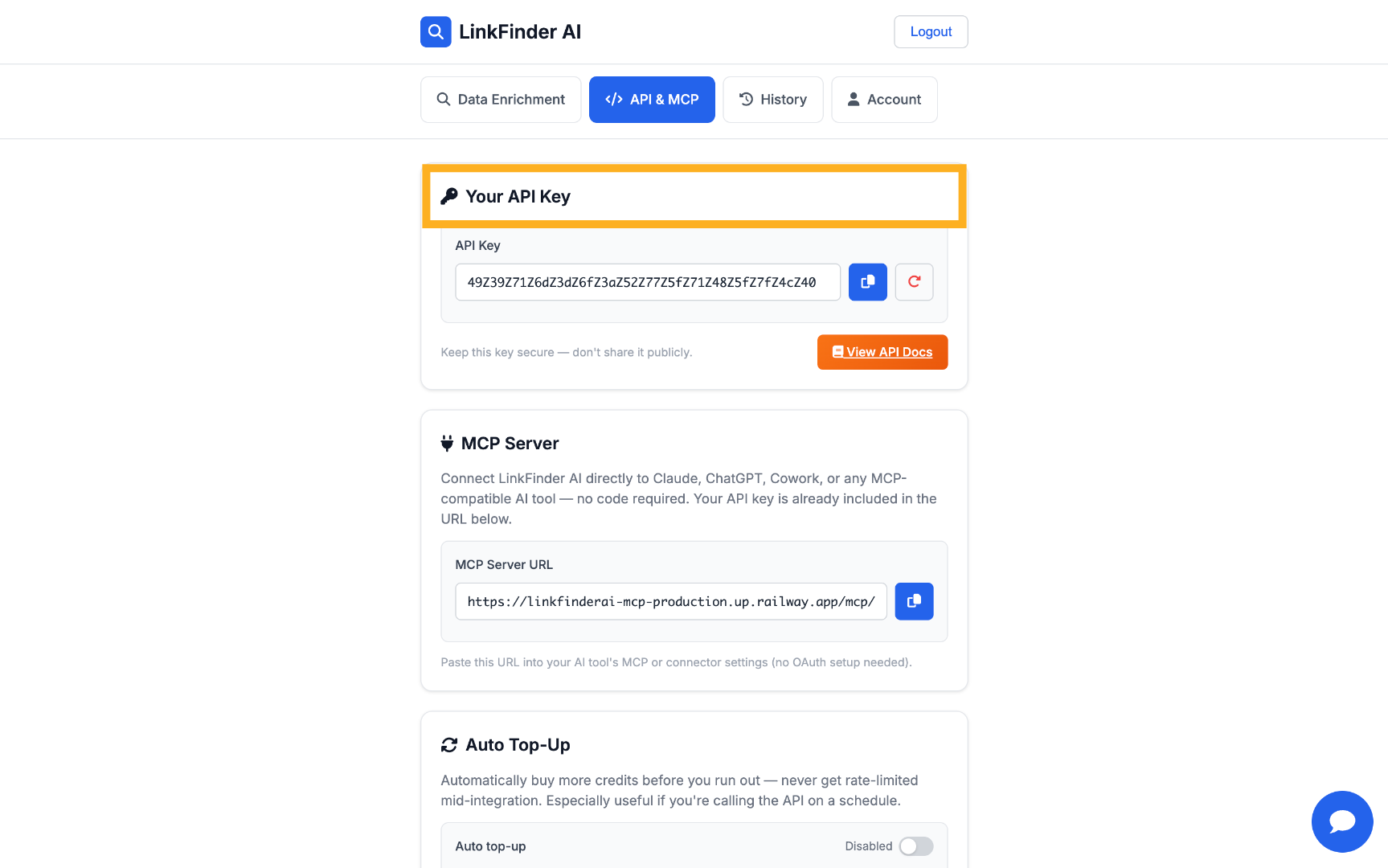
Here you can see your API key that we are going to use later on.
8. Open API Documentation
Go to the API documentation to explore available API calls.
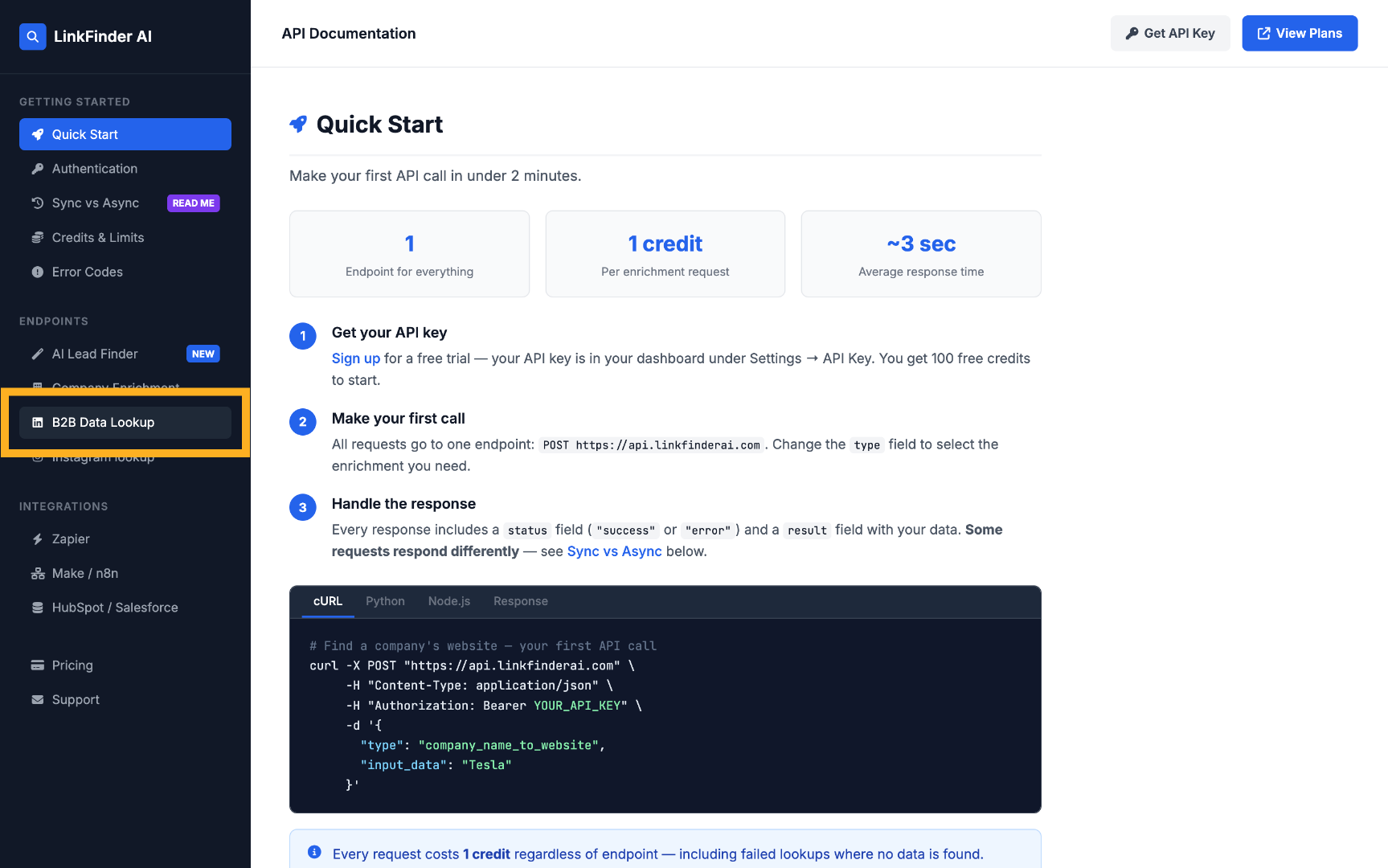
9. Navigate to B2B Data Lookup
In the API documentation, go to the B2B Data Lookup section where you can find all API calls for LinkedIn scraping.
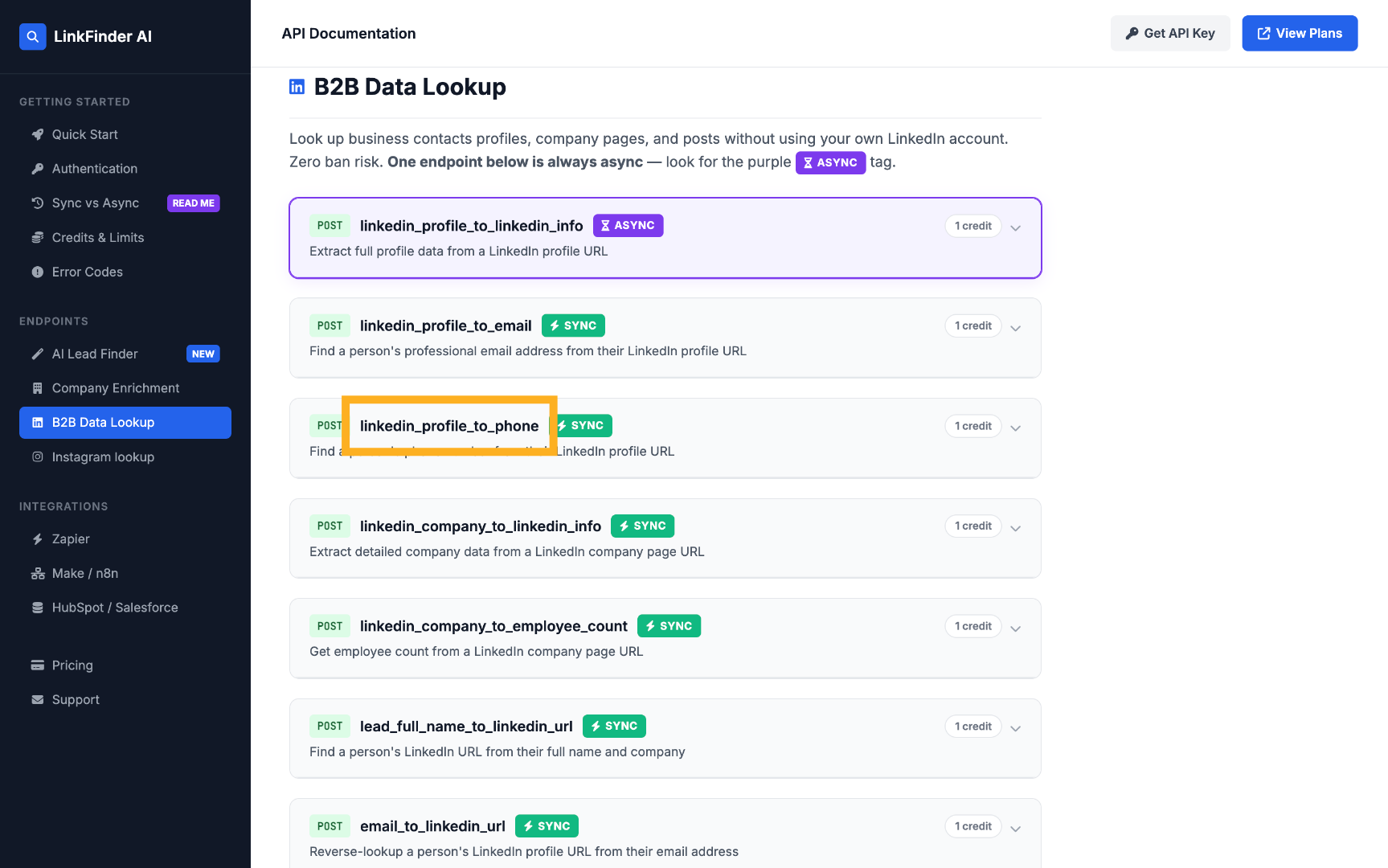
10. Select LinkedIn Profile to Phone
Here you can see API calls like LinkedIn profile to phone number, LinkedIn to email, and others.
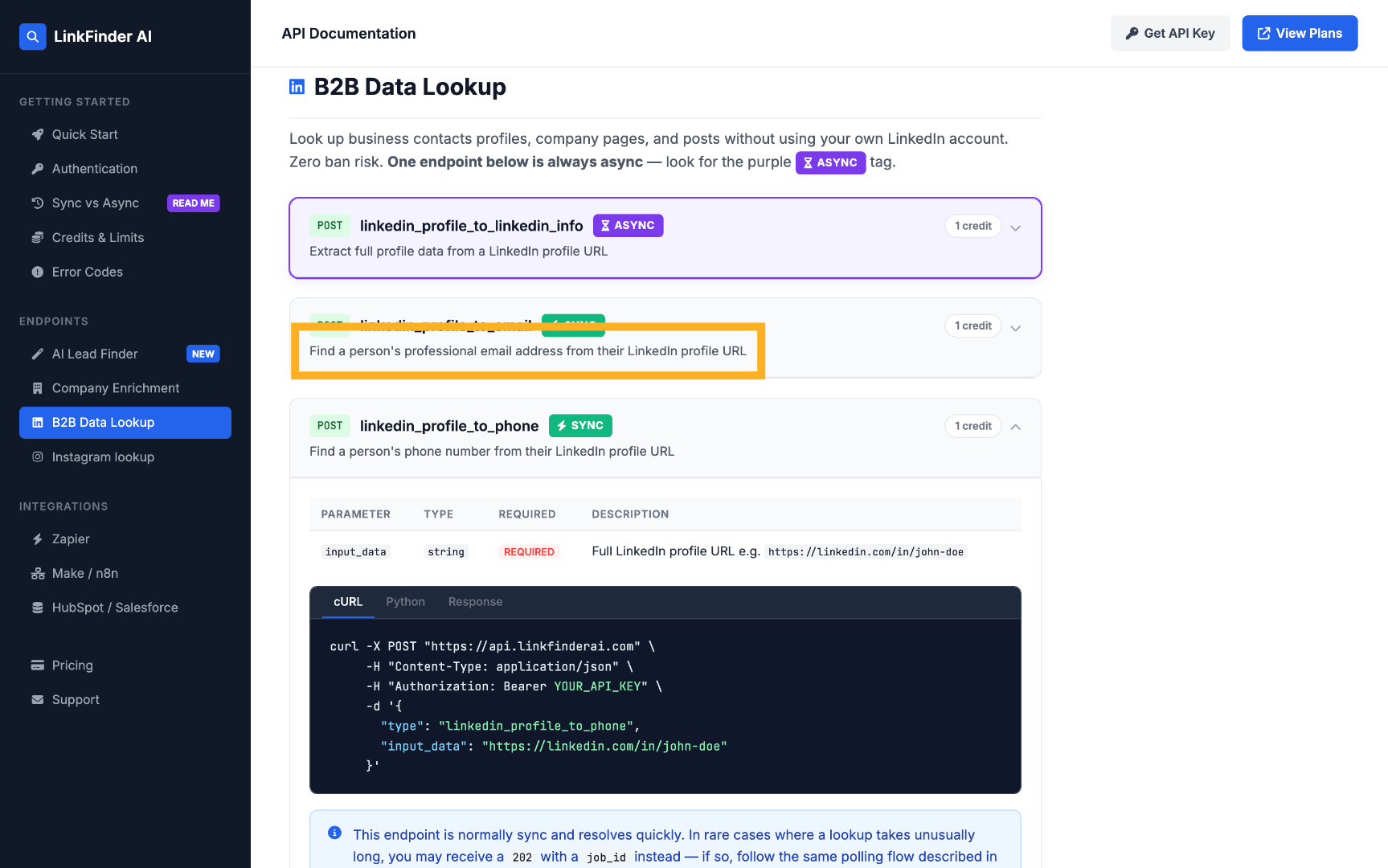
11. View Professional Email API
Click to find a person's professional email address from their LinkedIn profile URL.
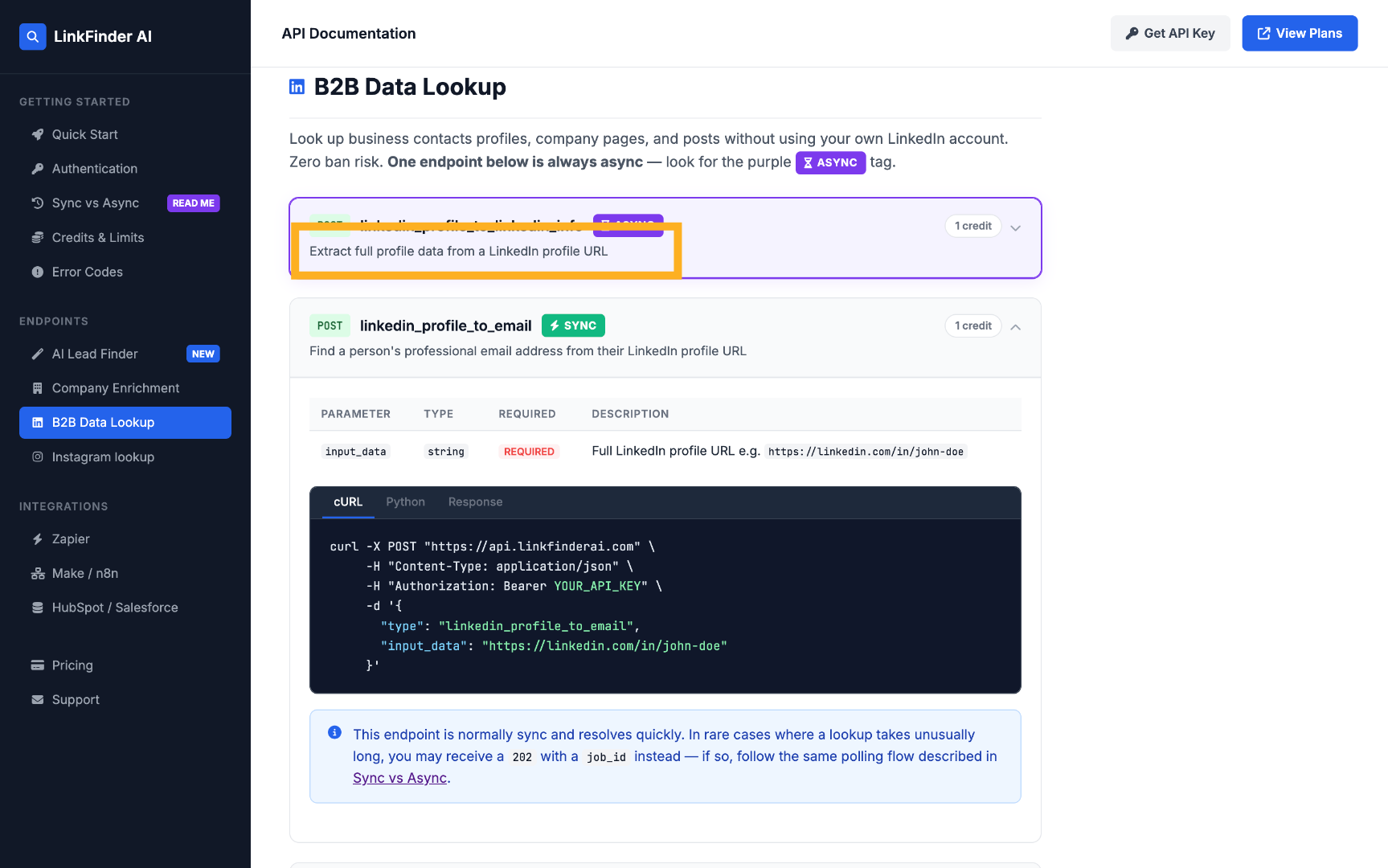
12. Extract Full Profile Data
Click to extract full profile data from a LinkedIn profile URL.
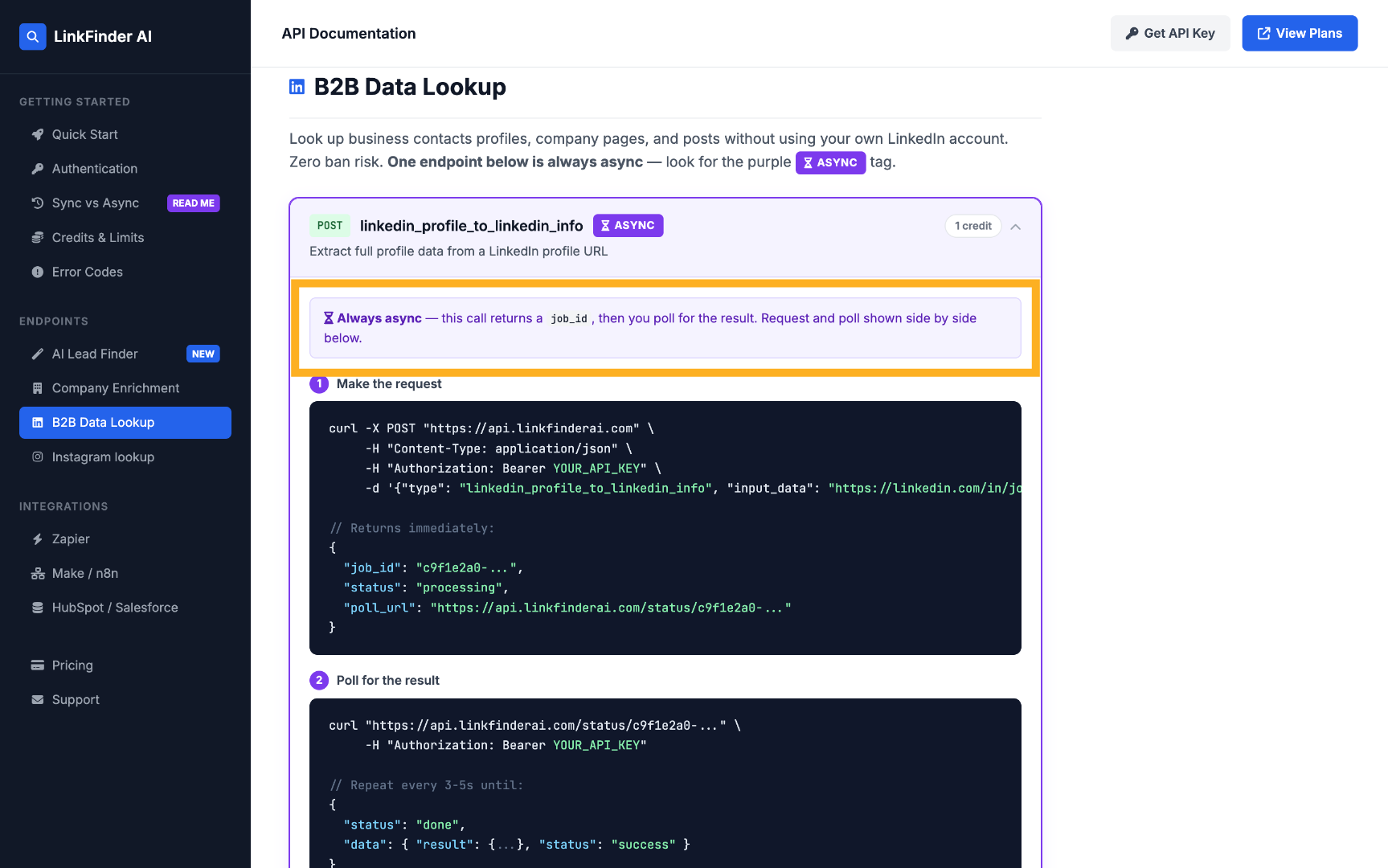
13. Understand Async API Call
This is an async API call which returns a job_id, then you poll for the result. Request and poll are shown side by side below.
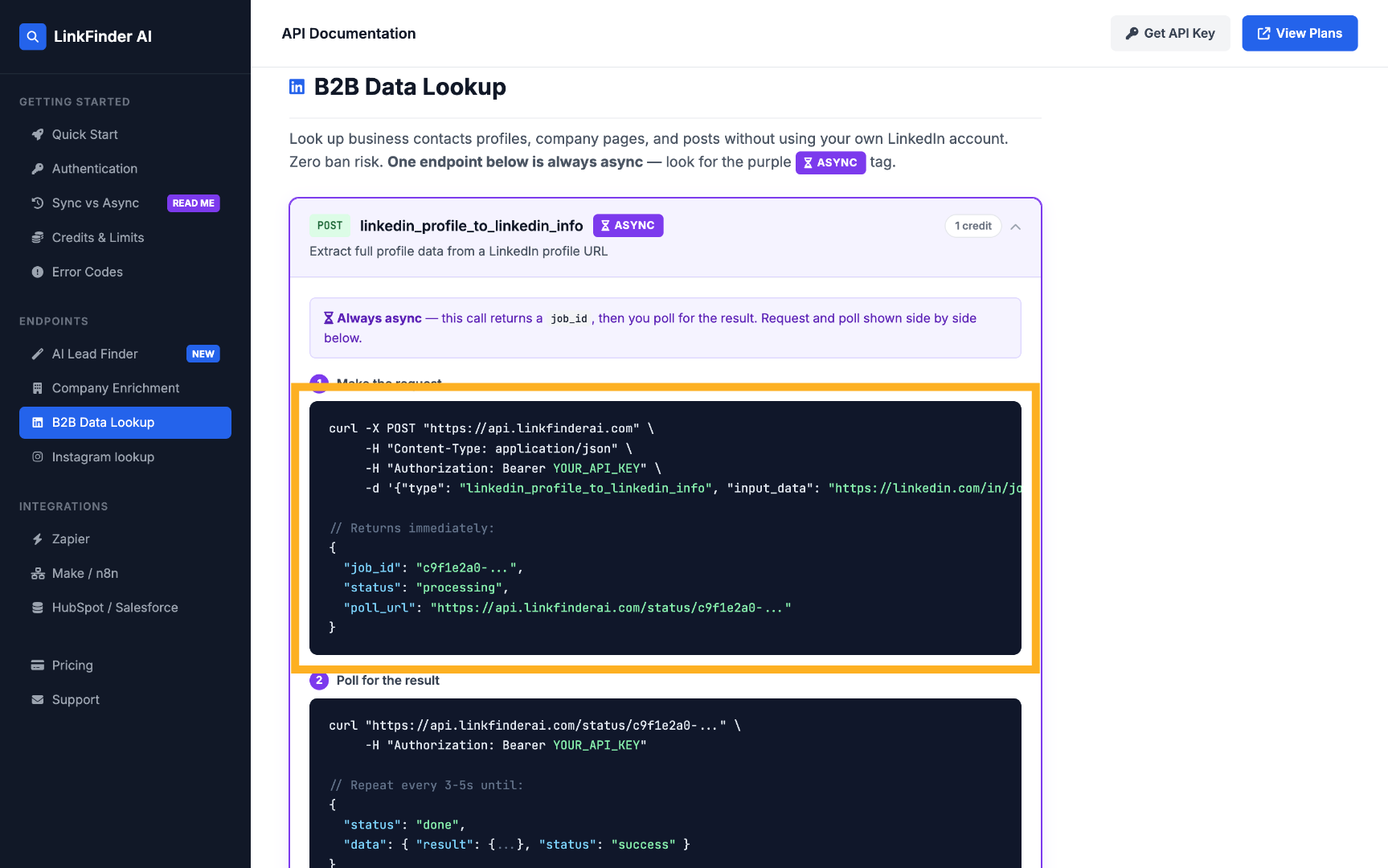
14. Copy cURL Command
Copy the cURL command for the API call to use in your workflow.
15. Switch to Workflow Tab
Switch to the workflow tab to start integrating the API call.
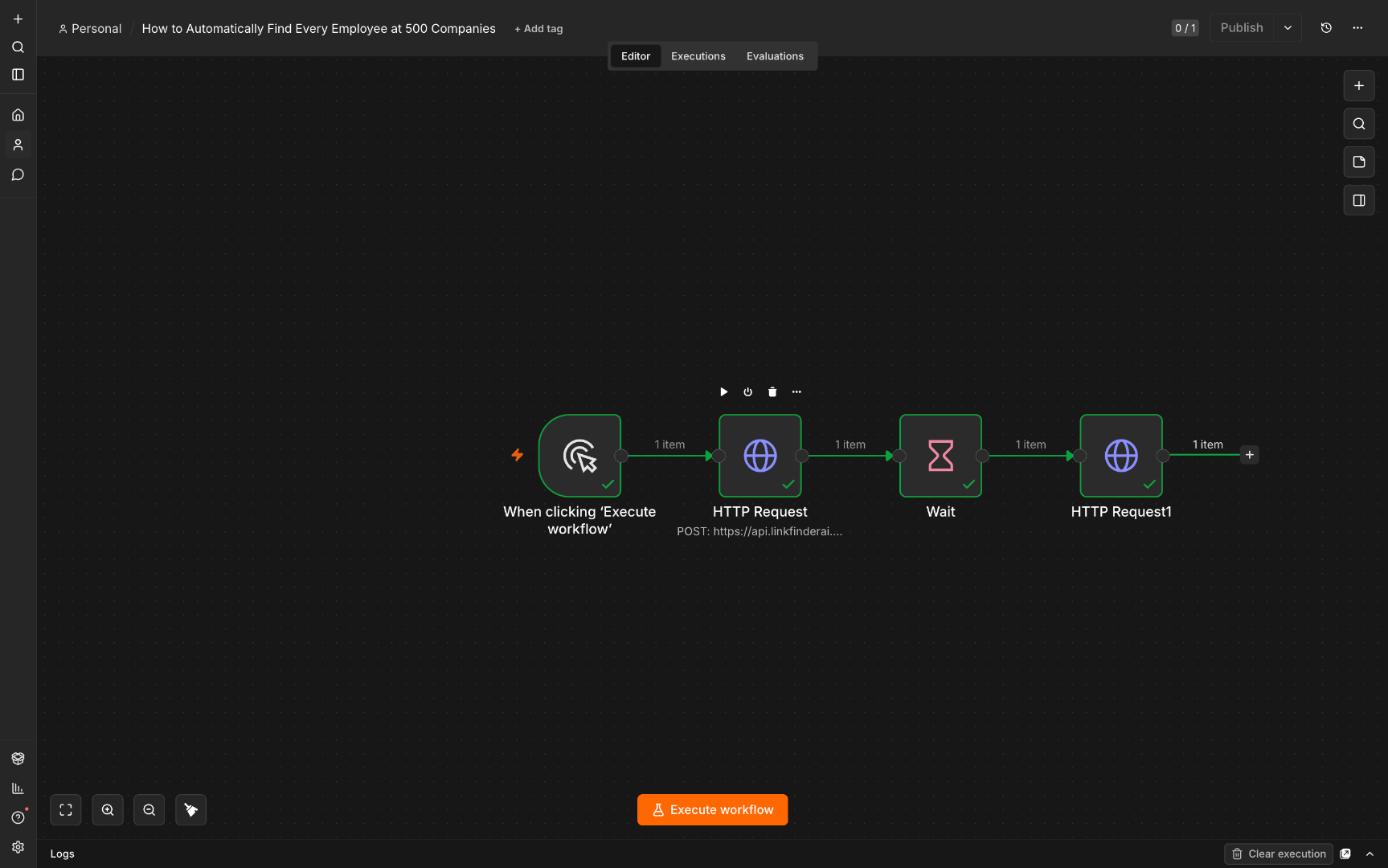
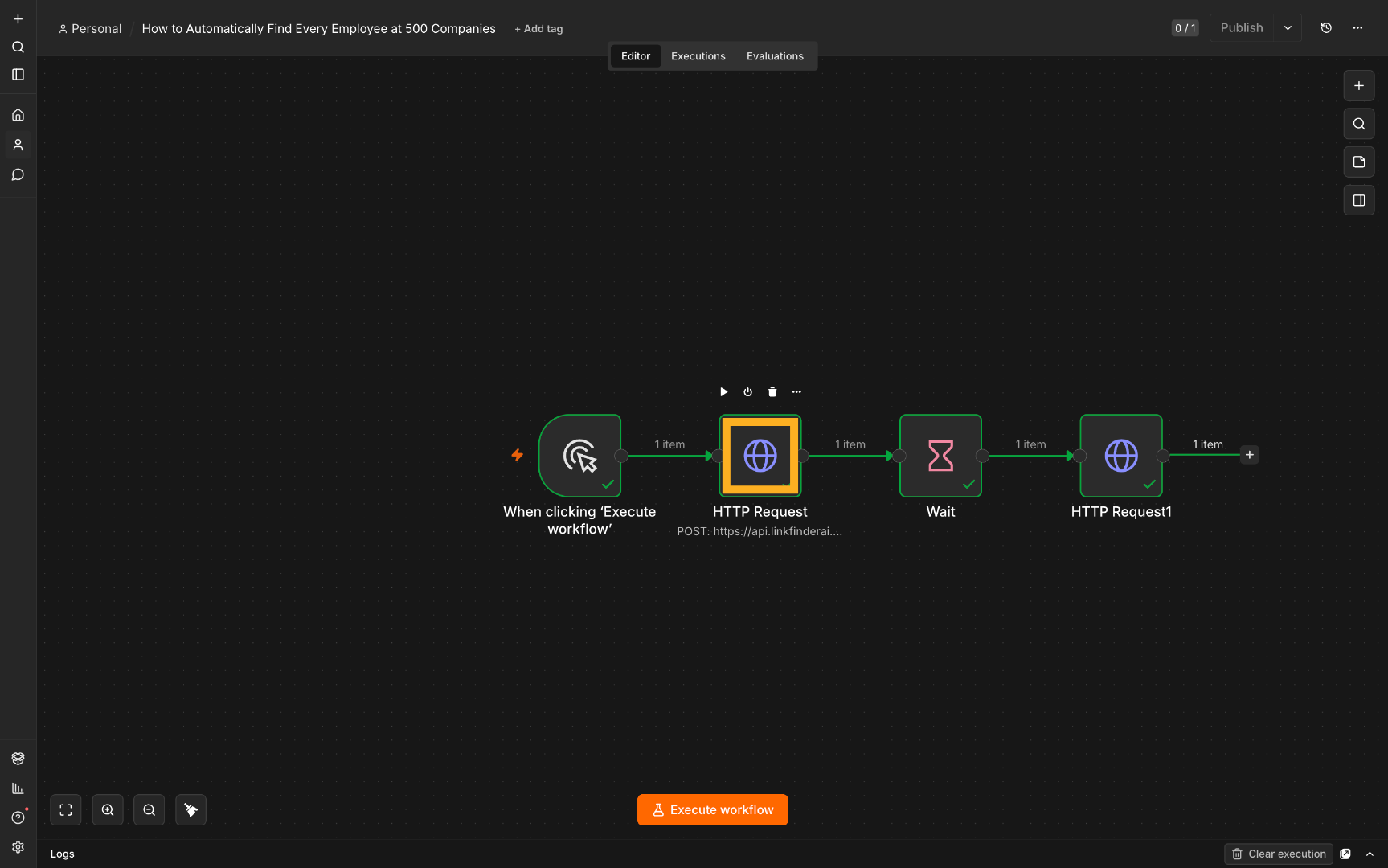
16. Access Workflow Interface
Click here to access the workflow interface where you will configure the API request.
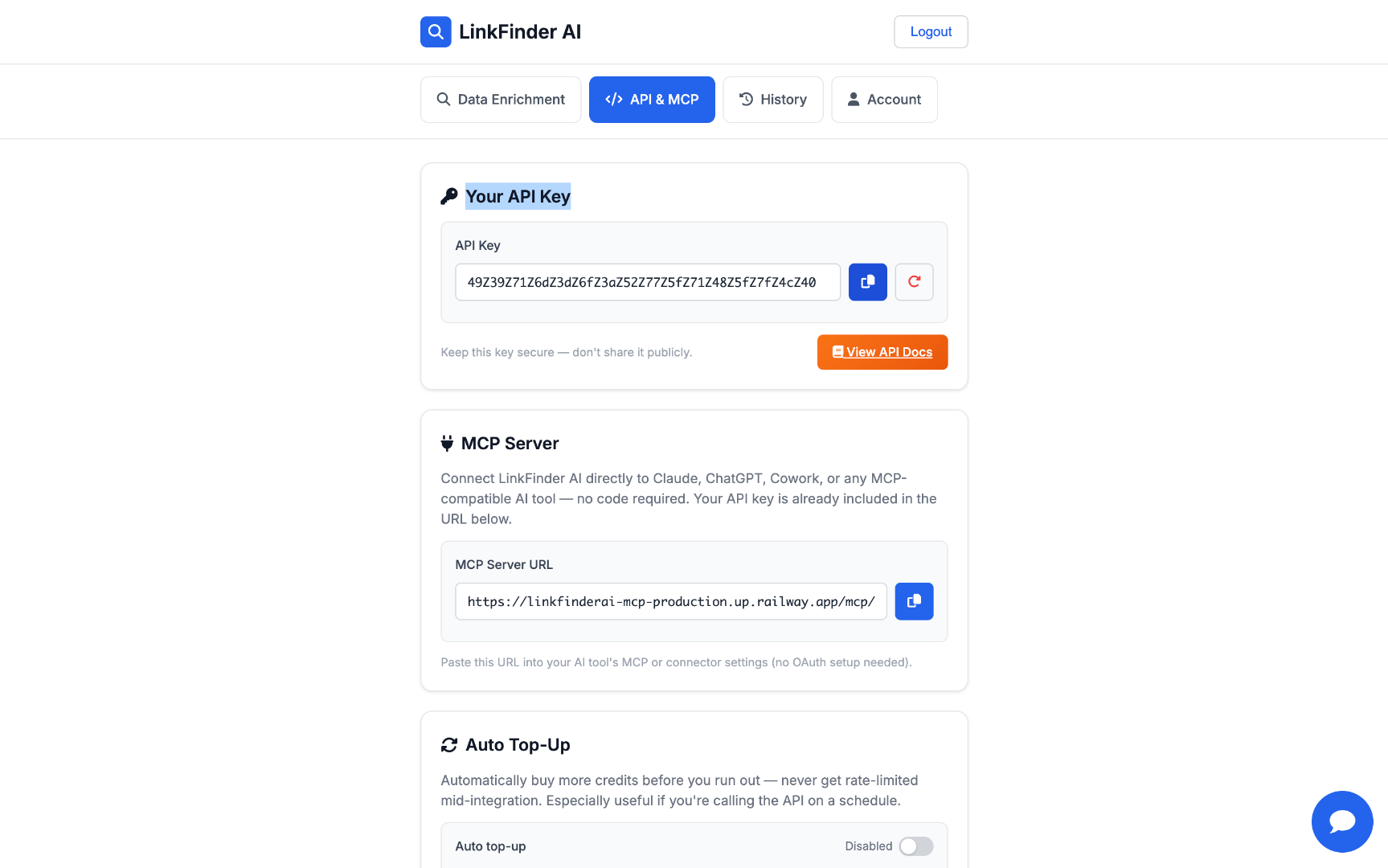
17. Return to LinkFinder AI Tab
Switch back to the linkfinderai.com tab to retrieve your API key.
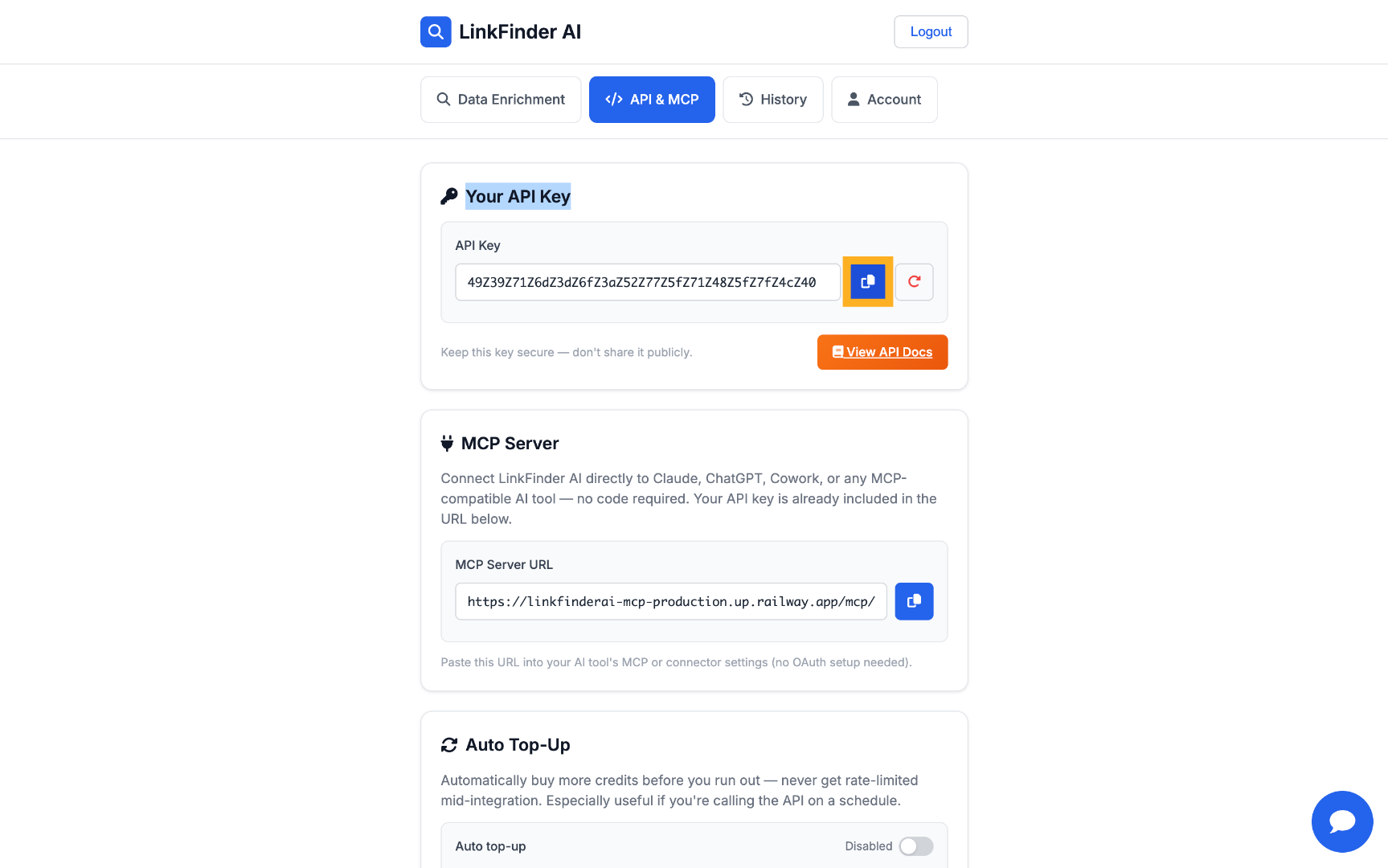
18. Copy API Key
Click here to copy your API key for use in the workflow.
19. Switch to Workflow Tab
Switch again to the workflow tab to continue setup.
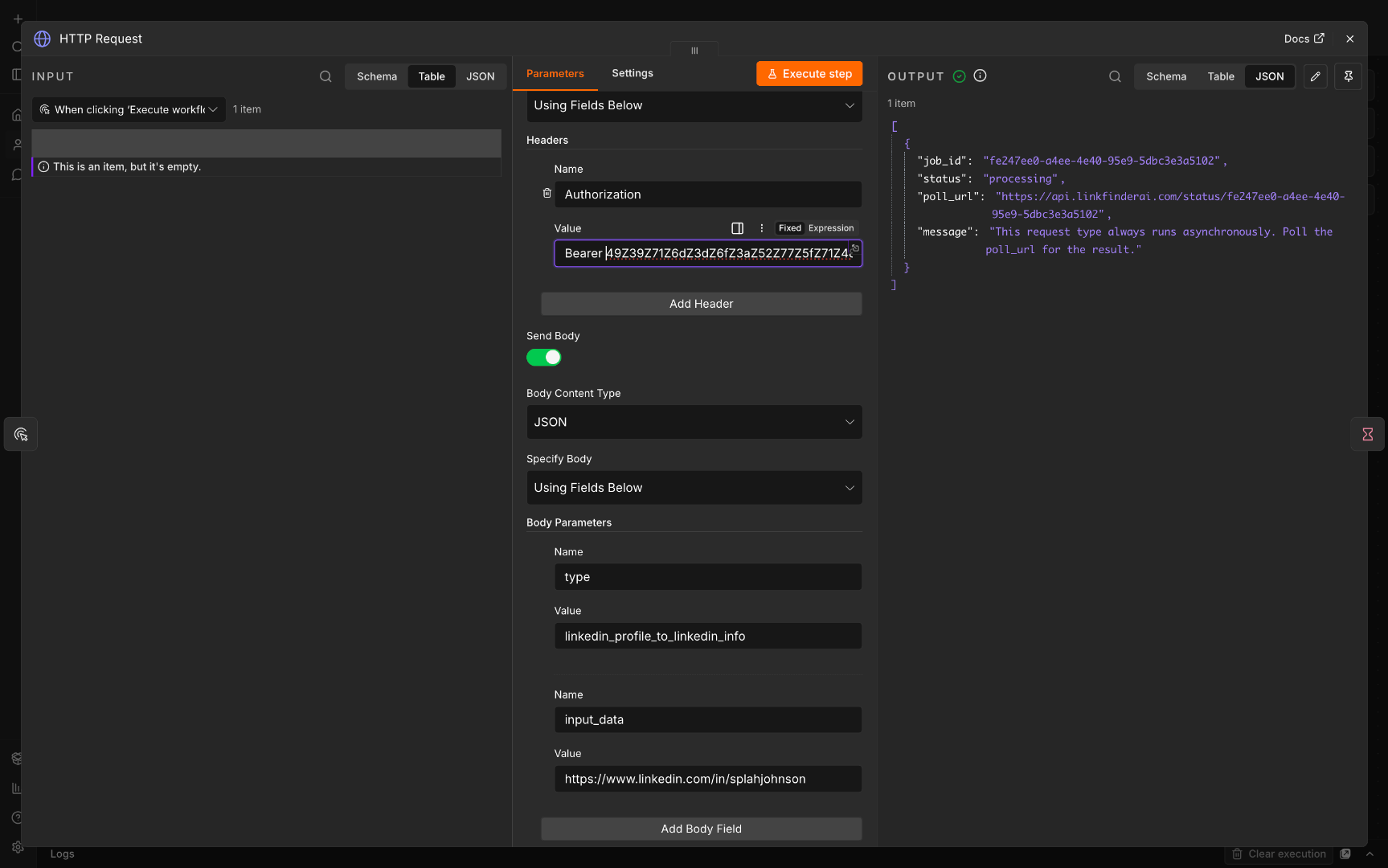
20. Select API Key Field
Click the field containing your API key to prepare for pasting.
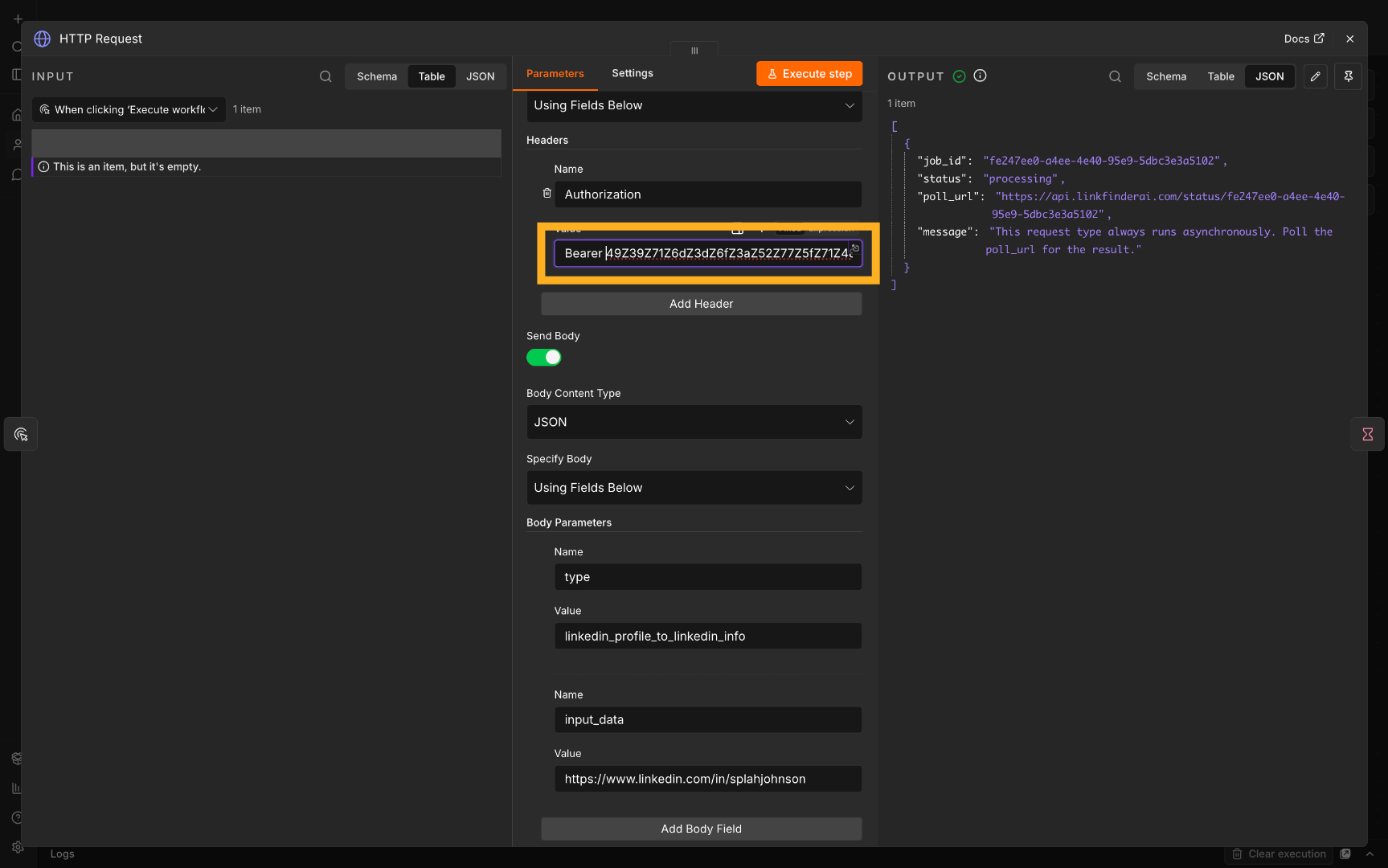
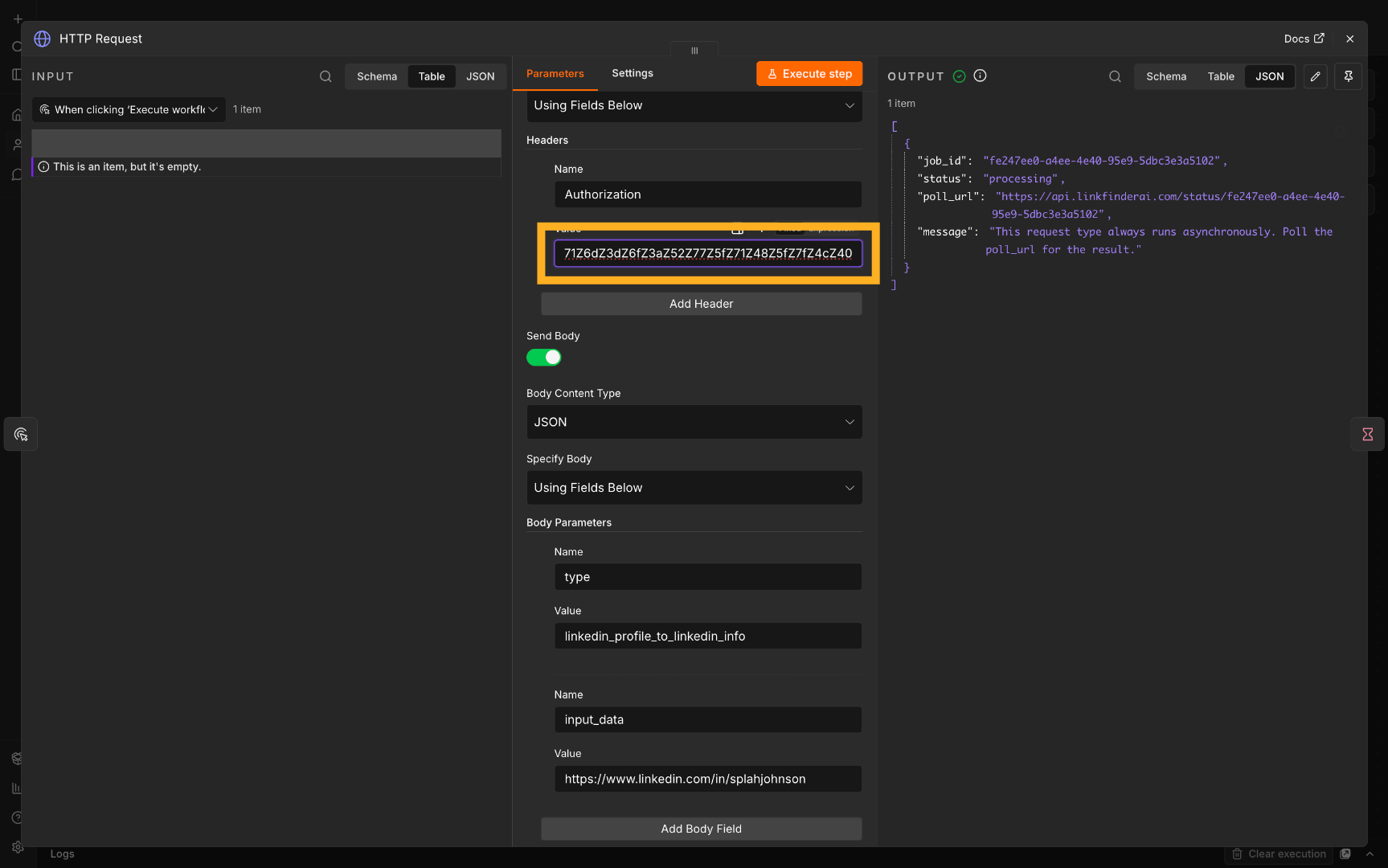
21. Enter API Key
Fill in your API key in the authorization field to authenticate the API request.
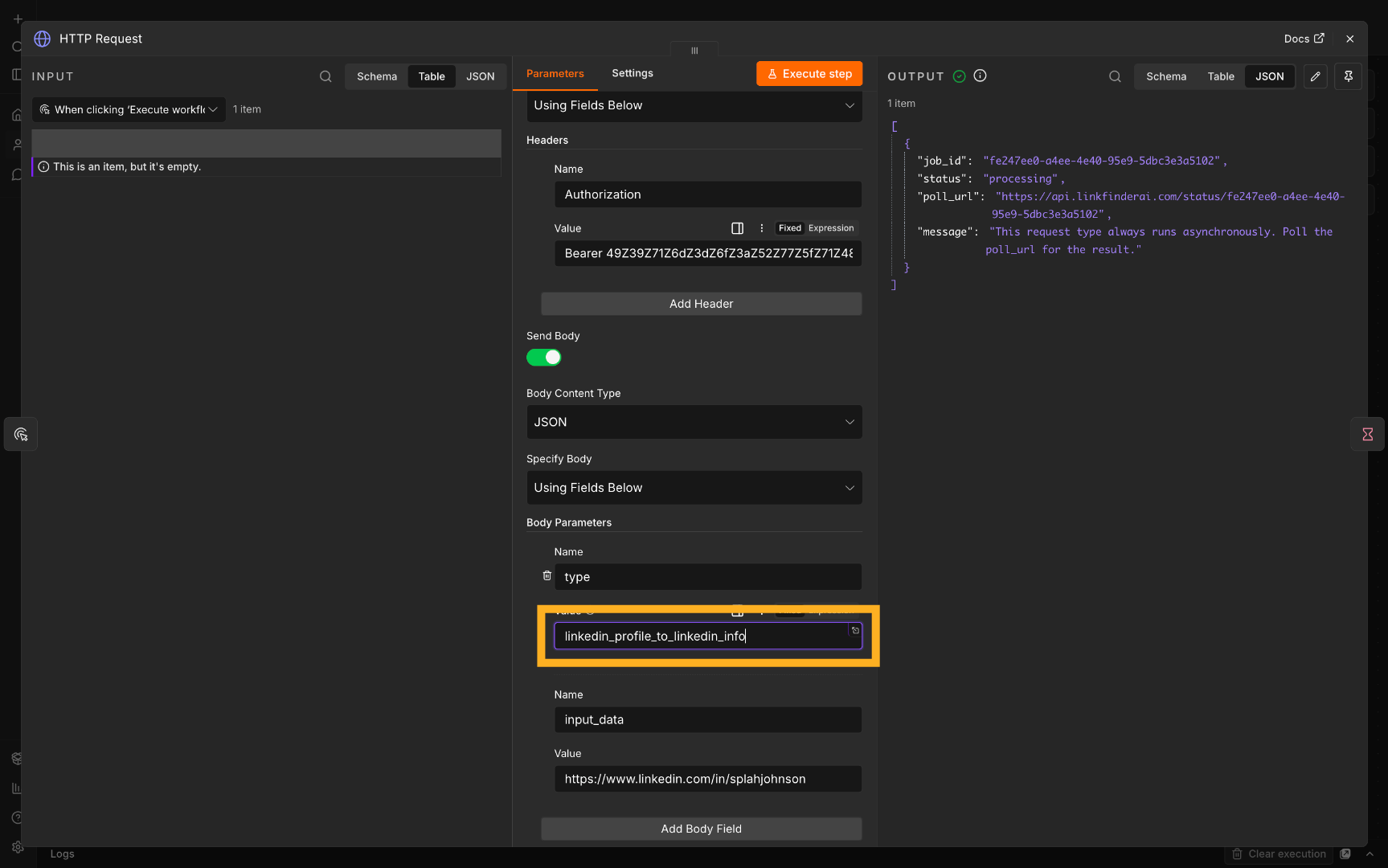
22. Choose API Call
Click linkedin_profile_to_linkedin_info to select the API call for scraping LinkedIn profile data.
23. Enter LinkedIn Profile URL
Click the field to enter the LinkedIn profile URL you want to scrape.
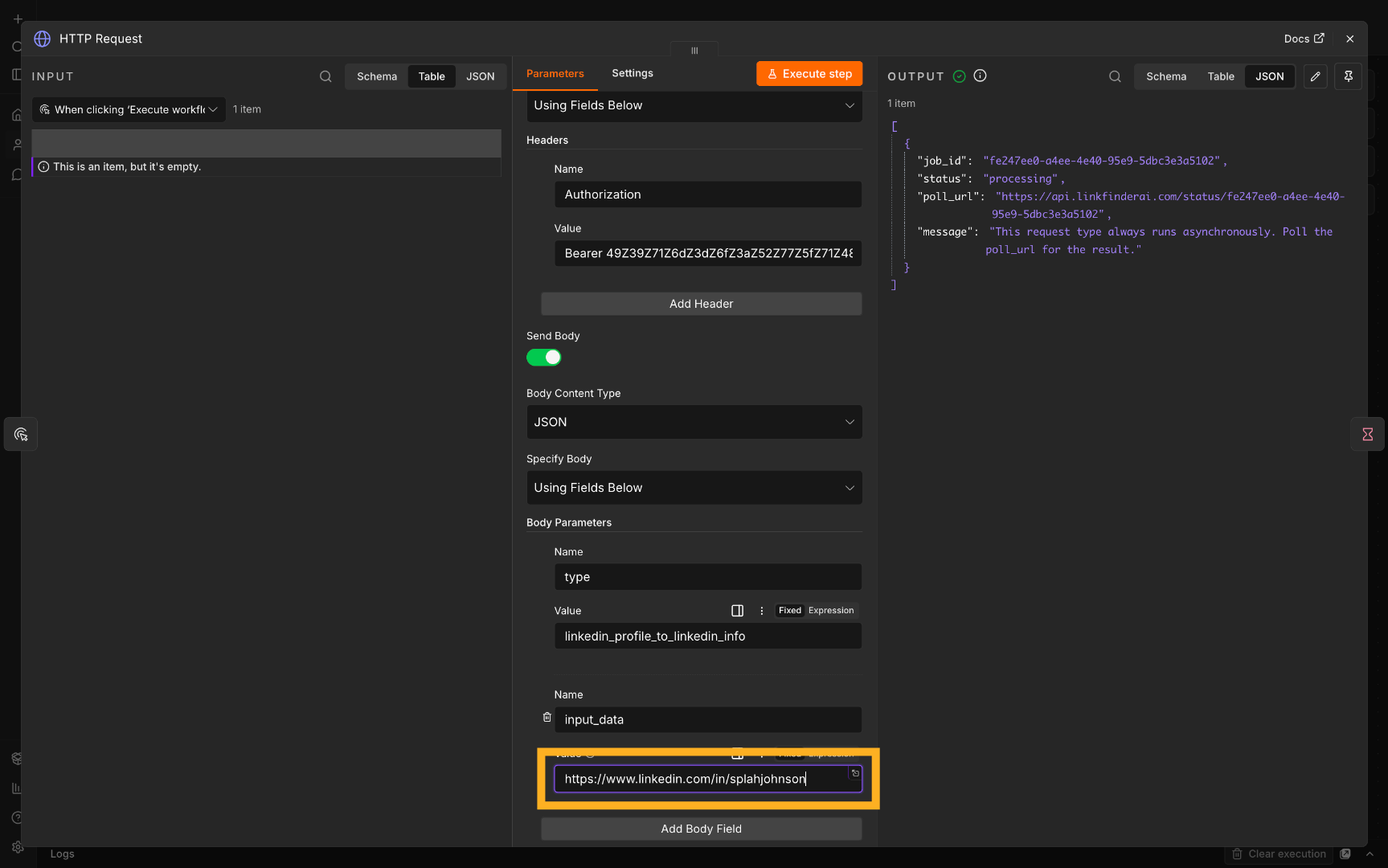
24. Fill LinkedIn URL
Fill in the LinkedIn profile URL that you want to scrape.
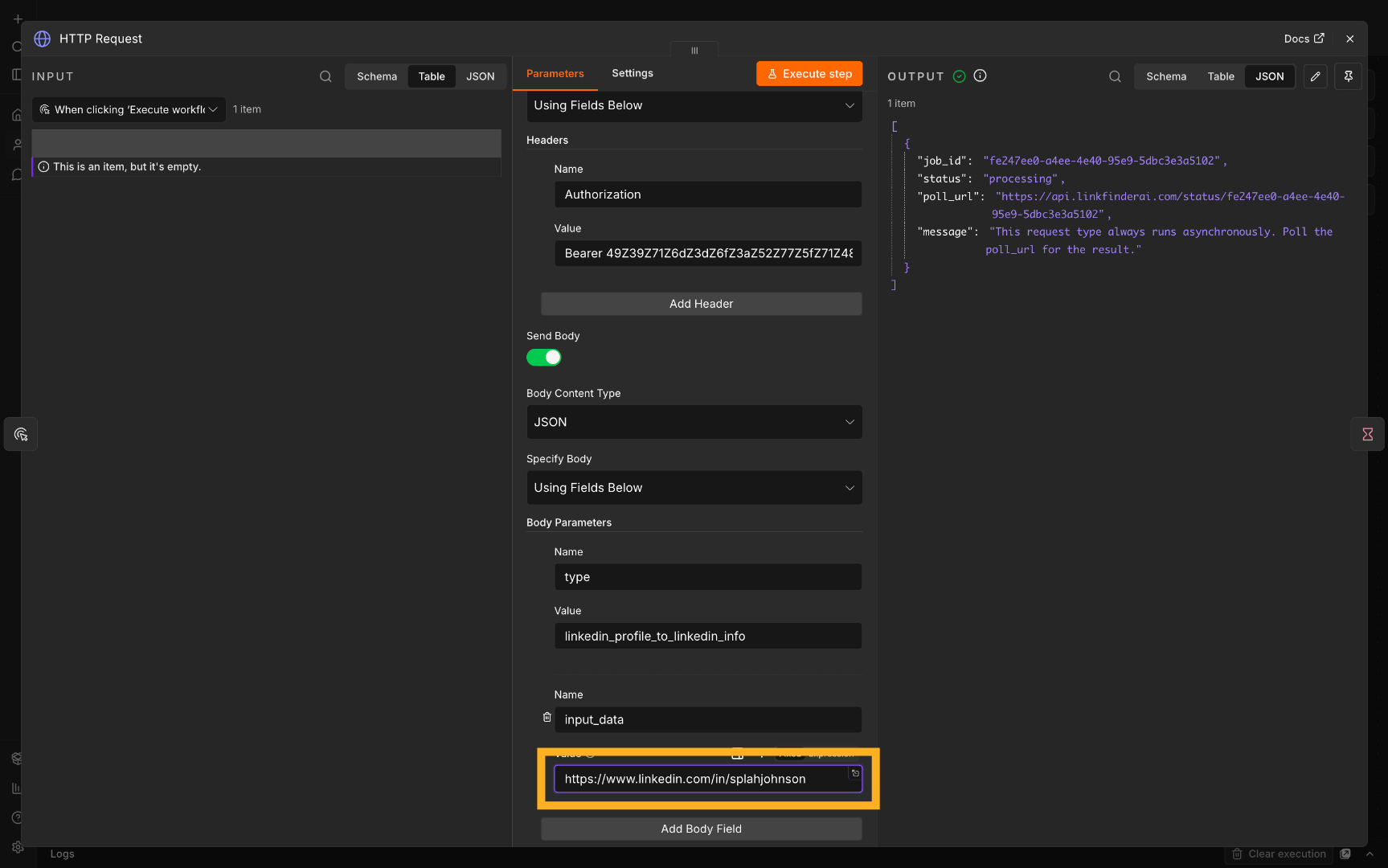
25. Confirm Workflow Progress
Click here to confirm progress in the workflow setup.
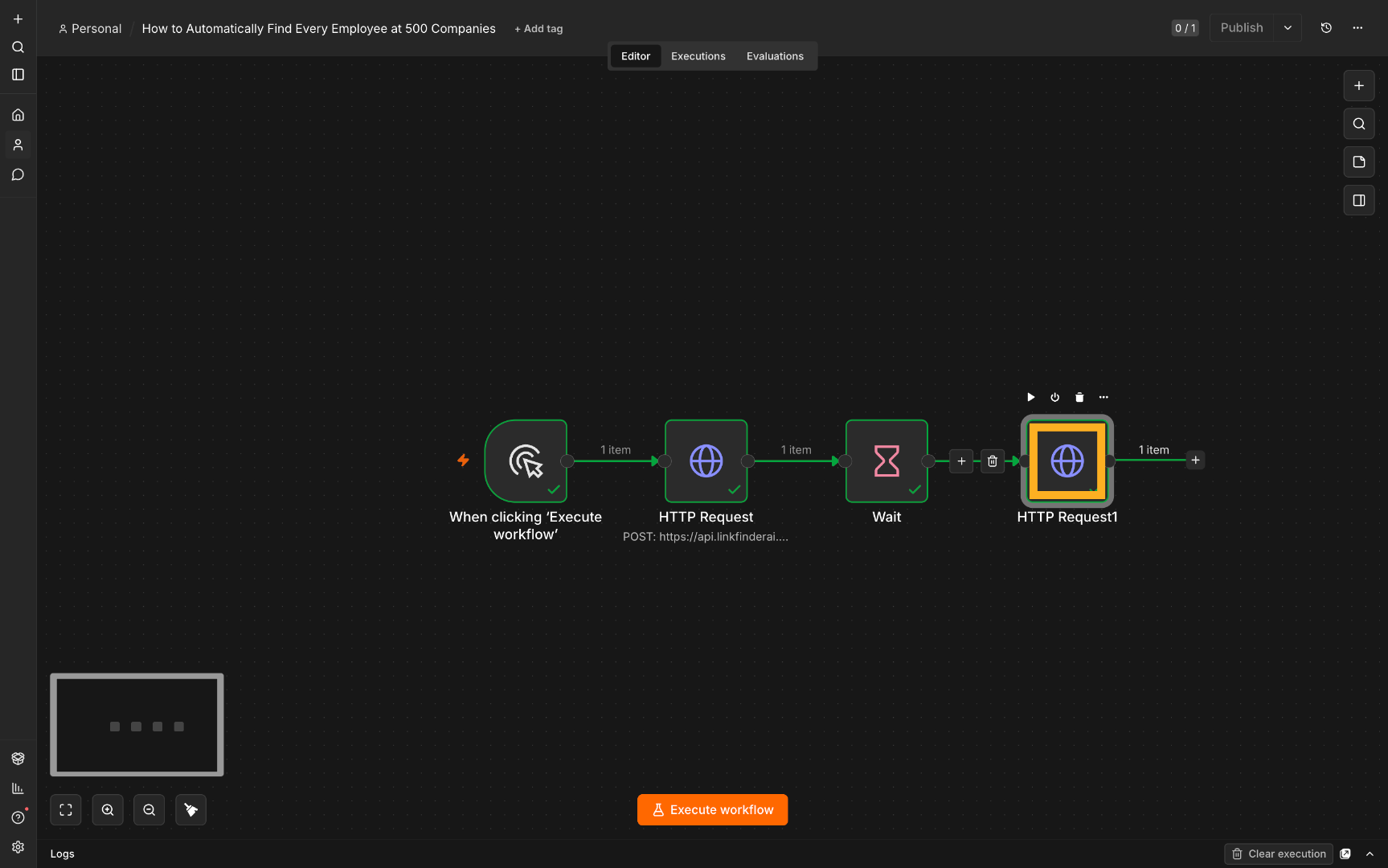
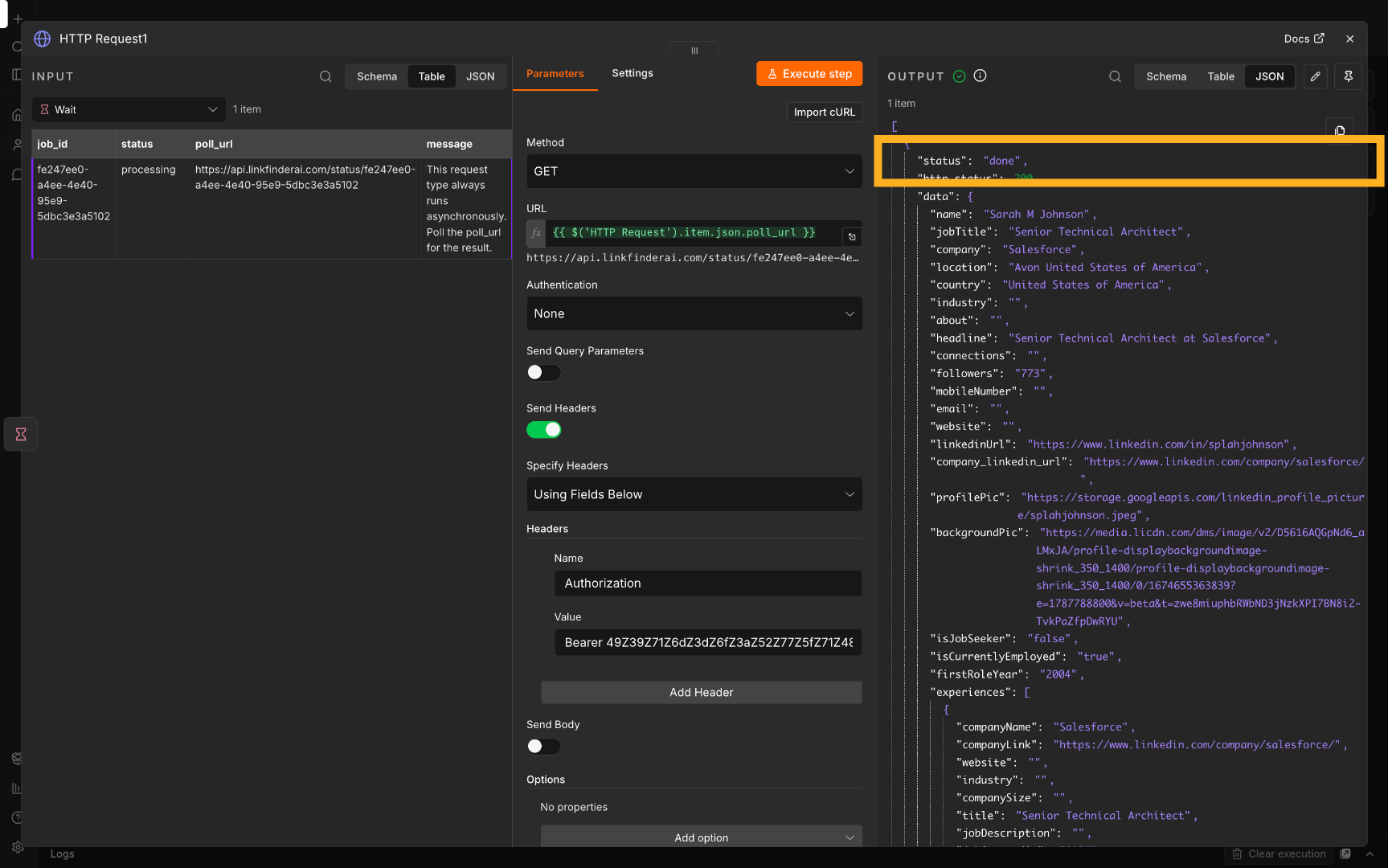
26. Check Job Status
Click the status field to monitor the job status, which will show "done" when complete.
27. Select API Key Field Again
Click the API key field to prepare for re-entry in the next API call.
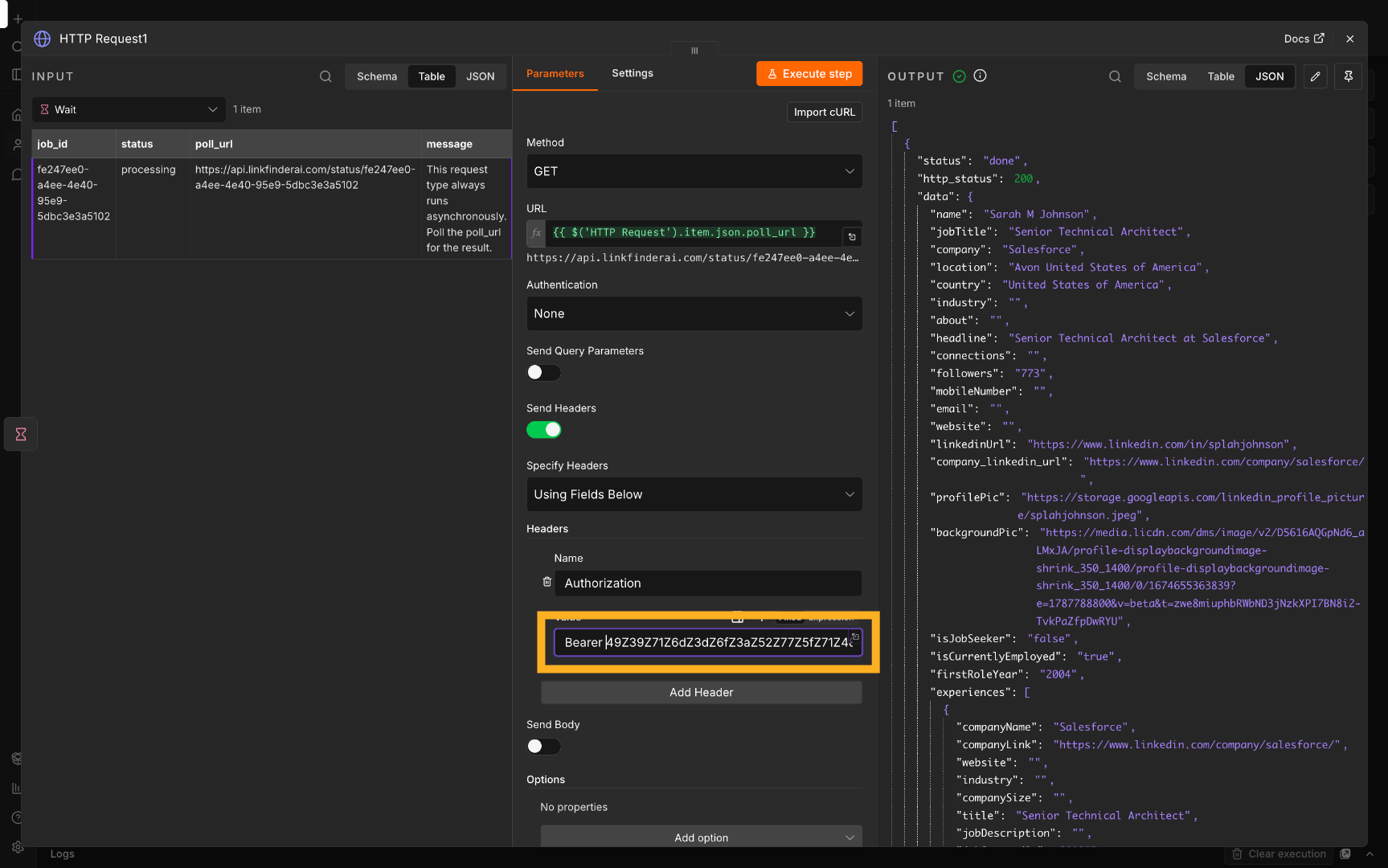
28. Re-enter API Key
Fill in your API key again for the subsequent API request.
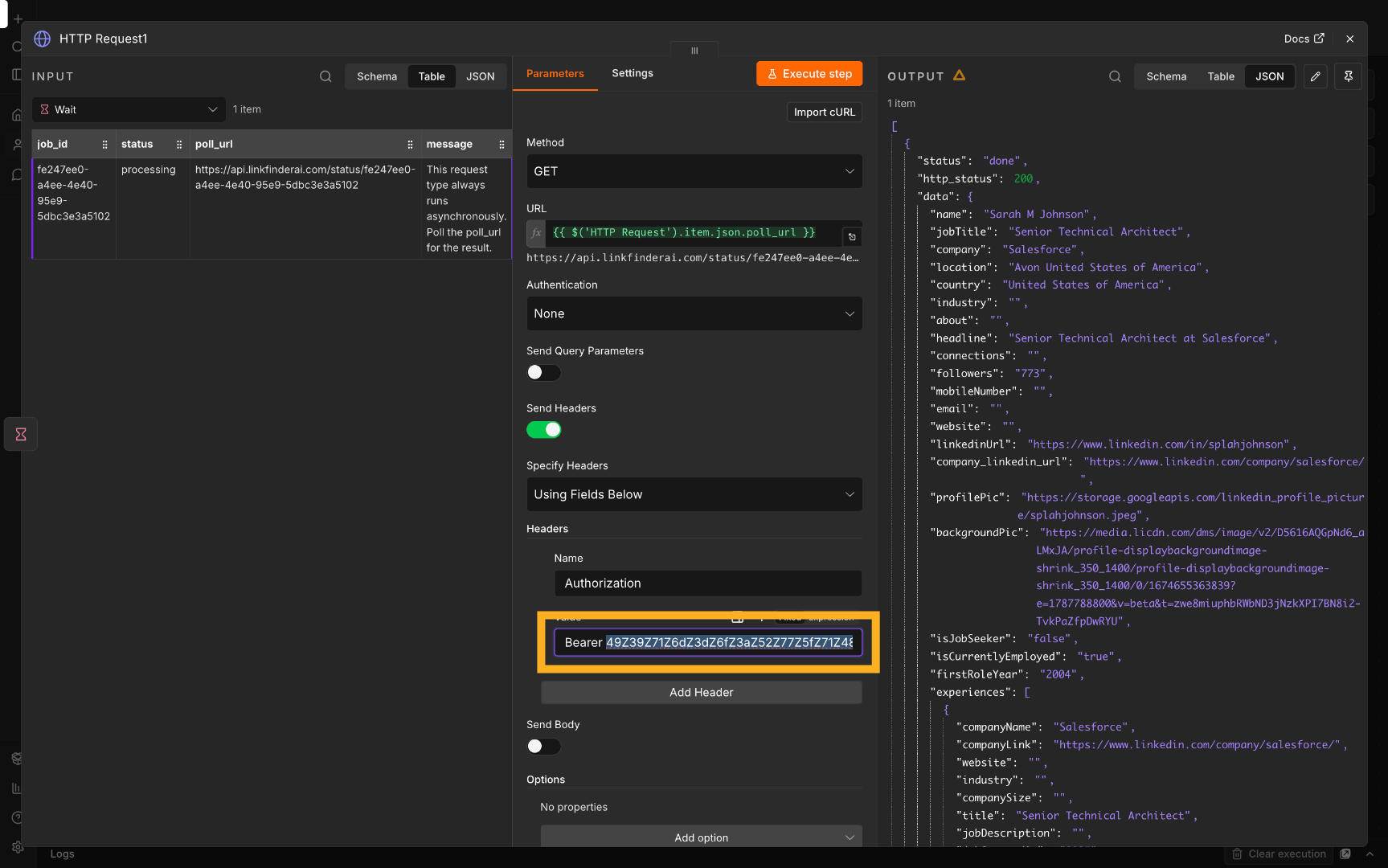
29. Use Poll URL
Click the poll_url field to use the URL for polling the job status and results.
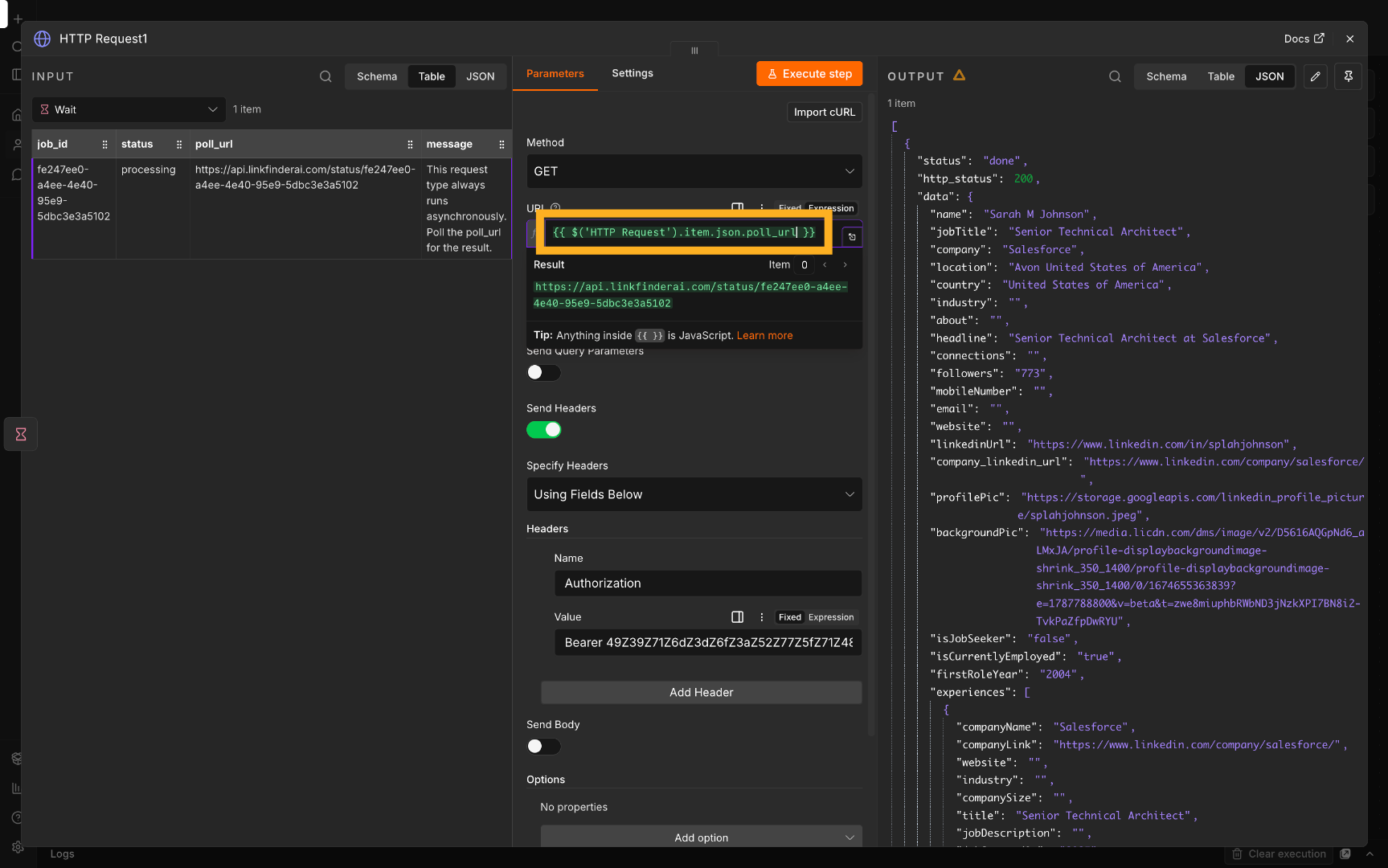
30. Select Poll URL
Click poll_url to specify the URL used for polling the scraping job status.
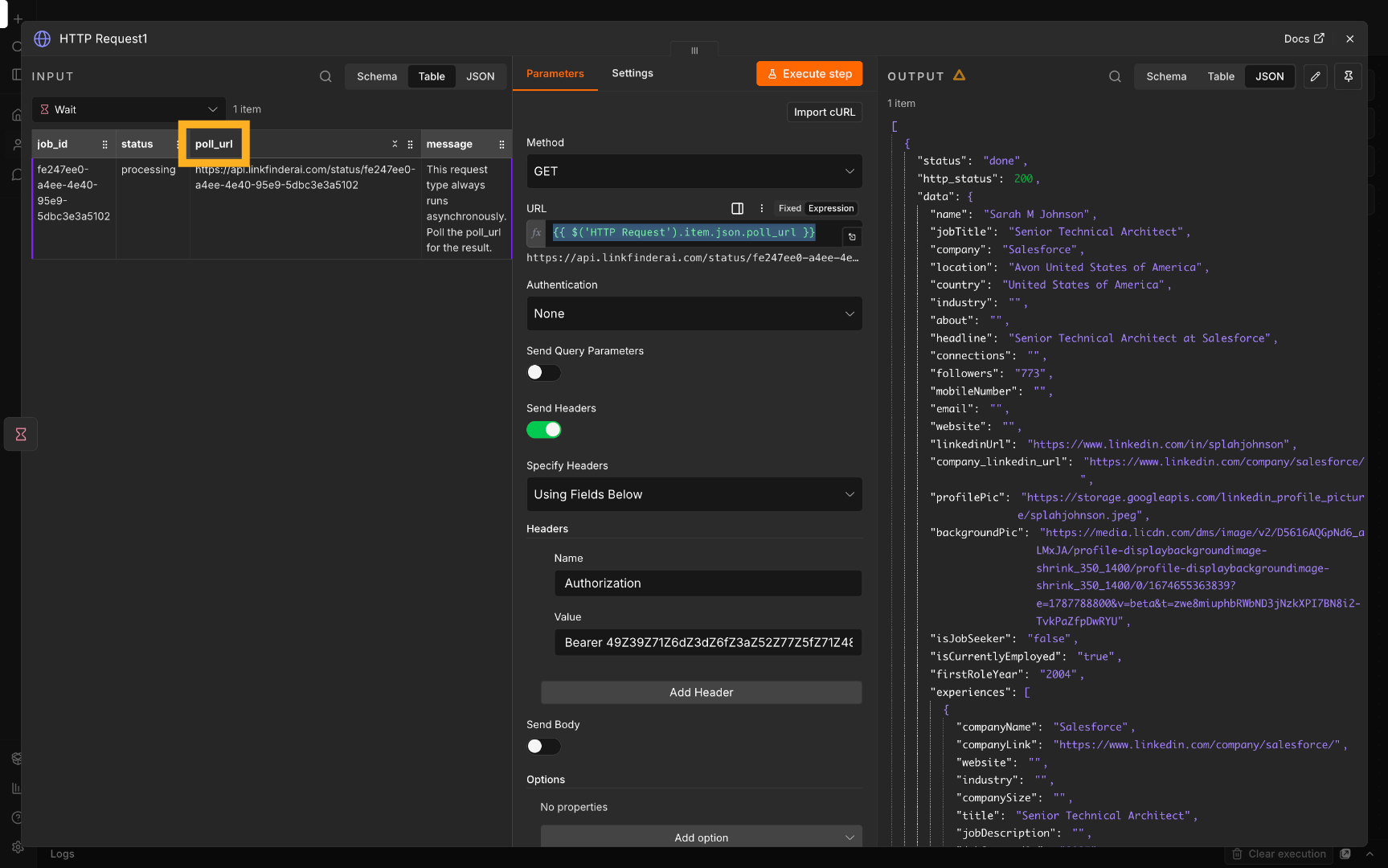
31. Confirm Poll URL
Click the combined poll_url to confirm the polling endpoint for the workflow.
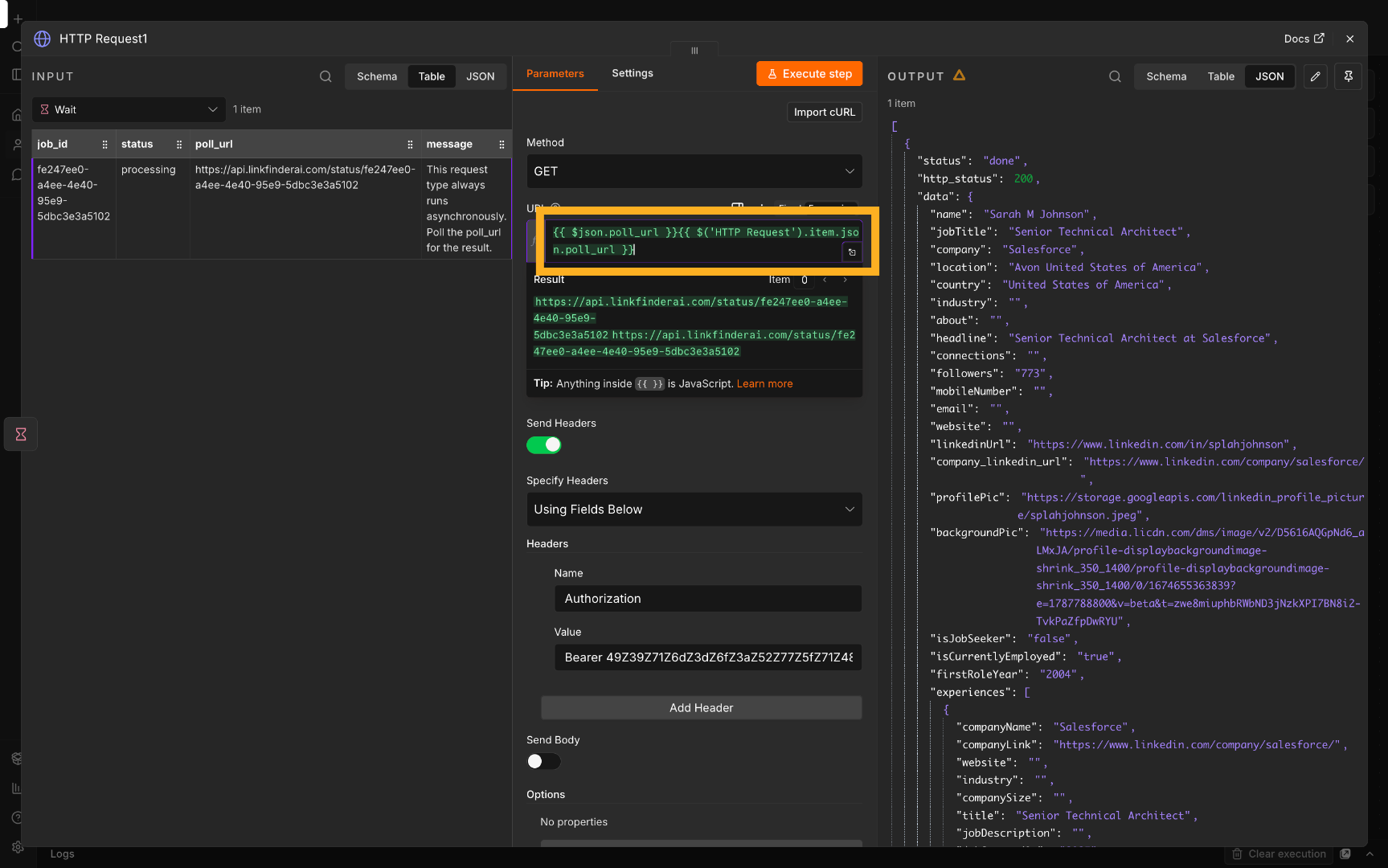
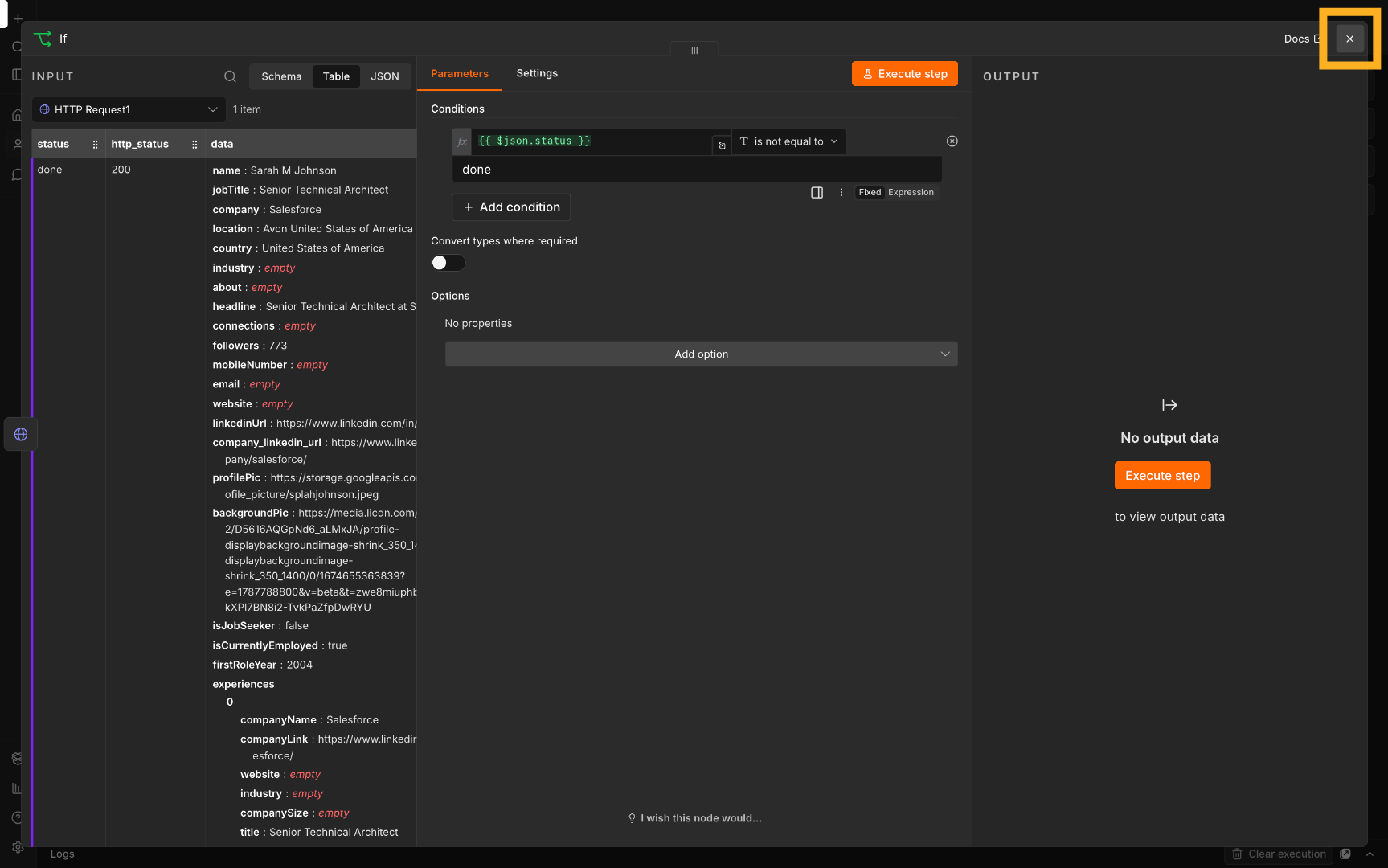
32. Confirm Condition Logic
Click here to confirm the conditional logic setup in the workflow.