Login Try for free
Free Guide

How to Find a Company's Employee Count

Company size is one of the fastest ways to qualify a lead — too small and there's no budget, too large and you need a different motion. Here's how to pull an employee count straight from a company's LinkedIn URL.

Works from a LinkedIn company URL Bulk CSV supported Free to start

Demo: finding a company's employee count range from its LinkedIn URL with LinkFinder AI · Powered by guidde

Employee count is a proxy for a dozen things at once — budget, org complexity, how many stakeholders you'll need to loop in. LinkedIn shows this on a company's page, but pulling it for a whole list of accounts one by one isn't practical.

LinkFinder AI reads the employee count directly from a company's LinkedIn URL, and returns it as a range (for example, 11–50 employees). This guide covers a single lookup and a bulk CSV run for qualifying a full account list at once.

1

Find the employee count for a single company

The quickest path when you're qualifying one account at a time.

1

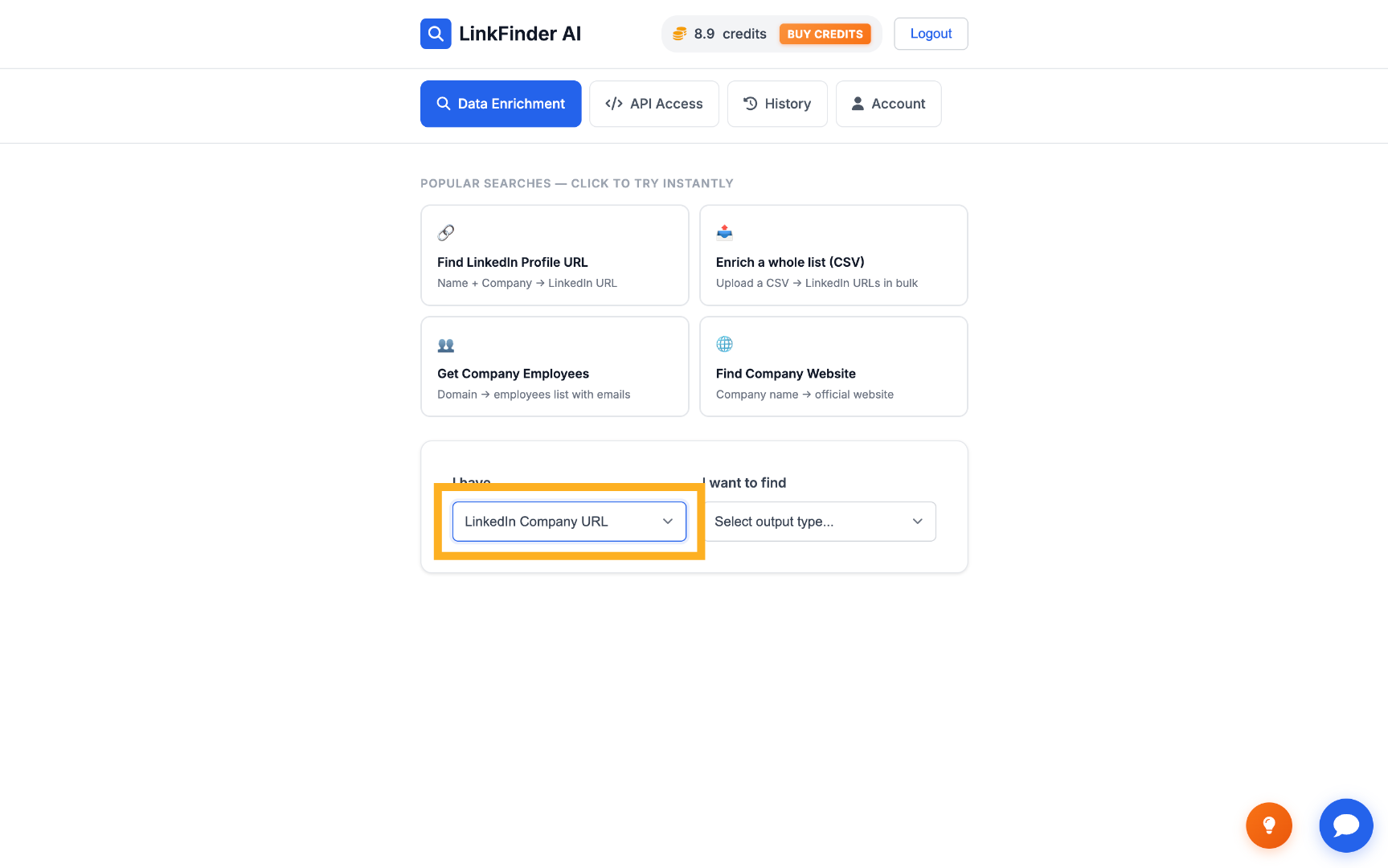
Set the input type to LinkedIn Company URL

On your LinkFinder AI dashboard, select LinkedIn Company URL as the input type.
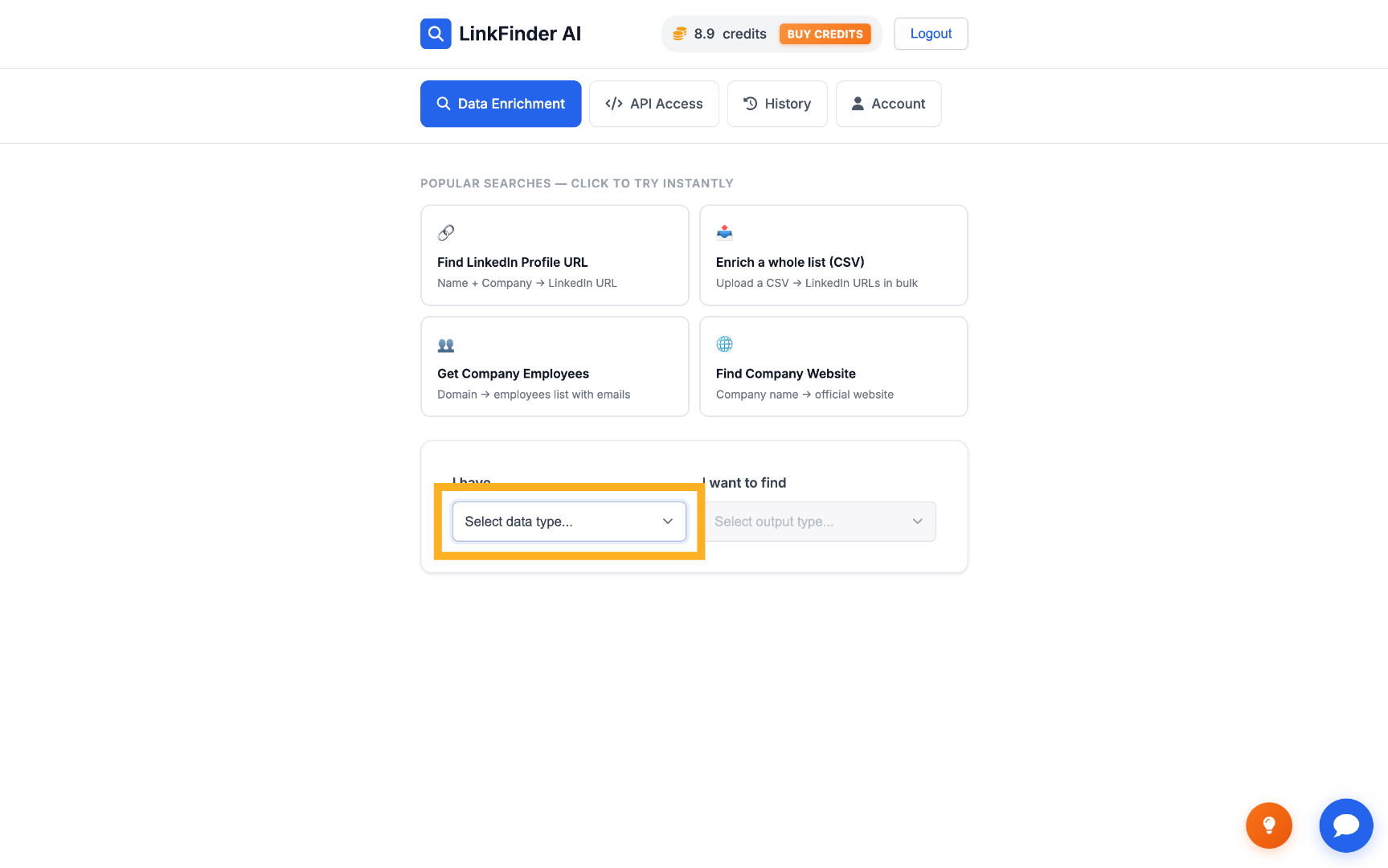
Select Input Data Type Choose LinkedIn Company URL
2

Set the output type to Employee Count

Choose Employee Count as the output so the lookup returns a size range instead of other company data.
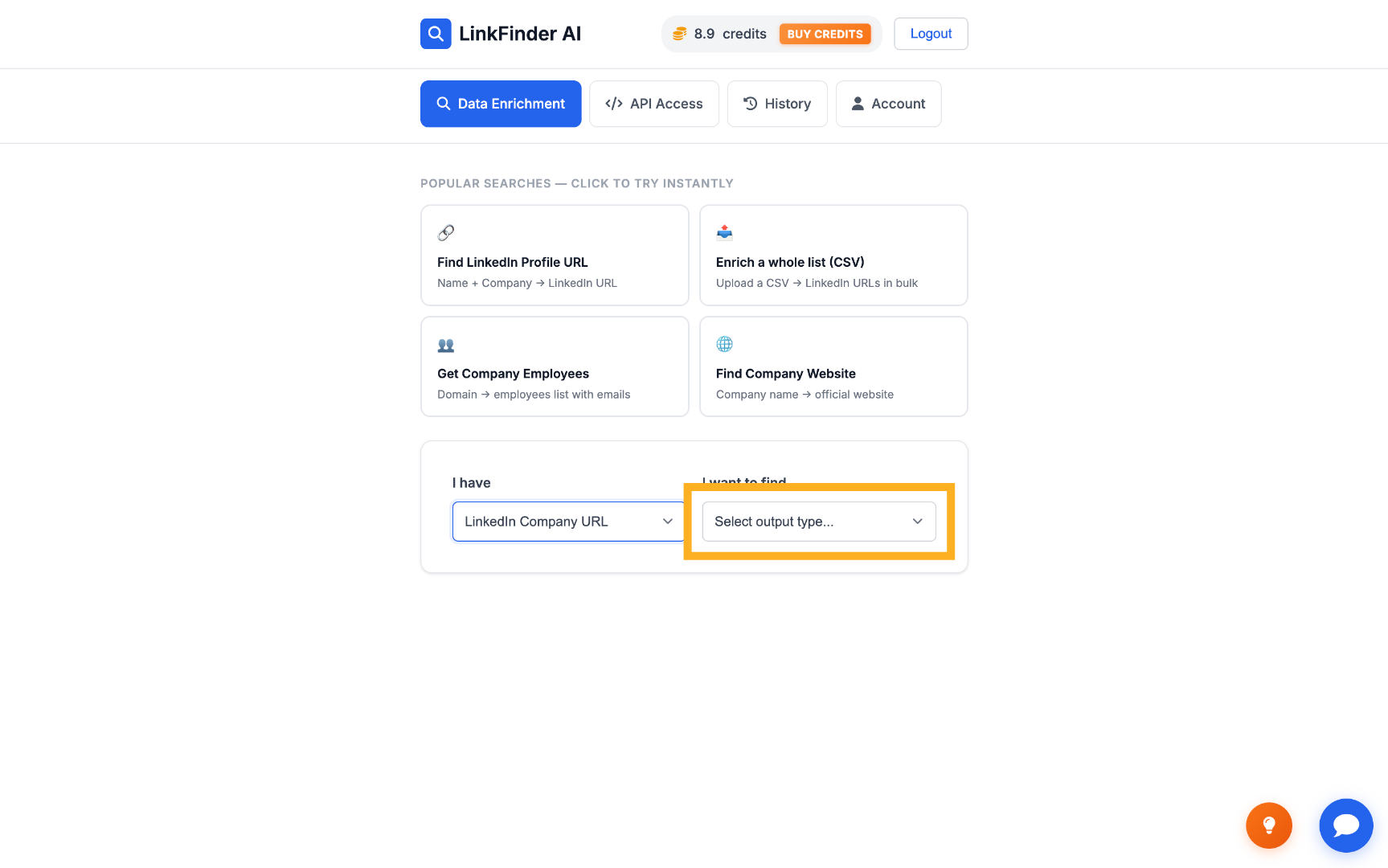
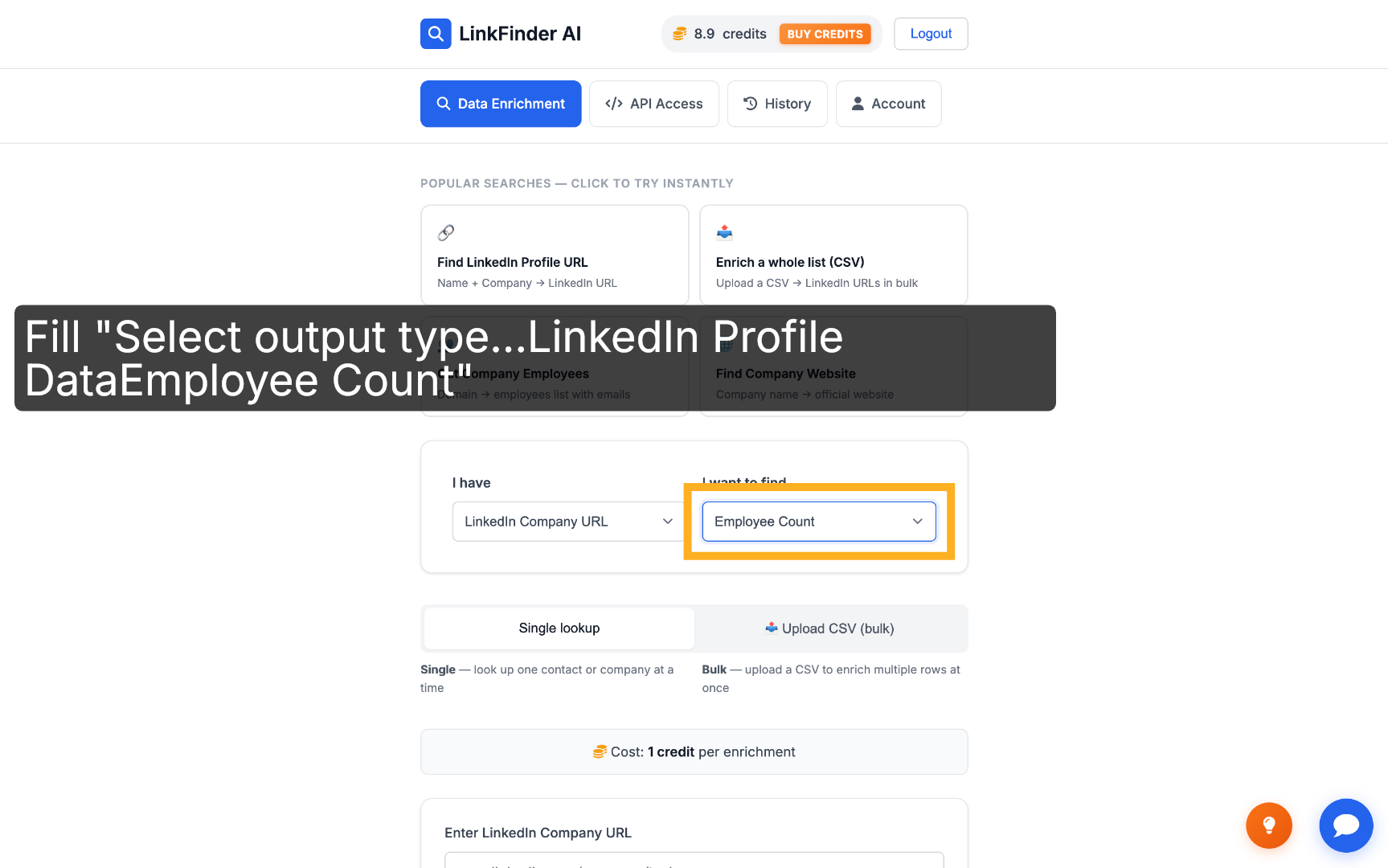
Select Output Data Type Confirm Employee Count Output
3

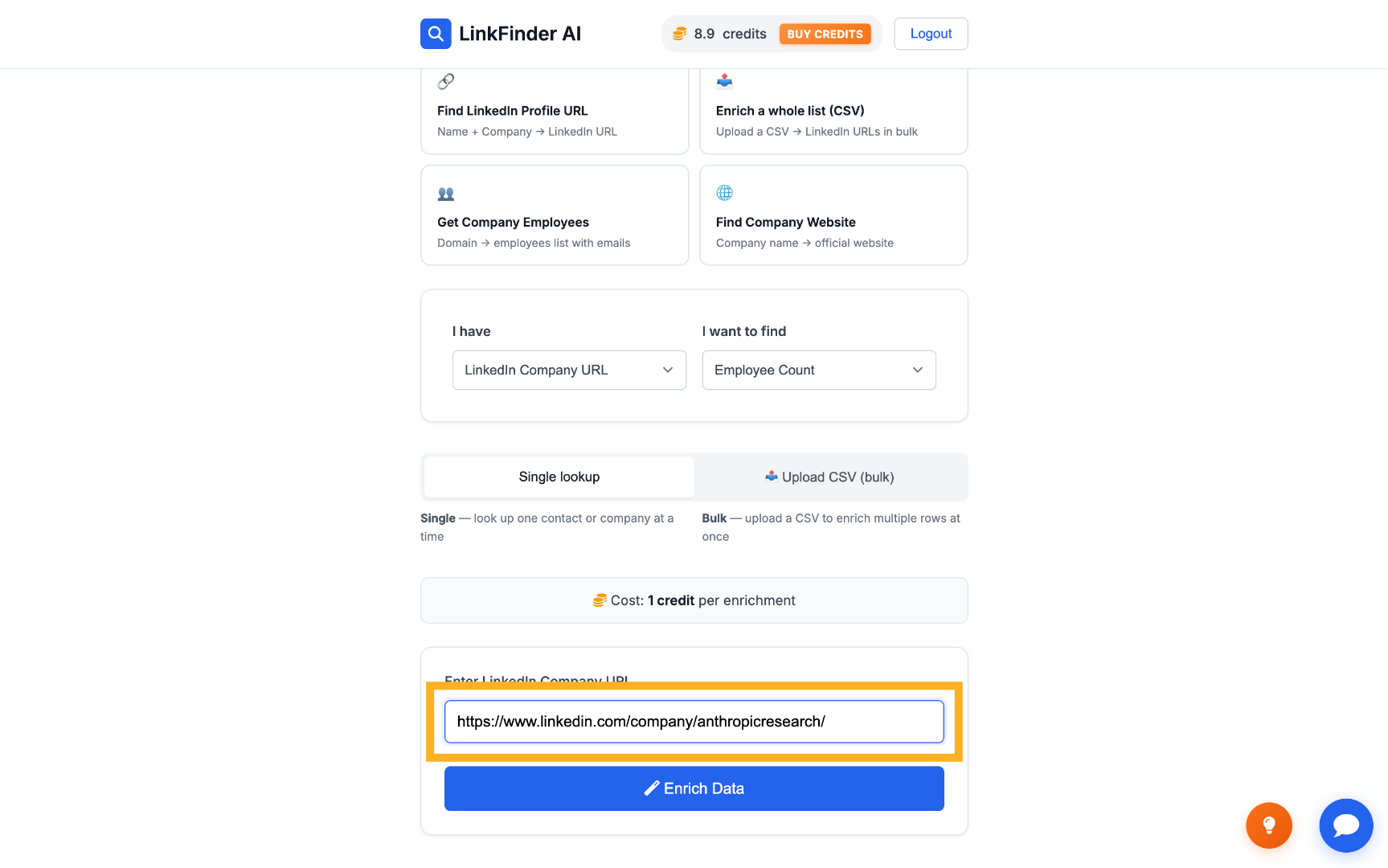
Paste the company's LinkedIn URL

Enter the company's LinkedIn URL — for example, Anthropic's — into the input field.
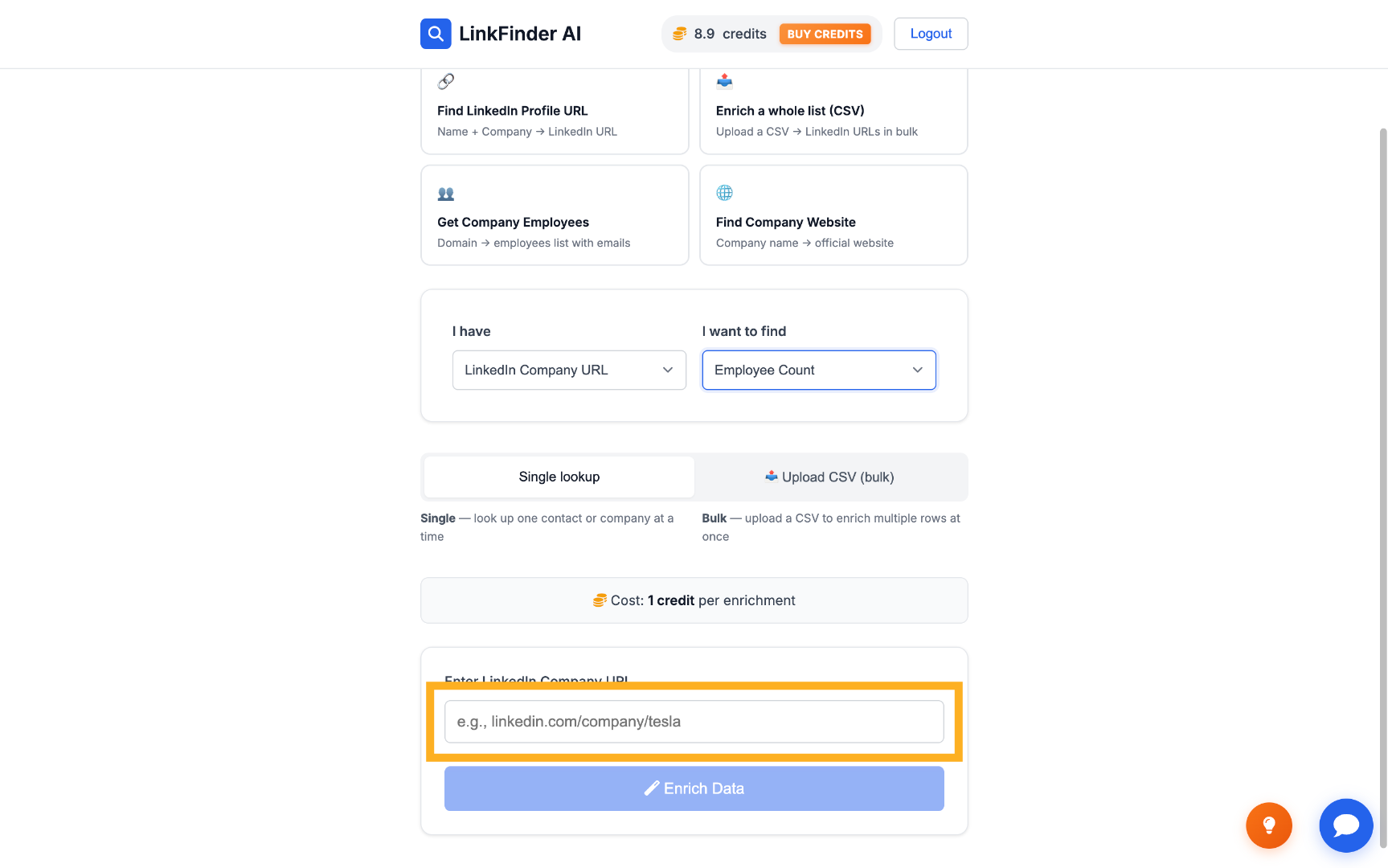
Enter Company LinkedIn URL Paste LinkedIn URL
4

Click Enrich Data

LinkFinder AI returns the employee count range, e.g. 11–50 employees, confirming it's an early-stage company.
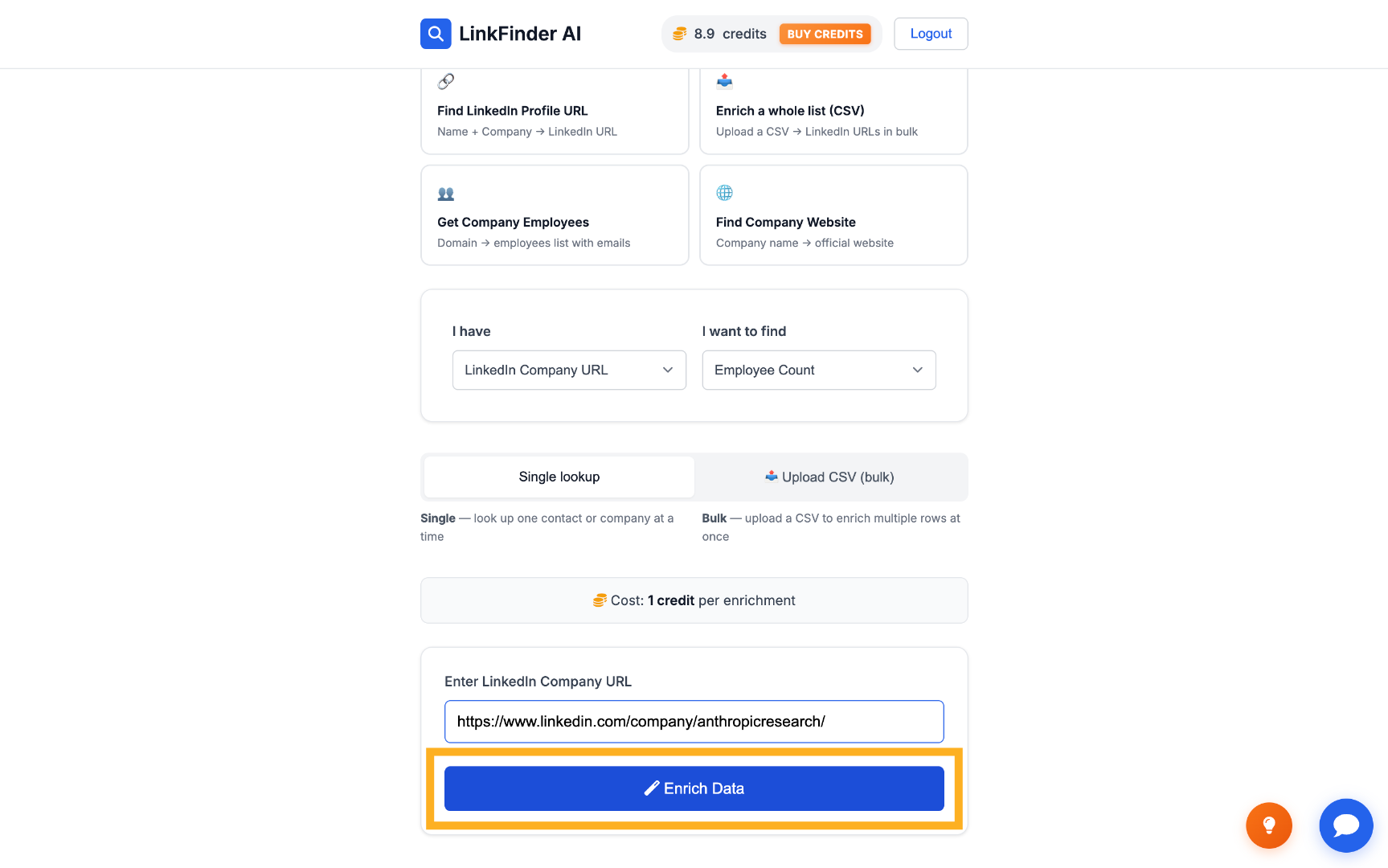
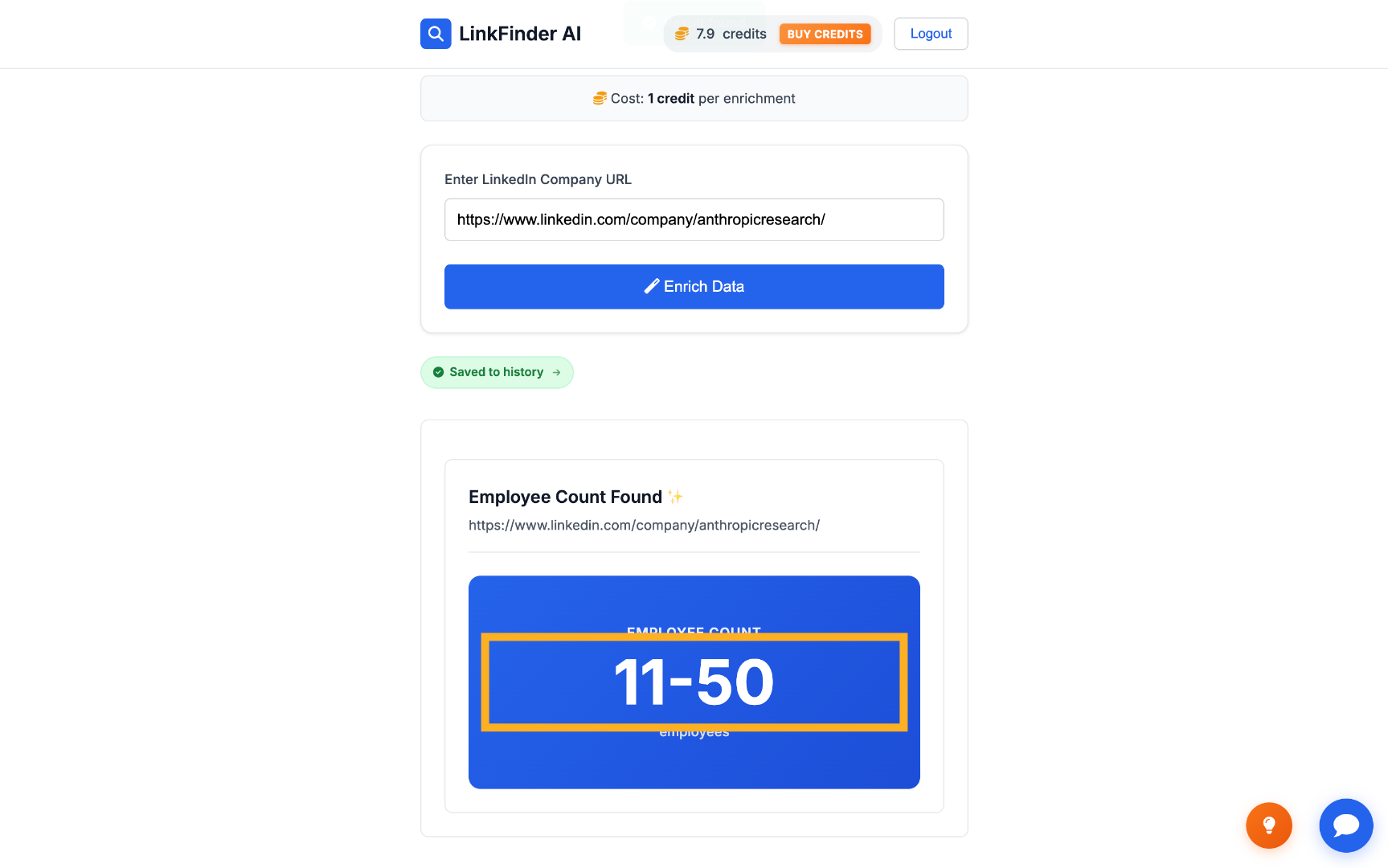
Enrich Data View Employee Count Range
2

Find employee counts in bulk from a CSV

When you're qualifying a full list of accounts instead of one company.

1

Switch to Upload CSV (bulk)

Choose the bulk upload option instead of the single-company form.
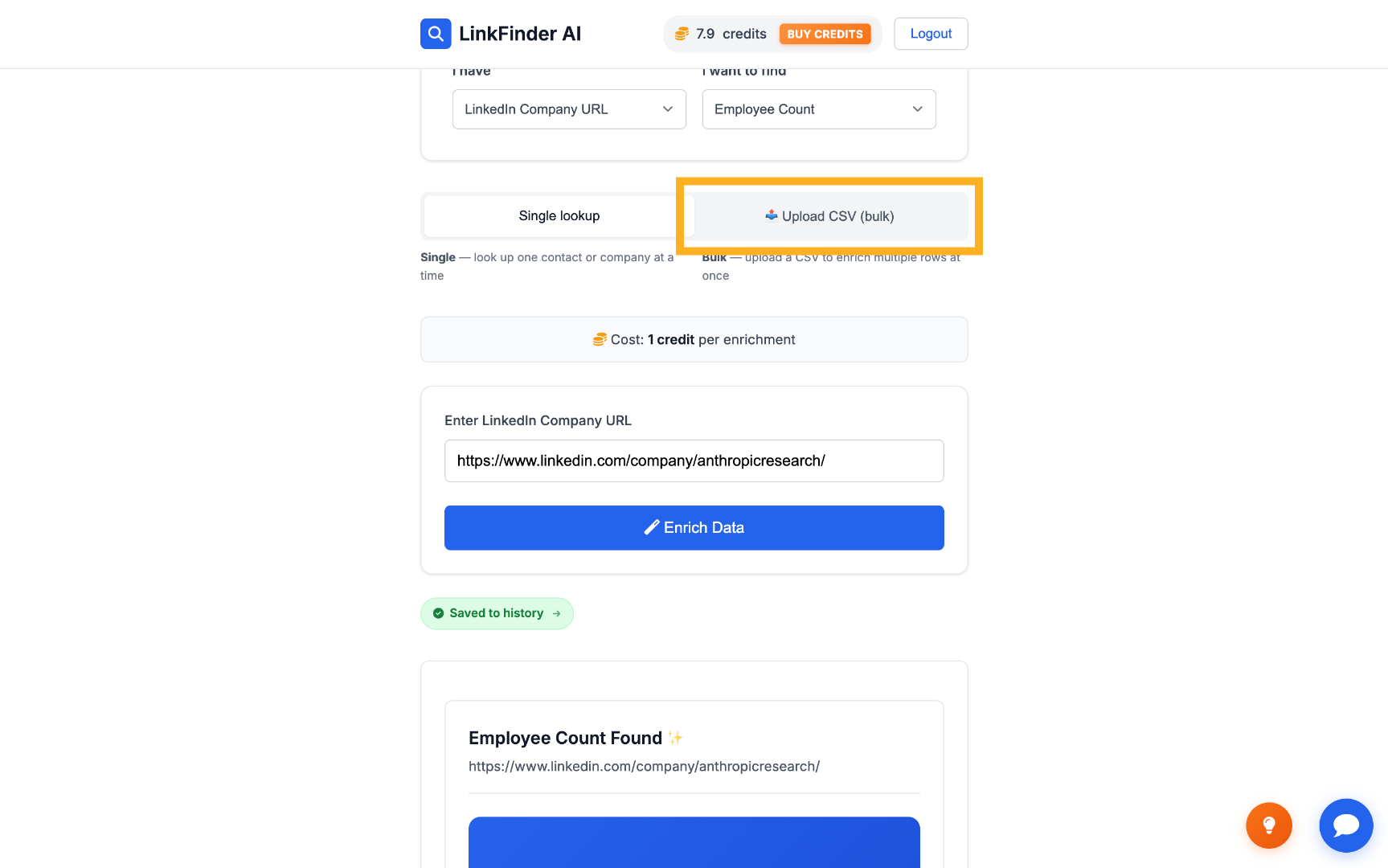
Upload CSV For Bulk
2

Upload your CSV of company LinkedIn URLs

Select a CSV file where each row is a company's LinkedIn URL.
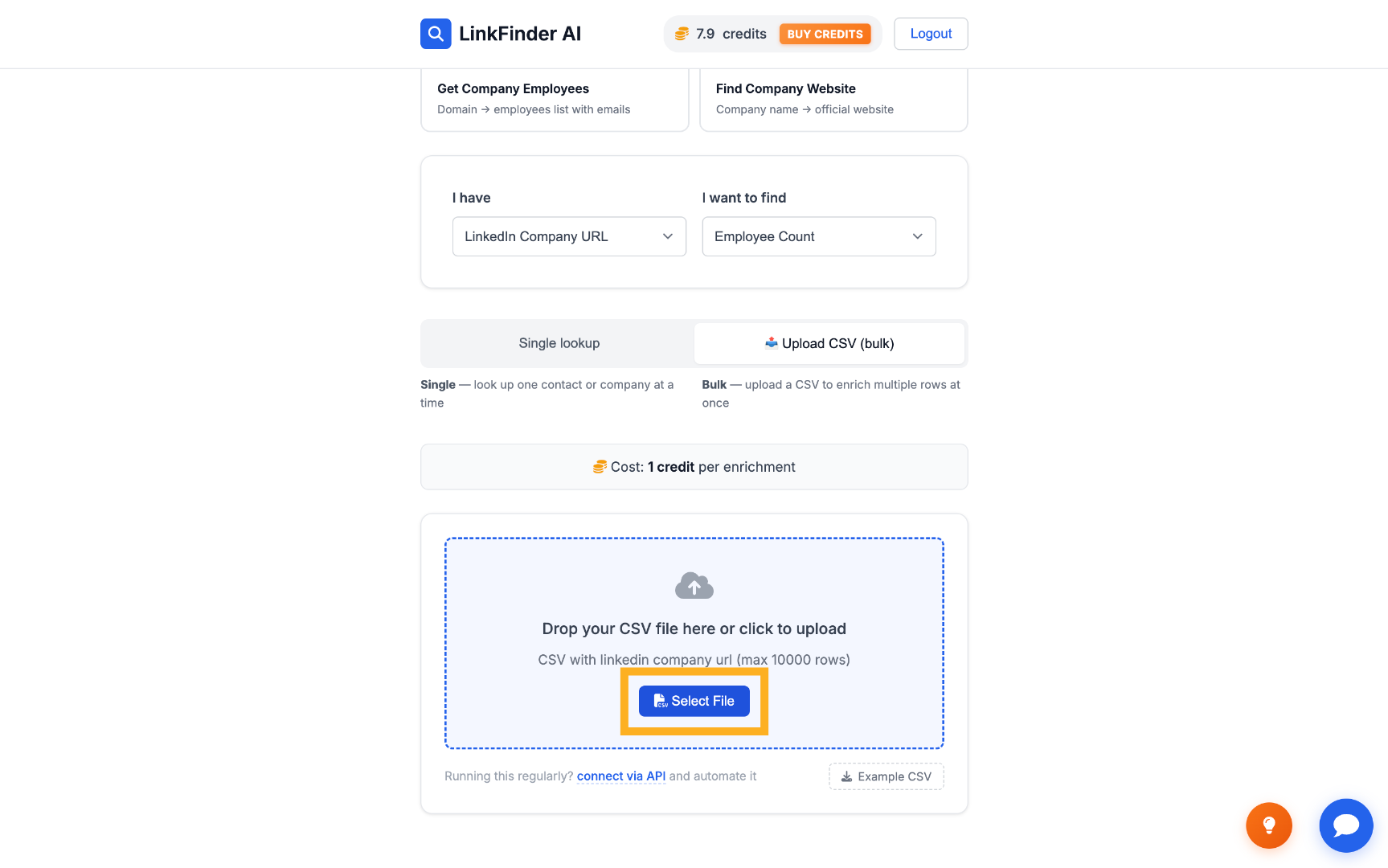
Select CSV File
3

Process the list

Click Process items to run the employee-count lookup on every row in the file.
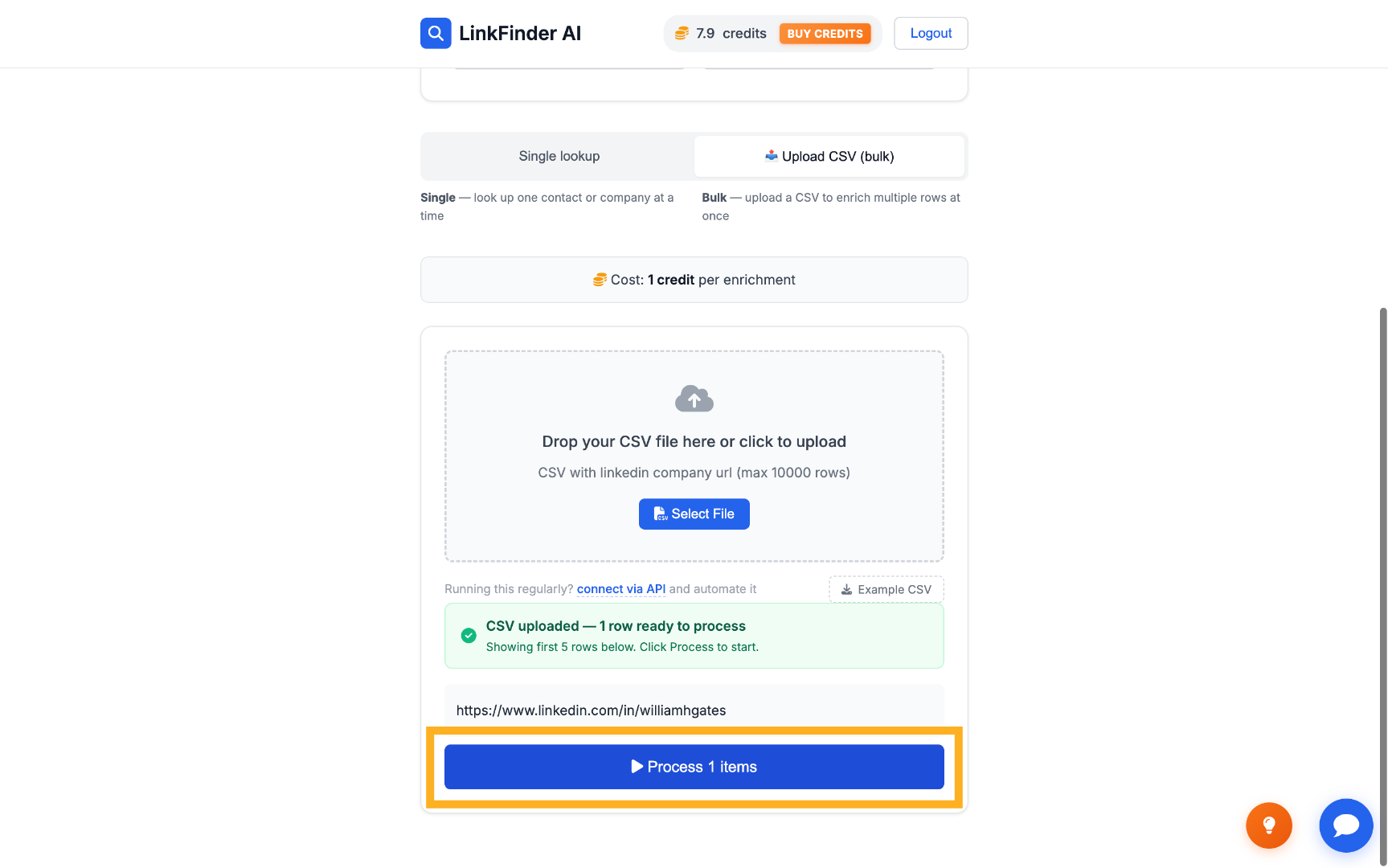
Process Uploaded Items
4

Export the results

Download the enriched list — each company now paired with its employee count range — as a CSV.
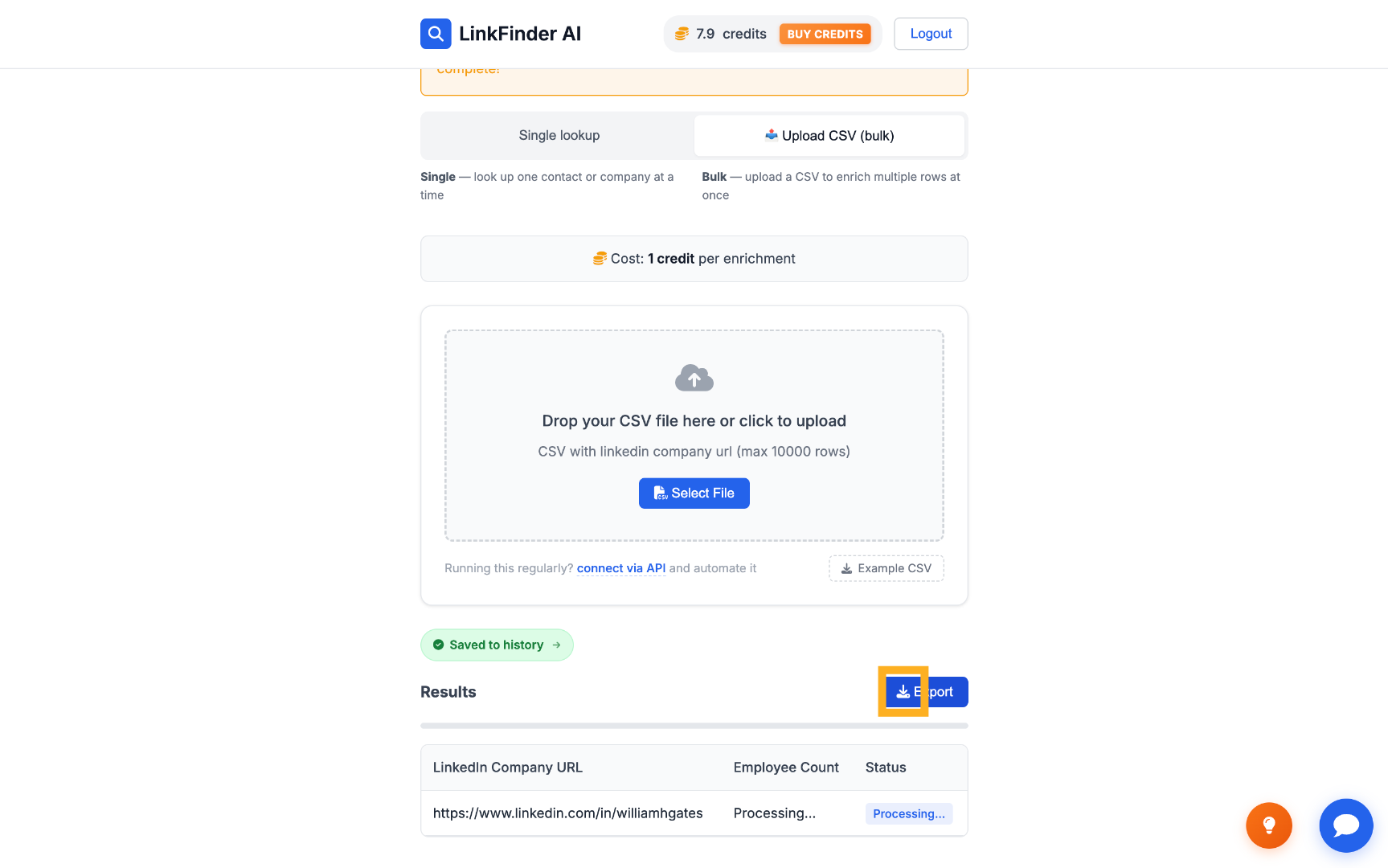
Export Results

Tips for accurate company sizing

Use the company's LinkedIn URL, not its website

Employee count is read from LinkedIn's company page, so the LinkedIn URL — not the company website — is the required input.

Counts are returned as ranges

LinkedIn itself reports company size as a bracket (e.g. 11–50), not an exact headcount, so expect a range back rather than a precise number.

Validate URLs before a bulk run

A malformed or outdated LinkedIn company URL in your CSV is the most common reason a row comes back empty.

Automate it for ongoing qualification

If you're scoring inbound leads continuously, the API endpoint is the more sustainable path than manual CSV uploads.

Frequently Asked Questions

A LinkedIn company URL — for example, linkedin.com/company/anthropic — is the required input for this lookup.
It's returned as a range (e.g. 11–50 employees), matching how LinkedIn itself reports company size.
Yes. Upload a CSV of company LinkedIn URLs and LinkFinder AI processes the entire list in one run.
Yes — see the Company Employee Count API page for the endpoint and request format.
You can create a free account and run your first searches at no cost. Paid plans add higher volume and bulk processing.
Yes, the same lookup returns a range for companies of any size, from early-stage startups to large enterprises.

Check your first company's size free

Paste a LinkedIn company URL for an instant employee count, or upload a CSV to qualify a whole list — start on the free plan.

Get started free

No credit card required · Free plan available · API on every plan

Explore more in Company & Employee Data

See the full topic → Company & Employee Data hub