Login Try for free
Free Guide

How to Find All Employees at a Company

Whether you're building an account map or sourcing candidates, pulling a company's employee list by hand off LinkedIn doesn't scale. Here's how to get a filtered list — by department, seniority, and headcount — from just a company domain.

Filter by department & seniority Works from a company domain Free credits to start

Demo: scraping a company's employee list by department and seniority with LinkFinder AI · Powered by guidde

Account-based selling and recruiting both start with the same question: who actually works here, and in what role? Scrolling LinkedIn's "People" tab for a target company works for one account, not for a pipeline of hundreds.

LinkFinder AI scrapes a company's employee list directly from its domain, with filters for department and seniority level so you get the right slice of the org rather than a flat unfiltered dump. This guide covers a single company lookup and how the API extends it.

1

Find a company's employees by department and seniority

Pull a filtered employee list for one target account.

1

Open the Company Employees search

From your dashboard, select the popular search for company employees to open the filtered search form.
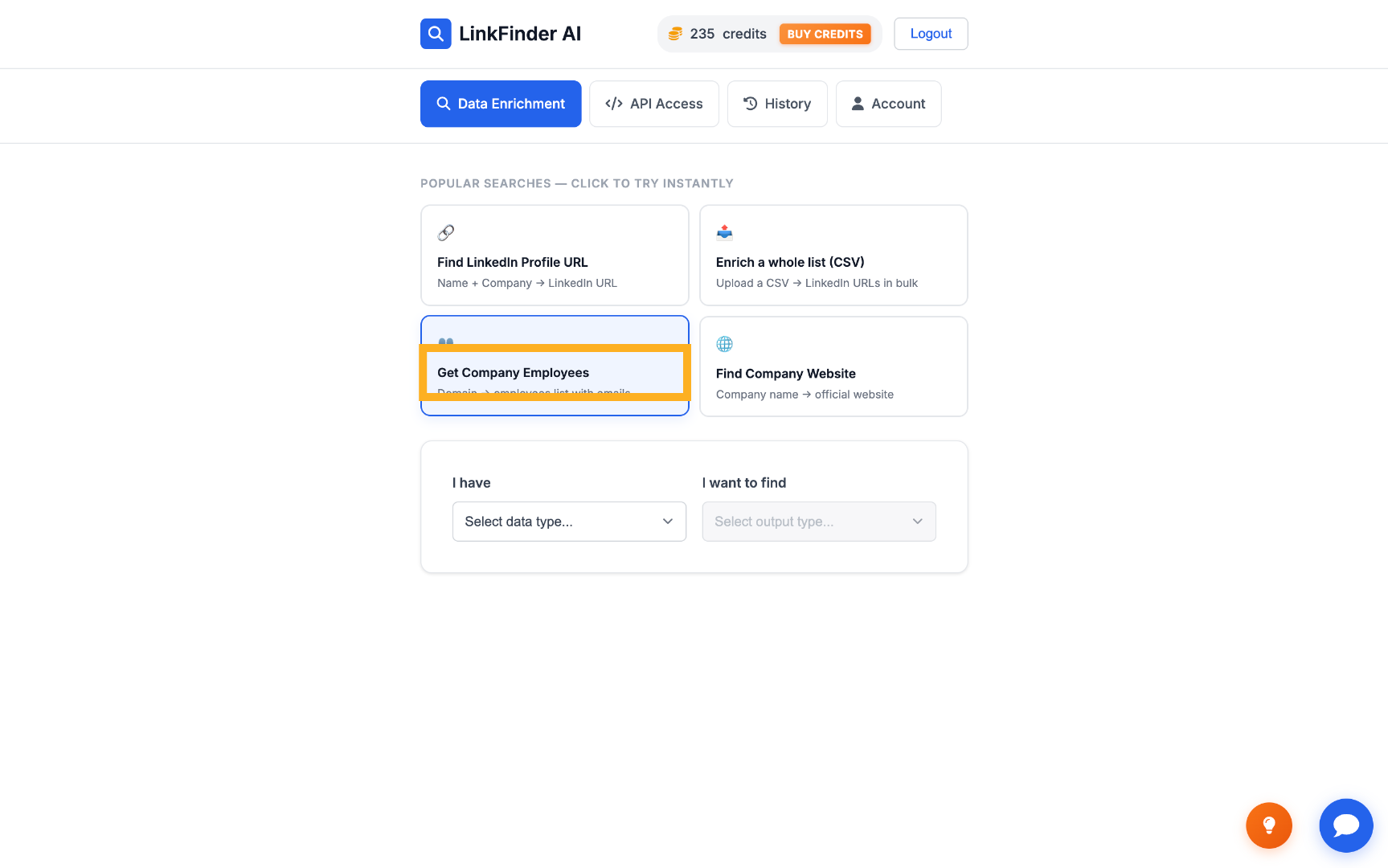
Access Employee Data Feature
2

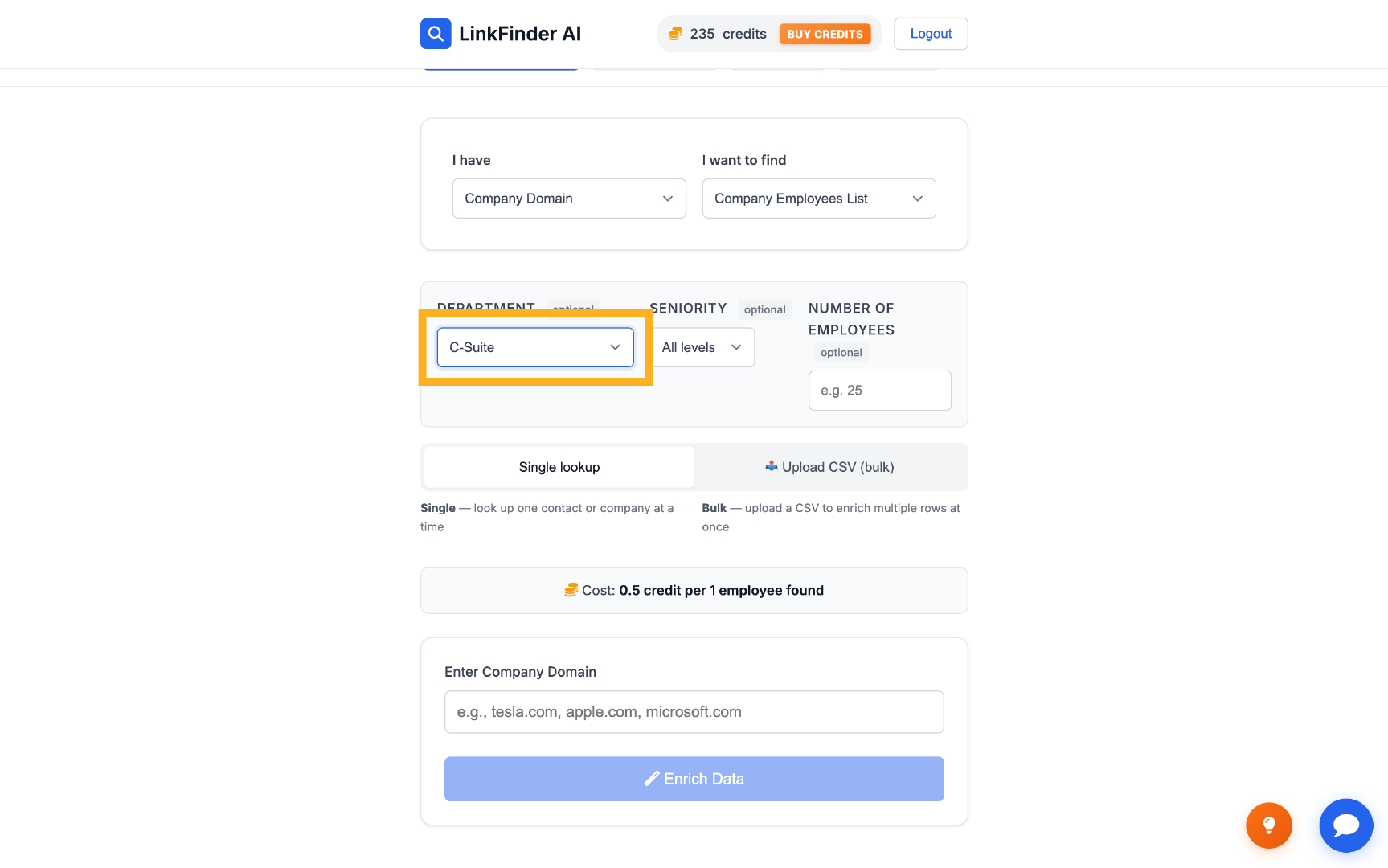
Filter by department

Choose the department you want to target, such as Marketing, Sales, or Engineering.
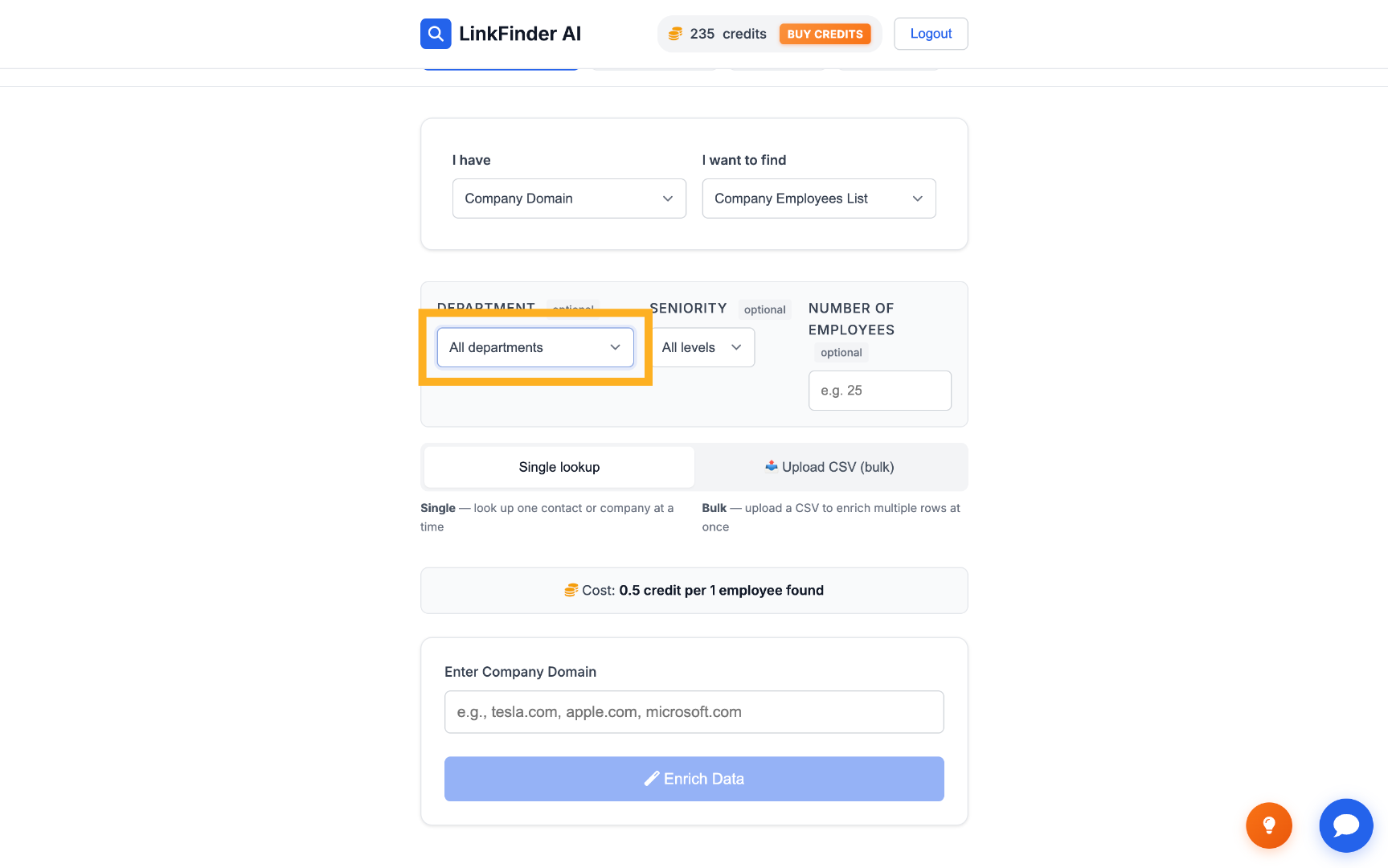
Filter by Department Choose Department Filter
3

Filter by seniority level

Narrow further by seniority — Founder, Owner, C-Suite, Director, or Partner — to focus on decision-makers.
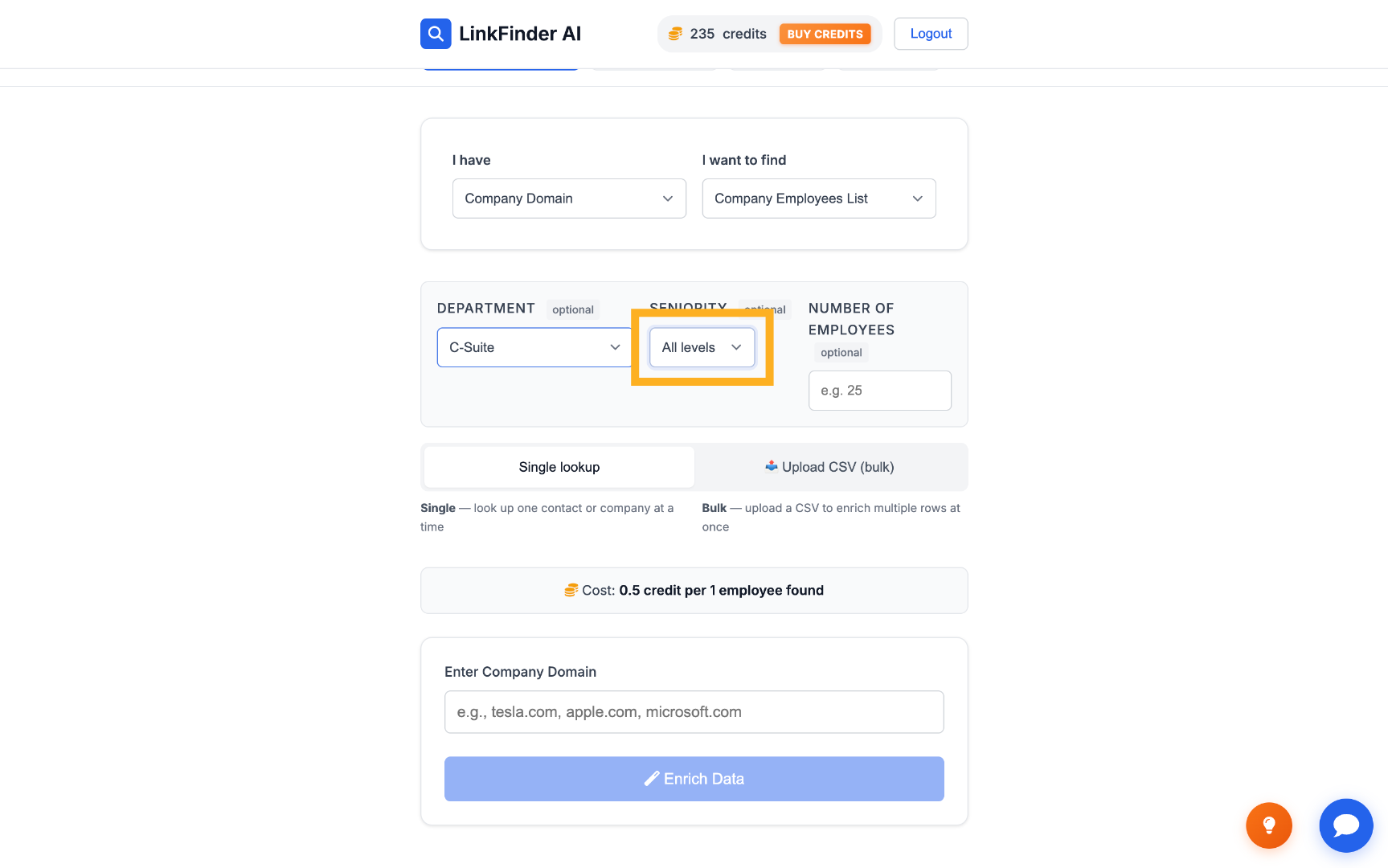
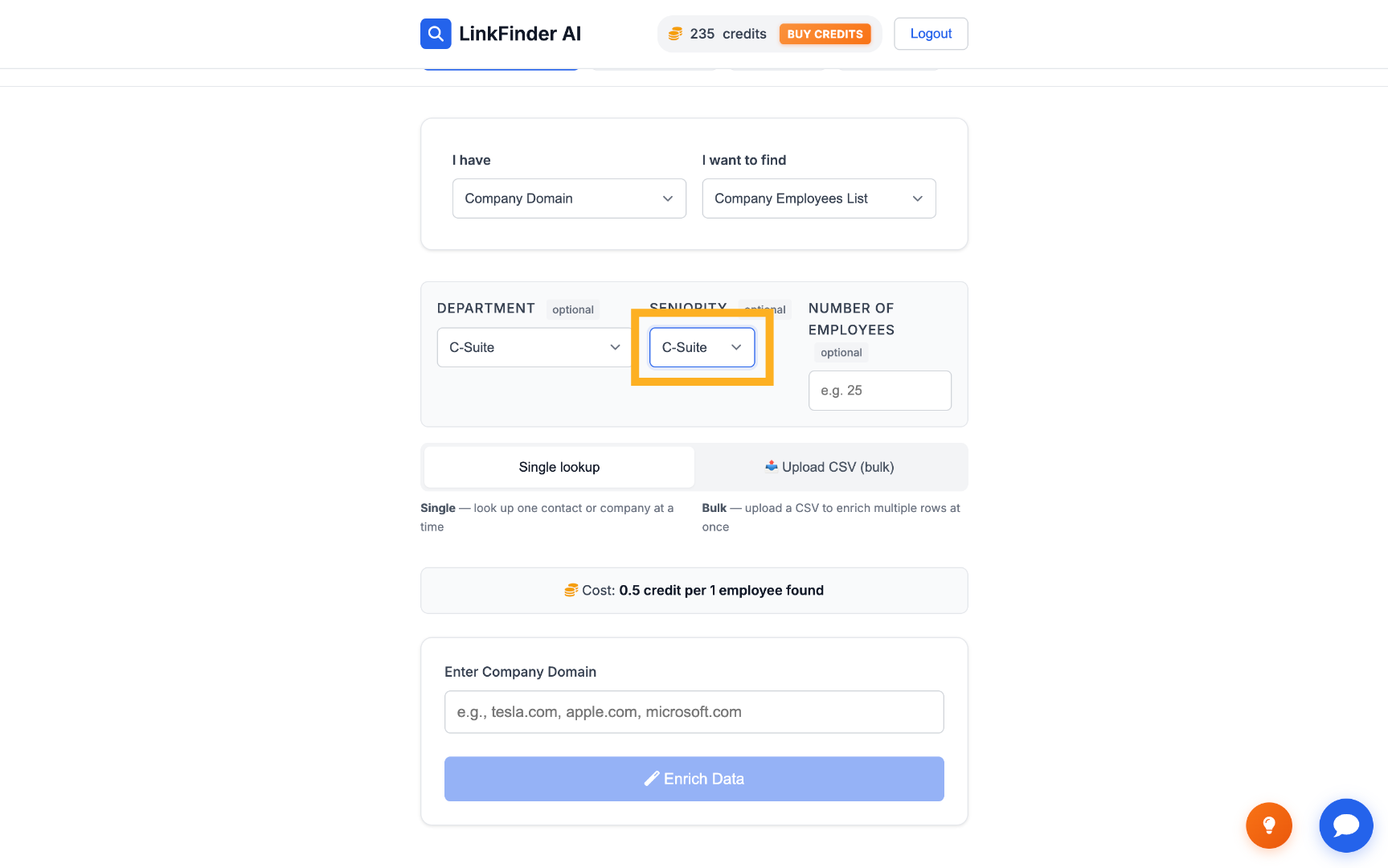
Filter by Seniority Level Choose Seniority Level
4

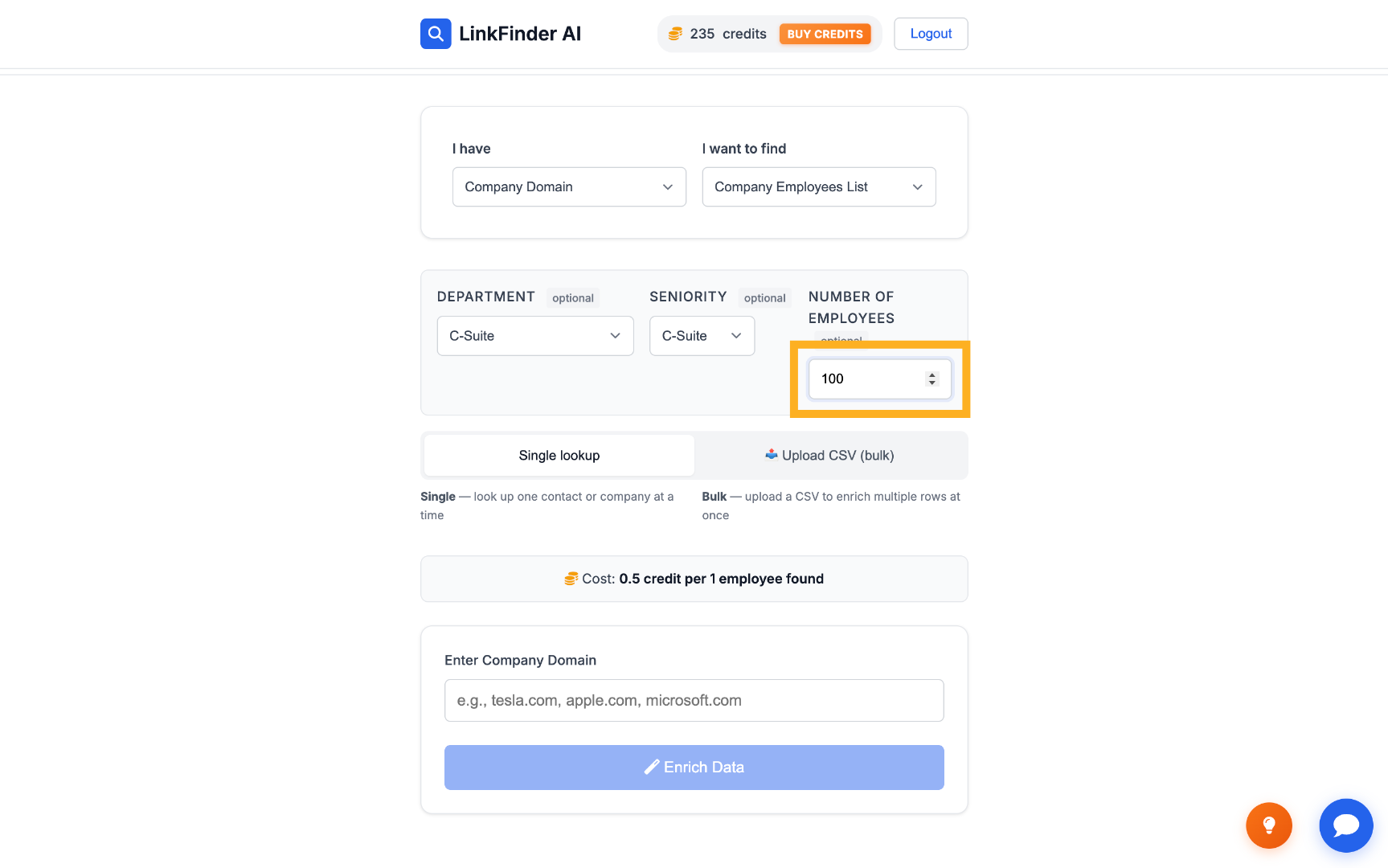
Set the number of results

Enter how many employees you want returned, for example 20, to control scope and credit spend.
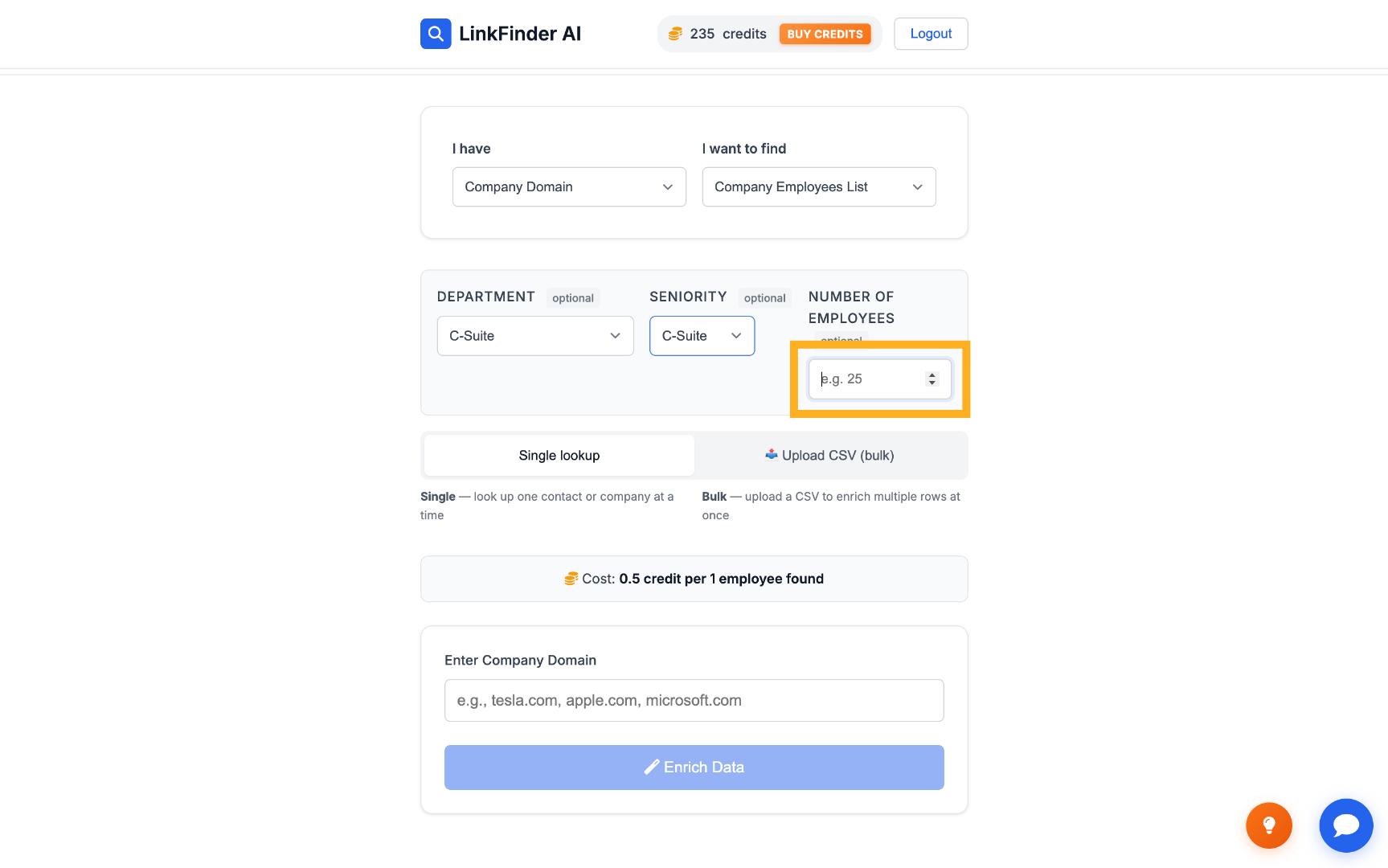
Set Employee Number Limit Enter Employee Count
5

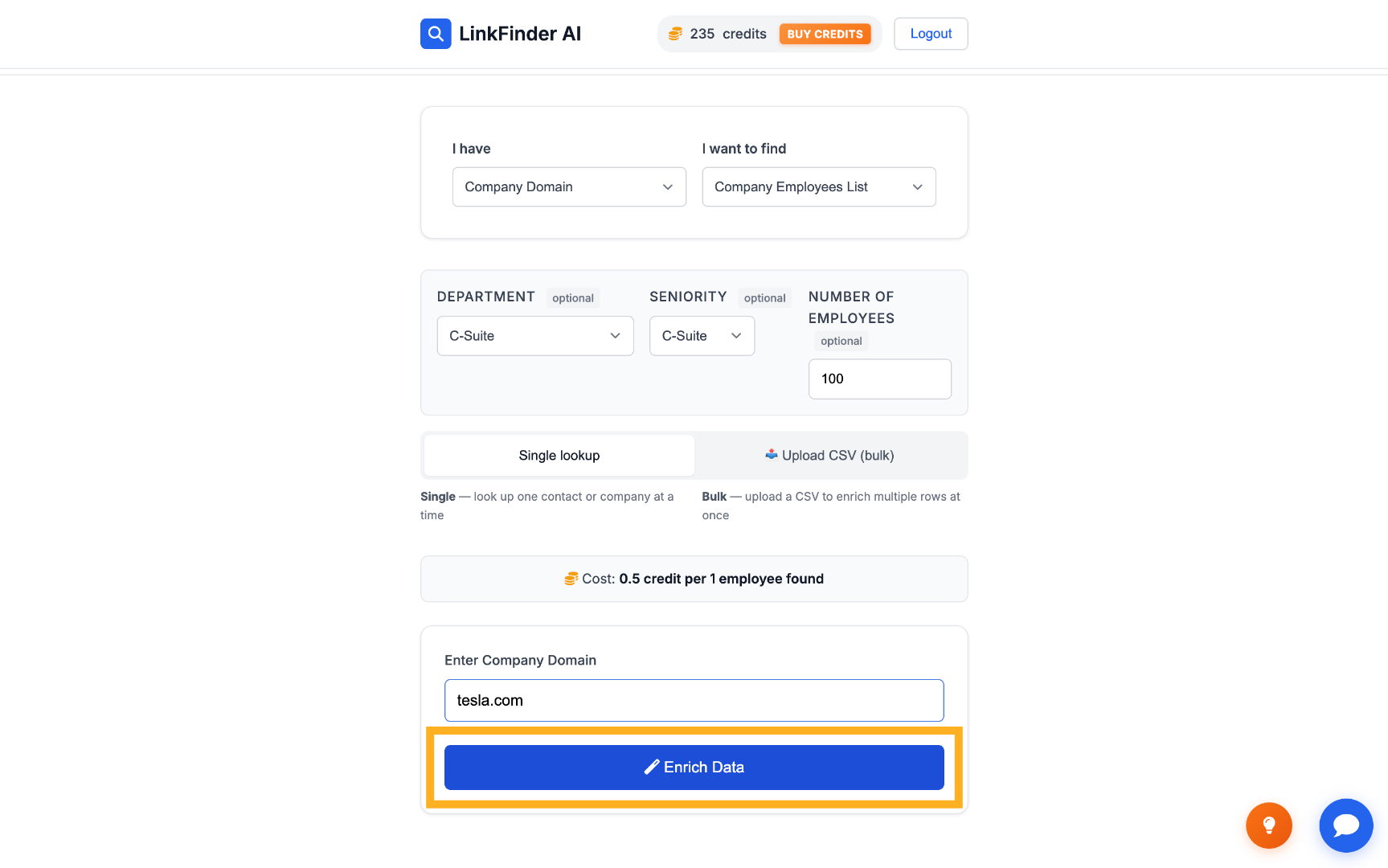
Enter the company domain and enrich

Type the target company's domain — for example, tesla.com — and click Enrich Data.
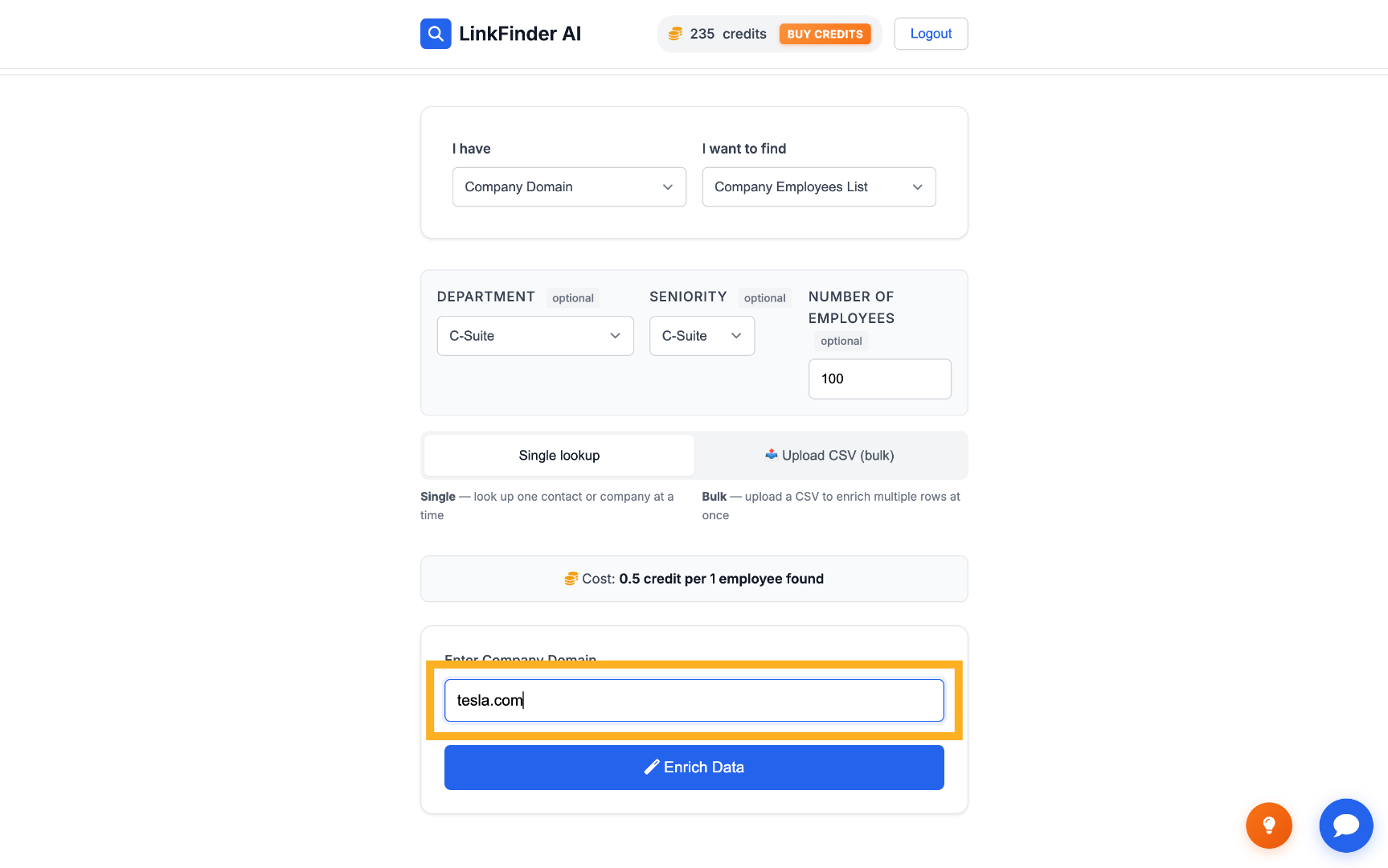
Input Company Domain Initiate Data Enrichment
6

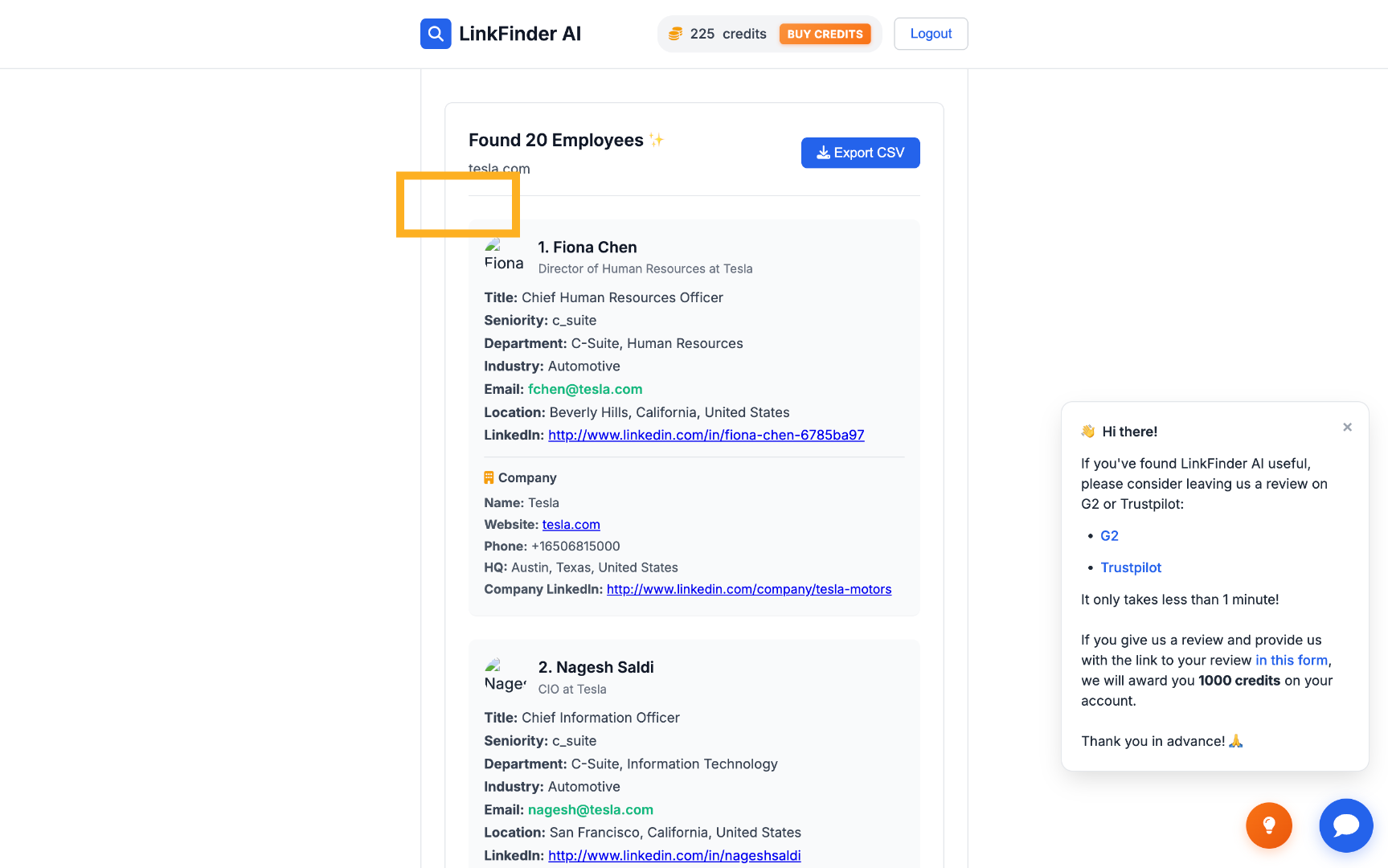
Review the employee results

Each result includes the employee's name, title, and LinkedIn URL for further enrichment.
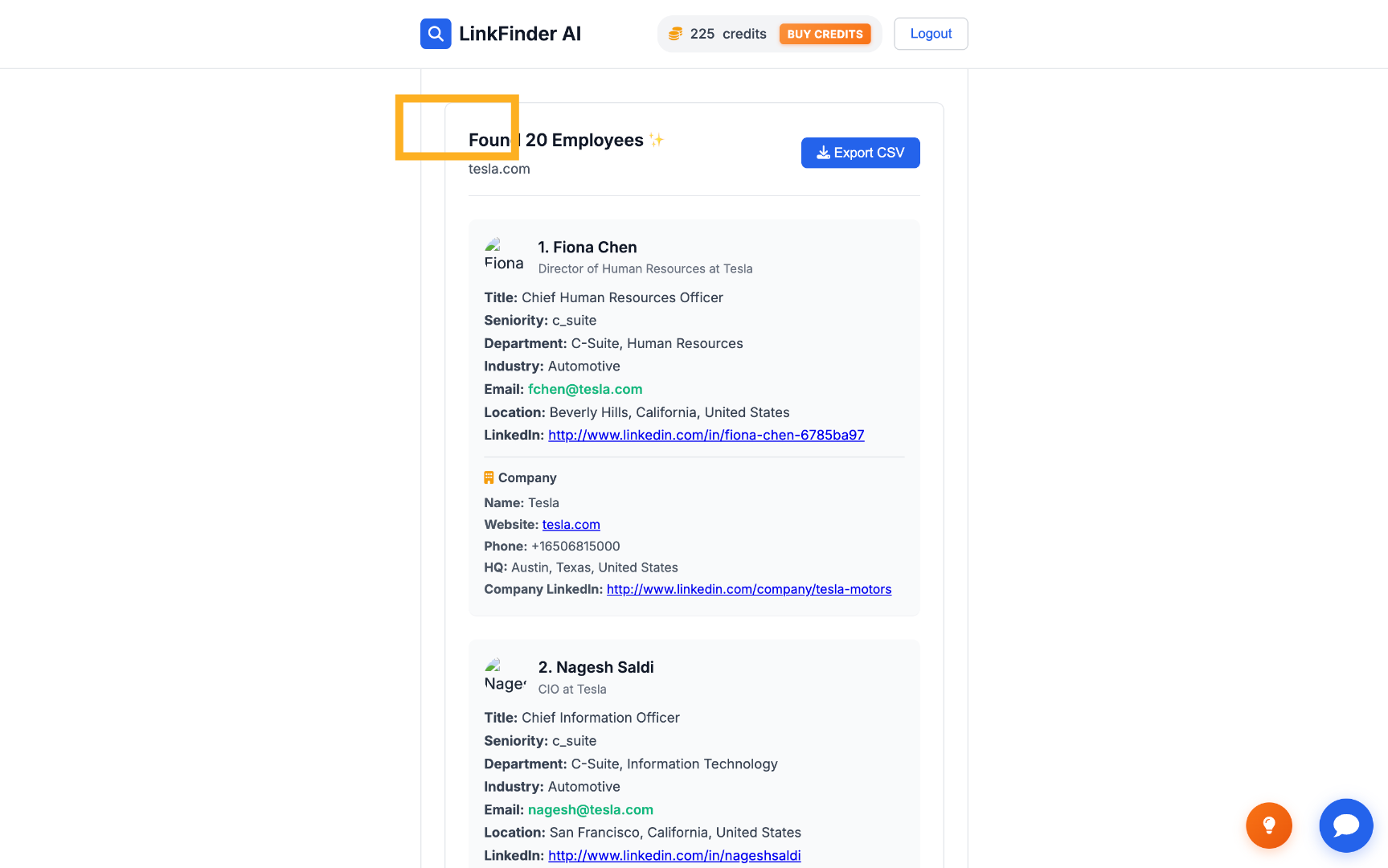
View Employee Results Review Employee Details
Each employee found costs 0.5 credits, so start with a smaller result count while you're testing filters on a new account.
2

Re-run the search for a different company or filter

Once the flow is set up, switching targets or filters is a matter of a few clicks.

1

Change the department or seniority filter

Adjust the department and seniority dropdowns to explore a different slice of the same company, or prep for a new one.
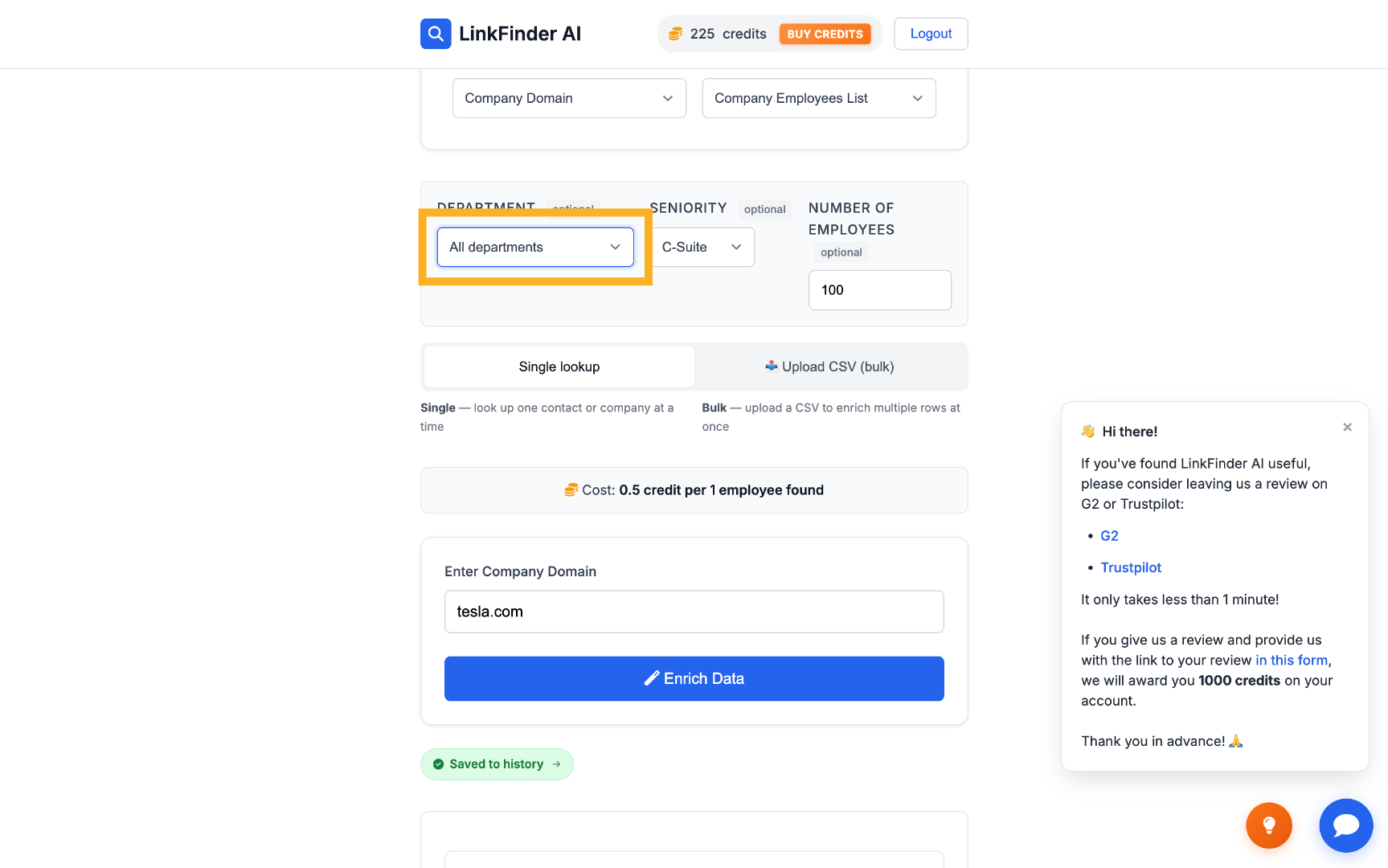
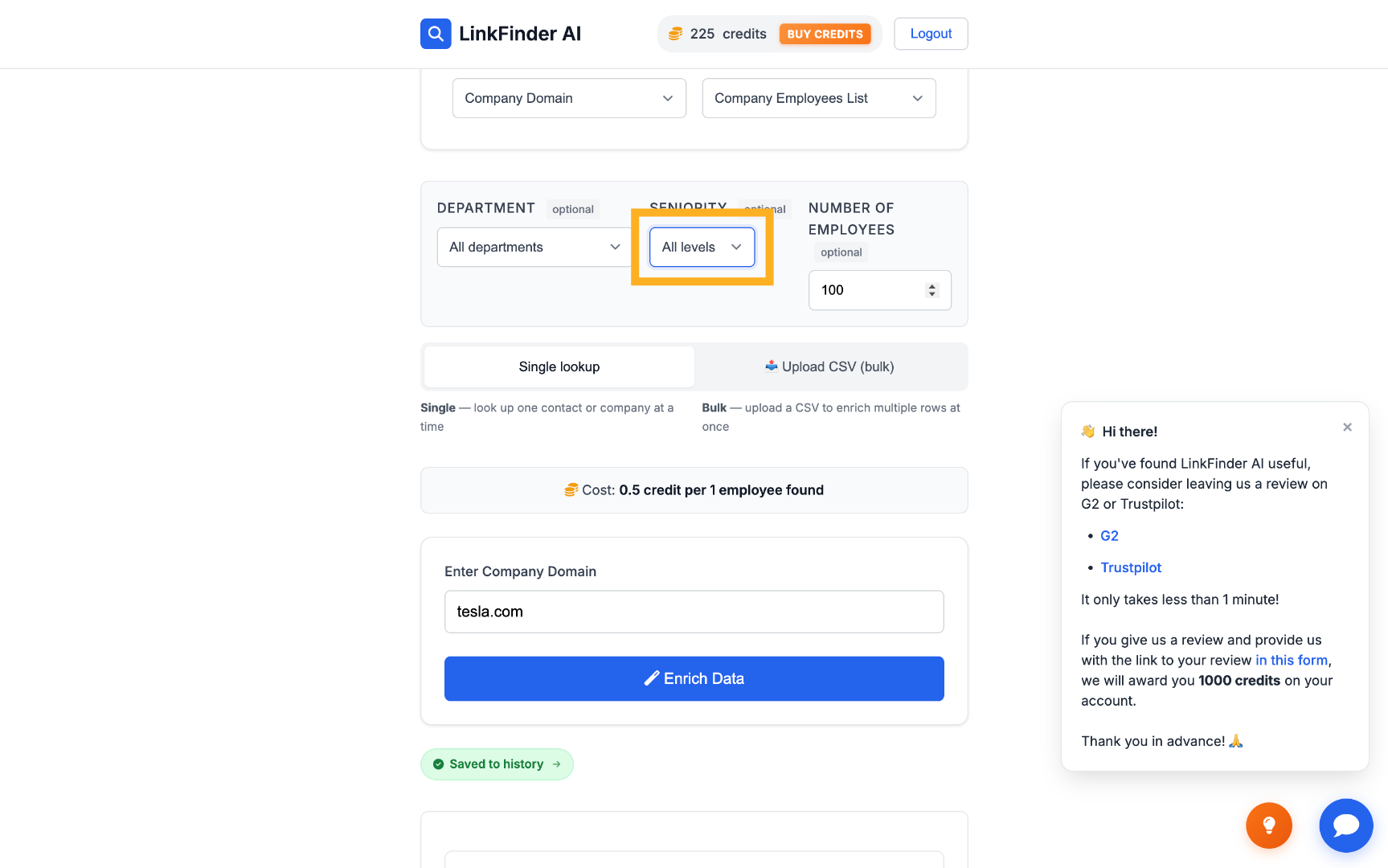
Select New Department Choose Seniority Level
2

Update the result limit

Set a new employee count limit to match how deep you want to go for this account.
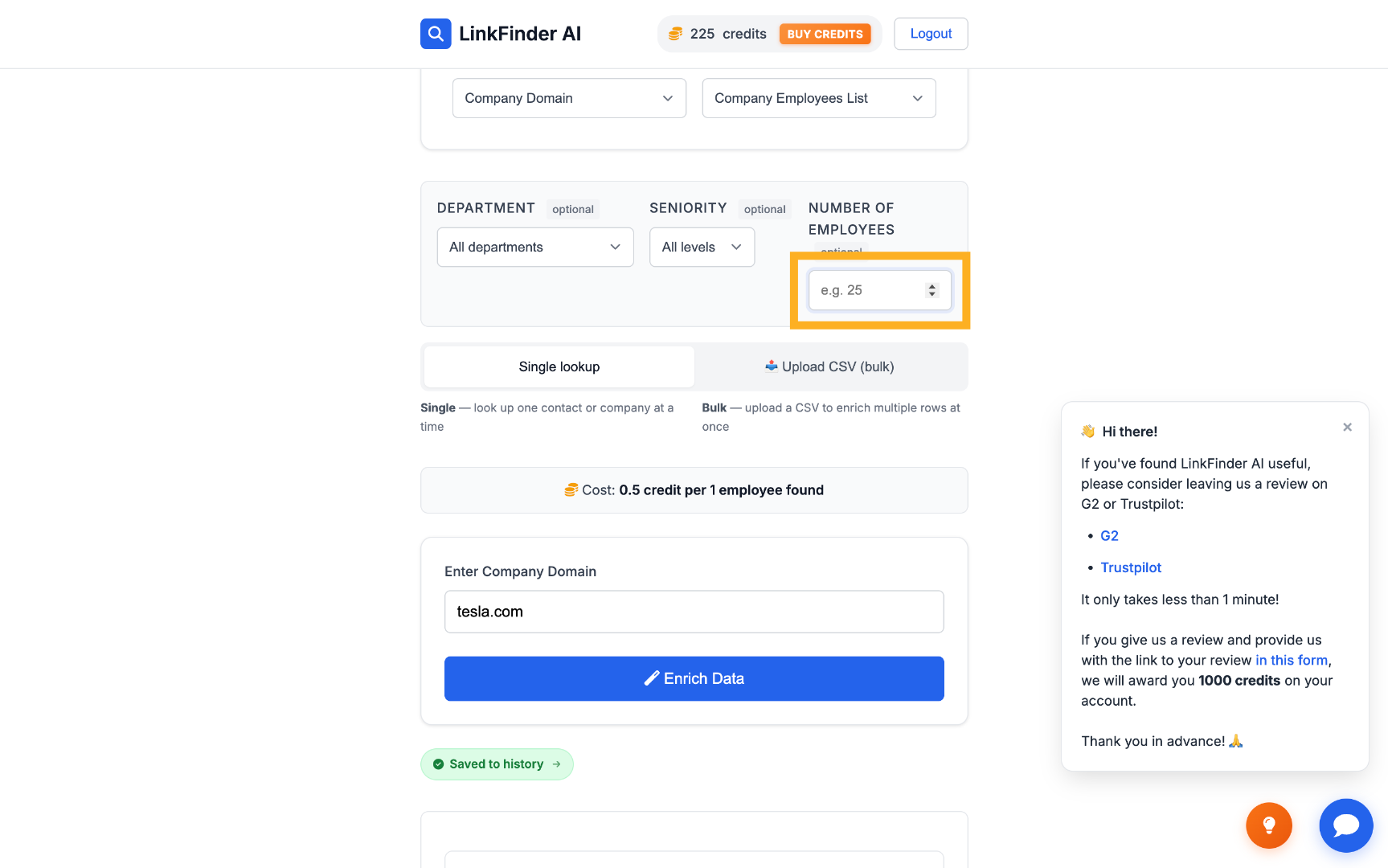
Enter Employee Number
3

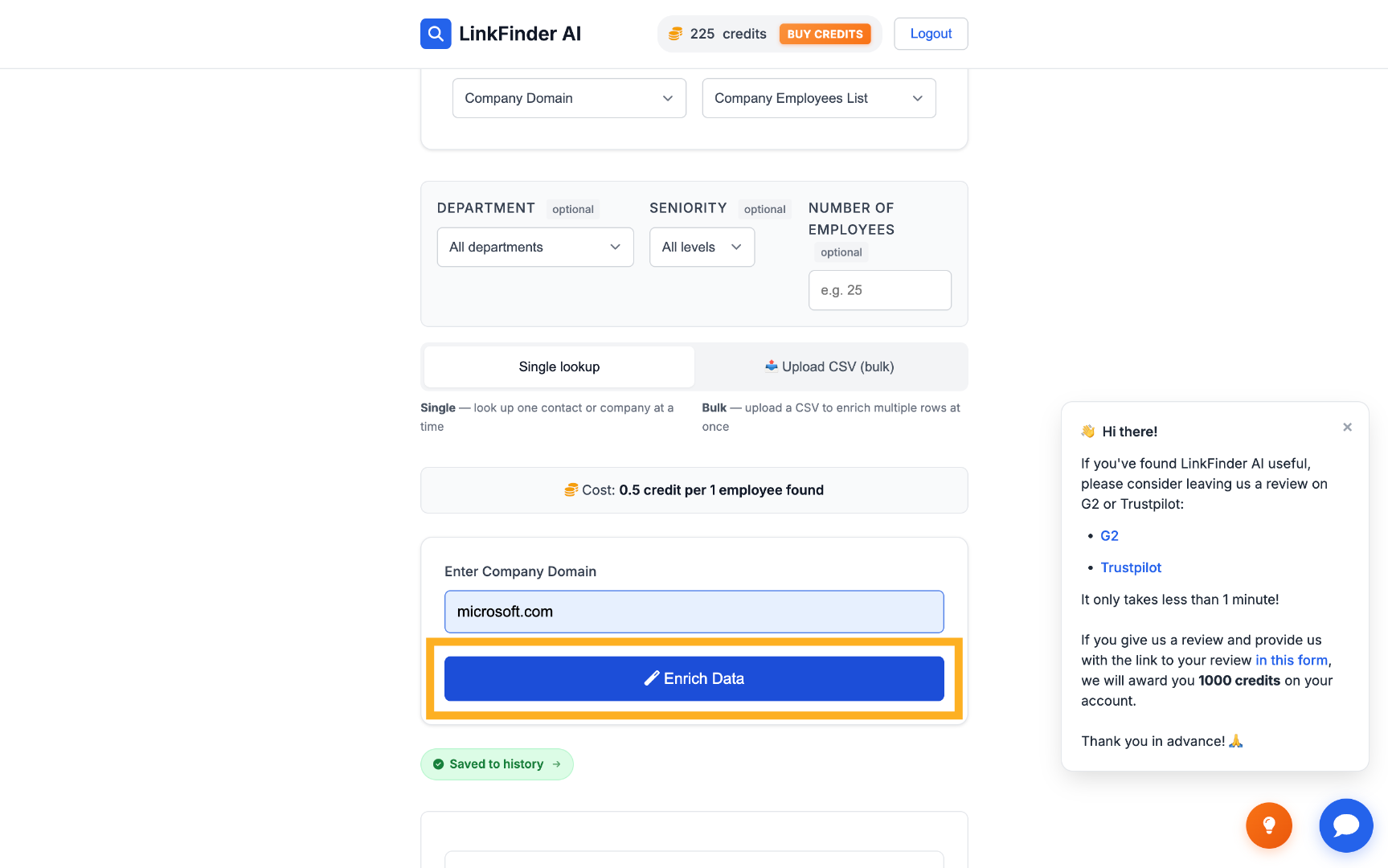
Enter the new company domain

Swap in the next target's domain — for example, microsoft.com — and enrich again.
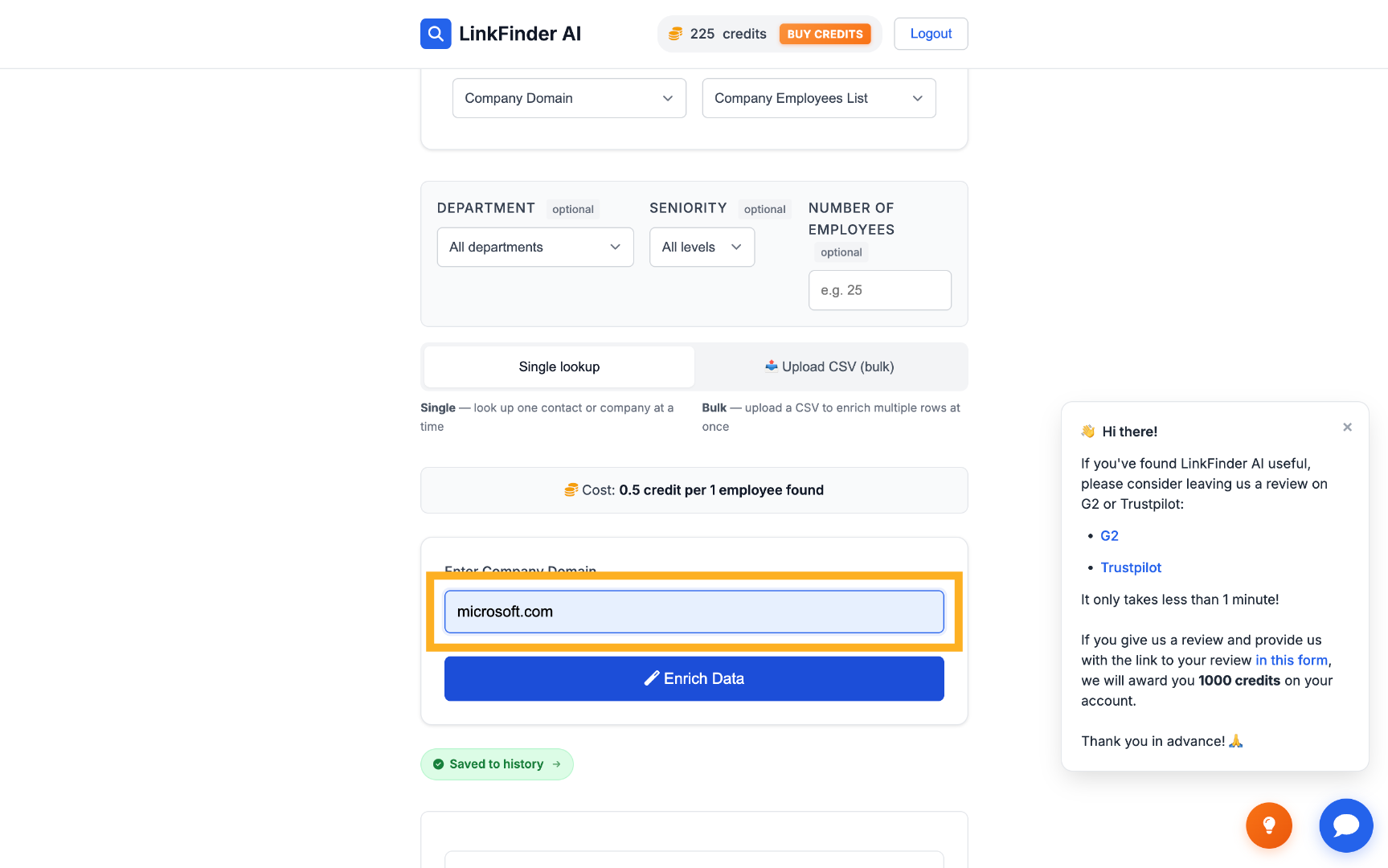
Input New Domain Start Enrichment Process
4

Check the results and credit cost

Larger companies return more matches; keep an eye on your credit balance as you work through a target list.
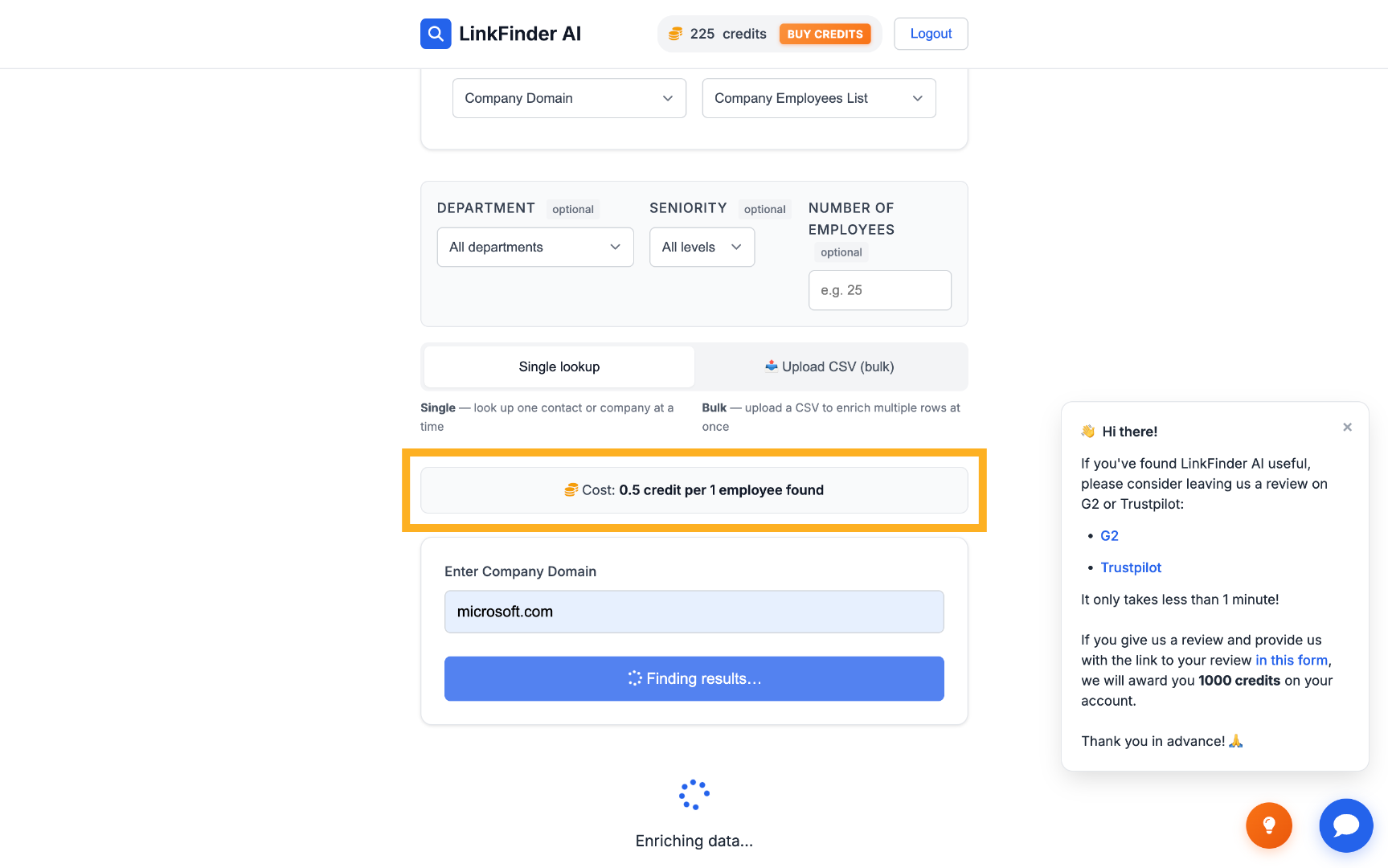
View Credit Cost
3

Pull employee lists programmatically via API

For syncing employee lists into a CRM or building account-mapping into your own tooling.

1

Open API Access

Go to API Access from your dashboard to manage your keys and review your API documentation.
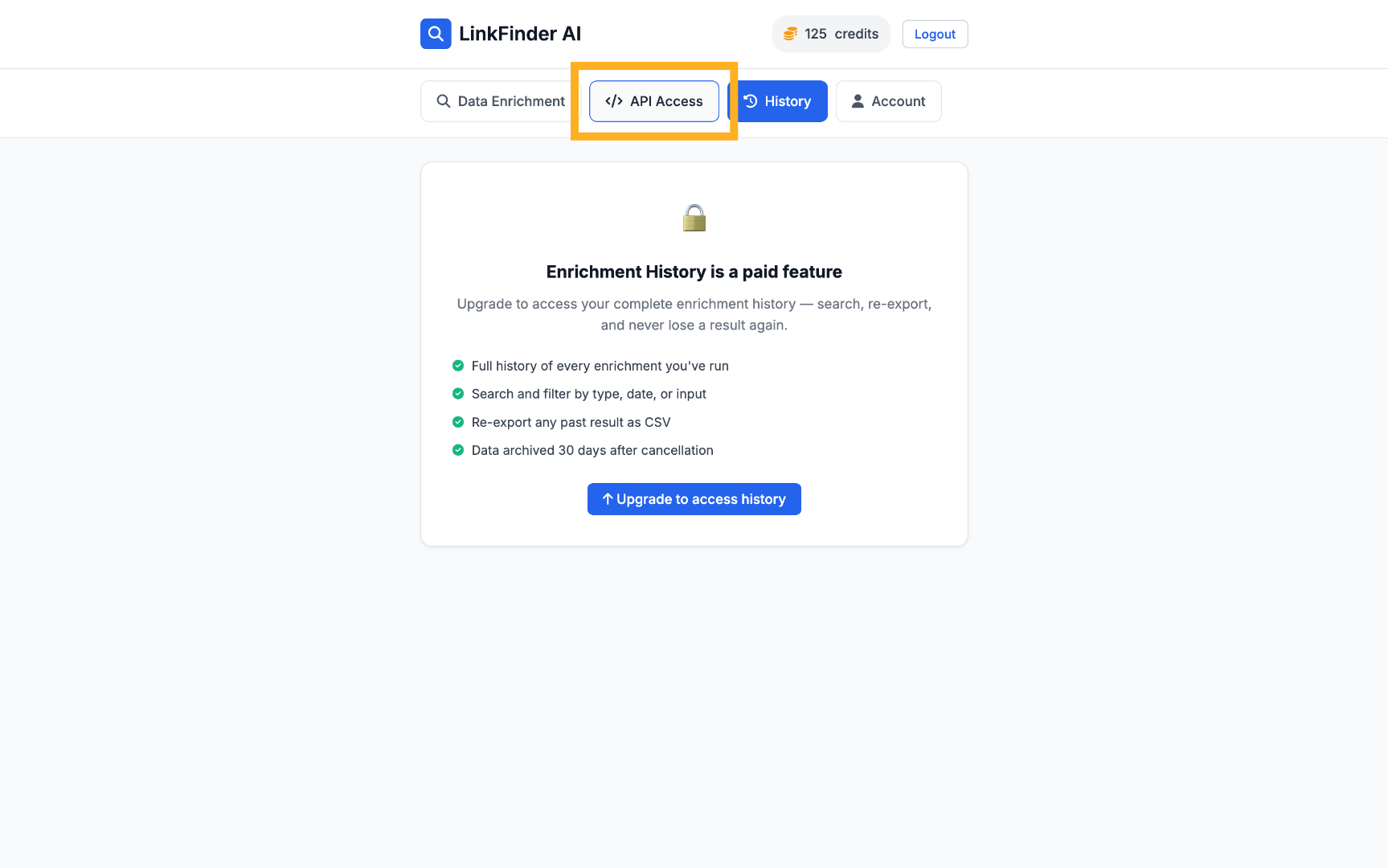
Open API Access
2

Call company_domain_to_employees

POST a request with the company domain, plus optional department and seniority filters, to get the same employee list programmatically.
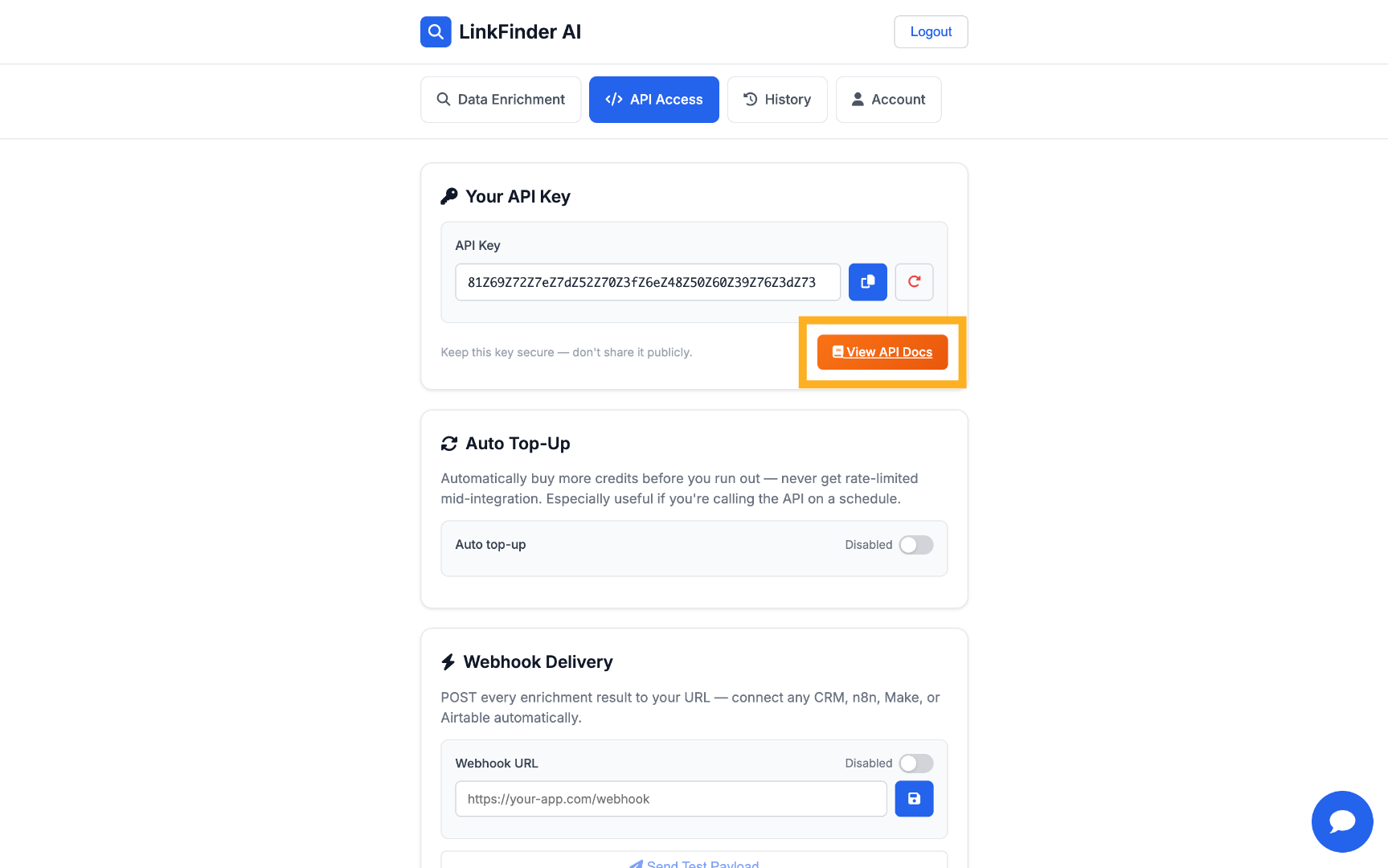
View API Documentation
See the API documentation for the full request and response format.

Tips for scraping employee lists efficiently

Filter before you enrich

Setting department and seniority filters up front keeps your credit spend focused on the people you actually want to reach.

Watch the per-employee credit cost

Each employee returned costs a fraction of a credit — start with a small result count on a new account before scaling up.

Use the domain, not the company name

A precise domain (tesla.com, not "Tesla") gives the most reliable match, especially for companies with common names.

Re-run target accounts periodically

Org charts change fast. Re-pulling your top accounts every quarter keeps outreach lists current.

Frequently Asked Questions

Just the company's domain — for example, tesla.com. Department and seniority filters are optional but recommended to narrow results.
Each employee found costs 0.5 credits. Setting filters and a result limit up front keeps spend predictable.
The built-in filters are department and seniority level, which together cover most targeting needs more reliably than matching exact job titles.
Yes — set your result limit to control how many you pull back, since a large company can return well over 100 matches.
Yes. The company_domain_to_employees endpoint accepts the same domain, department, and seniority parameters as the dashboard search.
You can create a free account and get free credits to test your first searches. Paid plans add higher volume and full API access.

Pull your first employee list free

Filter by department and seniority, then enrich a target company's employees in one run — start on the free plan.

Get started free

No credit card required · Free plan available · API on every plan

Explore more in Company & Employee Data

See the full topic → Company & Employee Data hub