A LinkedIn profile URL is one of the most useful pieces of data in sales, recruiting, and outreach — it's the anchor that everything else (email, phone, job history, company) gets attached to. The problem is that LinkedIn's own search buries results behind login walls, rate limits, and a UI that isn't built for repeated lookups, and a plain Google search for a common name returns dozens of people who aren't the one you're after.
LinkFinder AI solves this by taking a name — plus a company to disambiguate it — and returning the matching LinkedIn URL directly, without you touching LinkedIn's interface at all. This guide covers three ways to do that: a single lookup for one-off searches, a bulk CSV upload for processing a list of leads at once, and an API endpoint for wiring the lookup into your own tools.
Find a single LinkedIn URL from a name
This is the quickest path when you only need one profile — for example, before a sales call or when qualifying a single lead.
Open the LinkedIn URL Finder
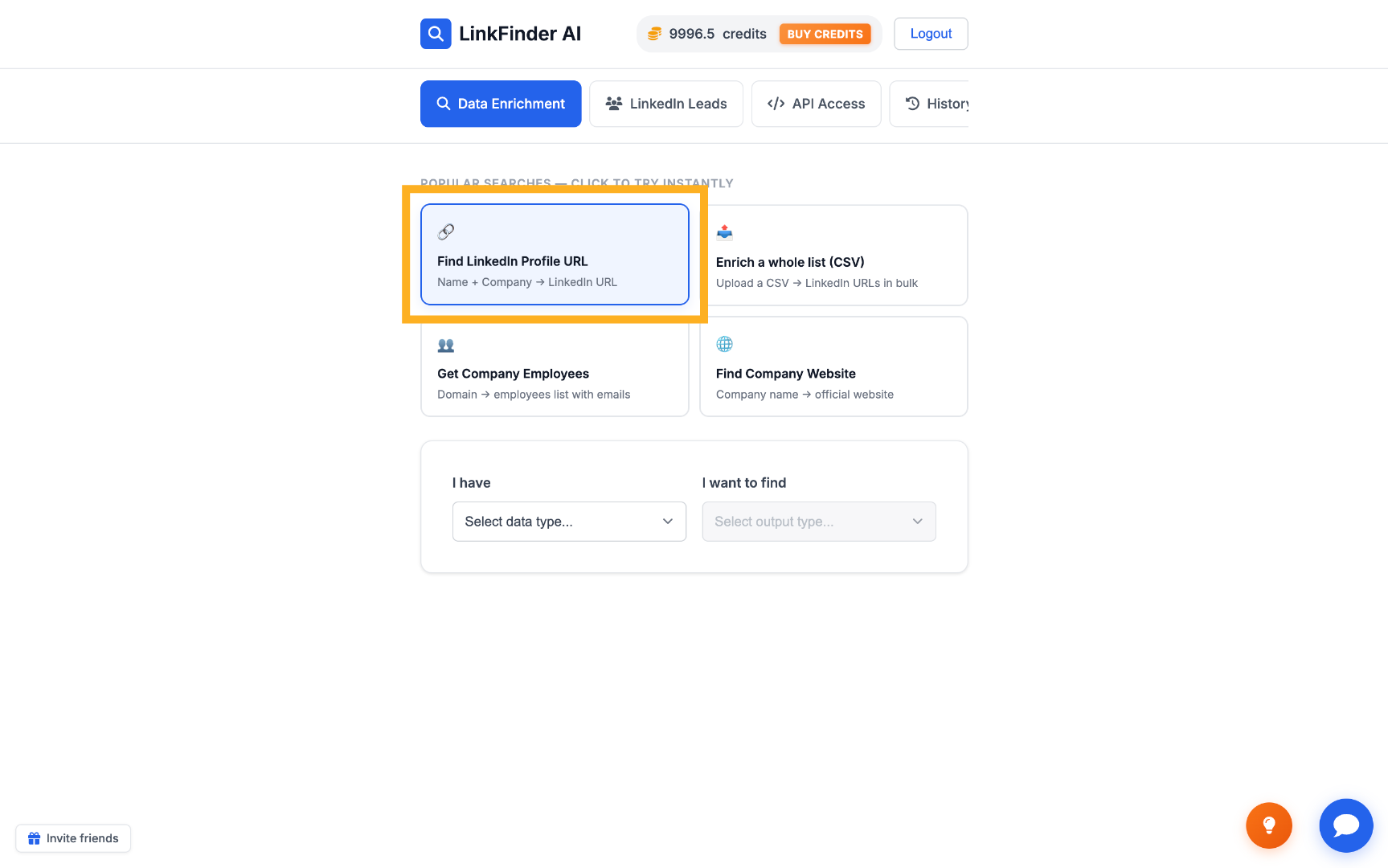
Go to linkfinderai.com and click on LinkedIn profile URL. You'll land on a form with a few input fields.
Enter the lead's full name
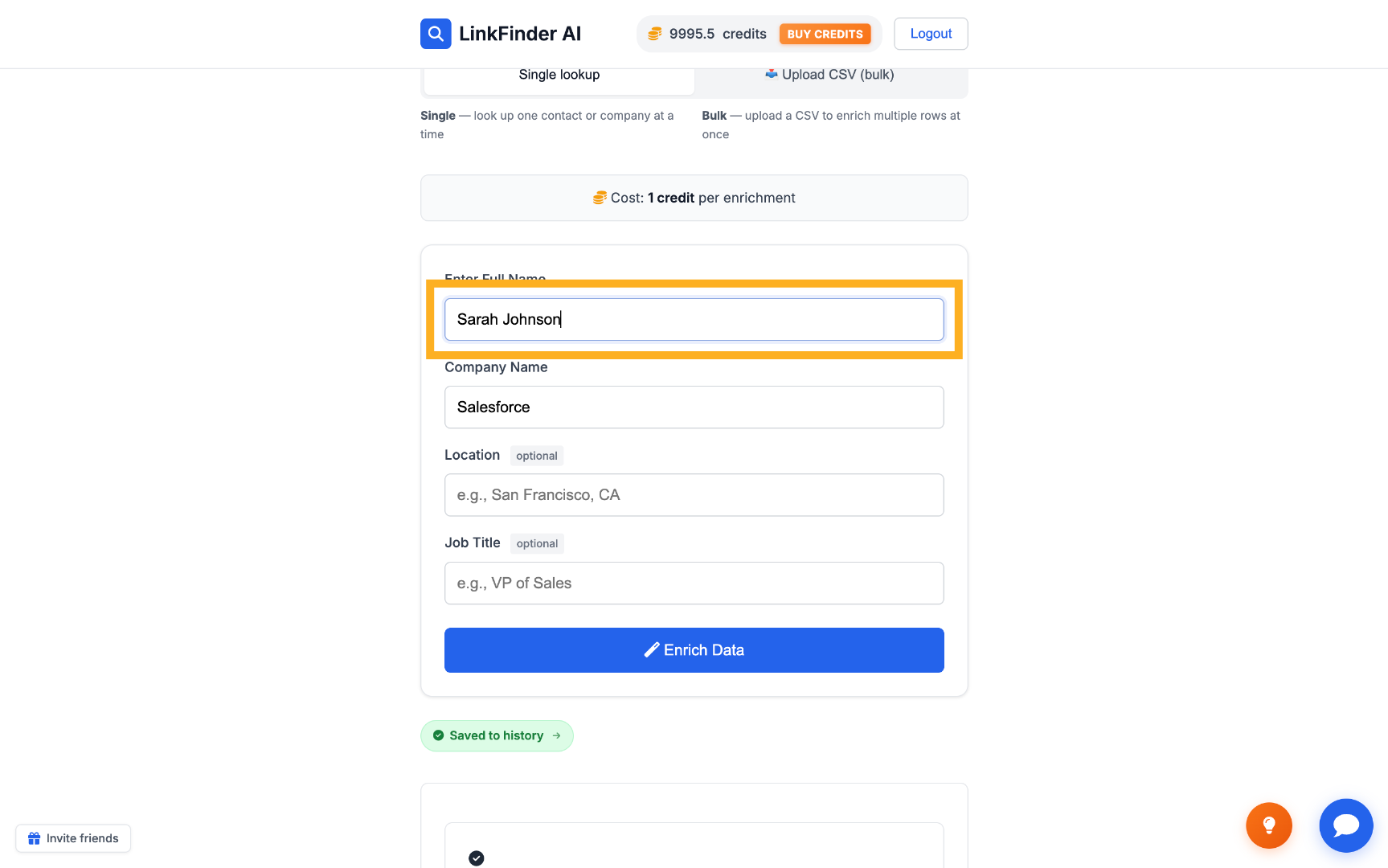
Click "Enter Full Name" and type the person's name — for example, Bill Gates.
Add the company name
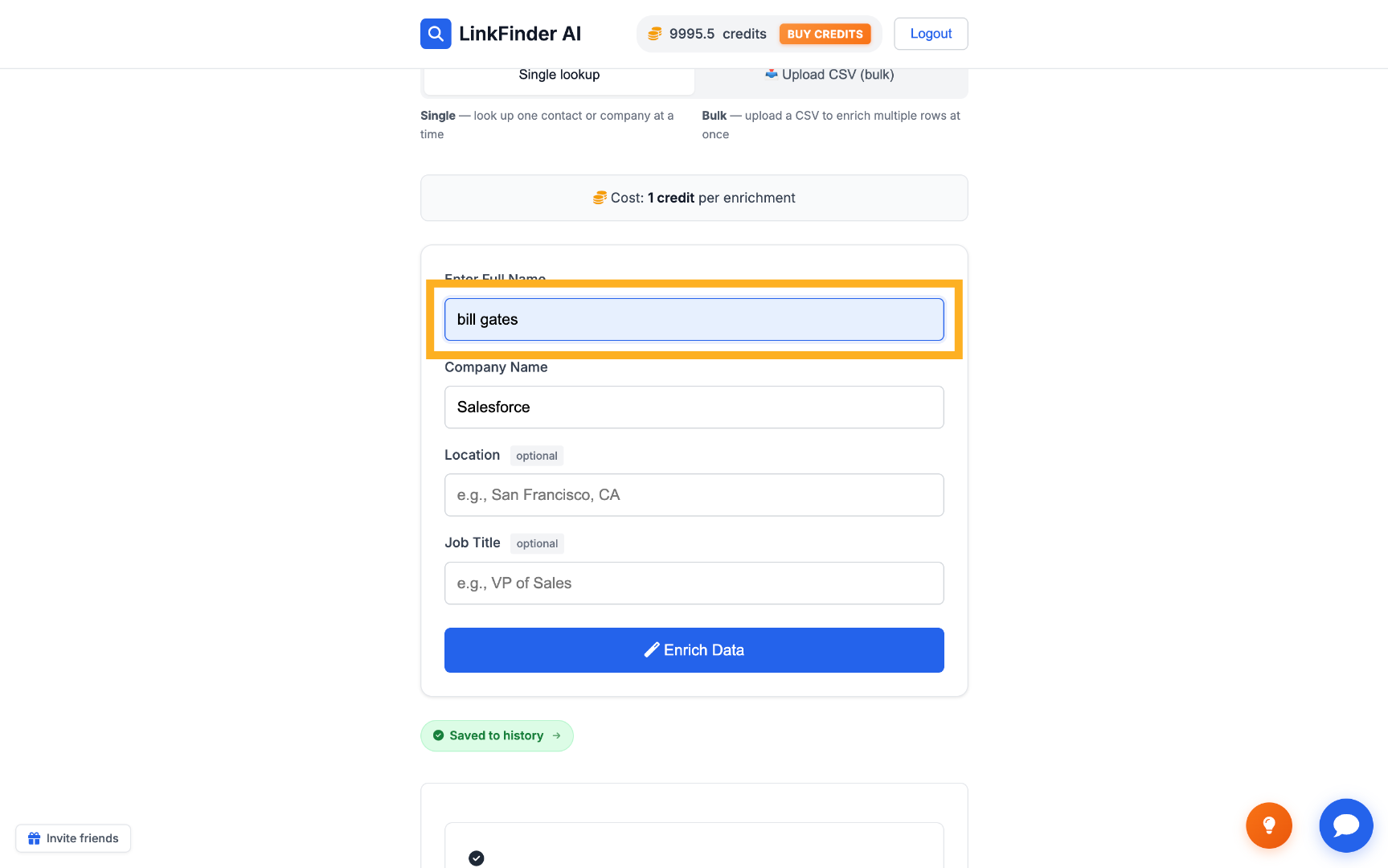
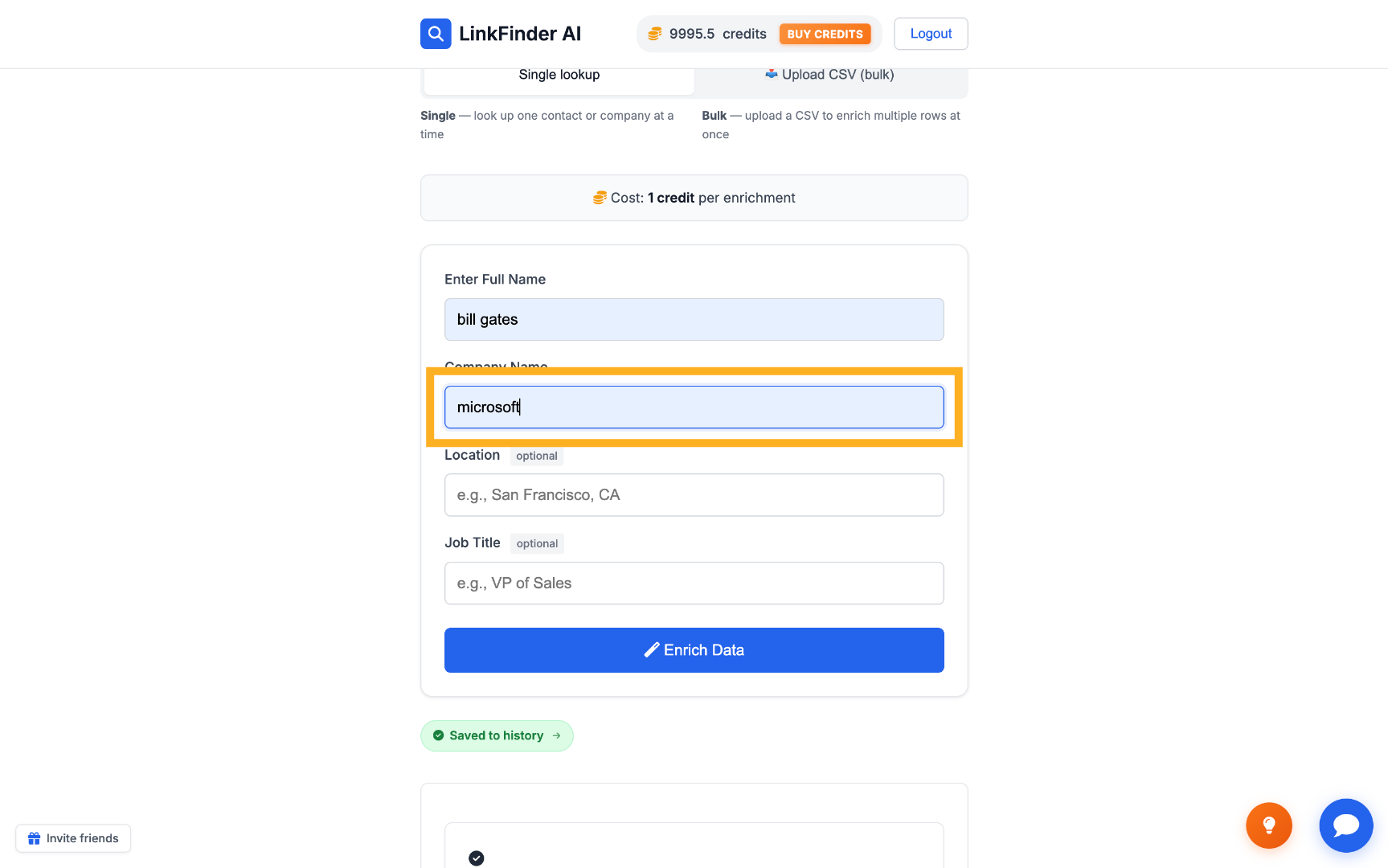
Click "Company Name" and enter the lead's employer — Microsoft, in this example. This is the single biggest factor in match accuracy, since it's what tells the tool which "Bill Gates" you mean.
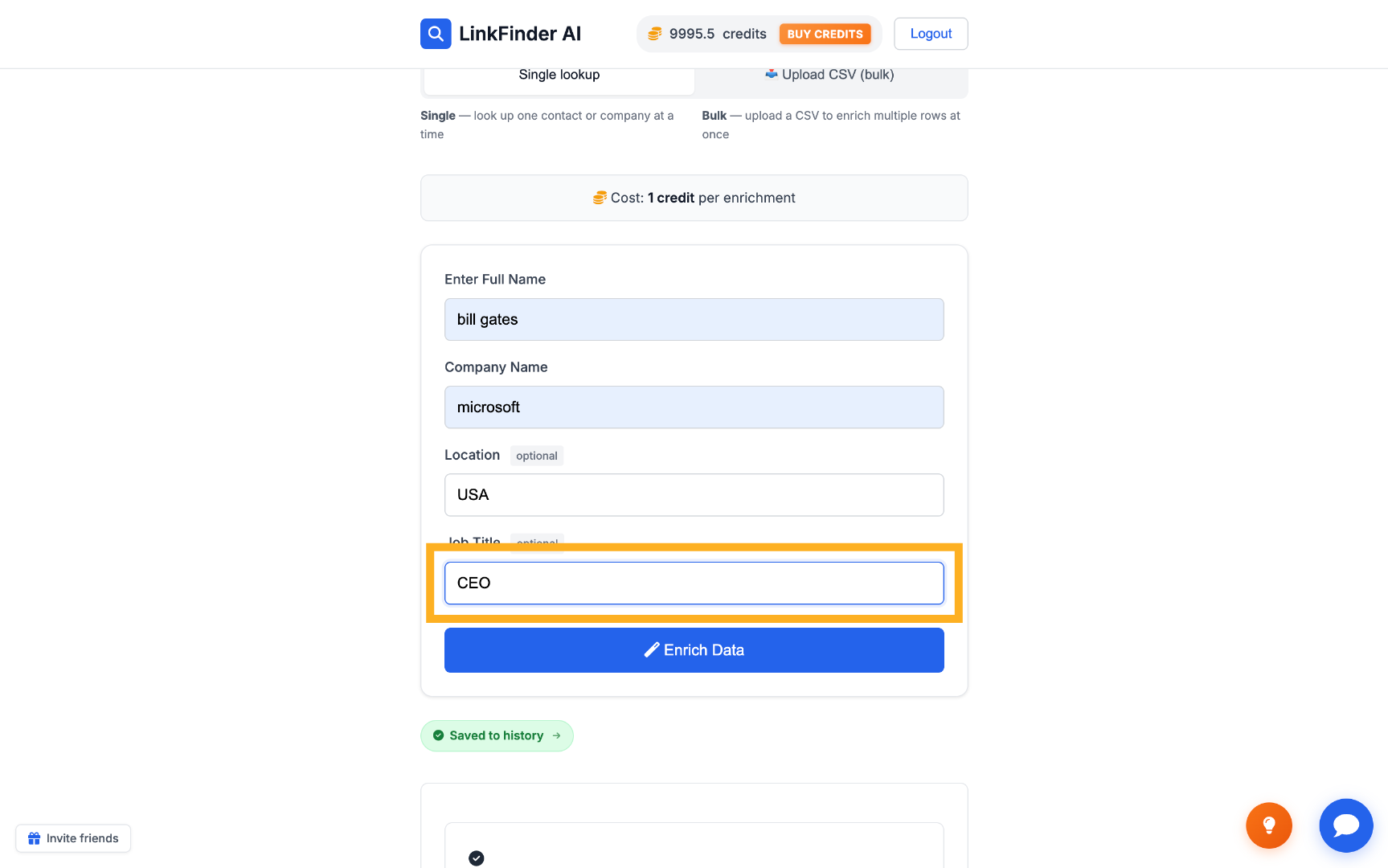
Narrow it down with location and job title (optional)
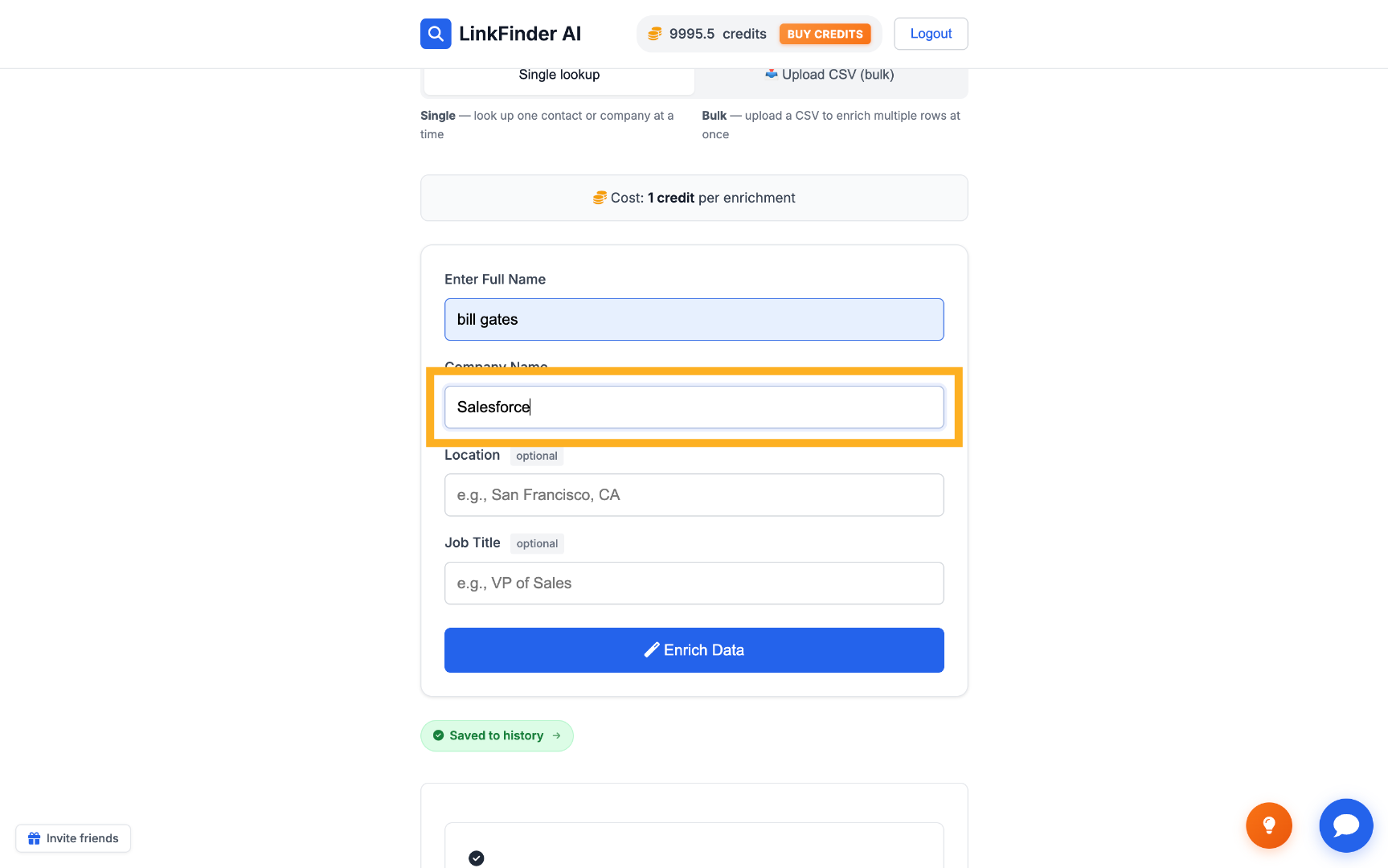
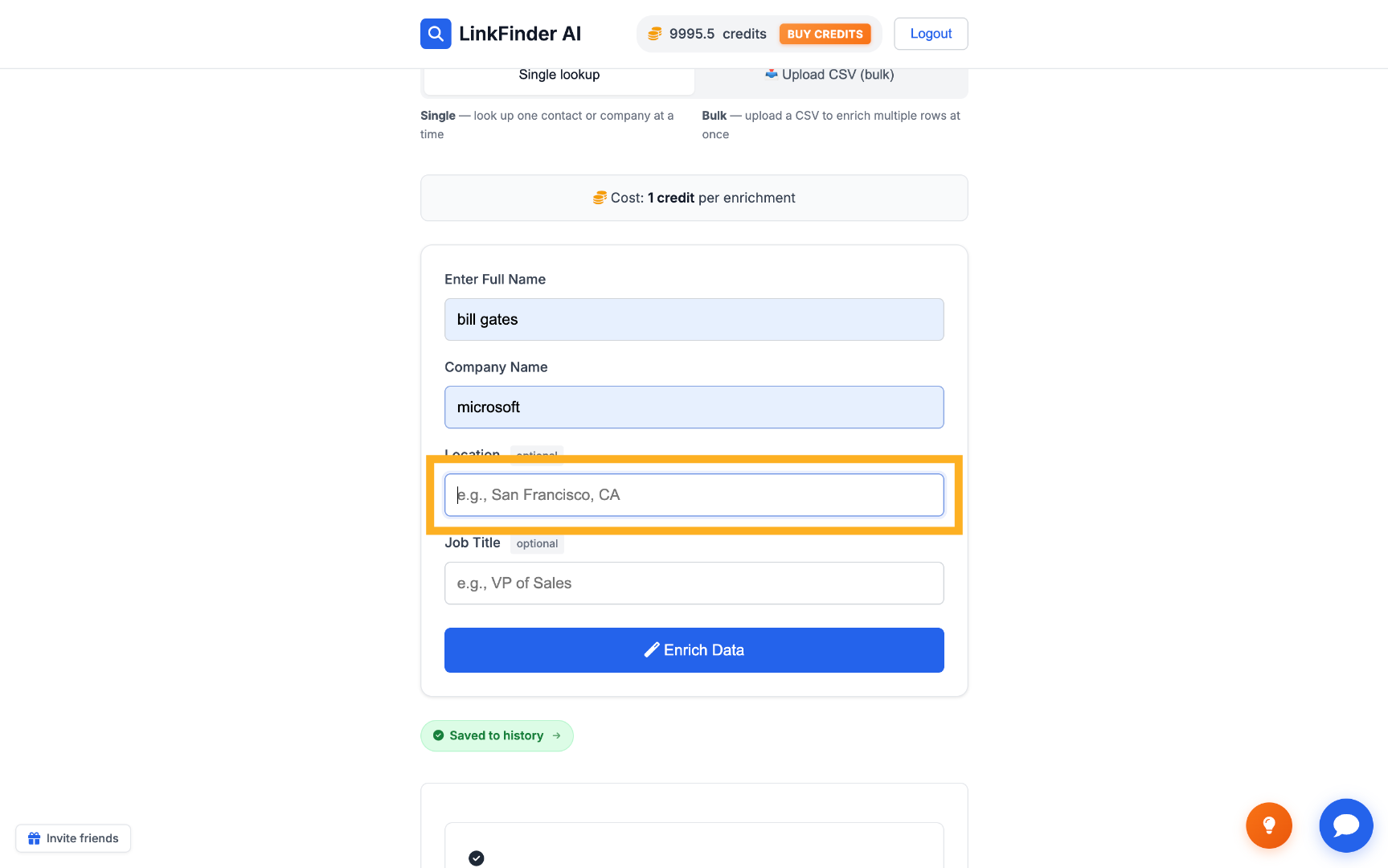
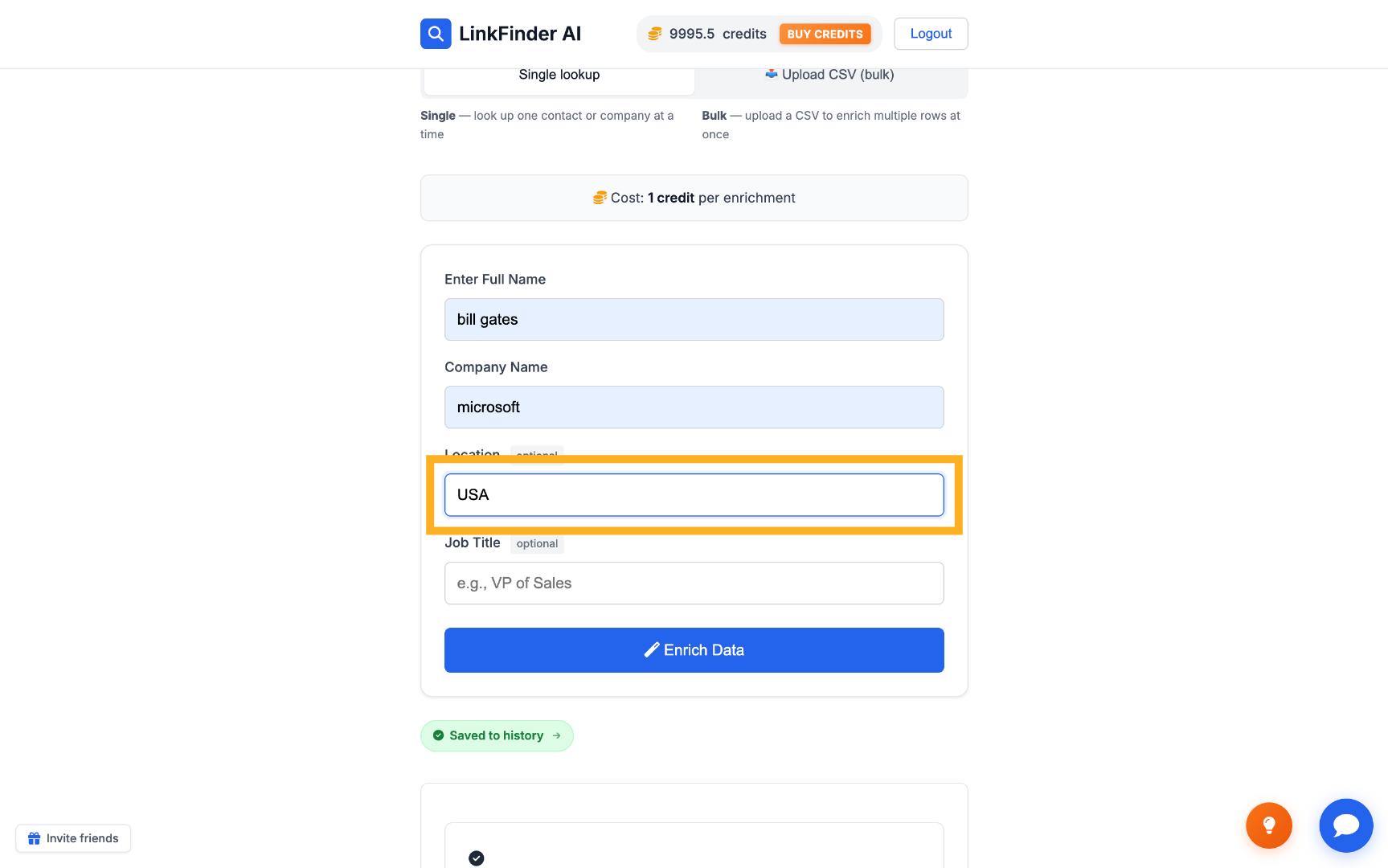
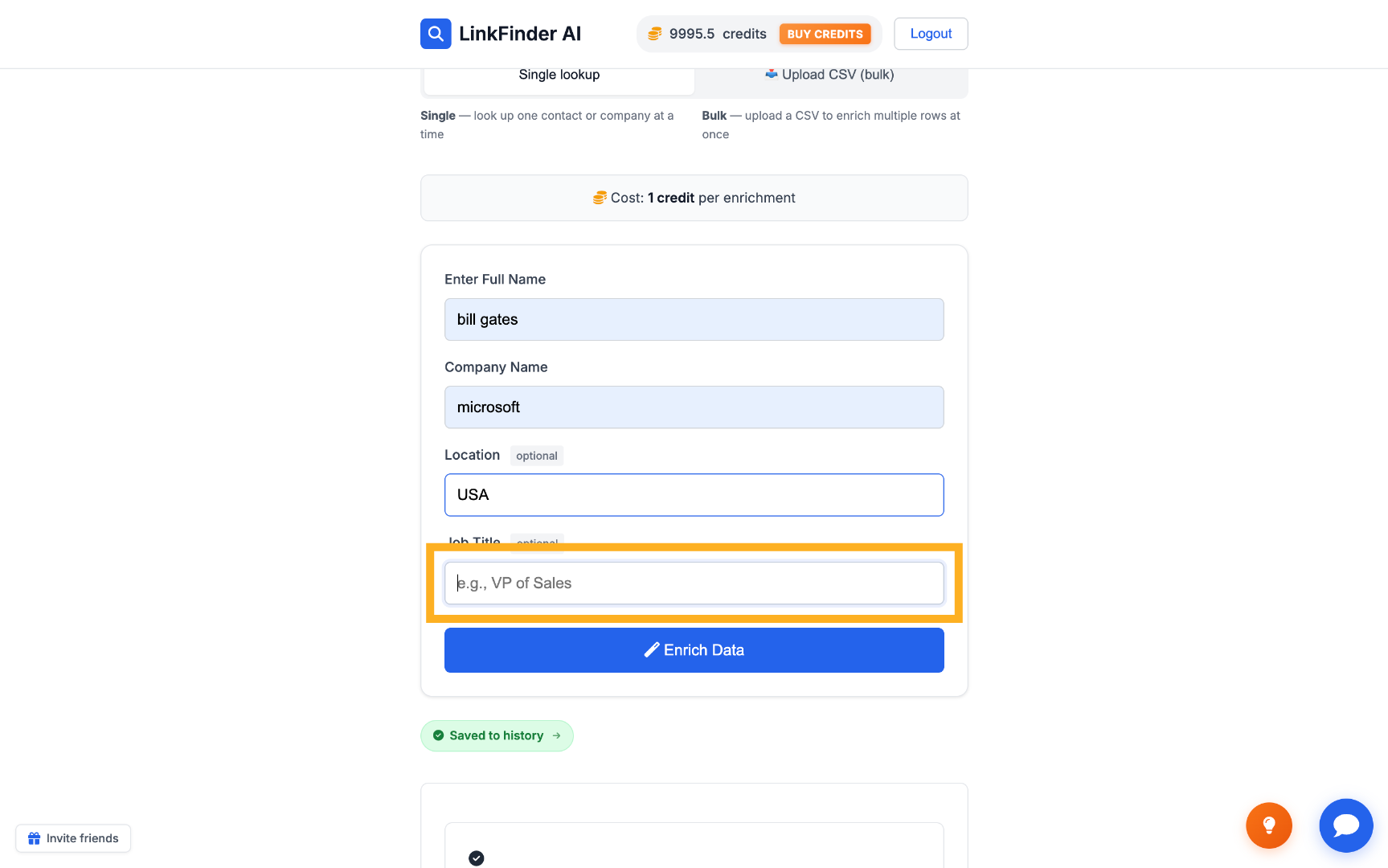
For very common names, add location and job title to filter further — here, USA and CEO. Both fields are optional and can be skipped for less common names.
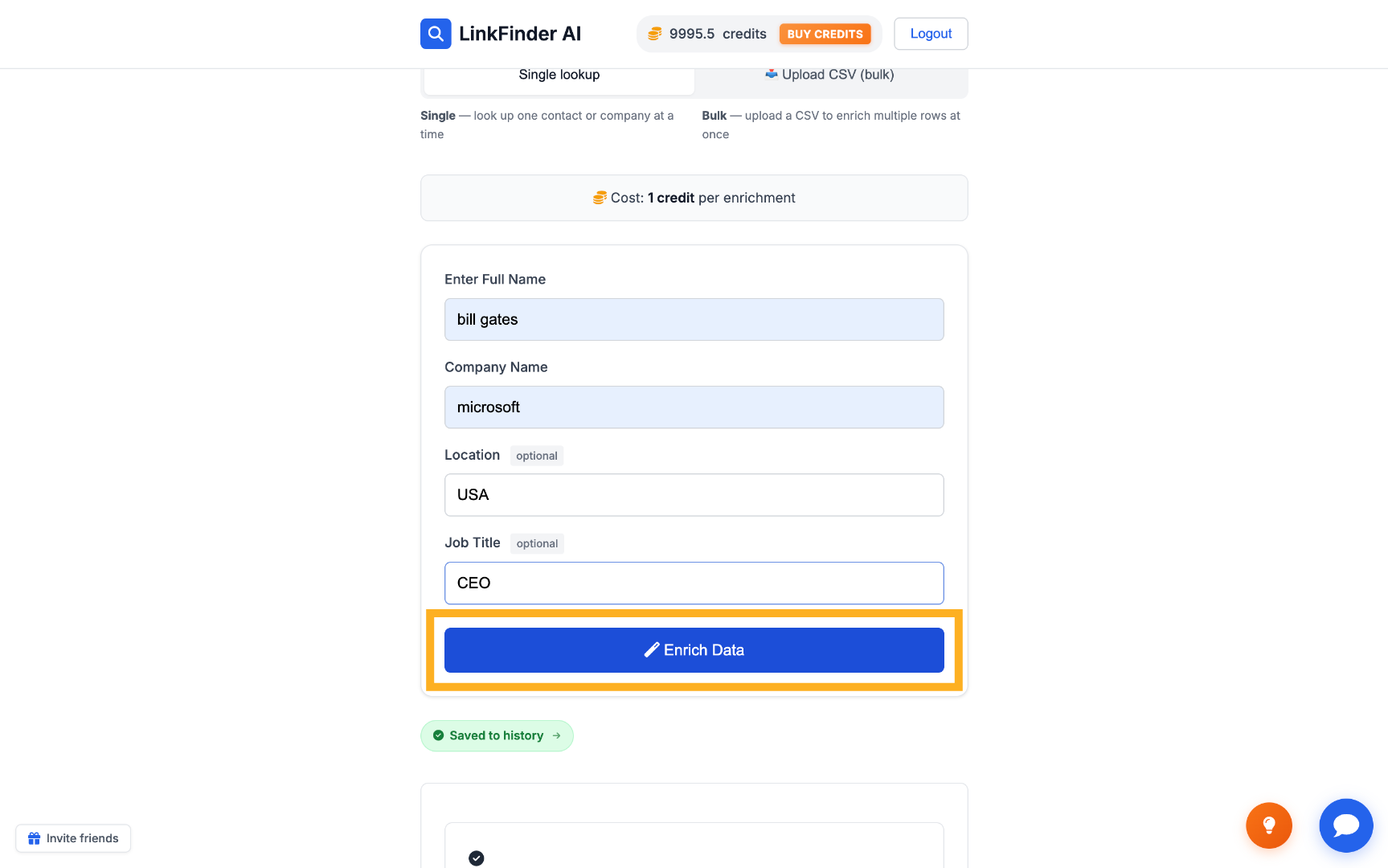
Click "Enrich Data" to get the URL
The tool runs the lookup and returns the matching LinkedIn profile URL, ready to copy or open directly.
Bulk find LinkedIn URLs from a CSV list
When you have a whole list of leads instead of one name, upload a CSV and let LinkFinder AI match every row at once.
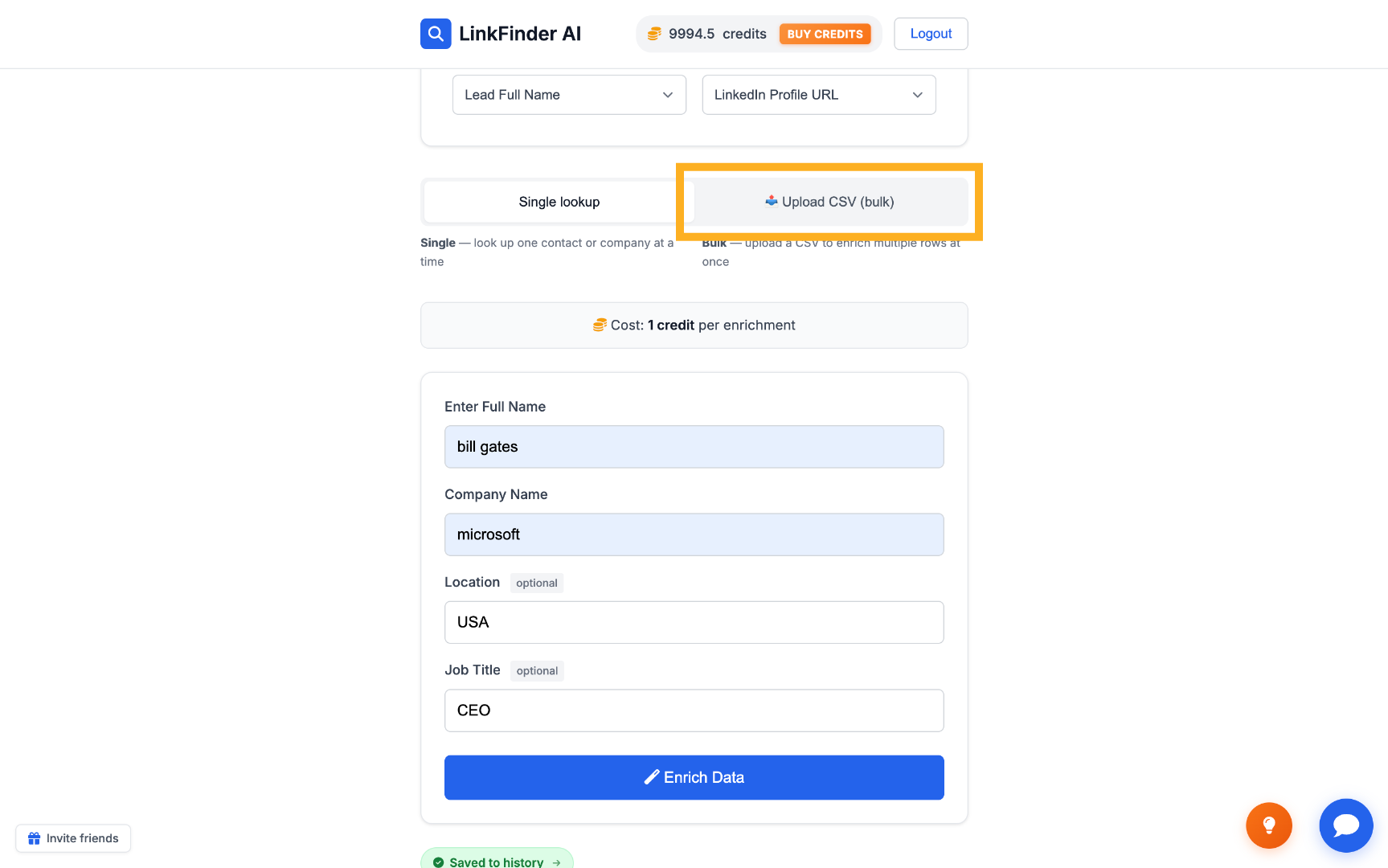
Switch to "Upload CSV (bulk)"
On the same LinkedIn URL Finder screen, choose the bulk upload option instead of the single-name form.
Select your CSV file
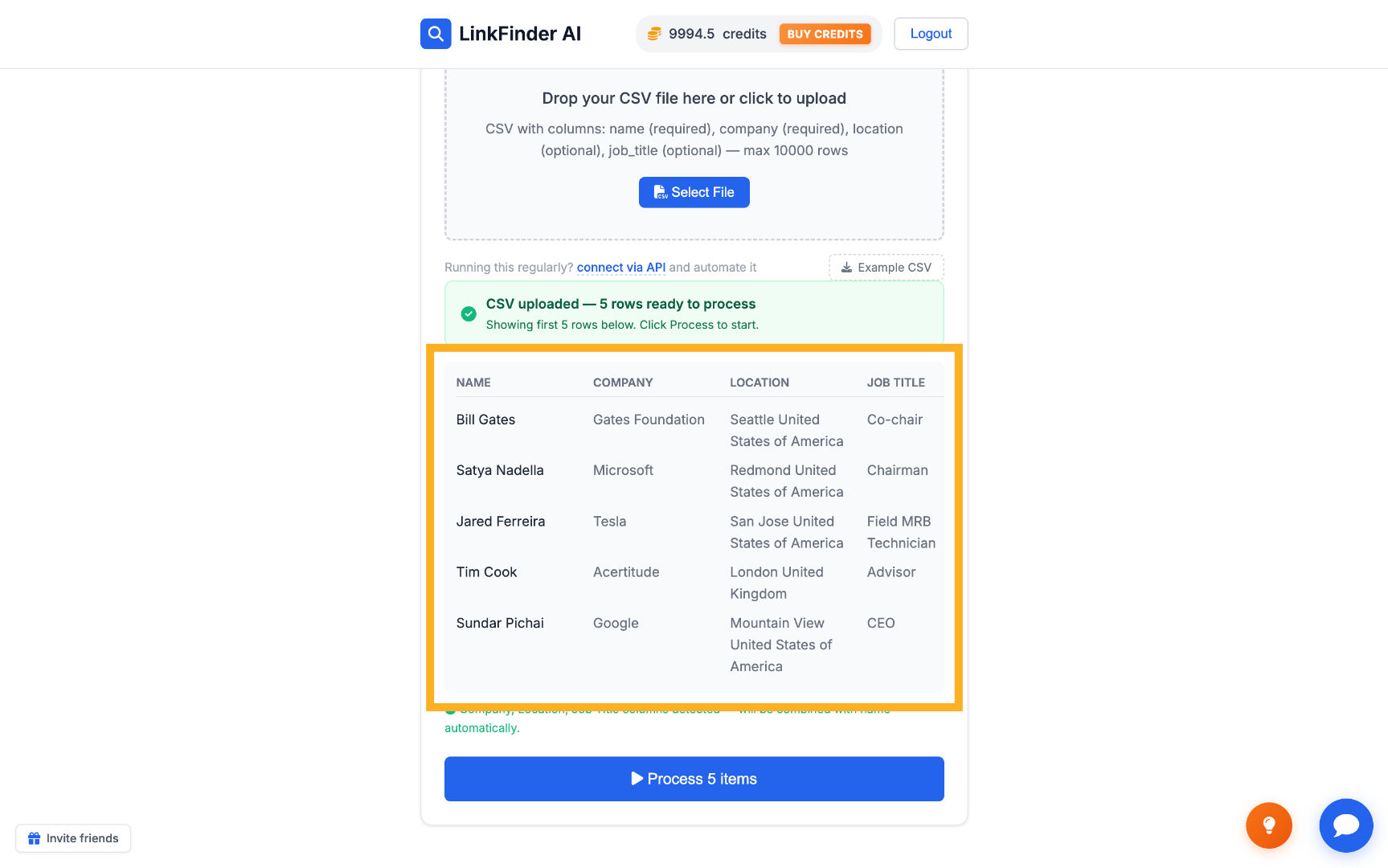
Click "Select File" and choose a CSV with your leads' names and companies.
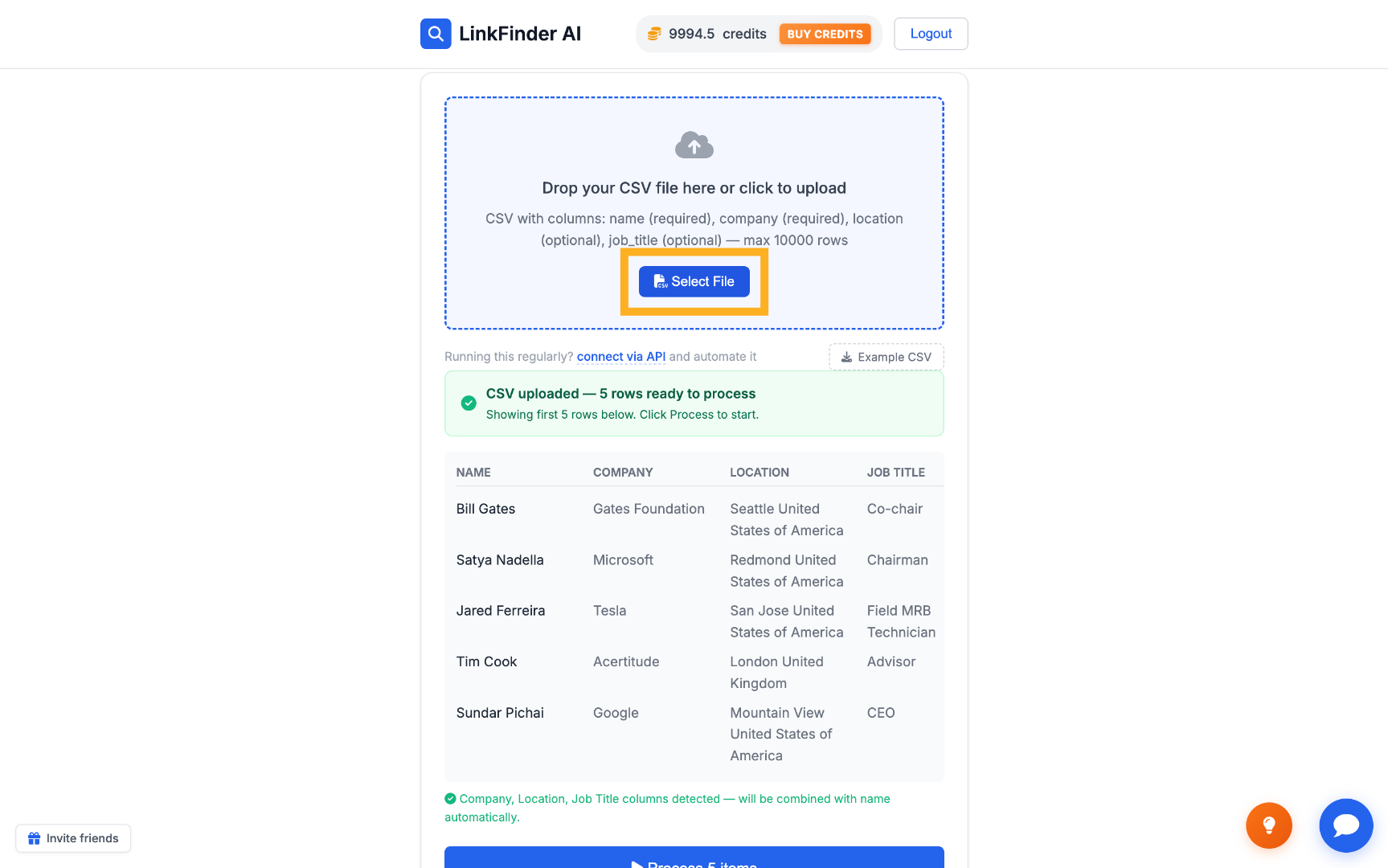
Preview the data and pick the format
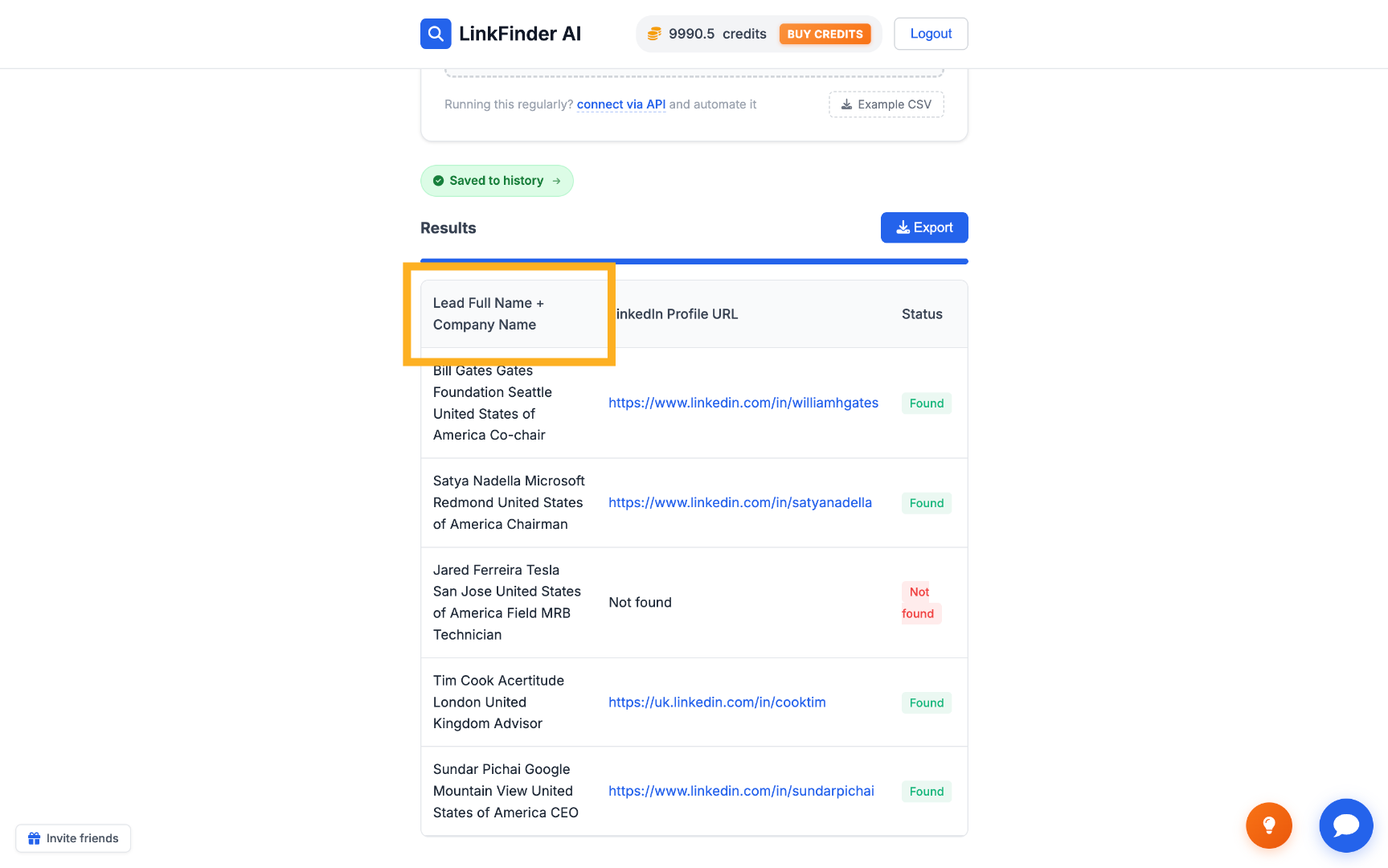
Check that names, companies, locations, and job titles look right, then confirm the matching format — Full Name + Company Name, in this case.
Process the list and export results
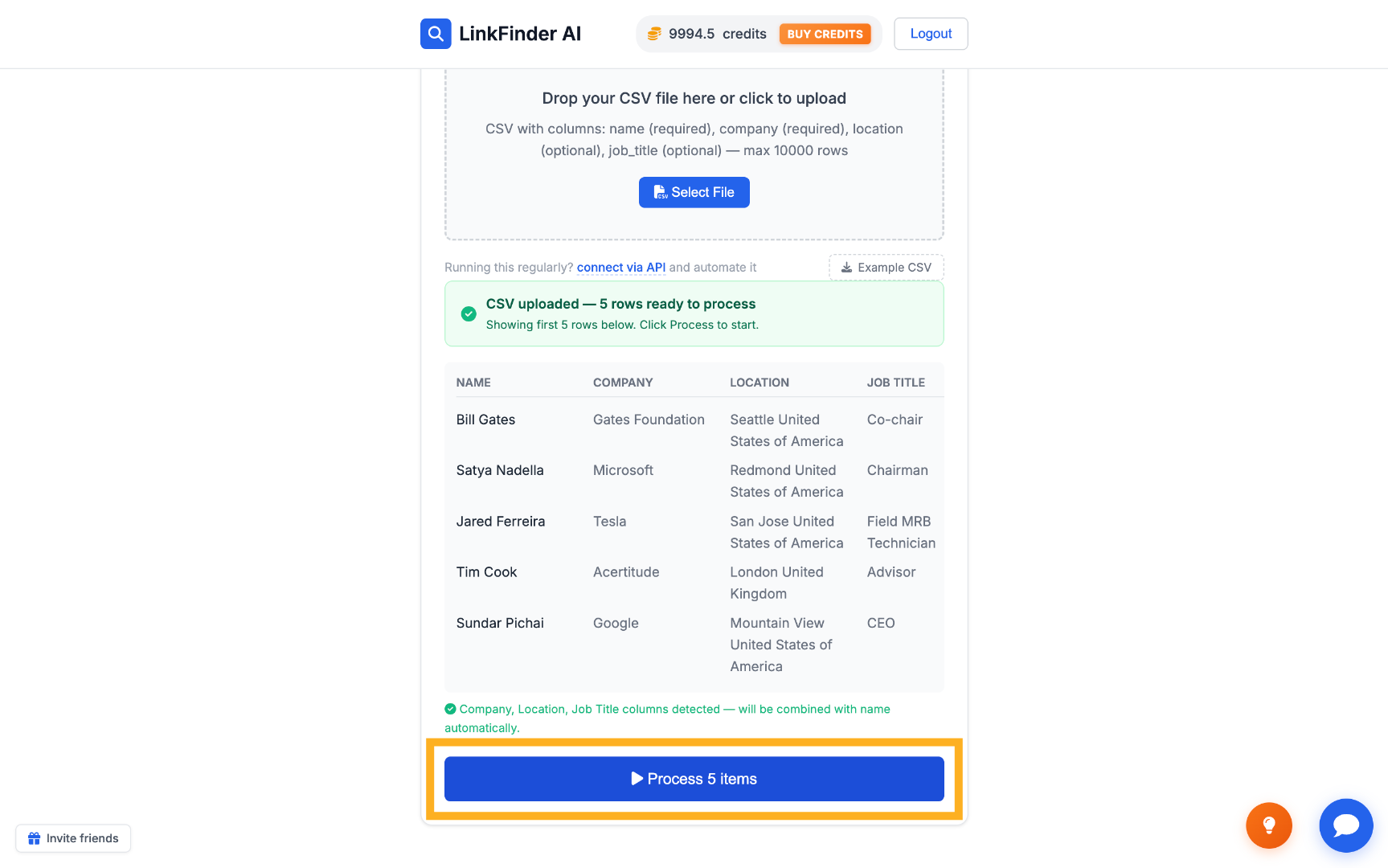
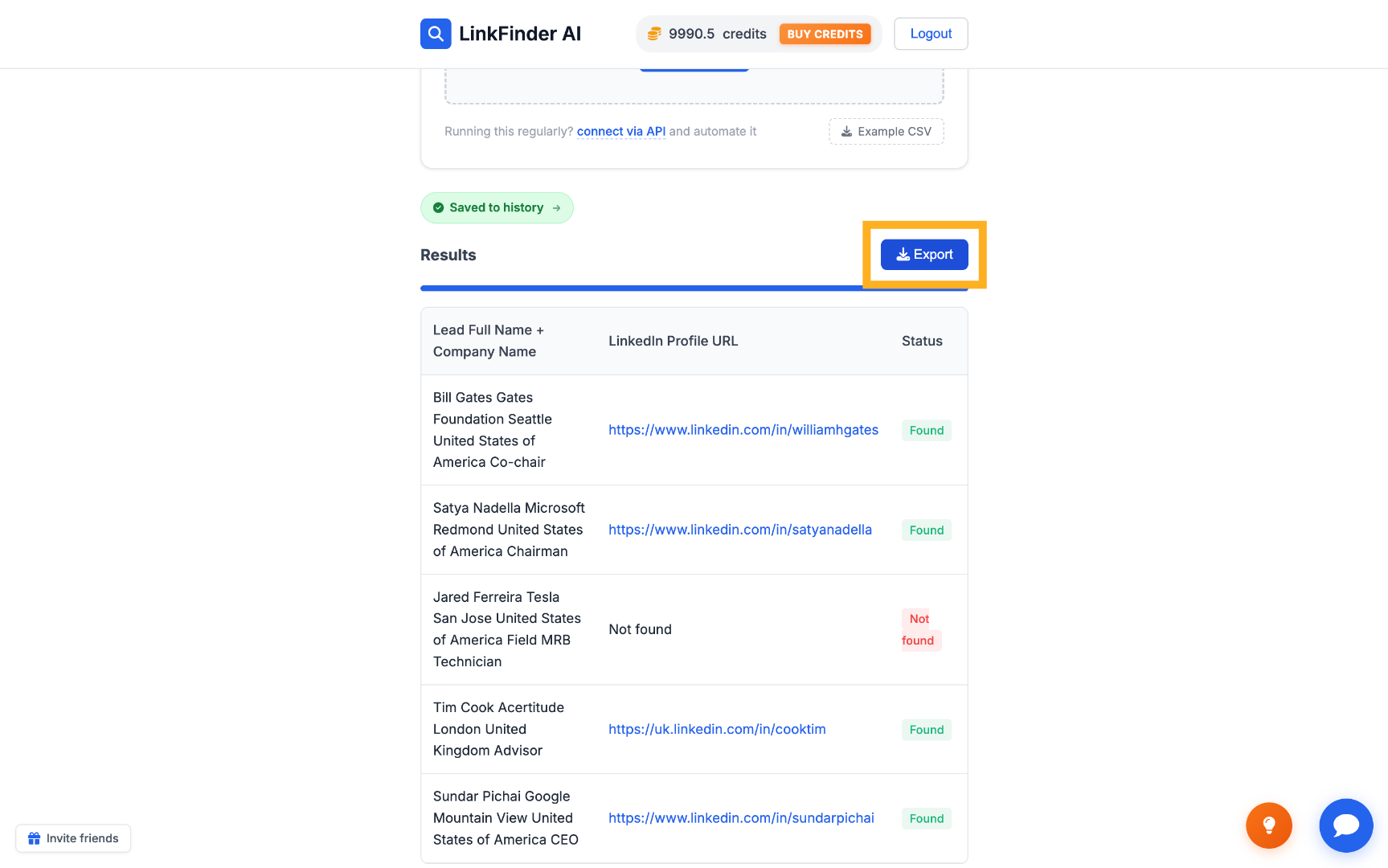
Click "Process items" to run the lookup on every row, then click "Export" to download the enriched list — each lead now paired with its LinkedIn URL — as a CSV.
Find LinkedIn URLs programmatically via API
For developers who want to trigger the lookup from their own code, CRM, or automation tool instead of the dashboard.
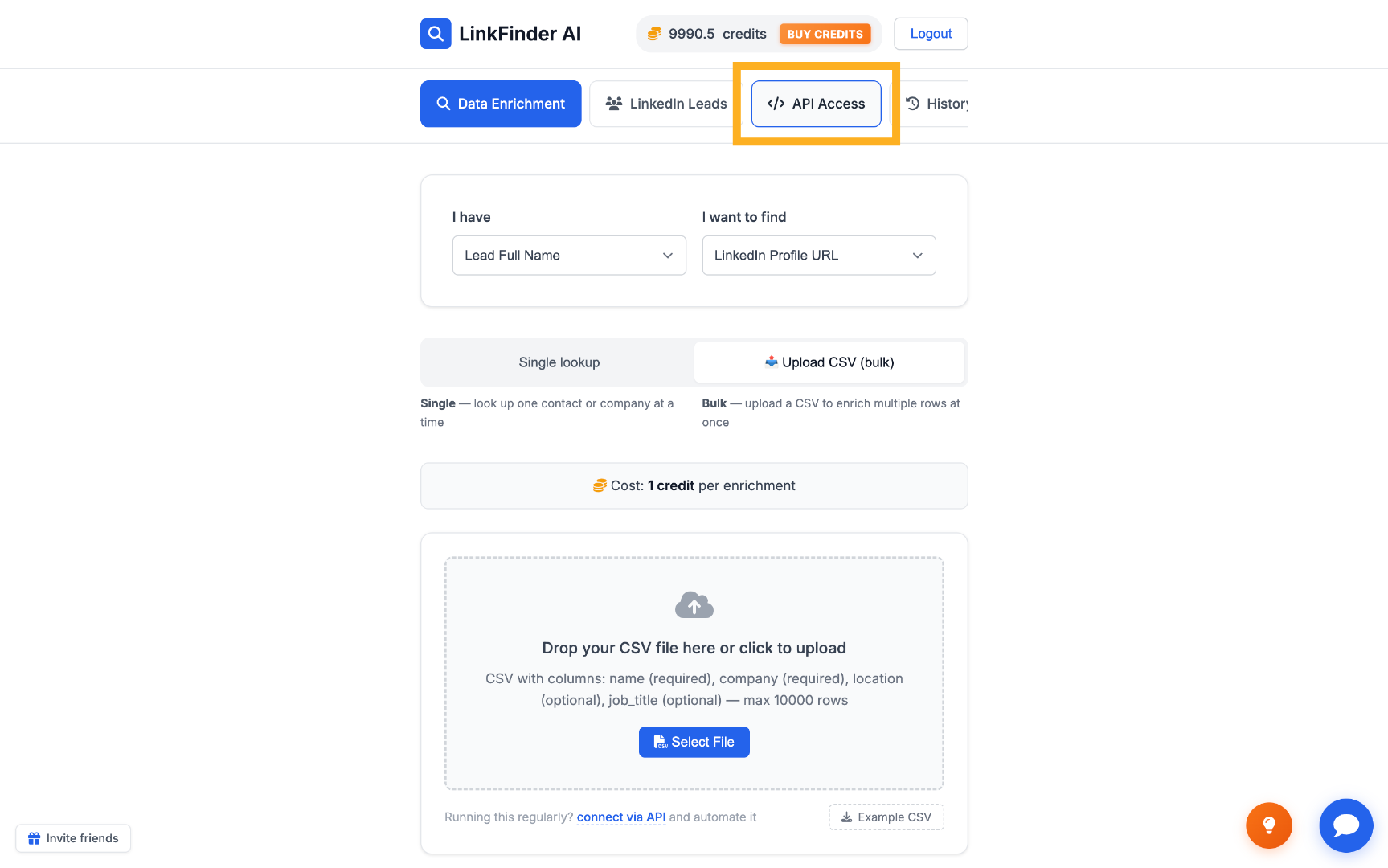
Open API Access from your dashboard
Go to API Access to find your API key and get set up to call LinkFinder AI programmatically.
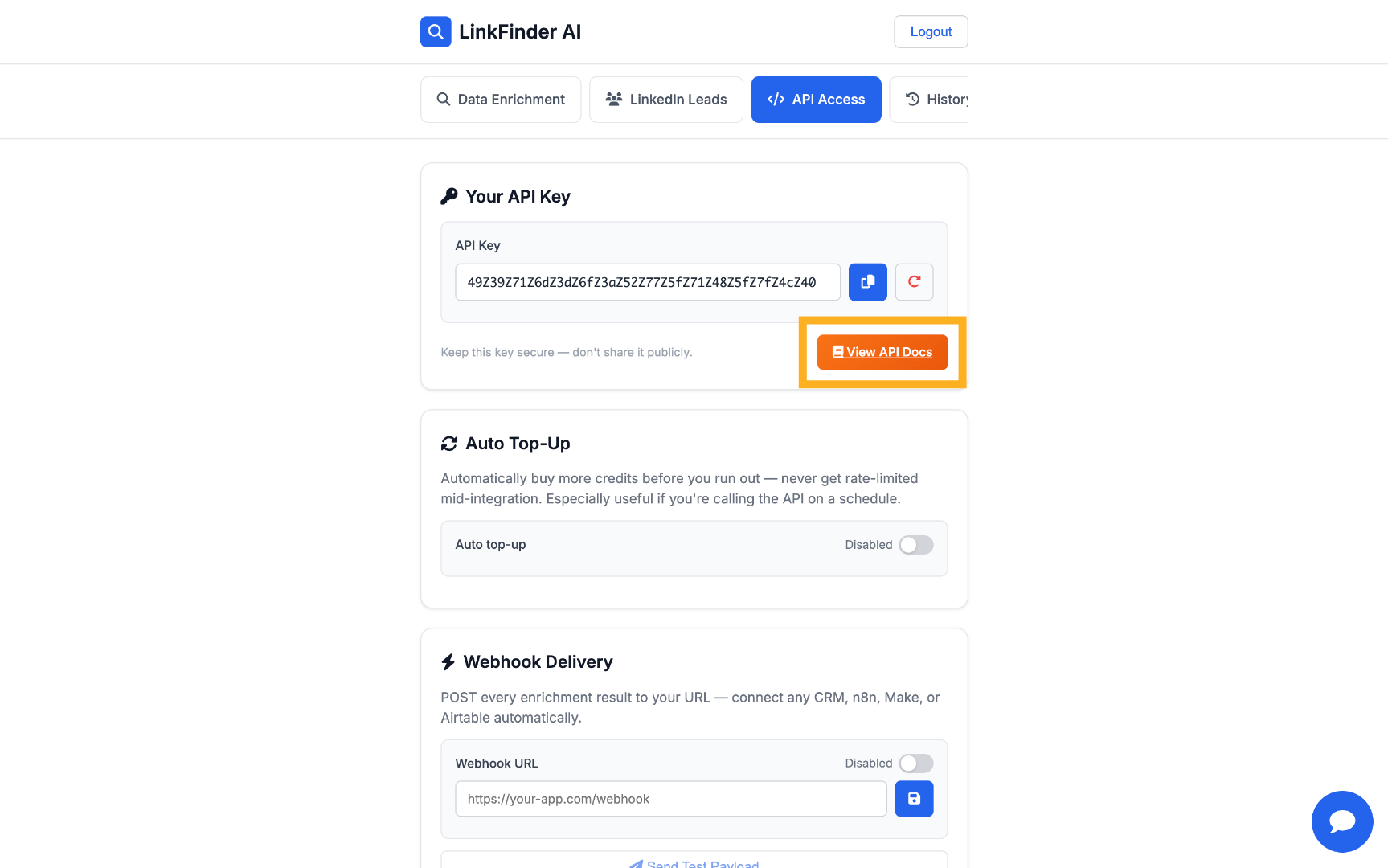
Open the API documentation
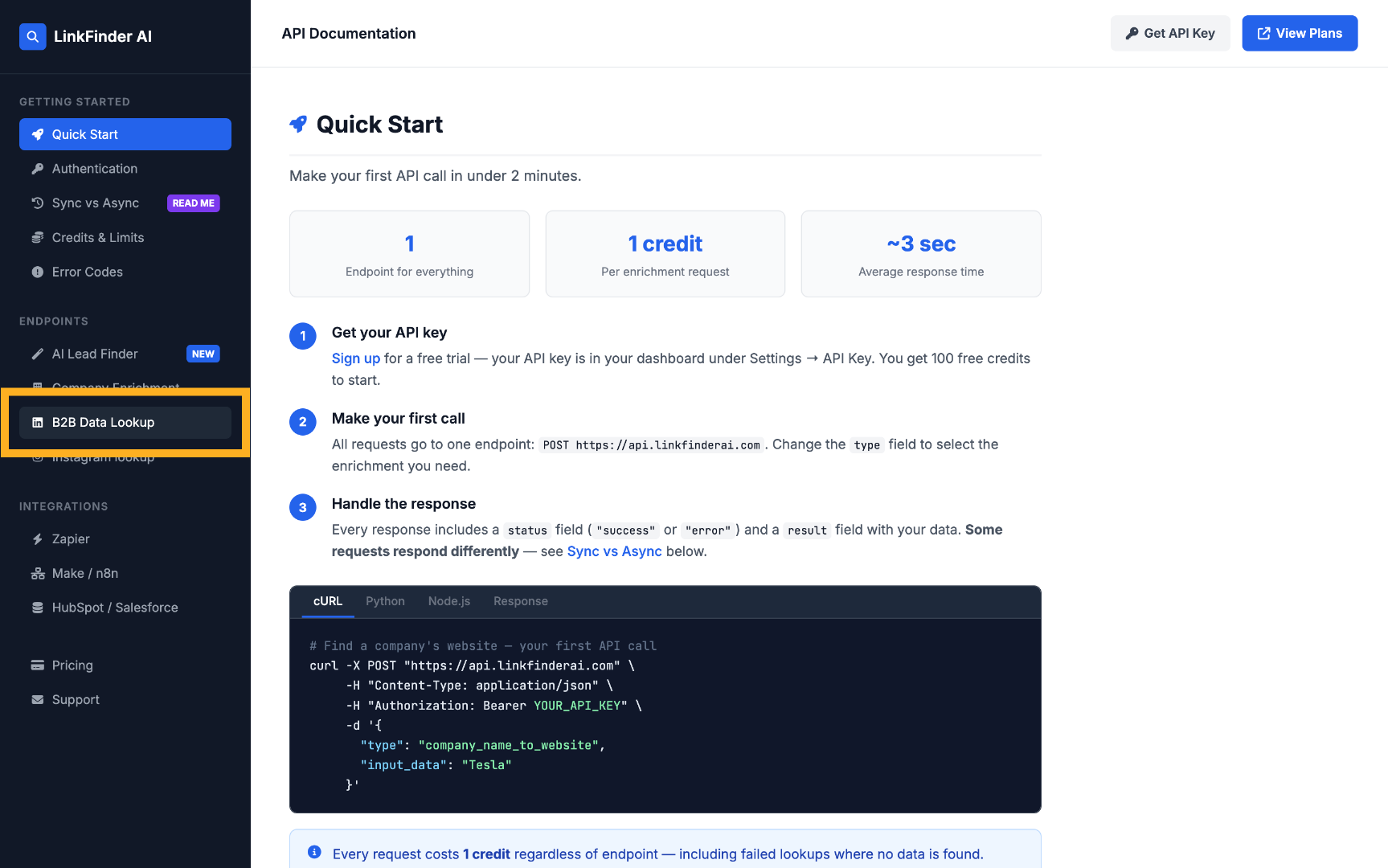
Click "View API Docs" and find the B2B Data Lookup section, which lists every available lookup type.
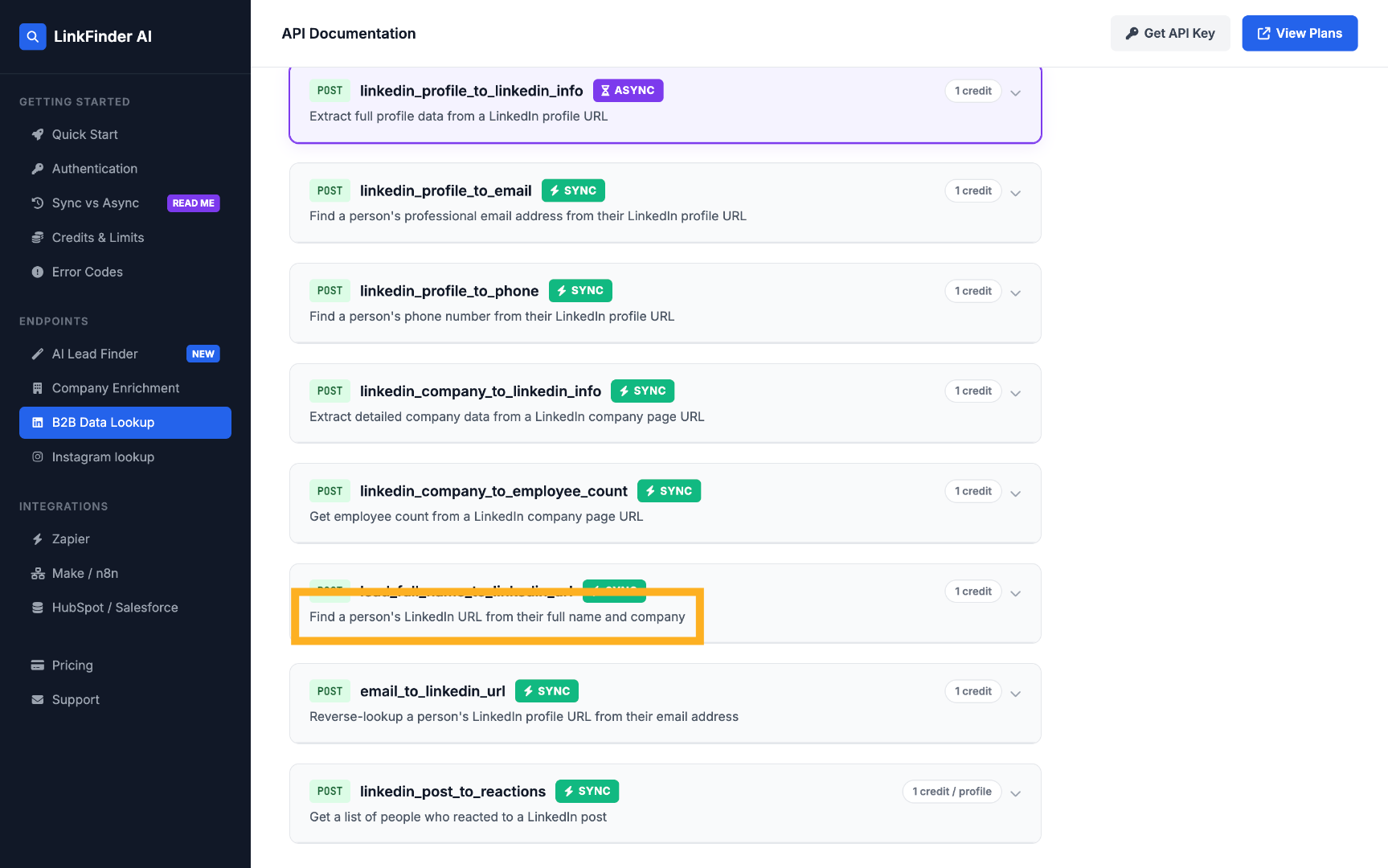
Find the "name + company to LinkedIn URL" endpoint
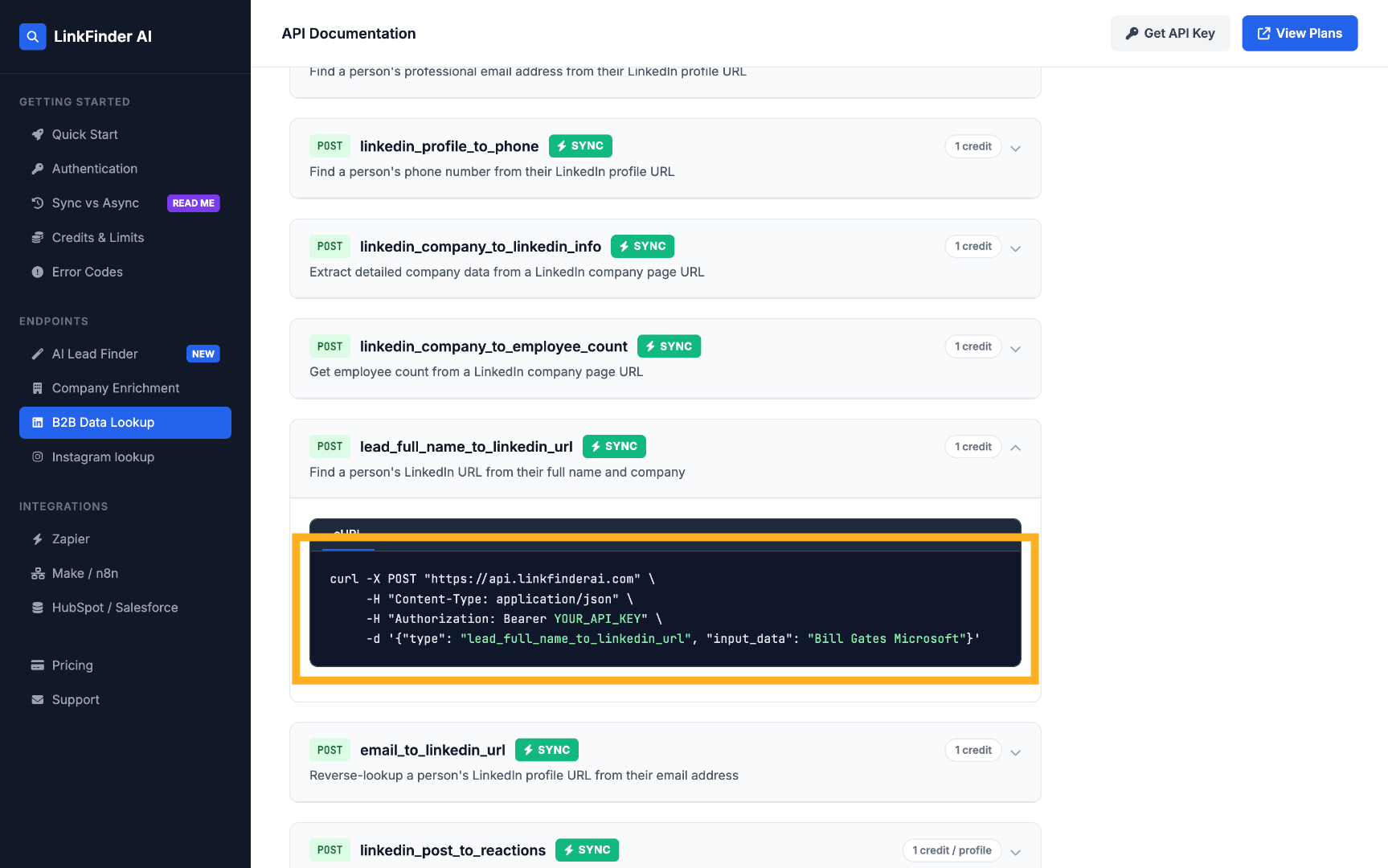
Select "Find a person's LinkedIn URL from their full name and company" to see the request format and a ready-to-use cURL example.
Call the endpoint with your API key
Swap in your own API key and send a POST request with type set to lead_full_name_to_linkedin_url and input_data set to the name and company:
curl -X POST https://api.linkfinderai.com \
  -H "Authorization: Bearer YOUR_API_KEY" \
  -H "Content-Type: application/json" \
  -d '{
    "type": "lead_full_name_to_linkedin_url",
    "input_data": "Bill Gates Microsoft"
  }'
Every request — including a lookup that finds no match — costs one credit, so it's worth cleaning duplicates out of a list before running it through the API.