A direct phone number is one of the highest-intent pieces of contact data you can get on a lead — it skips the inbox entirely. The catch is that most sources only give you a name and a company, or a LinkedIn profile, neither of which is a phone number by itself.
LinkFinder AI closes that gap two ways: chain a name-and-company lookup straight into a phone number, or go directly from a LinkedIn profile URL if you already have one. This guide covers both paths in the dashboard, plus the equivalent two-endpoint API call for automating it.
Find a phone number from a name and company
When all you have is a lead's name and where they work, LinkFinder AI chains two lookups: name and company to LinkedIn URL, then that URL to a phone number.
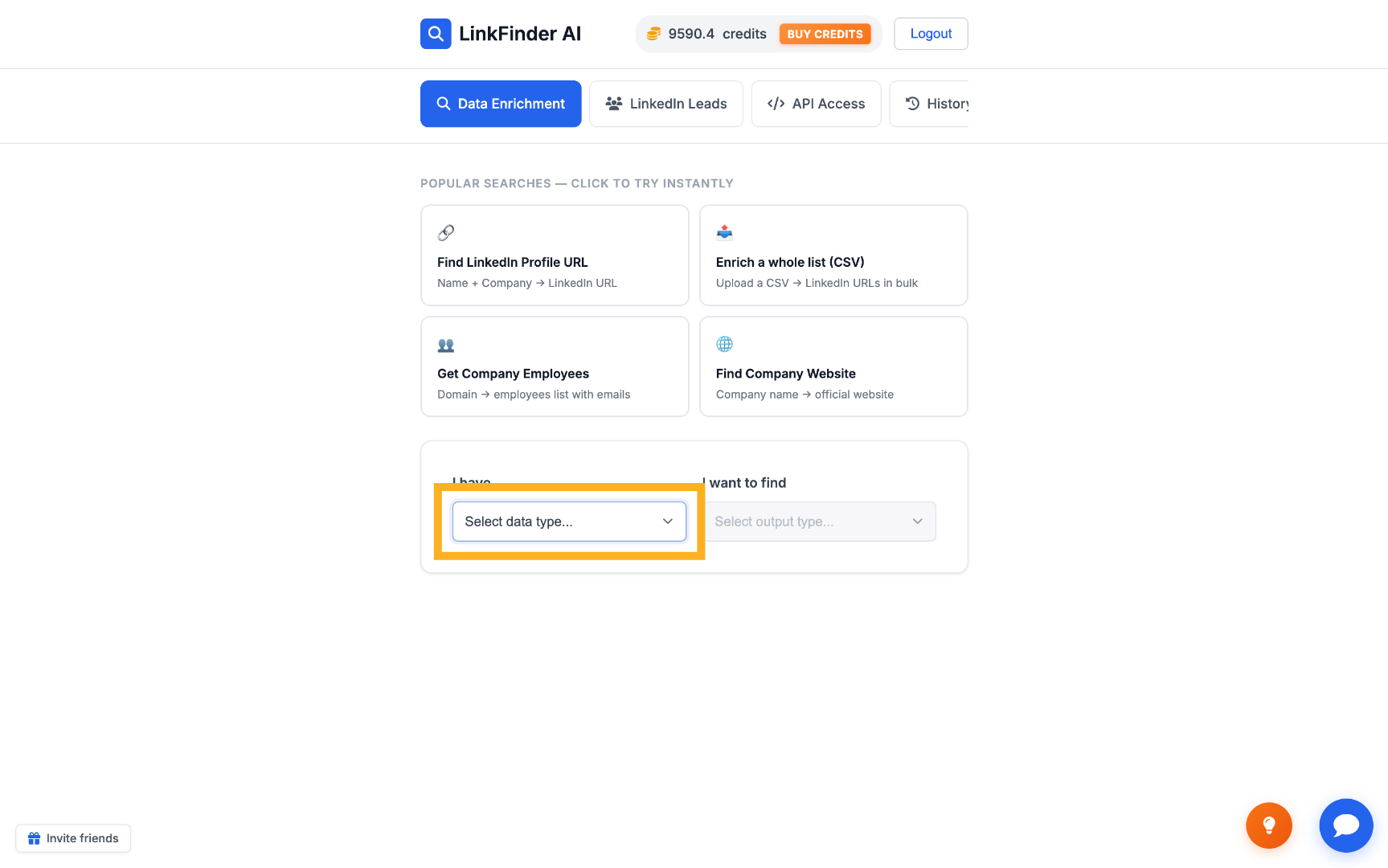
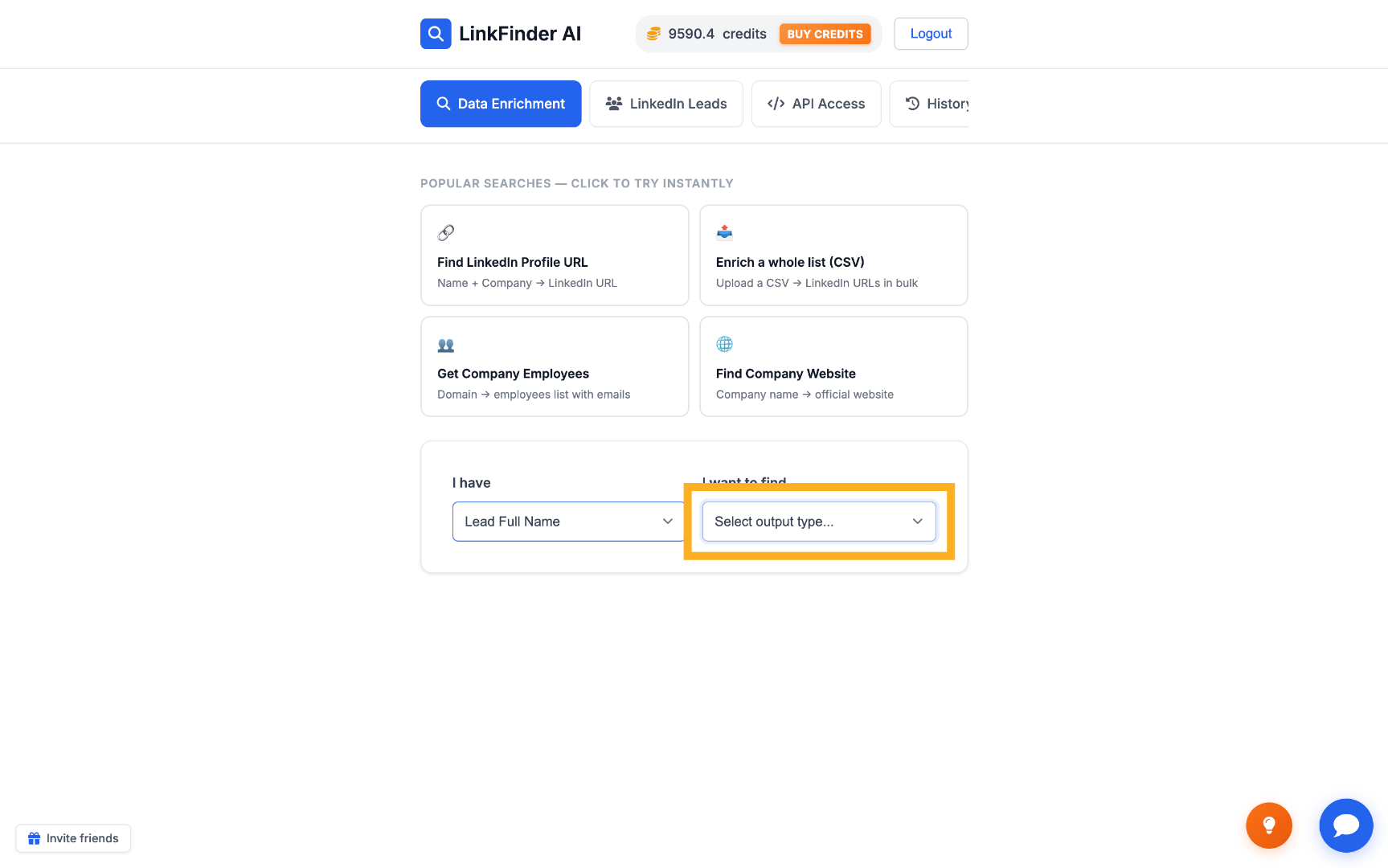
Select Full Name as input, LinkedIn Profile URL as output
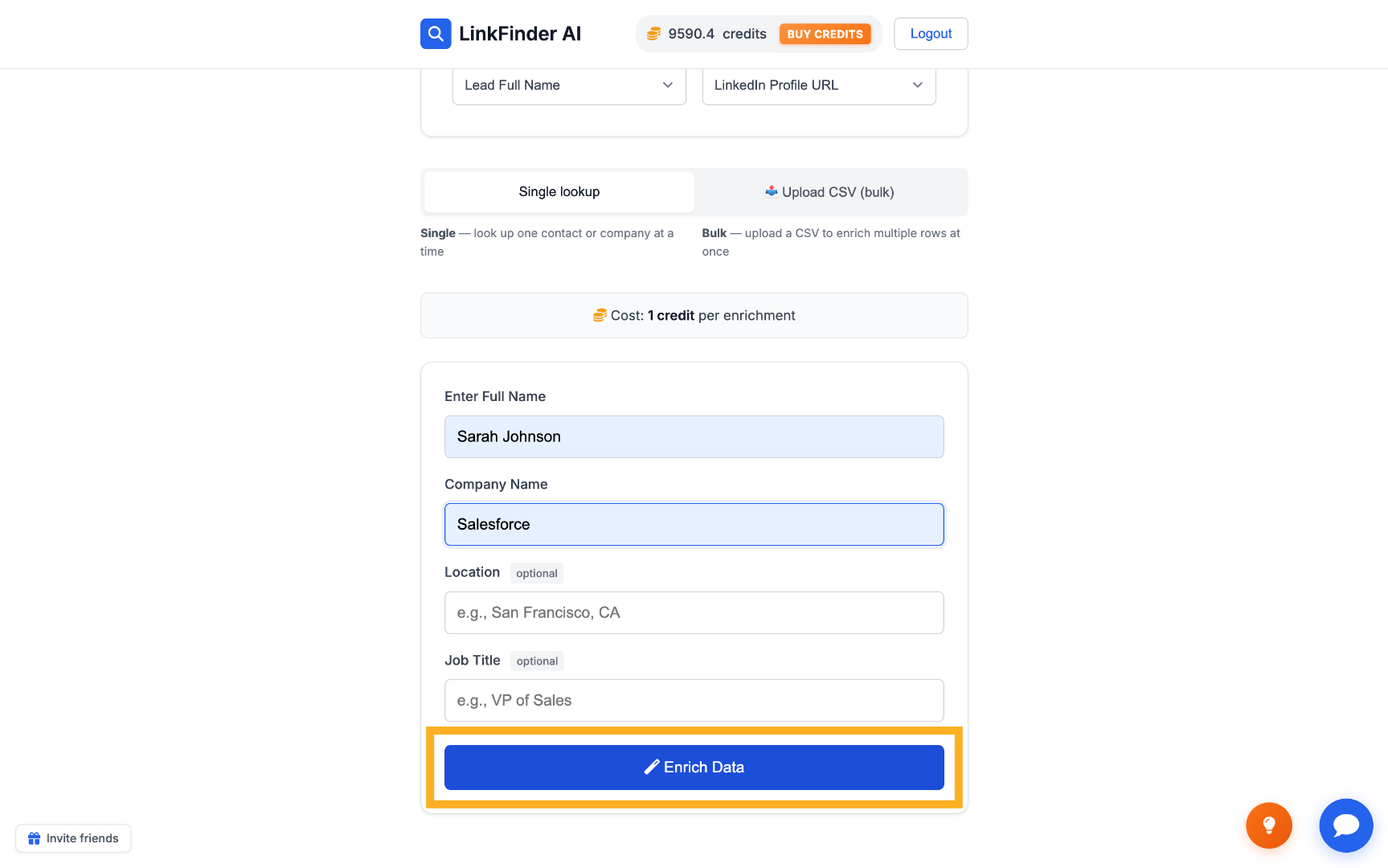
Go to linkfinderai.com. In the "Select data type" dropdown, choose Full Name; in "Select output type", choose LinkedIn Profile URL.
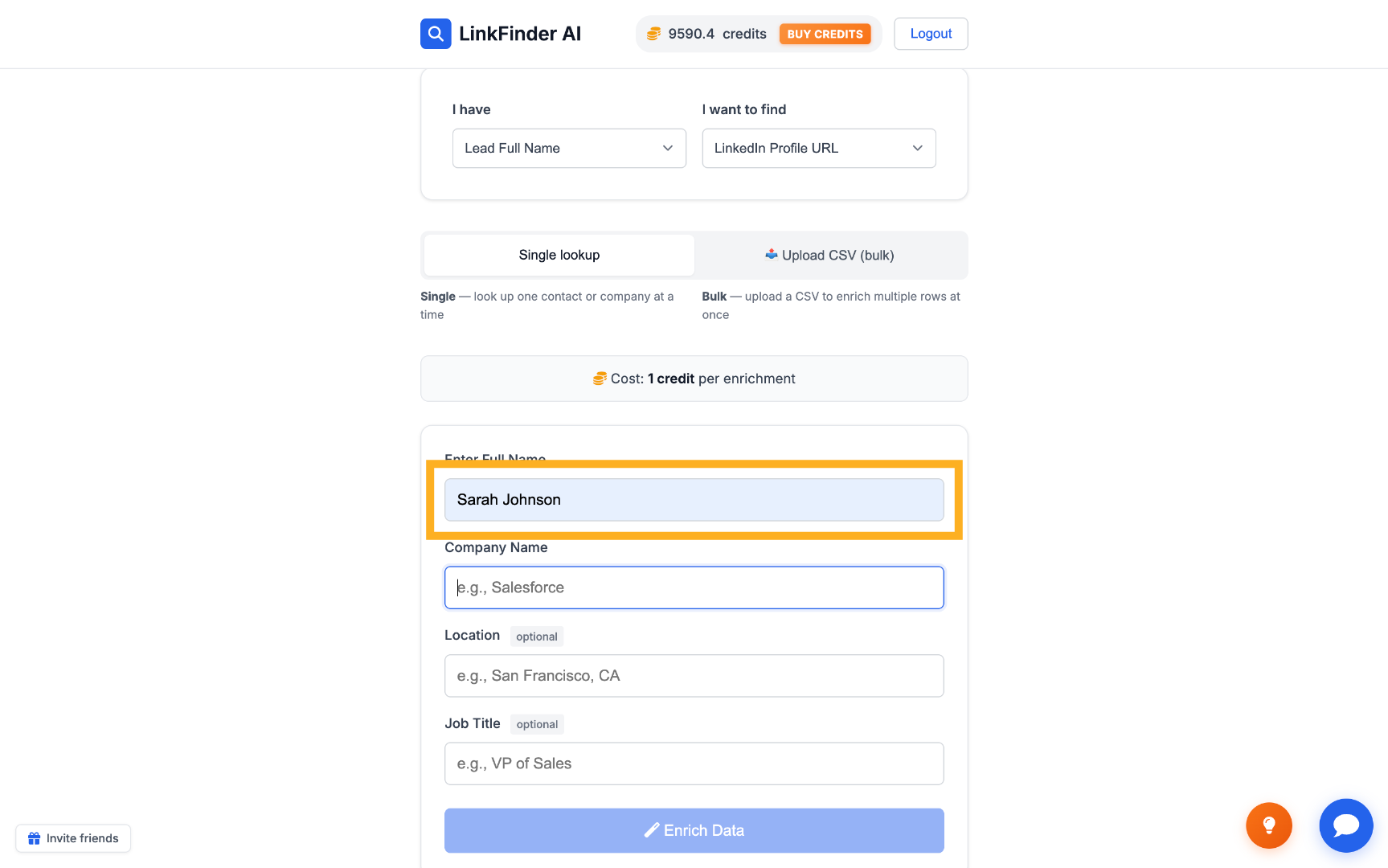
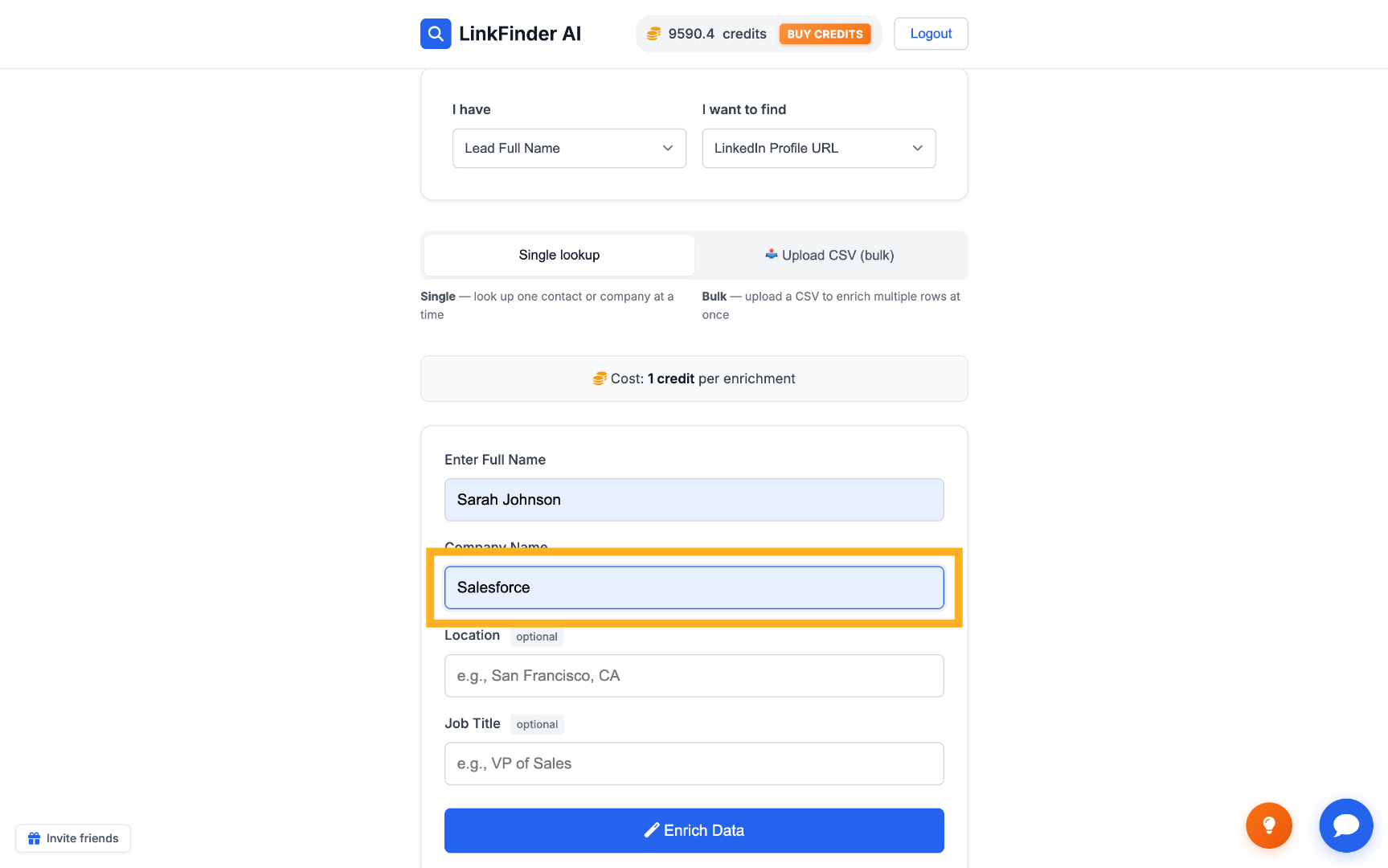
Enter the lead's full name and company
Type the full name into the name field — for example, Sarah Johnson — then enter their company in the company field, for example, Salesforce.
Click "Enrich Data" to get the LinkedIn URL
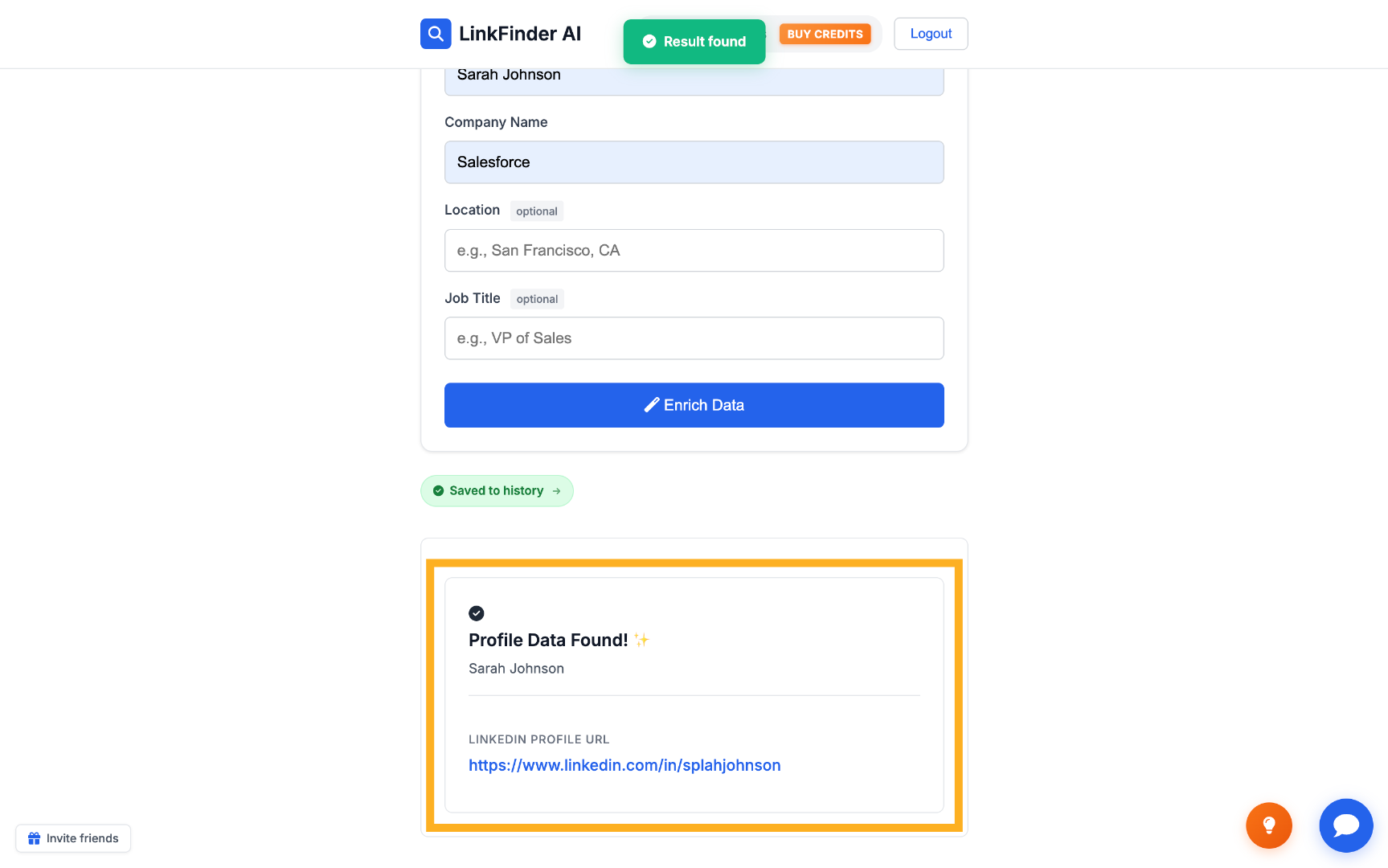
LinkFinder AI matches the name and company to a LinkedIn profile URL — you'll see a "Profile Data Found" notification with the result.
Switch the lookup to LinkedIn URL → Phone Number
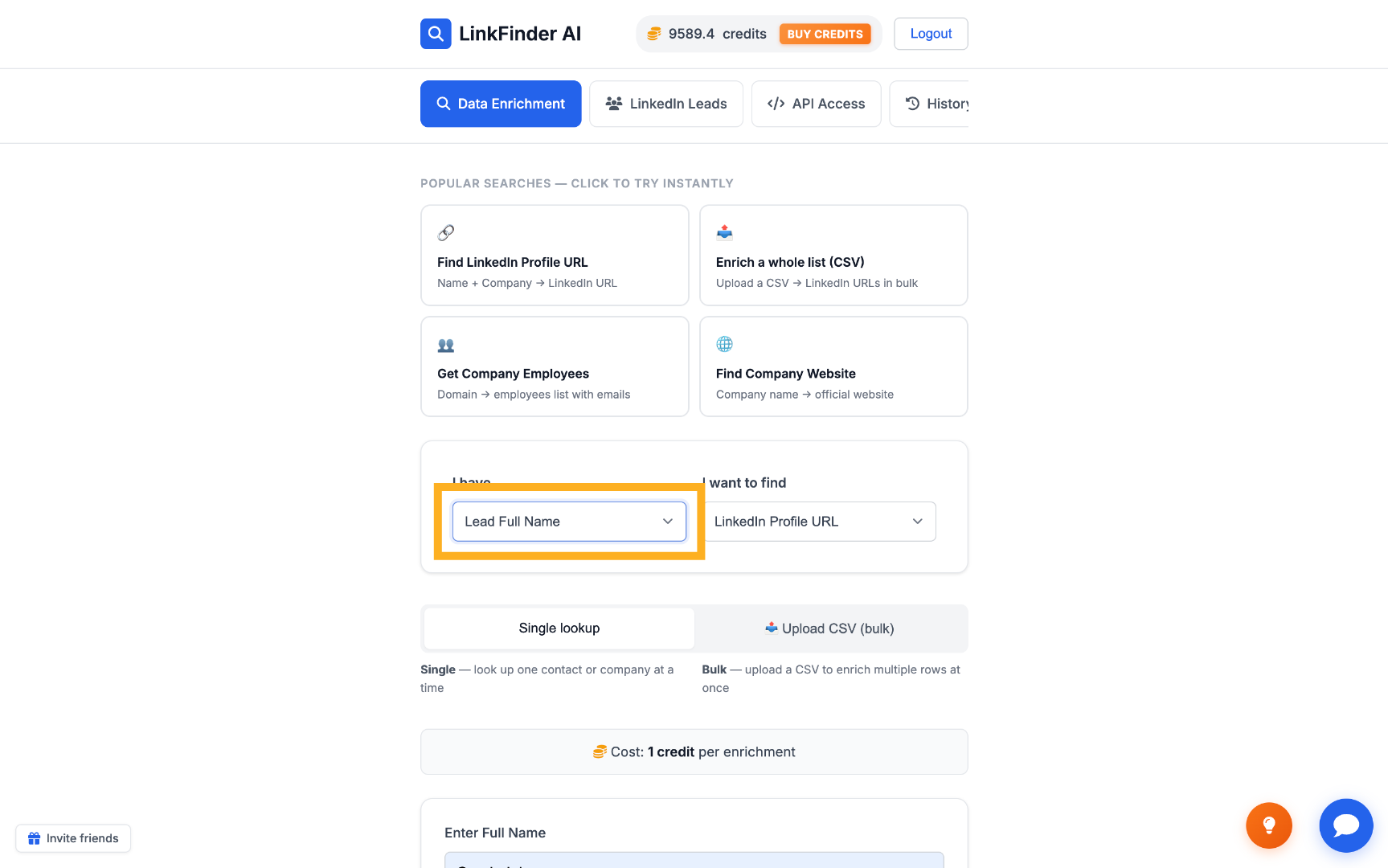
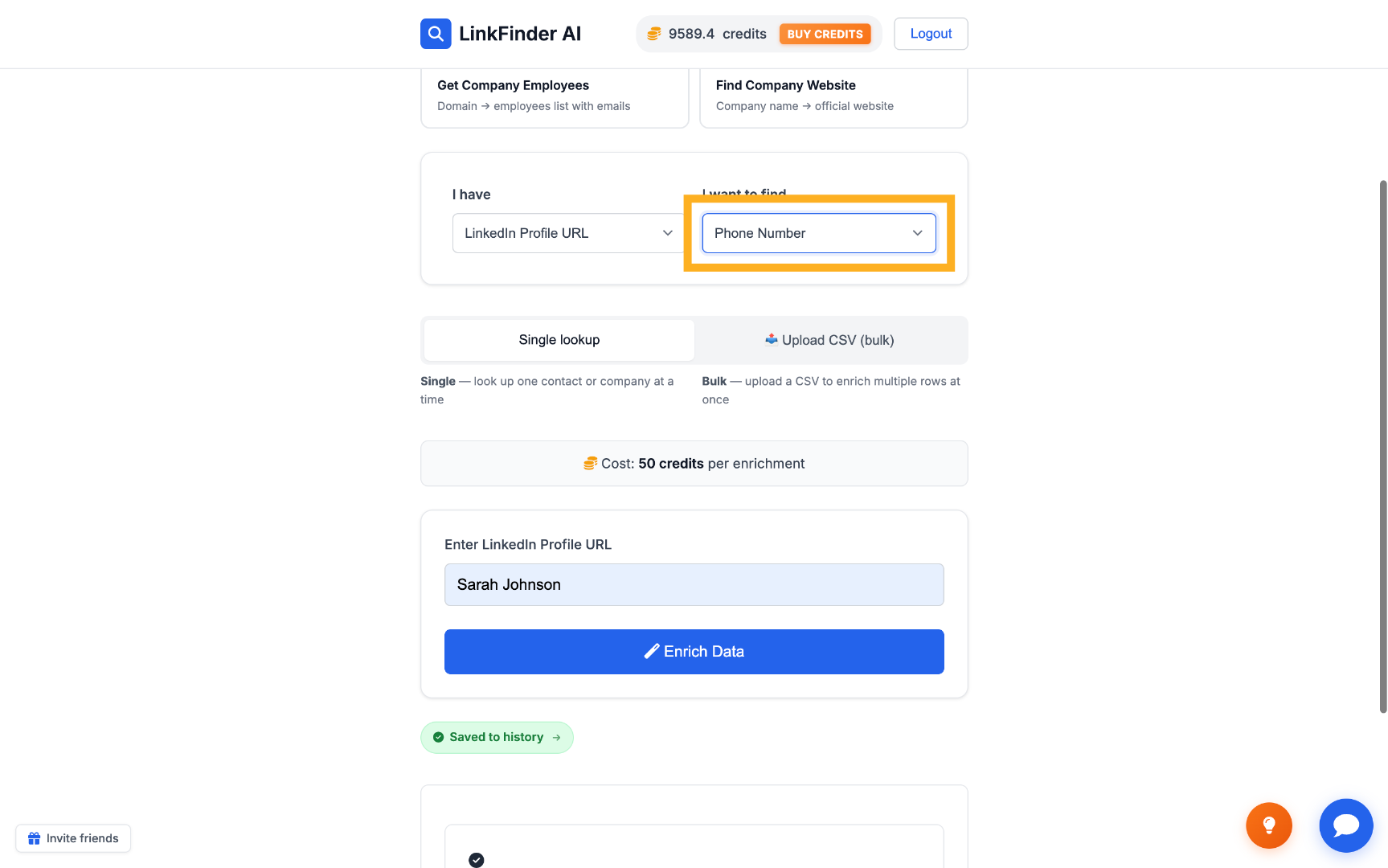
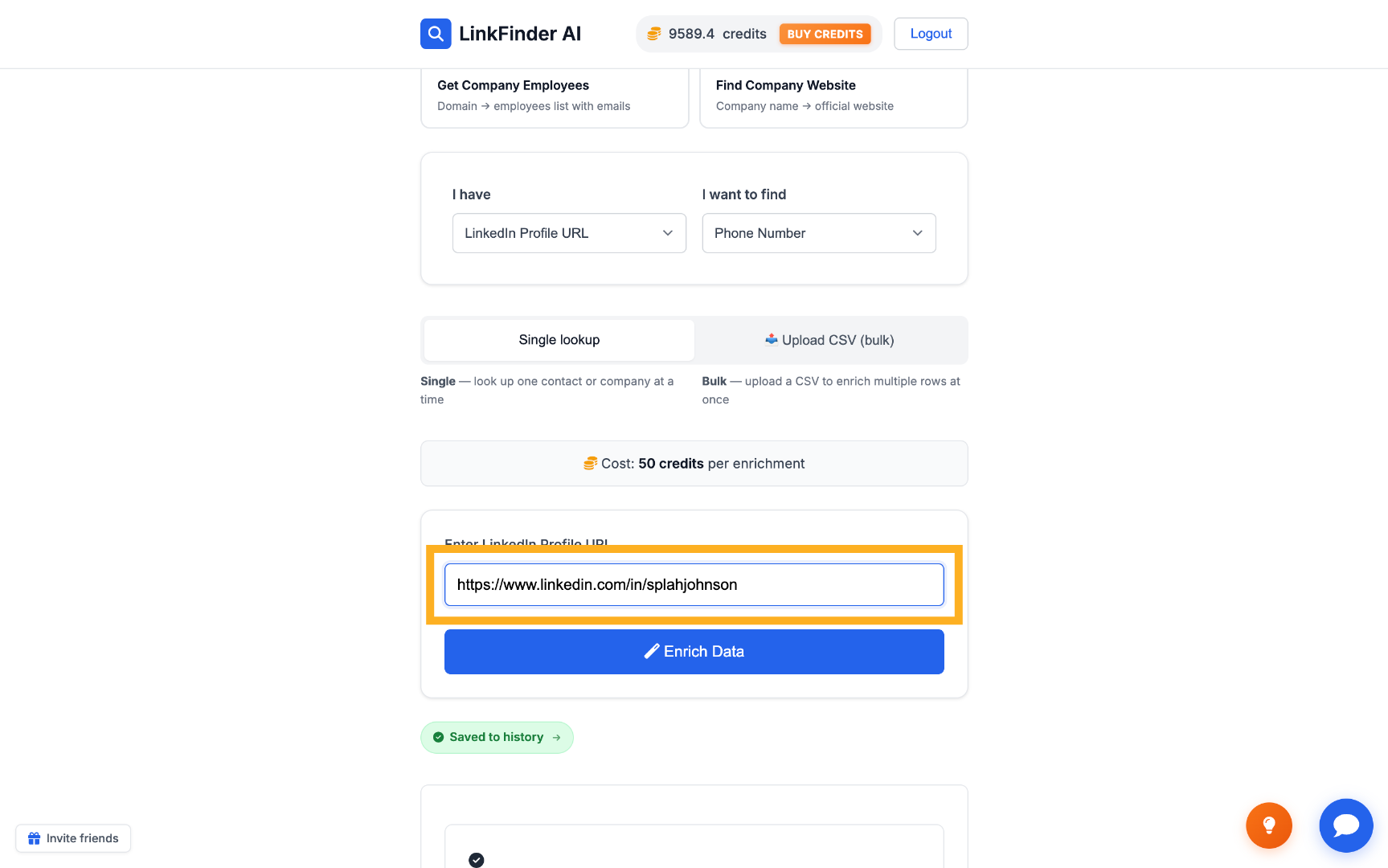
Reopen the data type dropdowns: this time choose LinkedIn Profile URL as the input and Phone Number as the output.
Paste the LinkedIn URL and enrich again
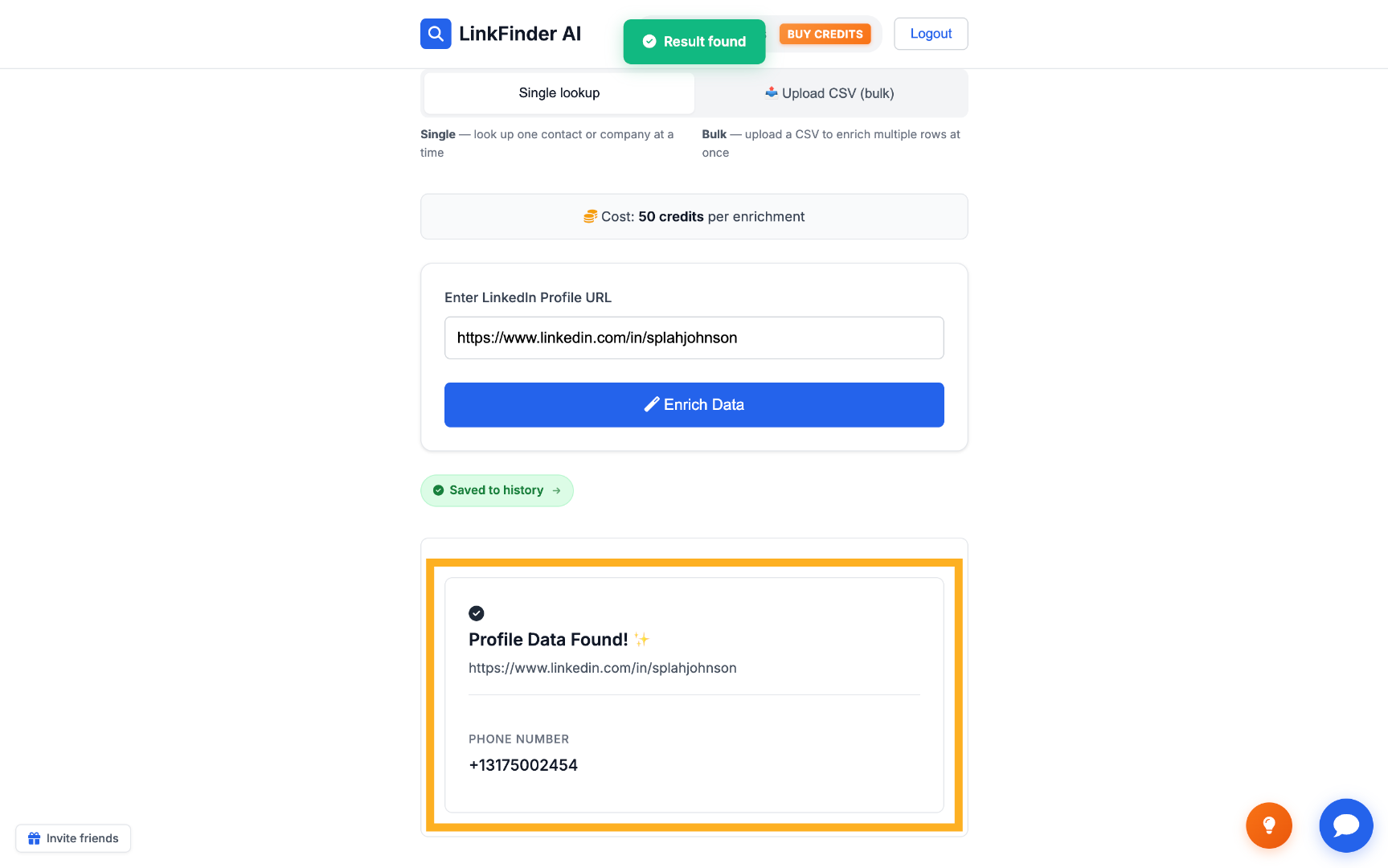
Paste the profile URL from step 3 into the input field and click "Enrich Data" — the result is the lead's phone number, for example +1 317 500 2454.
Find a phone number directly from a LinkedIn URL
If you already have the lead's LinkedIn profile URL — from a search, a CRM record, or the step above — skip the name lookup and go straight to the phone number.
Select LinkedIn Profile URL as input, Phone Number as output
On linkfinderai.com, set the input type to LinkedIn Profile URL and the output type to Phone Number.
Paste the URL and click "Enrich Data"
Paste the profile URL you already have and run the lookup — the tool returns the matching phone number directly, with no LinkedIn search step first.
Find a phone number programmatically via API
For developers who want to trigger both lookups from their own code, CRM, or automation tool instead of the dashboard.
Get your API key
Sign up for free — your key is in your dashboard under Settings → API Key. New accounts start with 25 credits.
Call lead_full_name_to_linkedin_url
Send a POST request with the lead's name and company to get their LinkedIn profile URL:
curl -X POST https://api.linkfinderai.com \
  -H "Authorization: Bearer YOUR_API_KEY" \
  -H "Content-Type: application/json" \
  -d '{
    "type": "lead_full_name_to_linkedin_url",
    "input_data": "Sarah Johnson",
    "company": "Salesforce"
}'Call linkedin_profile_to_phone with the resulting URL
Feed the LinkedIn URL from the first response into a second request to get the phone number:
curl -X POST https://api.linkfinderai.com \
  -H "Authorization: Bearer YOUR_API_KEY" \
  -H "Content-Type: application/json" \
  -d '{
    "type": "linkedin_profile_to_phone",
    "input_data": "https://www.linkedin.com/in/sarah-johnson"
  }'
Already have the LinkedIn URL? Call linkedin_profile_to_phone directly and skip the first request — that's 1 credit instead of 2.