A verified email address is the single most useful field in any prospect record — it's how outreach actually gets sent. The trouble with most "free" email finders is that they either guess at a pattern ([email protected]) without checking it's real, or they hide verification behind a paywall.
LinkFinder AI finds and verifies the email directly, and it accepts more than one kind of input: a first name, last name, and company domain, or a LinkedIn profile URL if you already have one. This guide covers both paths, plus bulk CSV processing and the API for developers.
Find an email from a name and company domain
The fastest path when you know who someone is and where they work, but not their inbox.
Open LinkFinder AI and pick Email Finder
From your LinkFinder AI dashboard, select the email finder option to open the search form.
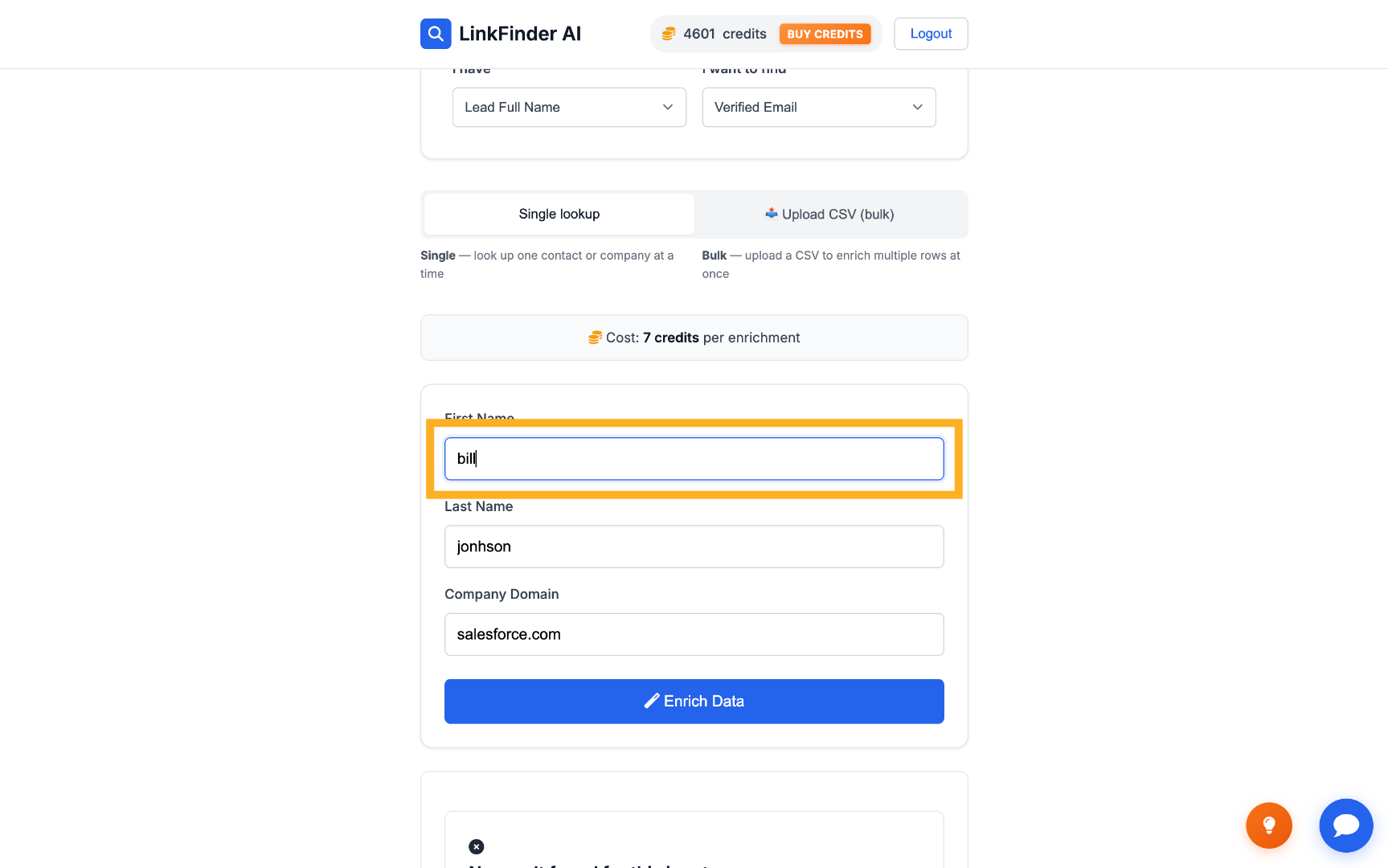
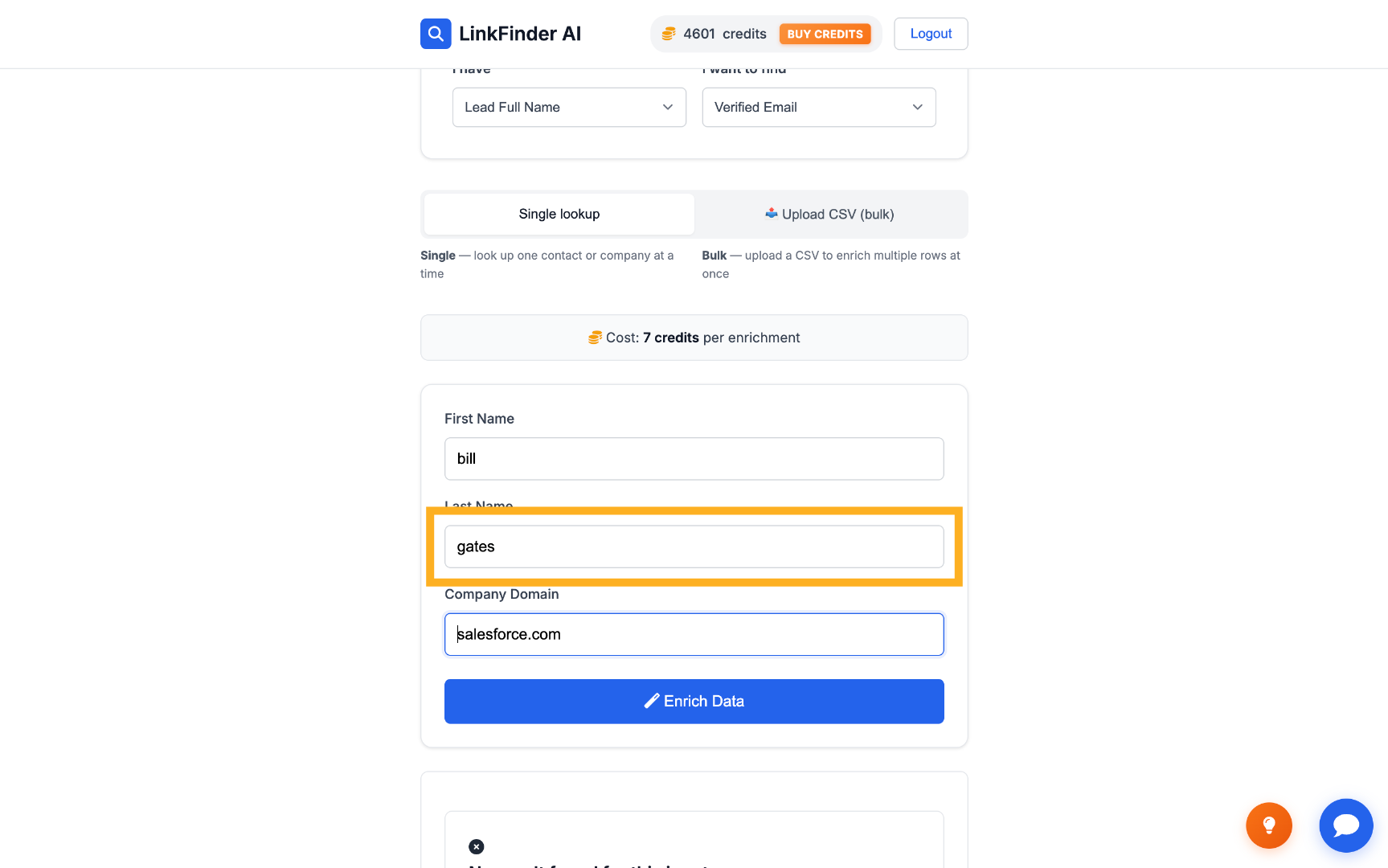
Enter the first and last name
Fill in the lead's first name (e.g. "bill") and last name (e.g. "gates") in their respective fields.
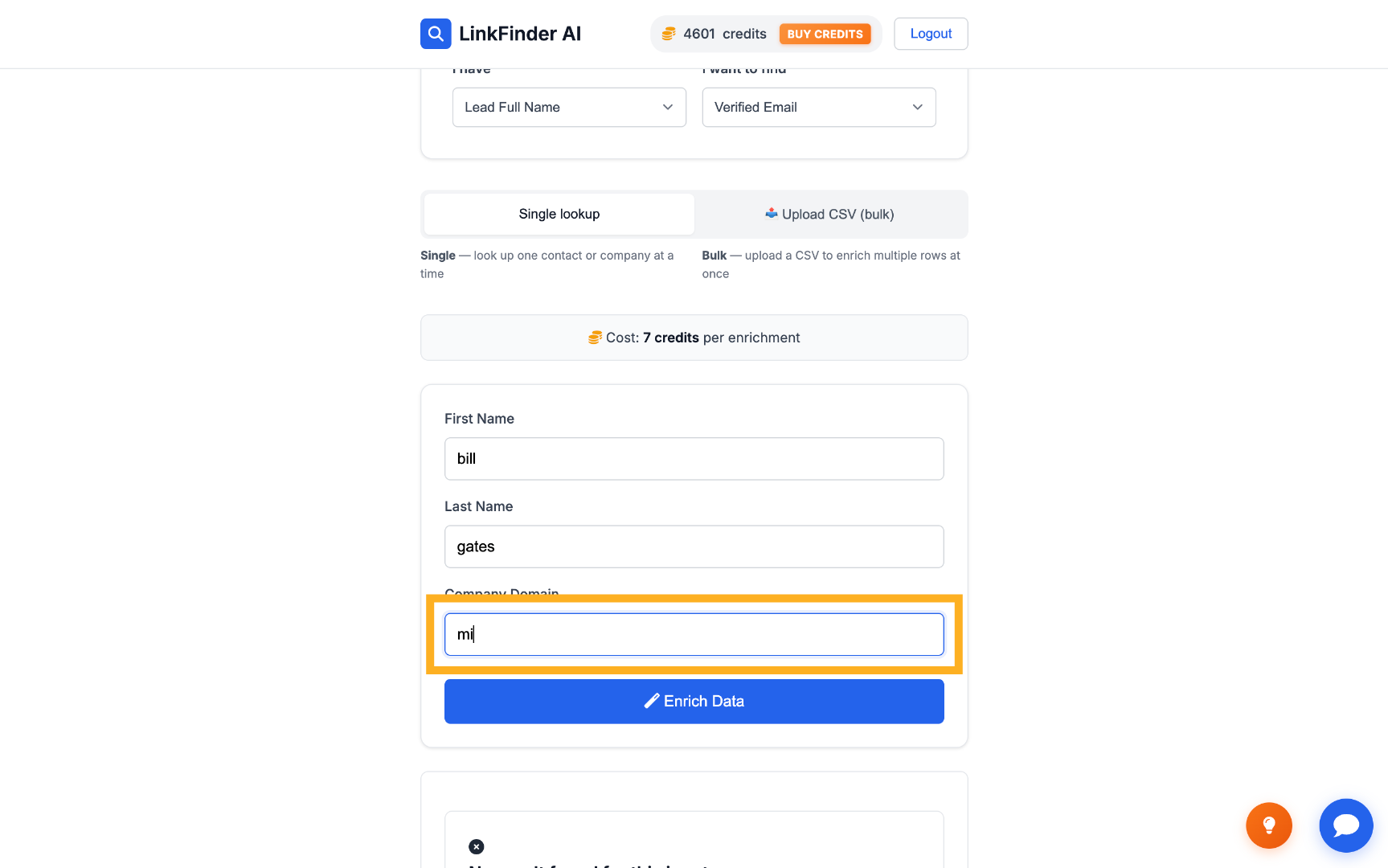
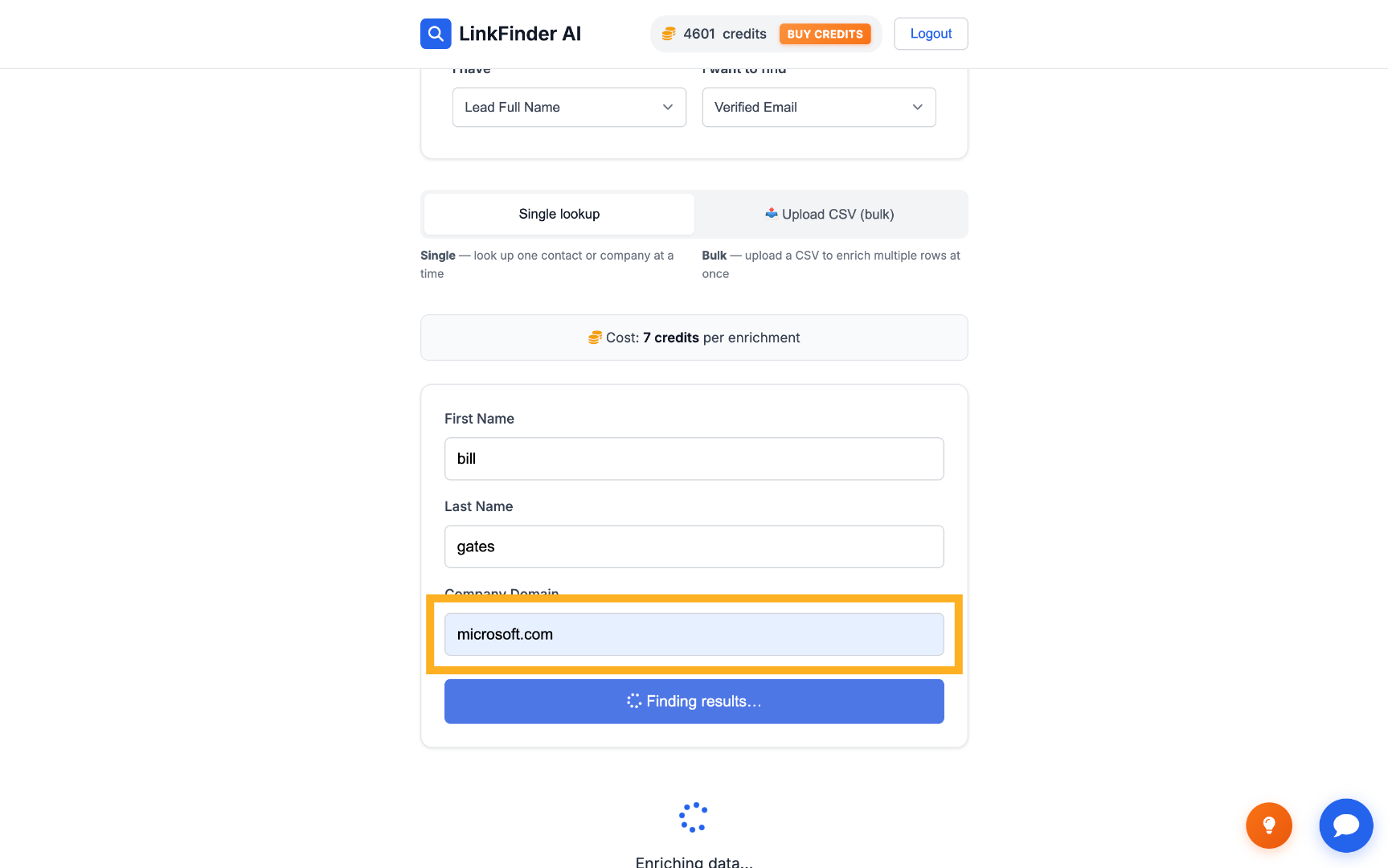
Enter the company domain
Add the company's domain — for example, microsoft.com — so the search knows which organization to check.
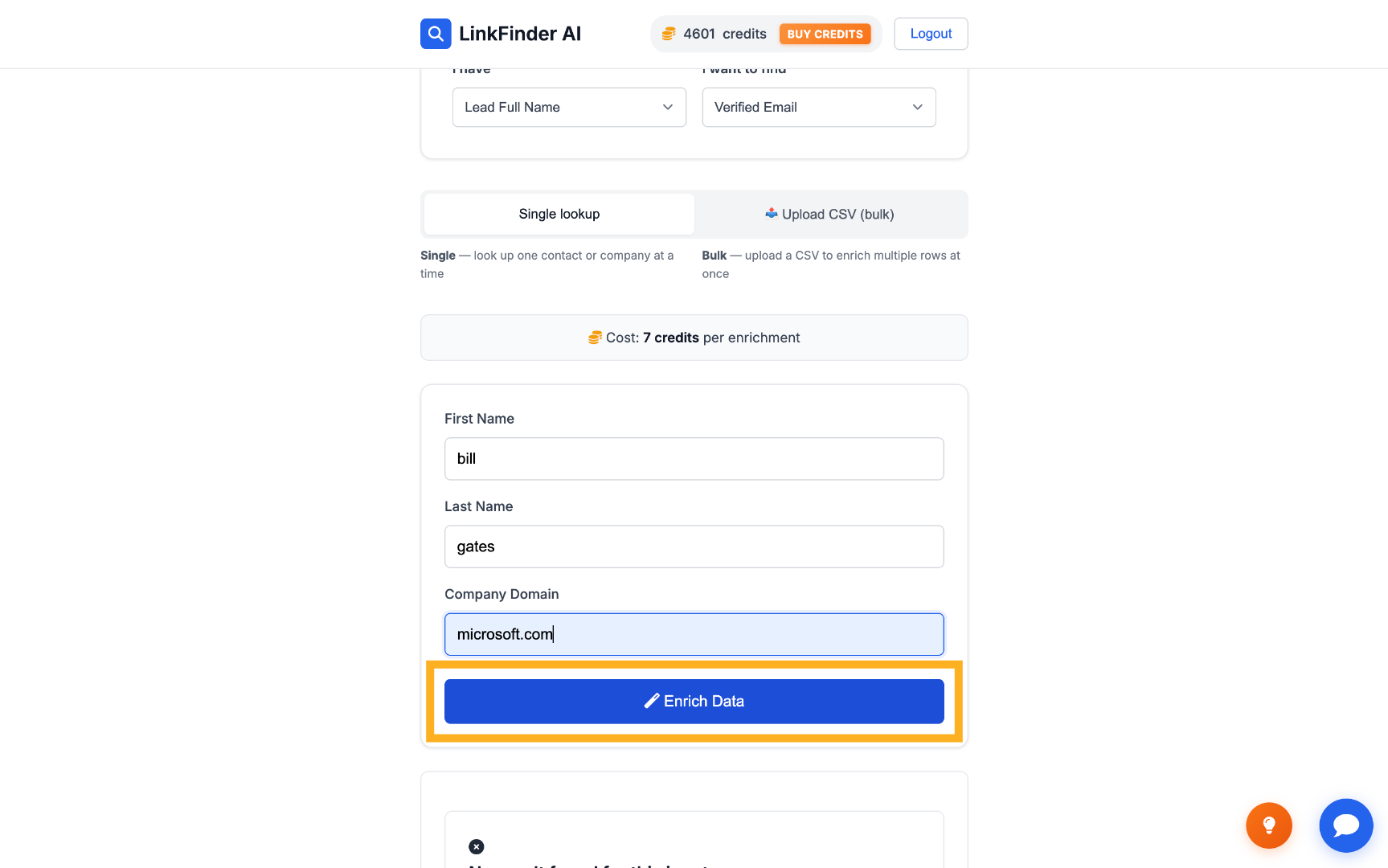
Click Enrich Data
LinkFinder AI checks the name against that domain's email pattern and verifies the result before returning it.
Find an email by chaining a LinkedIn URL lookup
If you only have a name and company but want to go through a LinkedIn profile first — useful when you also want the profile data along the way.
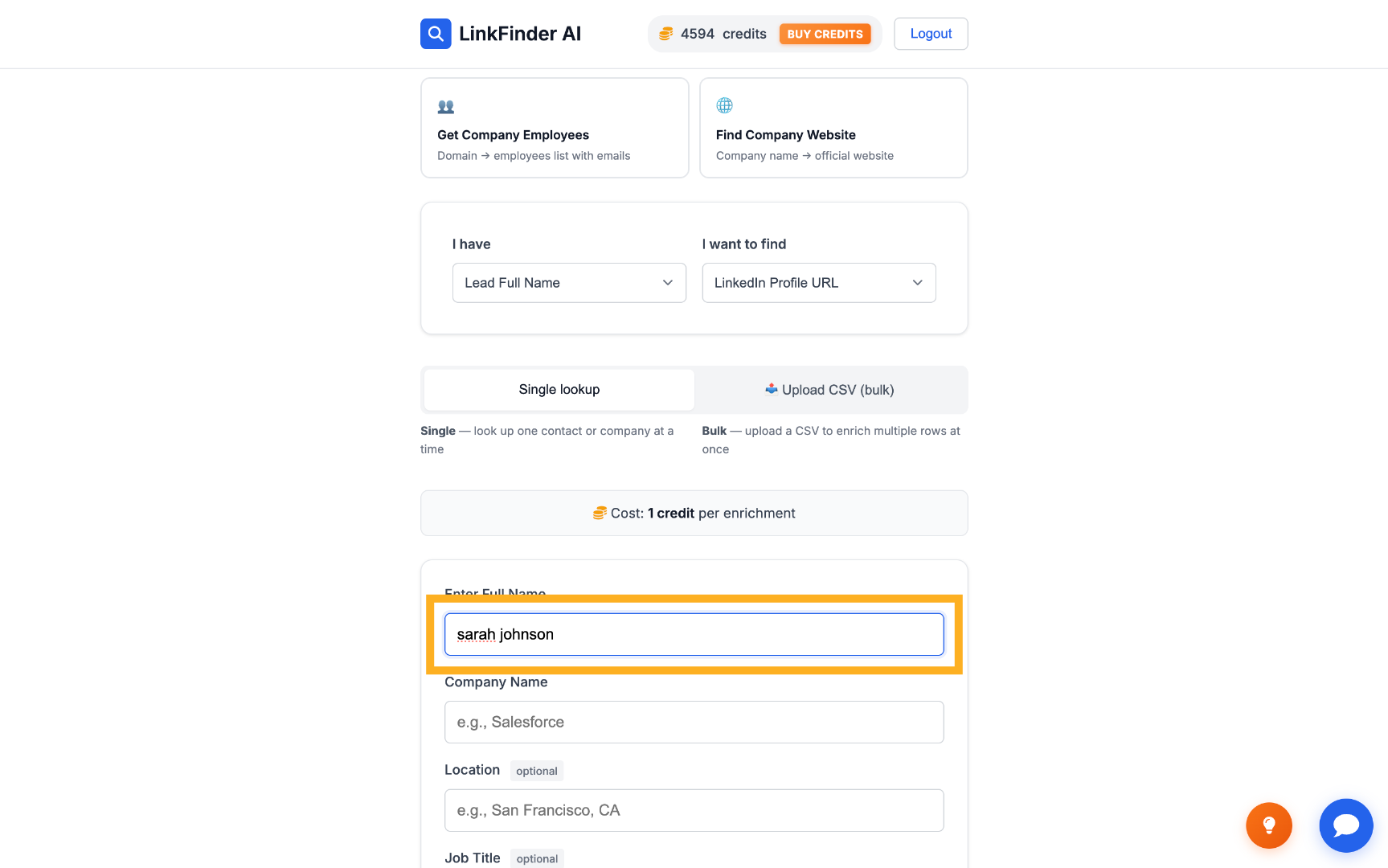
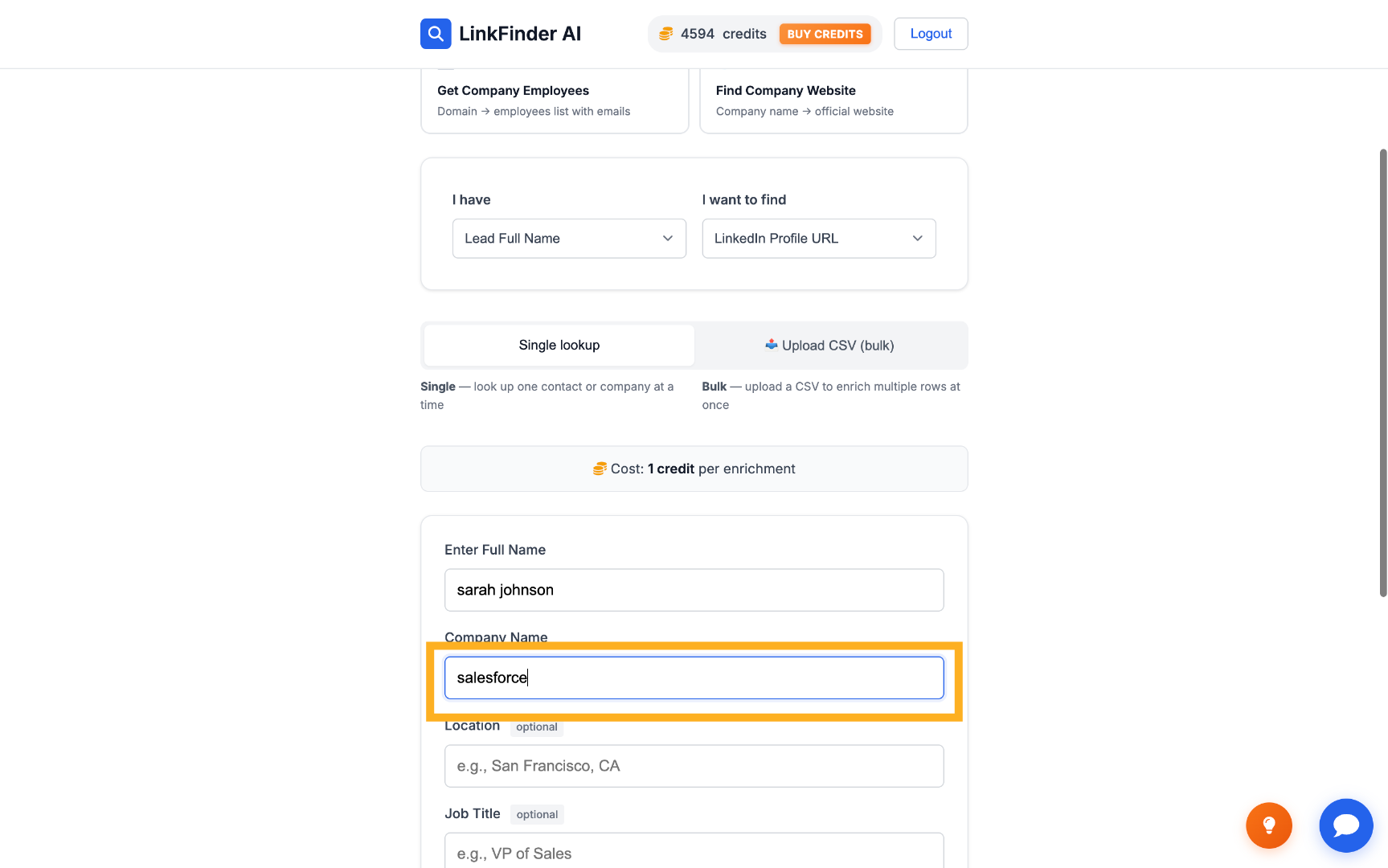
Search by full name and company
Enter the lead's full name (e.g. "sarah johnson") and company name (e.g. "salesforce") to find their LinkedIn profile URL first.
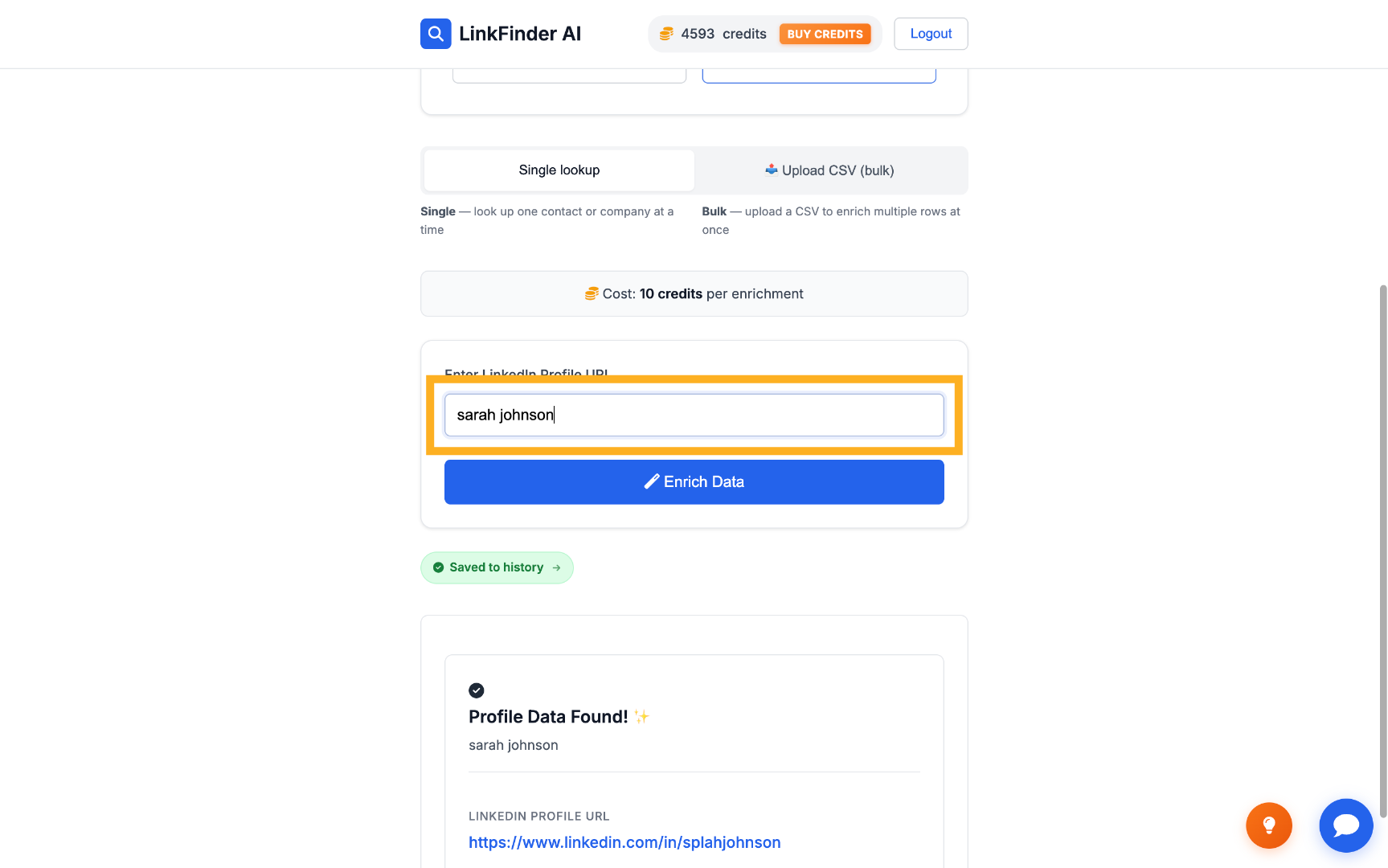
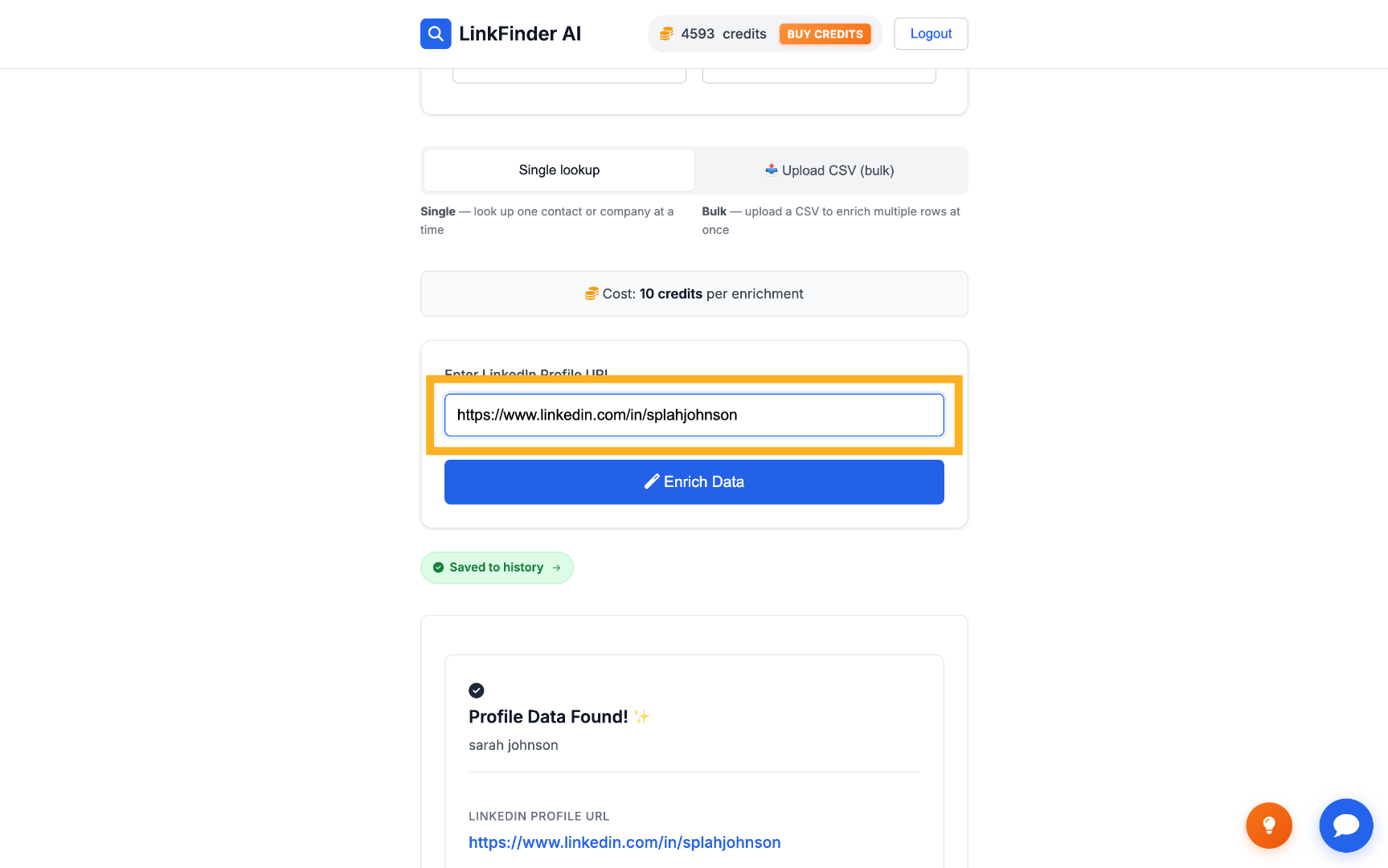
Feed the LinkedIn URL back into the email search
Switch the input type to LinkedIn Profile URL and the output type to Email Address, then paste in the URL you just found.
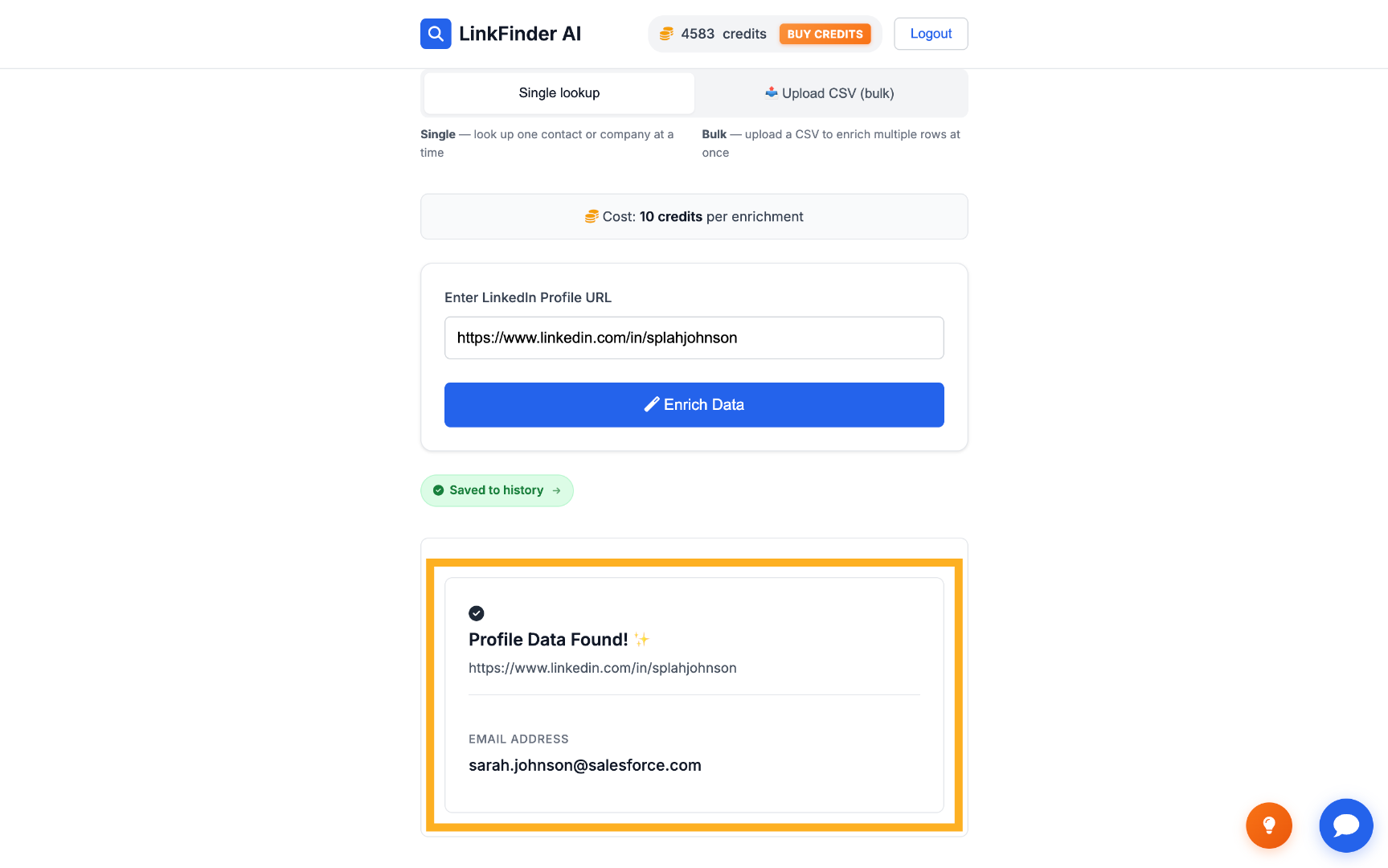
Click Enrich Data to get the verified email
LinkFinder AI returns the verified email tied to that LinkedIn profile — in this example, [email protected].
Find emails programmatically via API
For developers who want to trigger the same lookups from their own code, CRM, or automation tool.
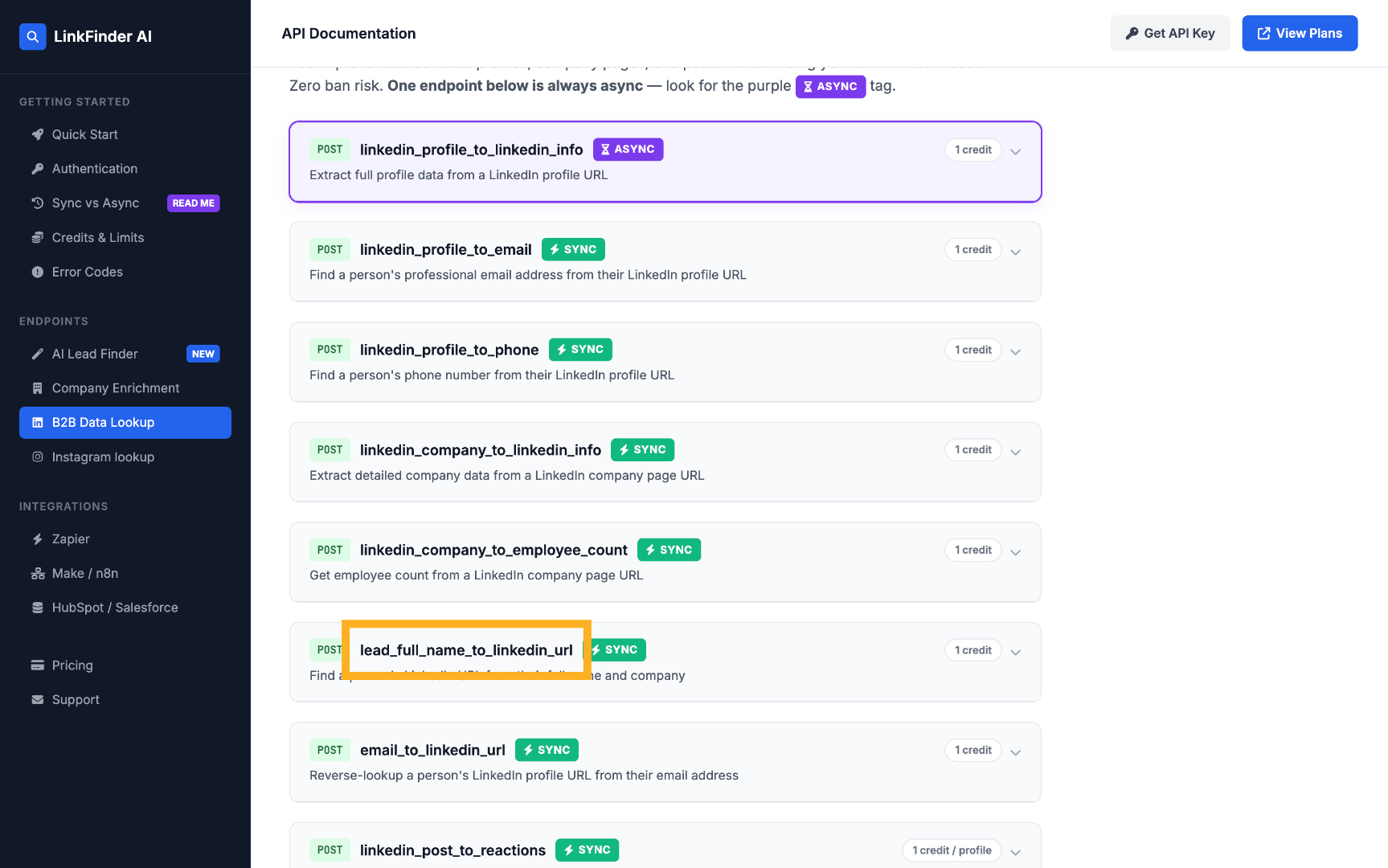
Open the API documentation
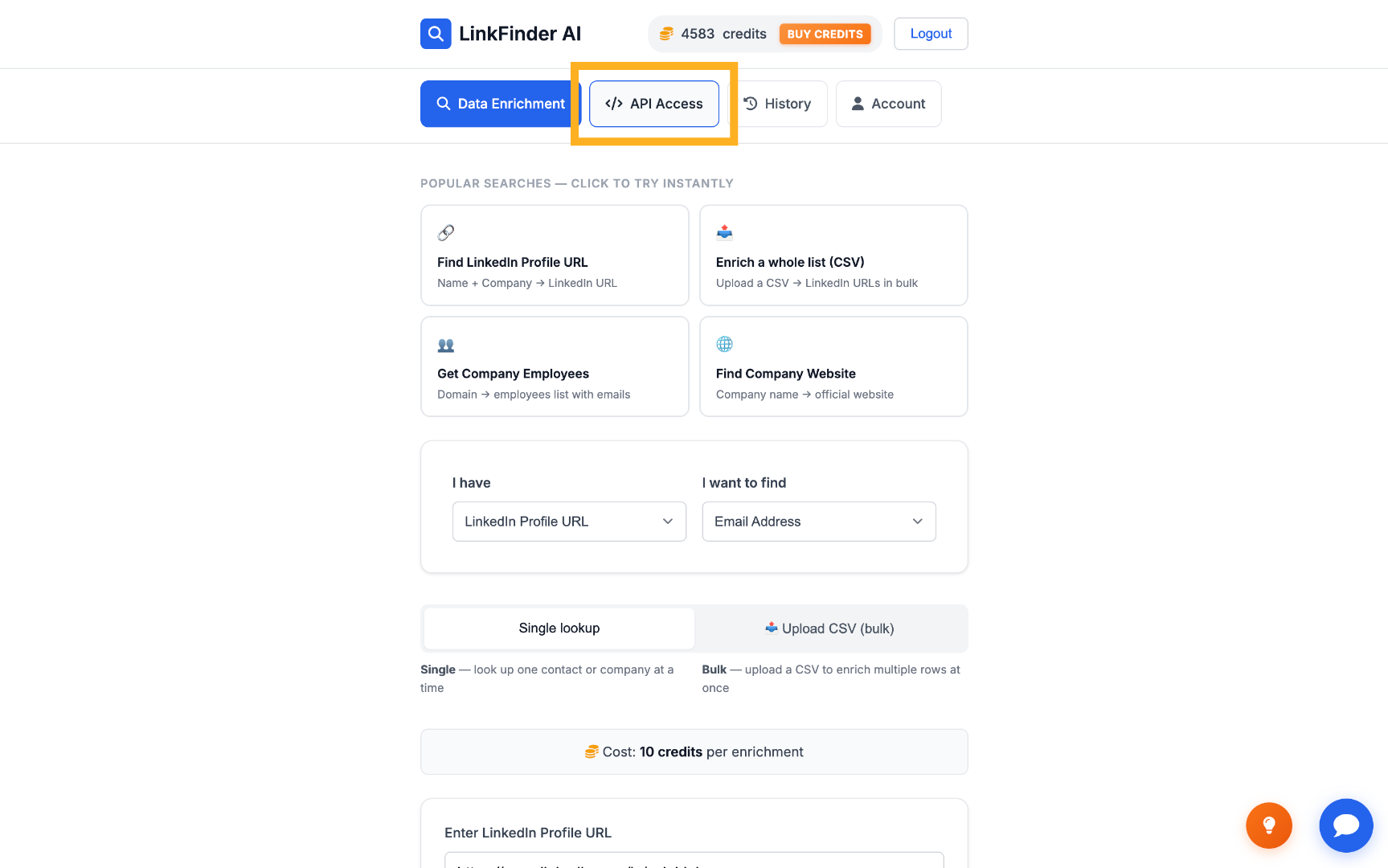
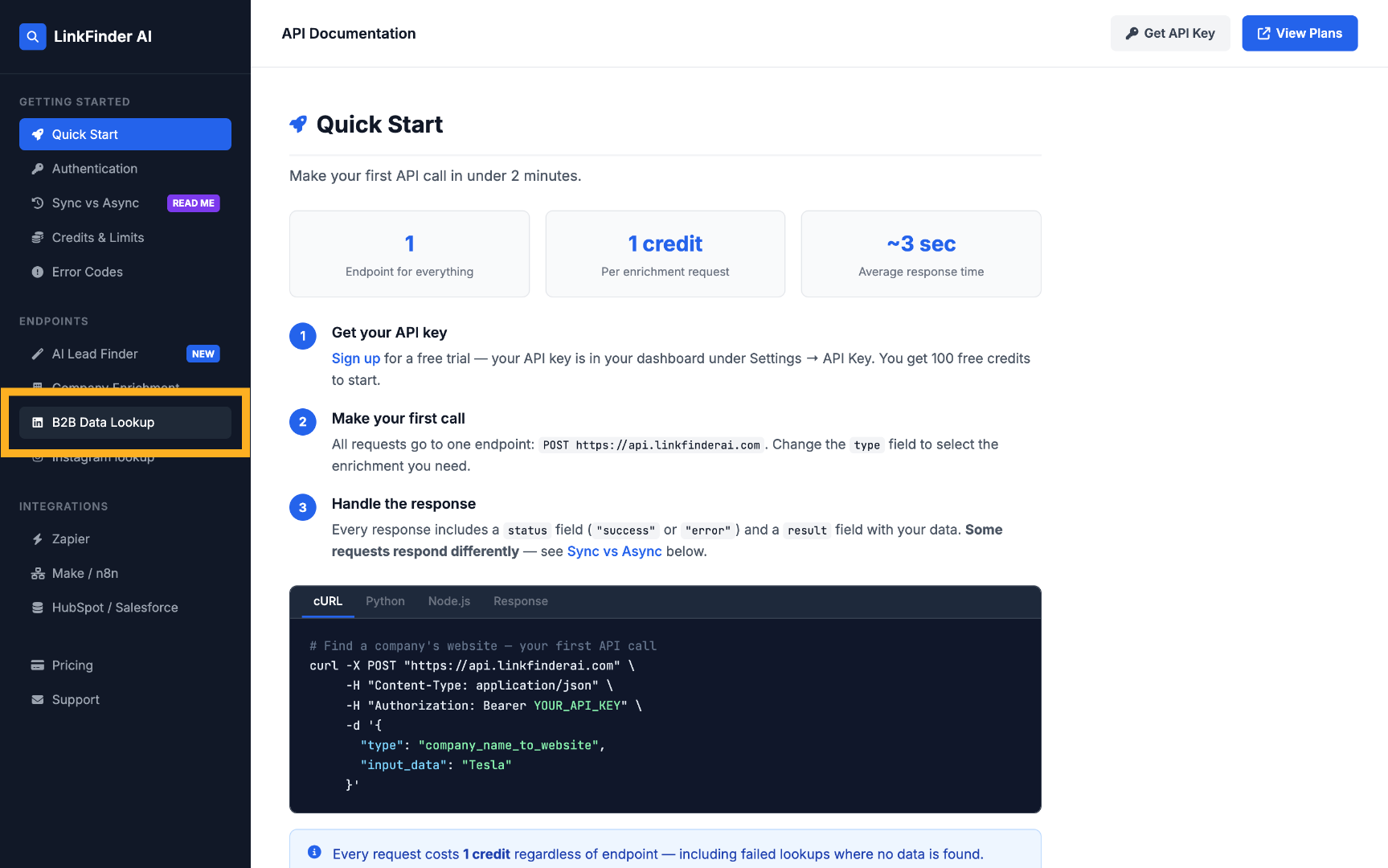
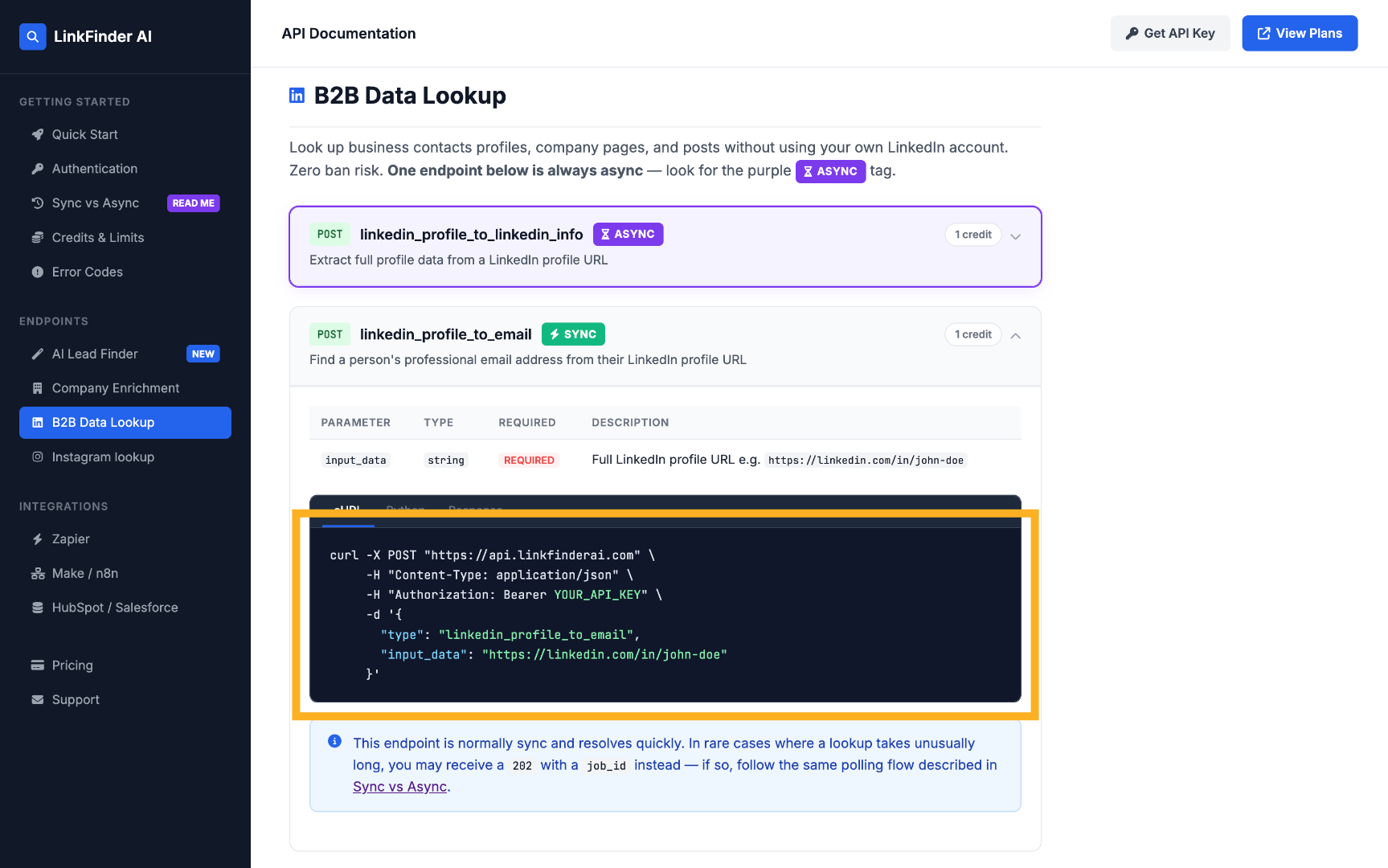
Go to API Access, then View API Docs, and open the B2B Data Lookup section.
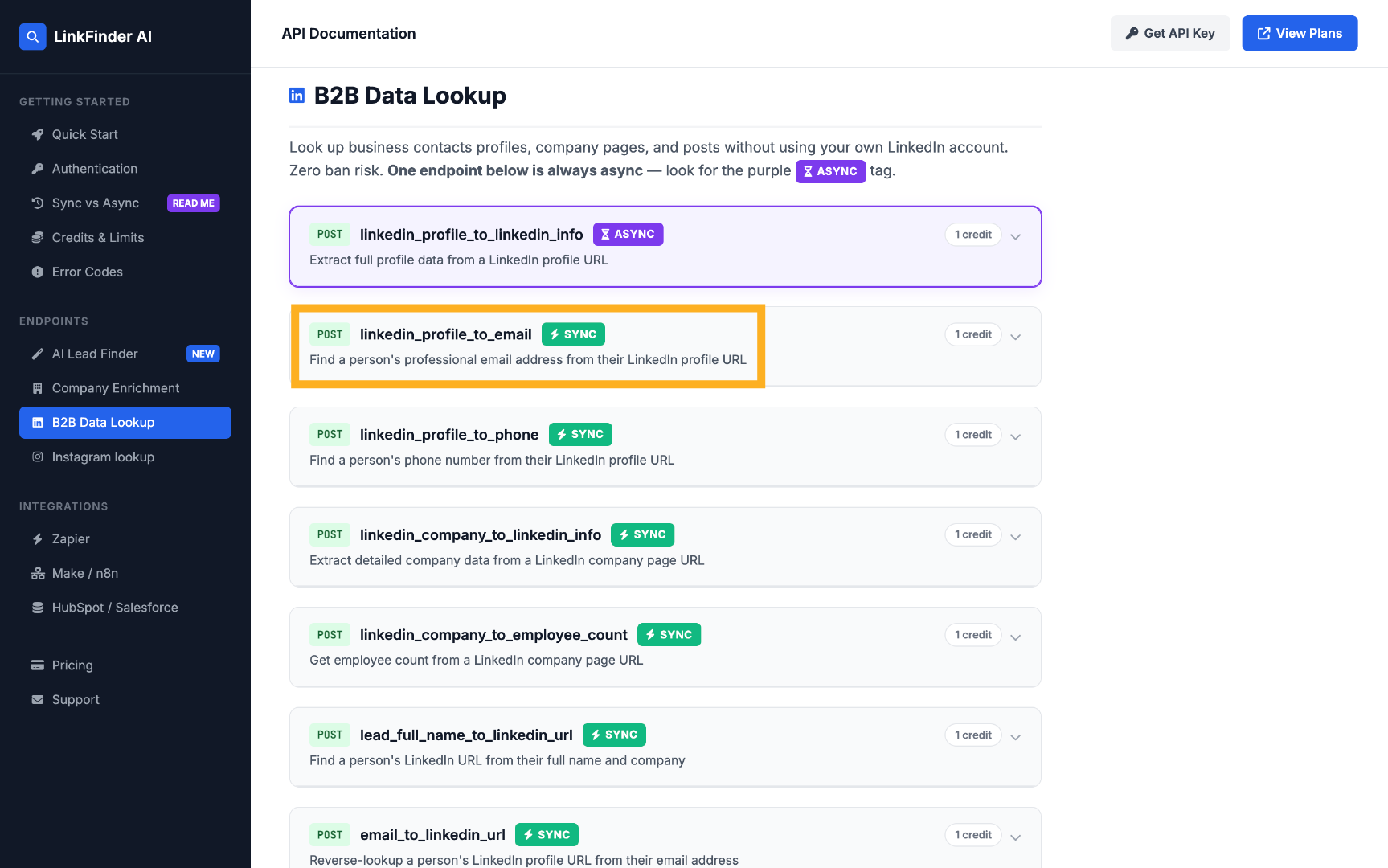
Call linkedin_profile_to_email for a known LinkedIn URL
POST a request with type set to linkedin_profile_to_email and input_data set to the profile URL to get the verified email directly.
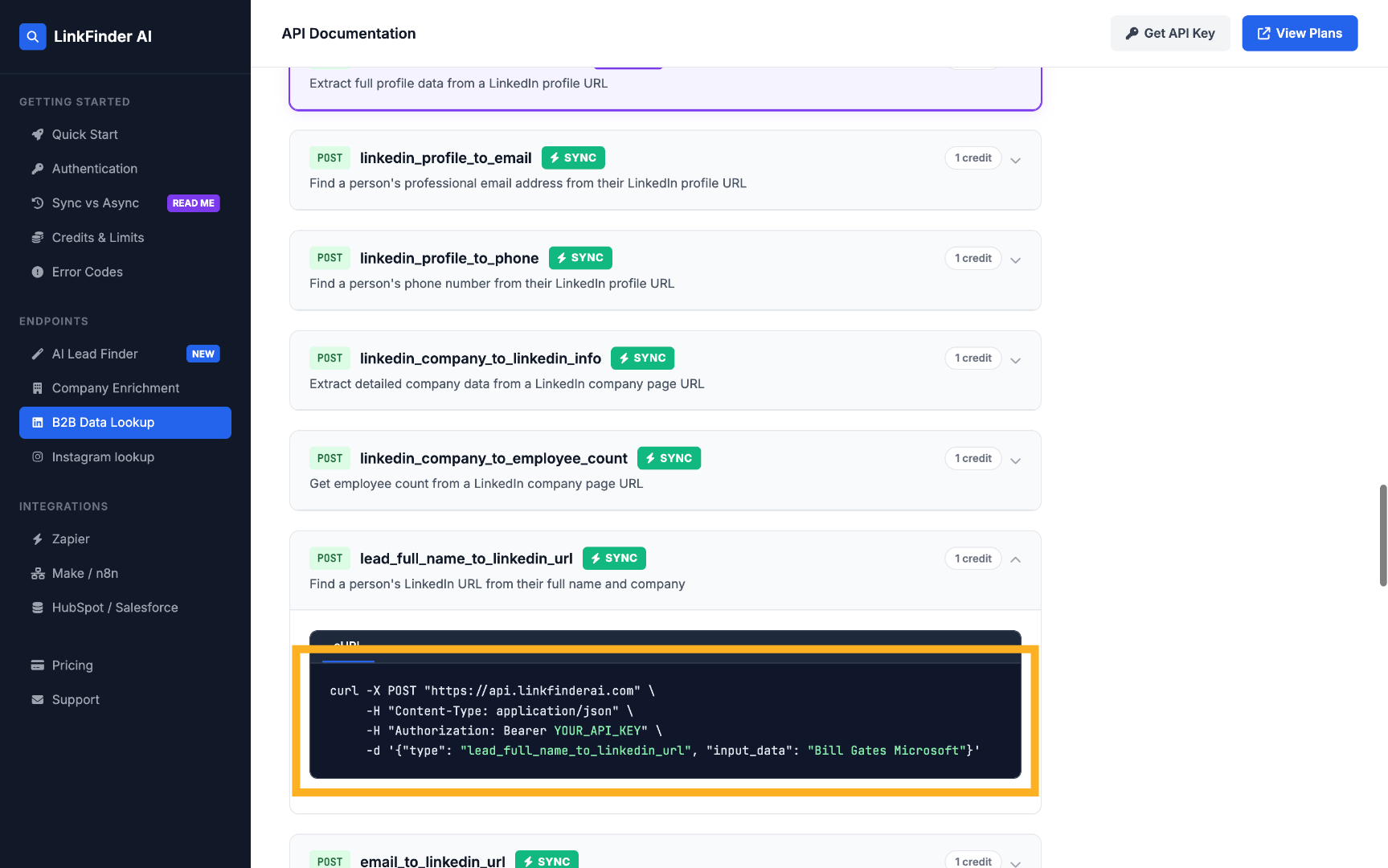
Or chain lead_full_name_to_linkedin_url first
If you only have a name and company, call lead_full_name_to_linkedin_url first, then feed the result into linkedin_profile_to_email — the same two-step flow as the dashboard, automated.