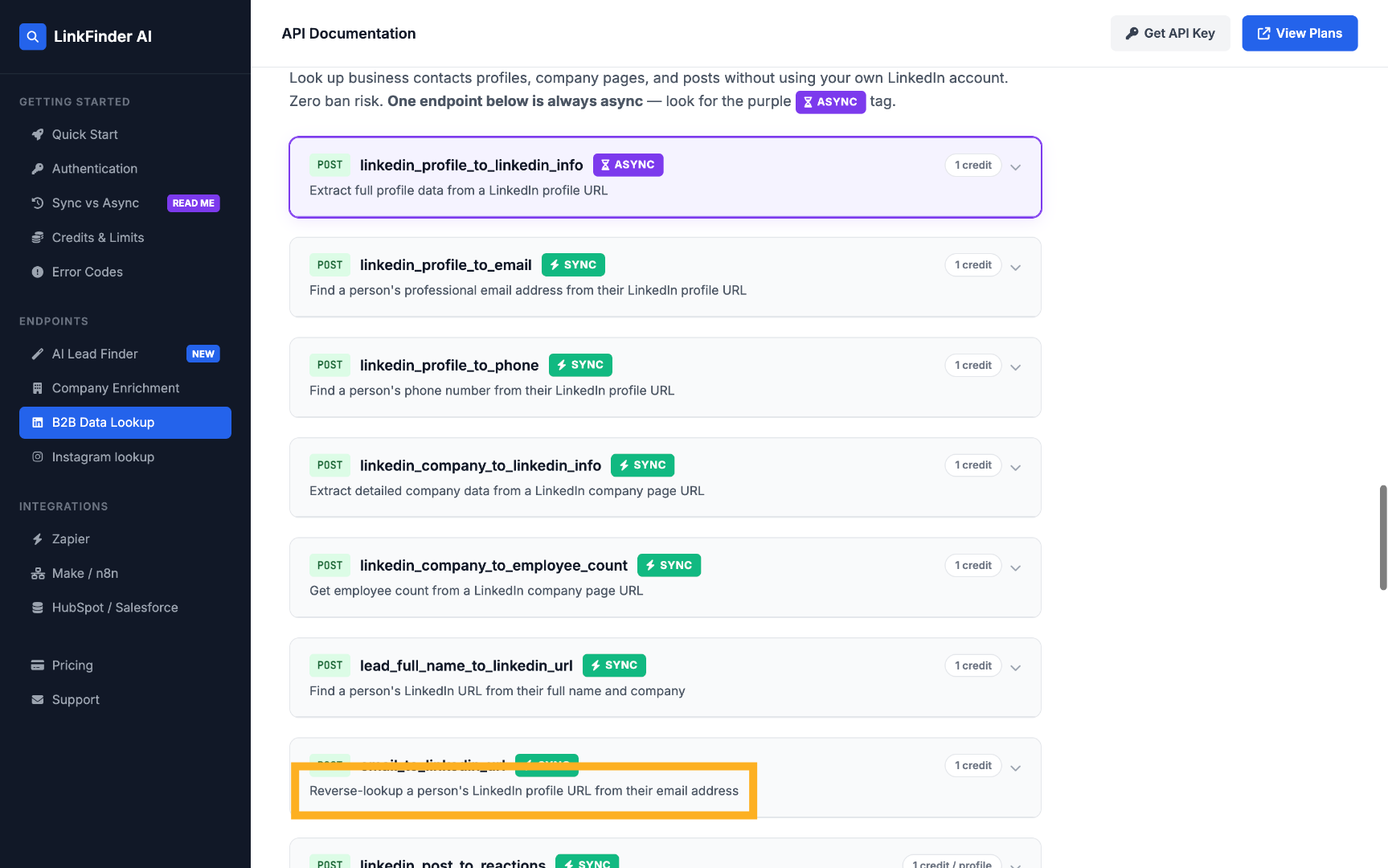
An email address alone doesn't tell you who someone is, what they do, or where they work — the context that makes outreach actually personal lives on their LinkedIn profile. Going from email to LinkedIn is the reverse of the usual lookup, and it's inherently a probabilistic match rather than a guaranteed one.
LinkFinder AI runs this reverse lookup and, importantly, returns a confidence score with each result — so you know whether to trust a match before you act on it. This guide covers a single lookup, bulk processing, filtering by confidence, and the API.
Find a LinkedIn profile from one email address
The quickest path when you have a single email to check.
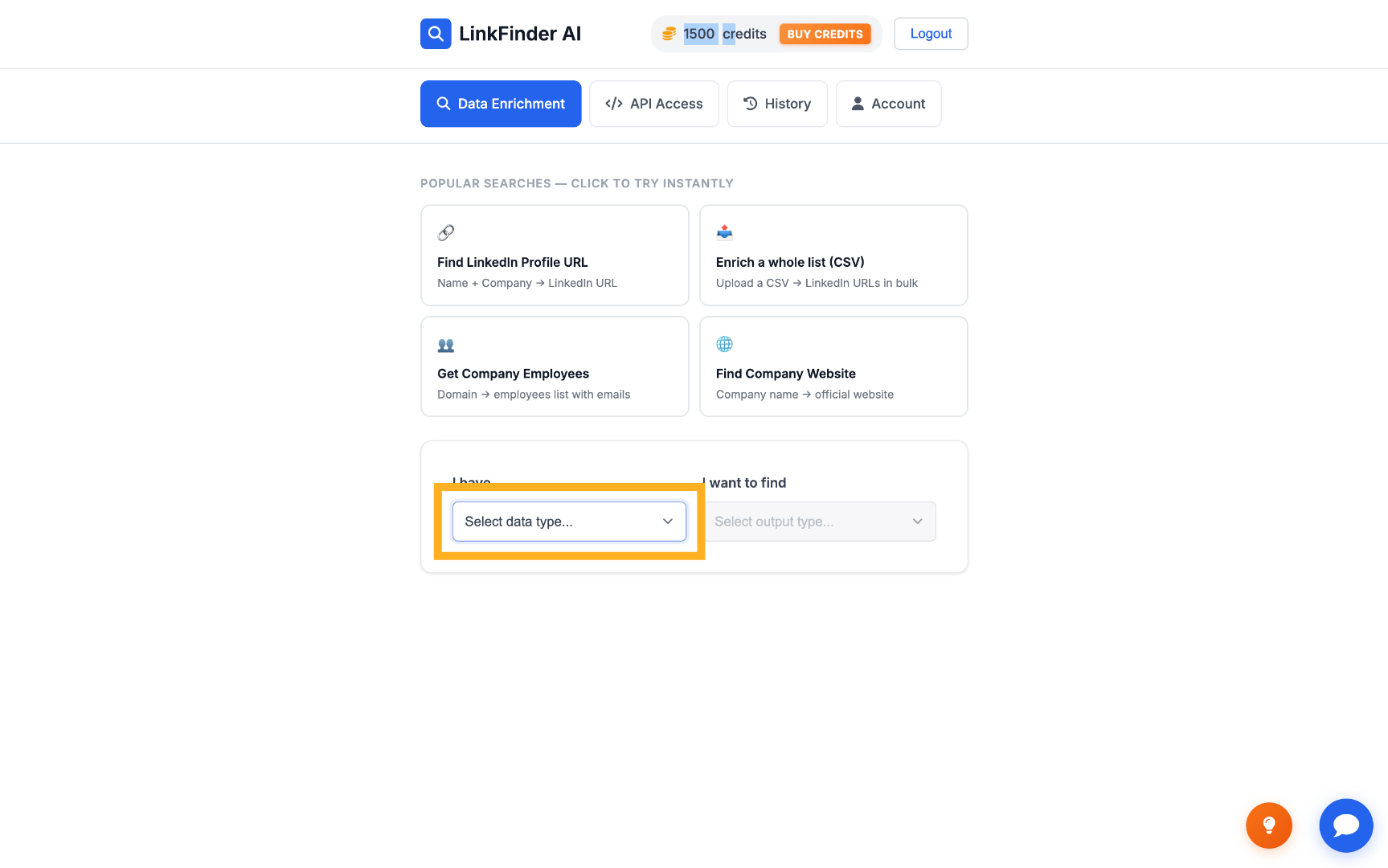
Set the input to Email Address
Select Email Address as the input data type on your dashboard.
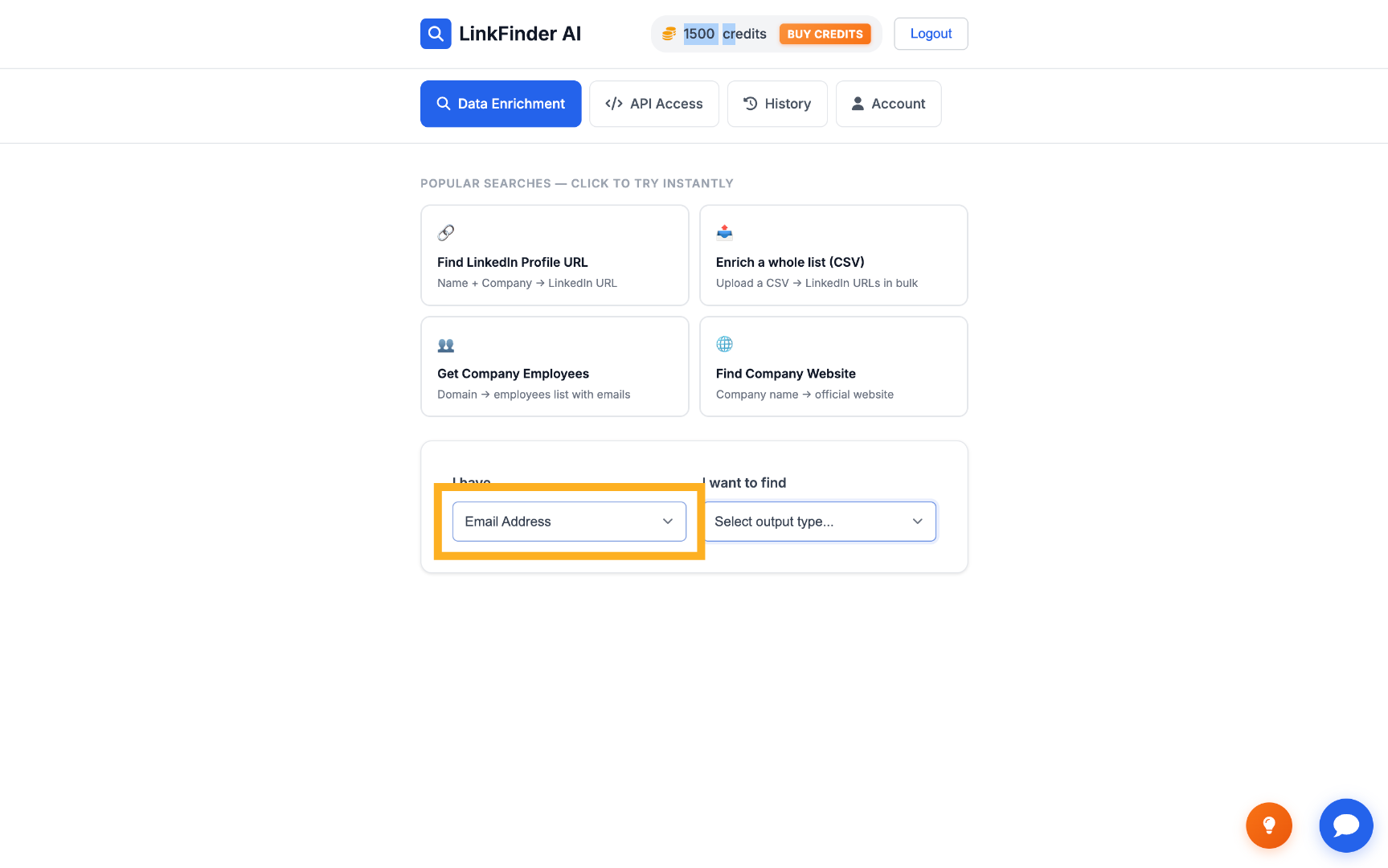
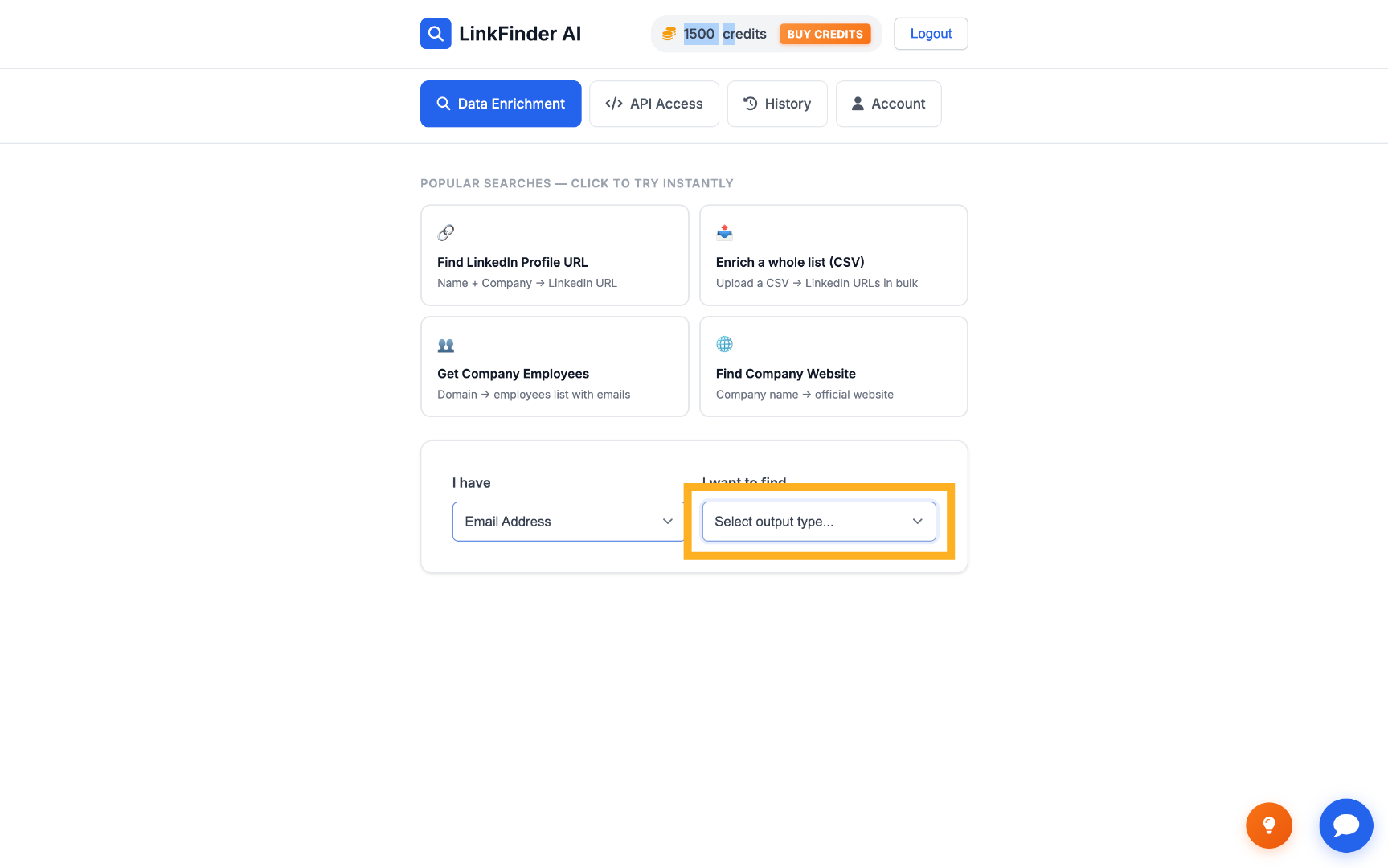
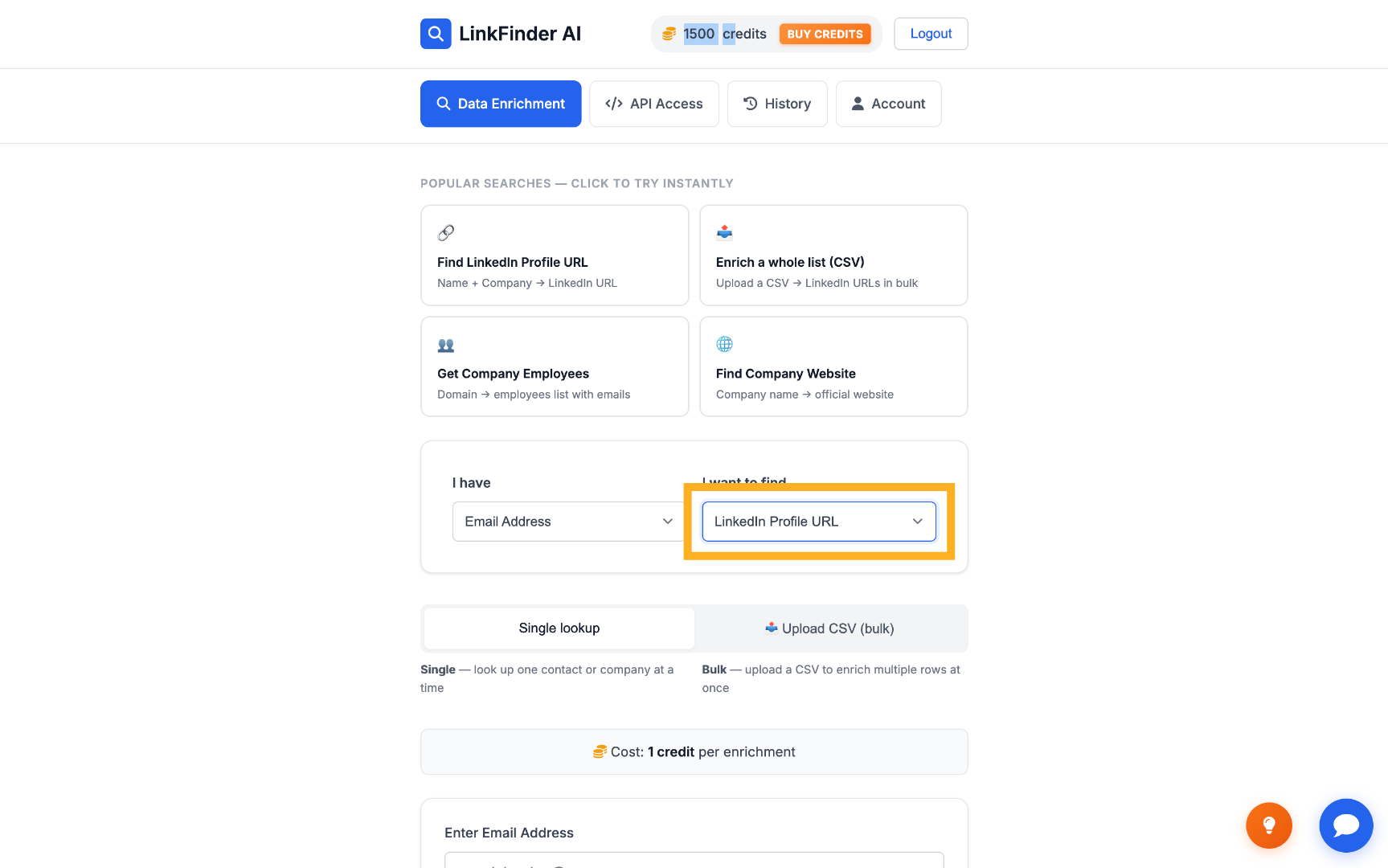
Set the output to LinkedIn Profile URL
Choose LinkedIn Profile URL as the output type.
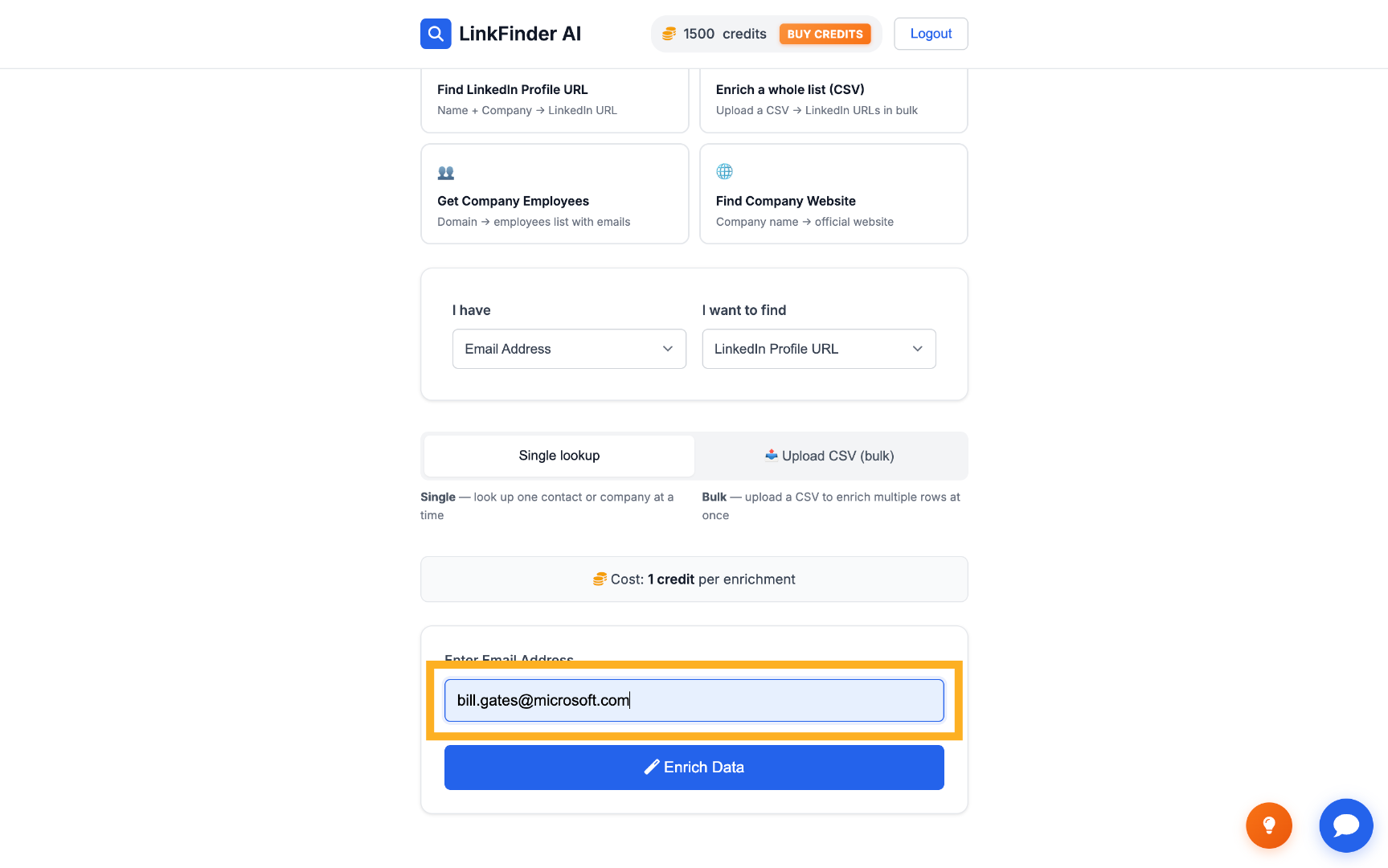
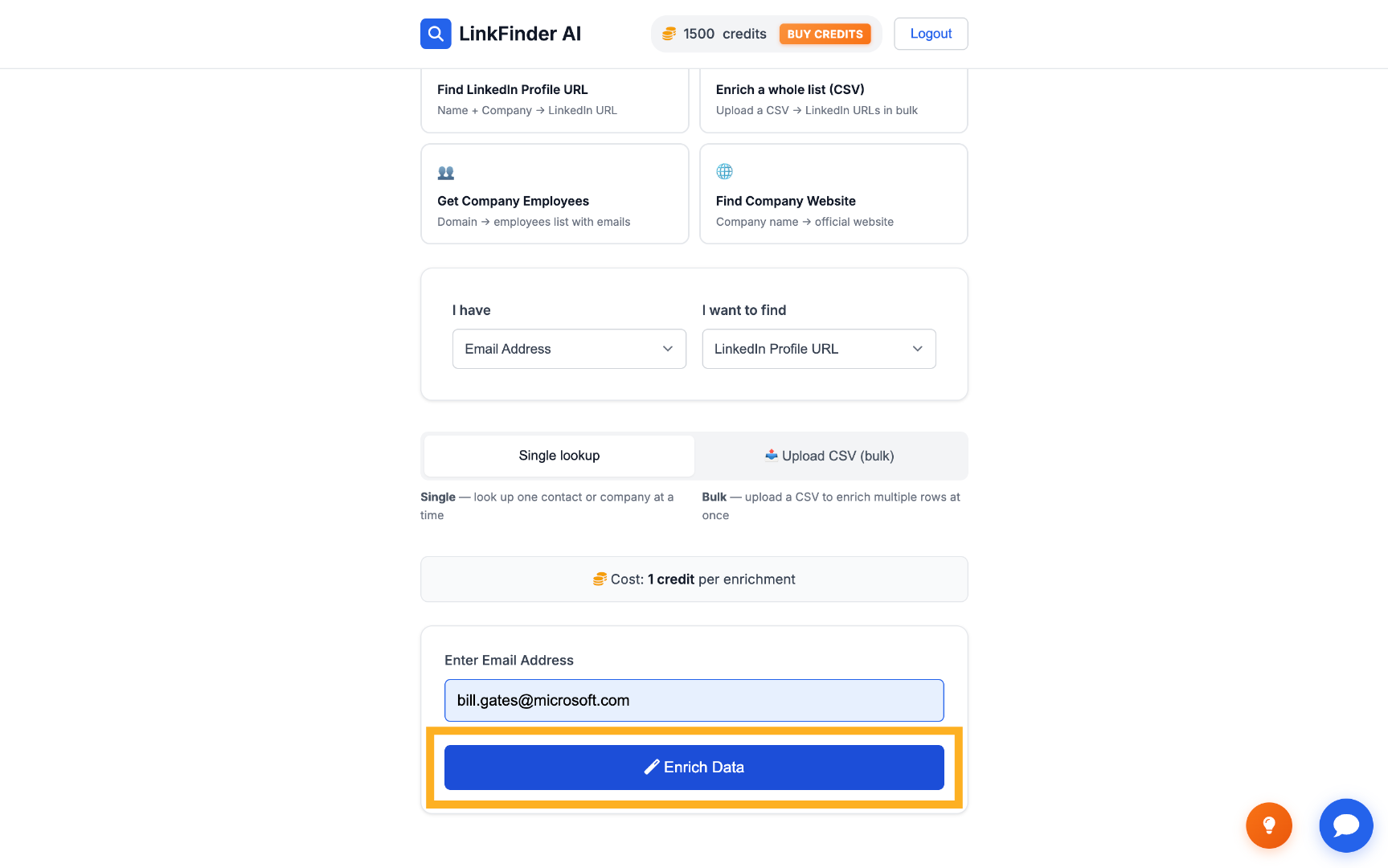
Enter the email and enrich
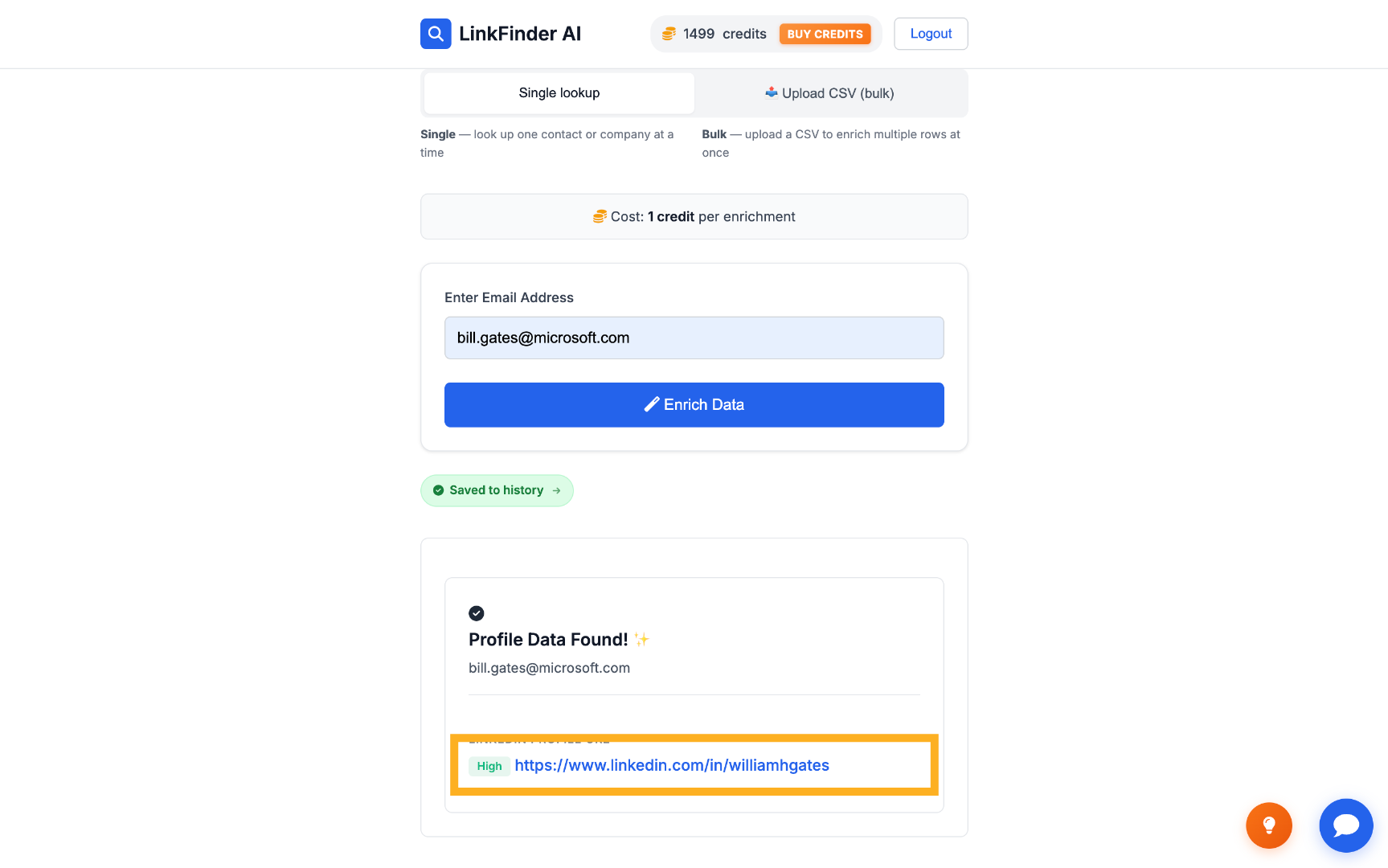
Type in the email address — for example, [email protected] — and click Enrich Data.
Check the confidence score
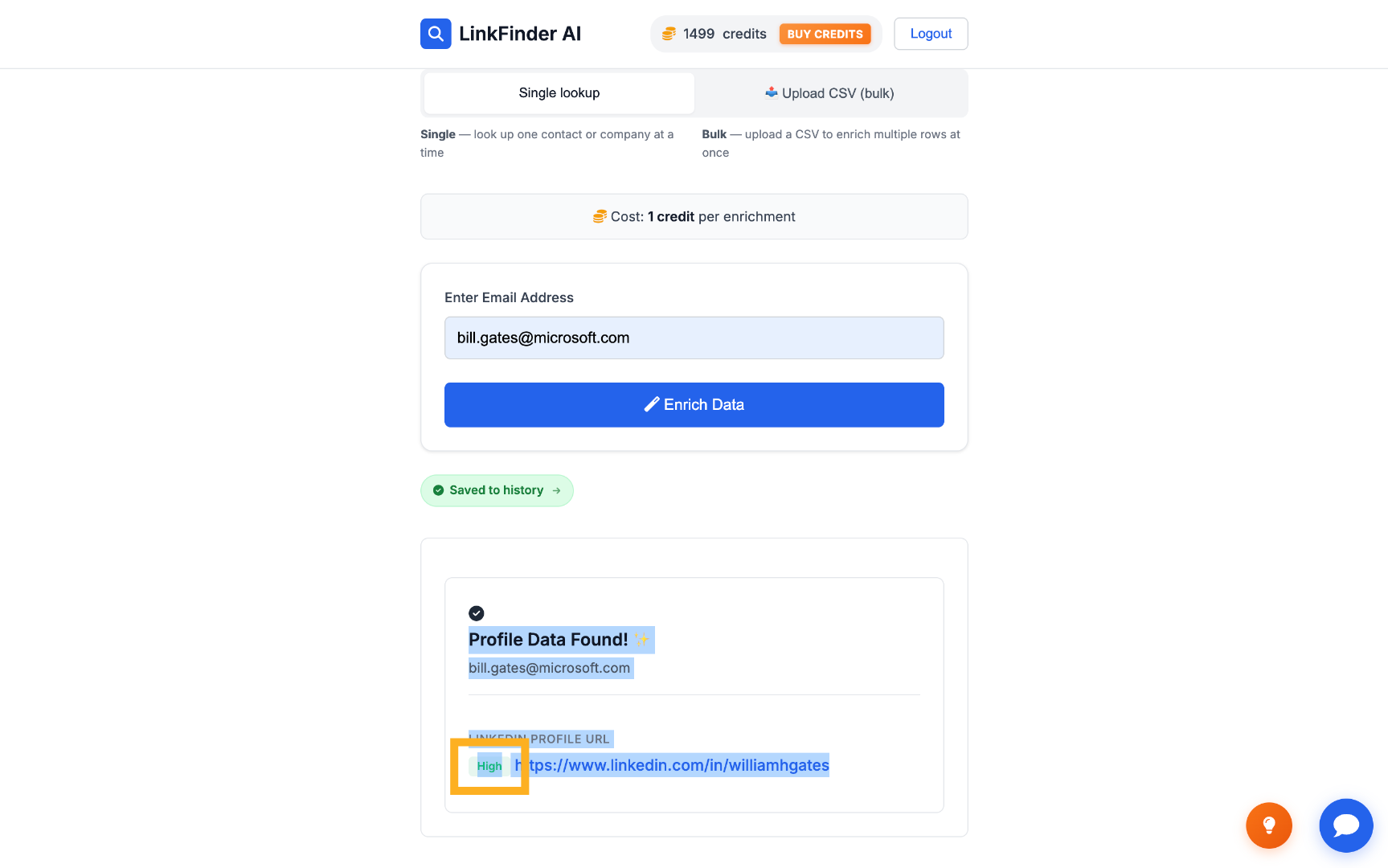
Each match comes with a confidence indicator — a green "high confidence" label means the LinkedIn URL is very likely correct.
Reverse-lookup LinkedIn profiles in bulk, filtered by confidence
For processing a list of emails — like an old contact export — and keeping only the matches you can trust.
Upload your CSV of email addresses
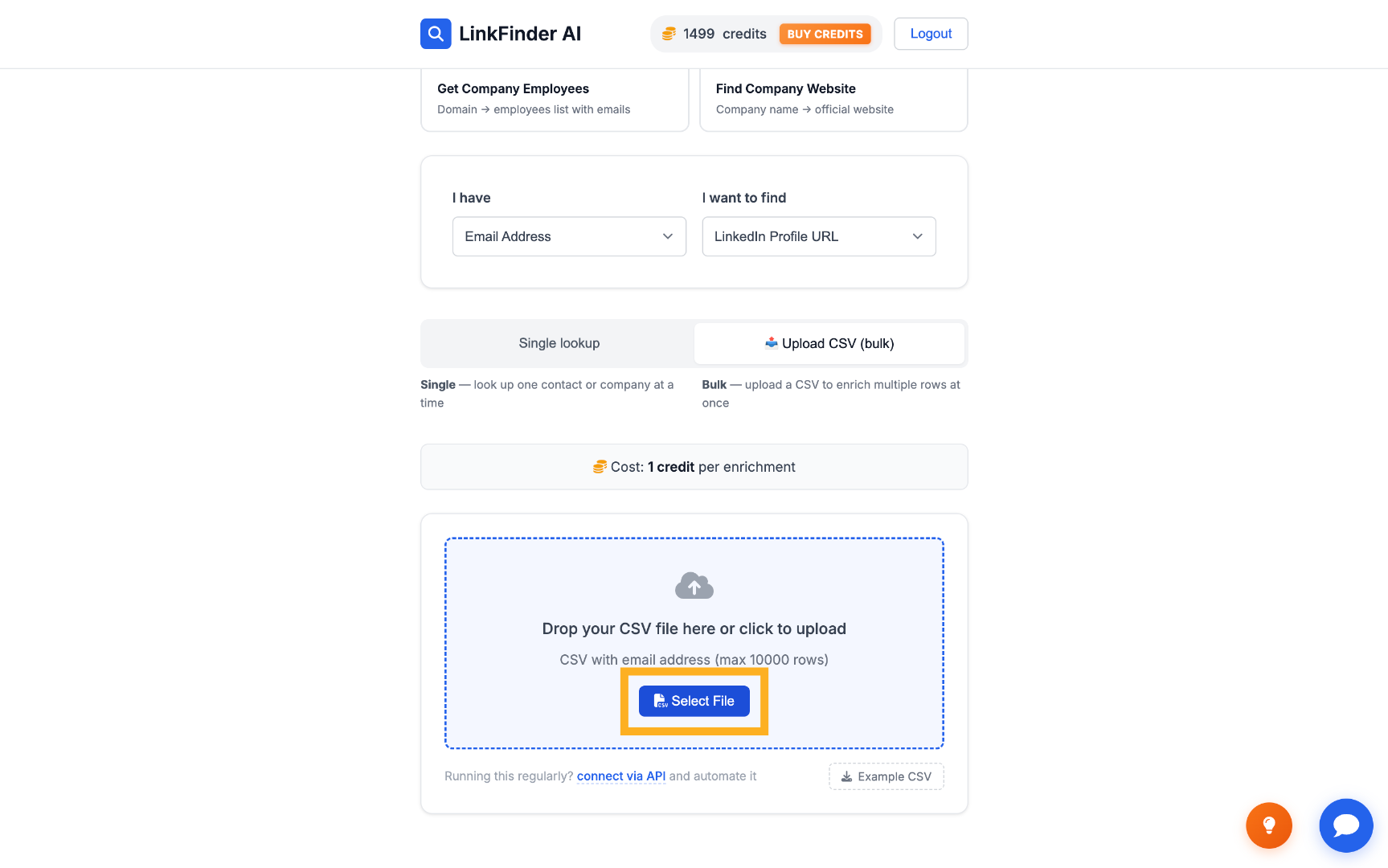
Switch to the bulk upload option and select a CSV file containing your list of emails.
Process the list
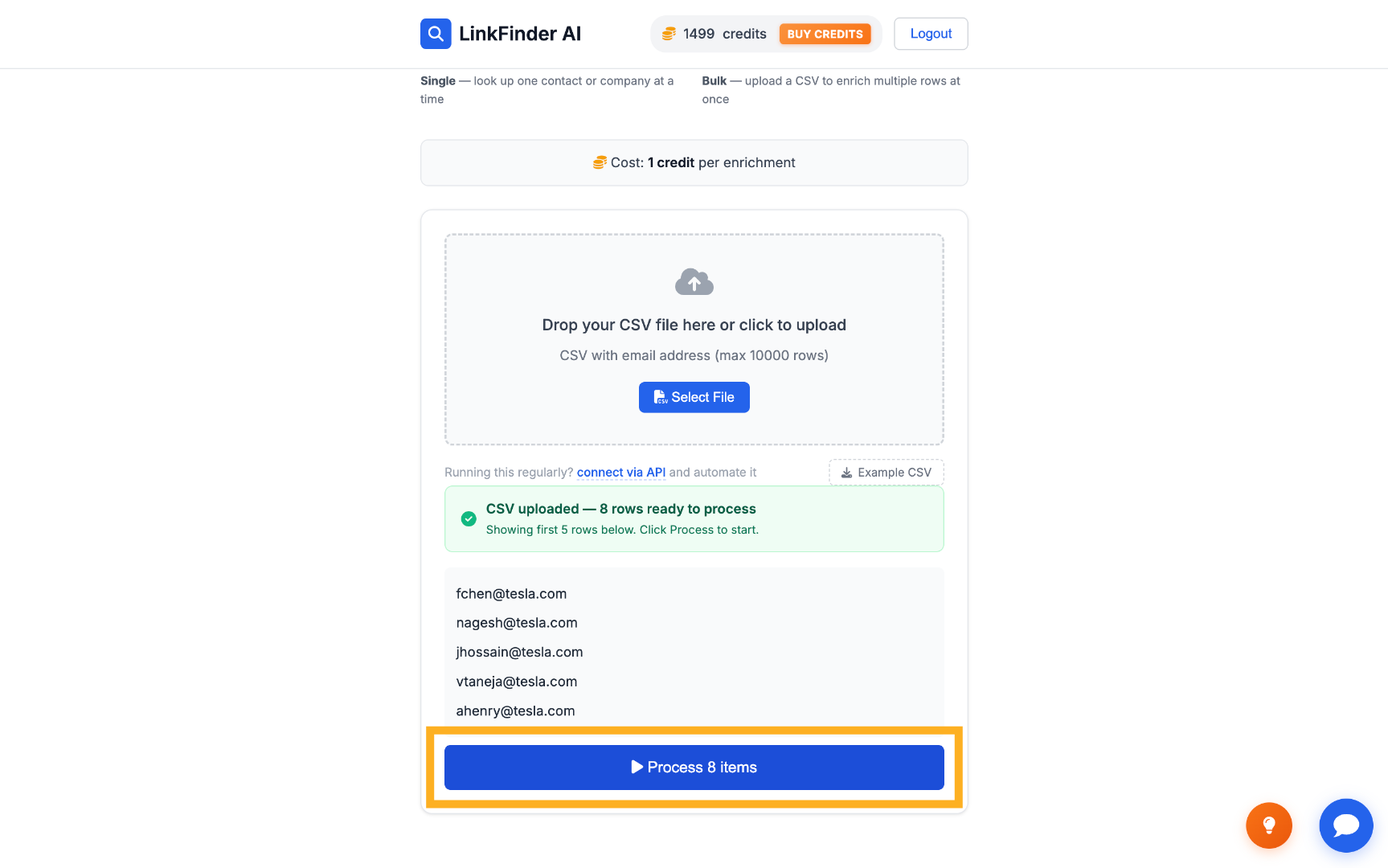
Click Process items to run the reverse lookup on every email in the file.
Filter by confidence level
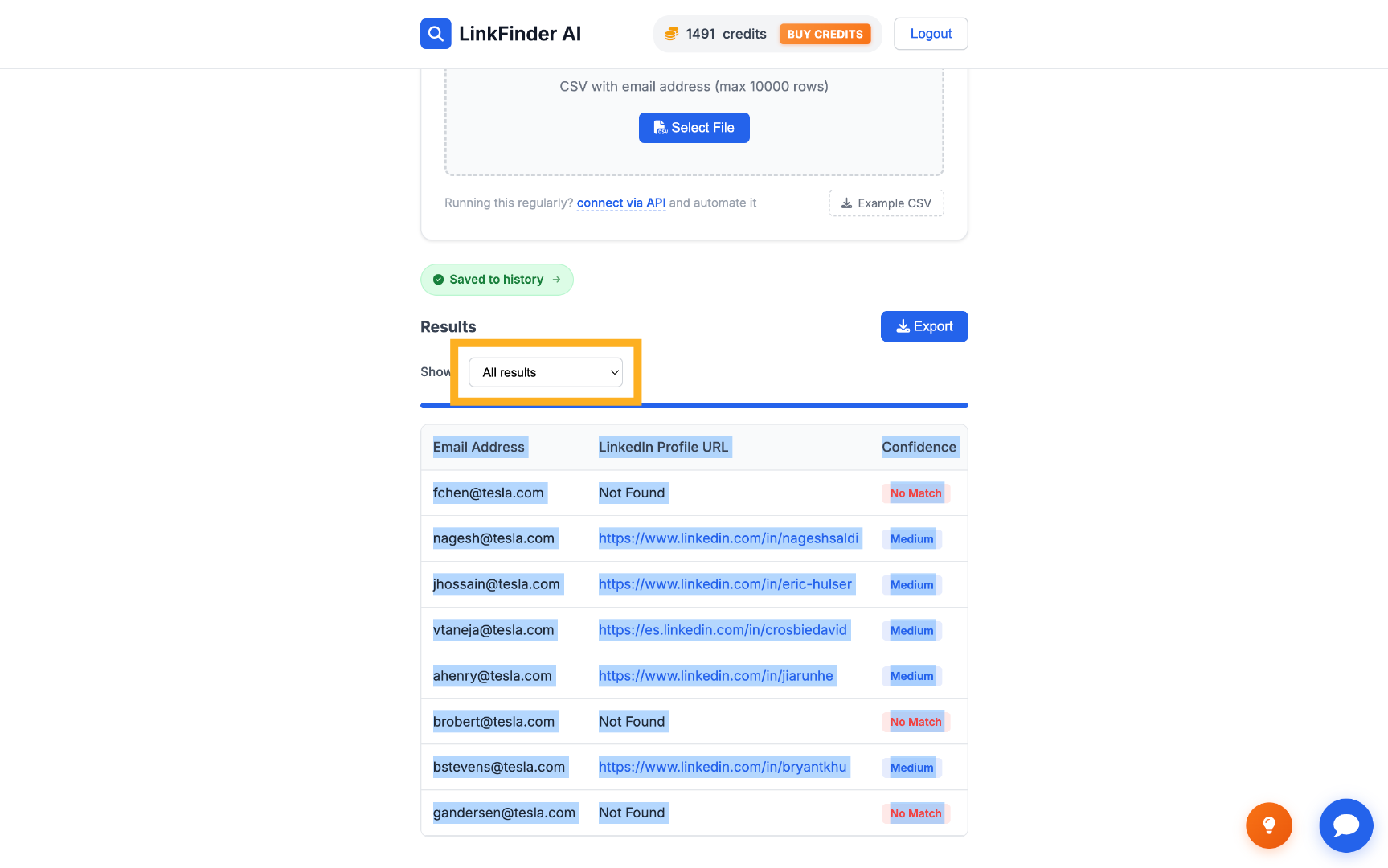
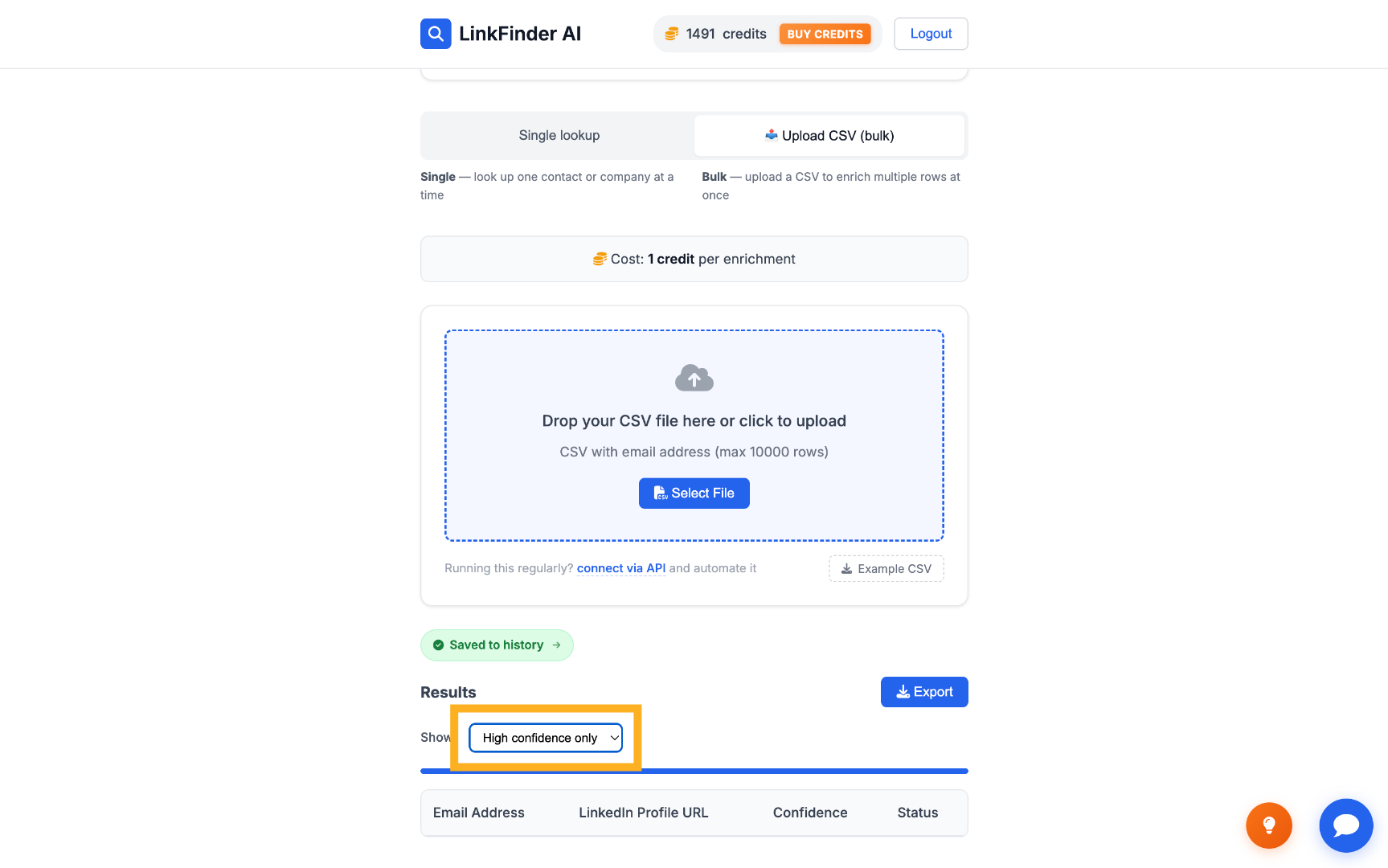
Use the results filter to show all matches or only high-confidence ones, depending on how strict you want to be.
Reverse-lookup LinkedIn profiles programmatically via API
For running the email-to-LinkedIn lookup inside your own CRM or lead-enrichment pipeline.
Open the API documentation
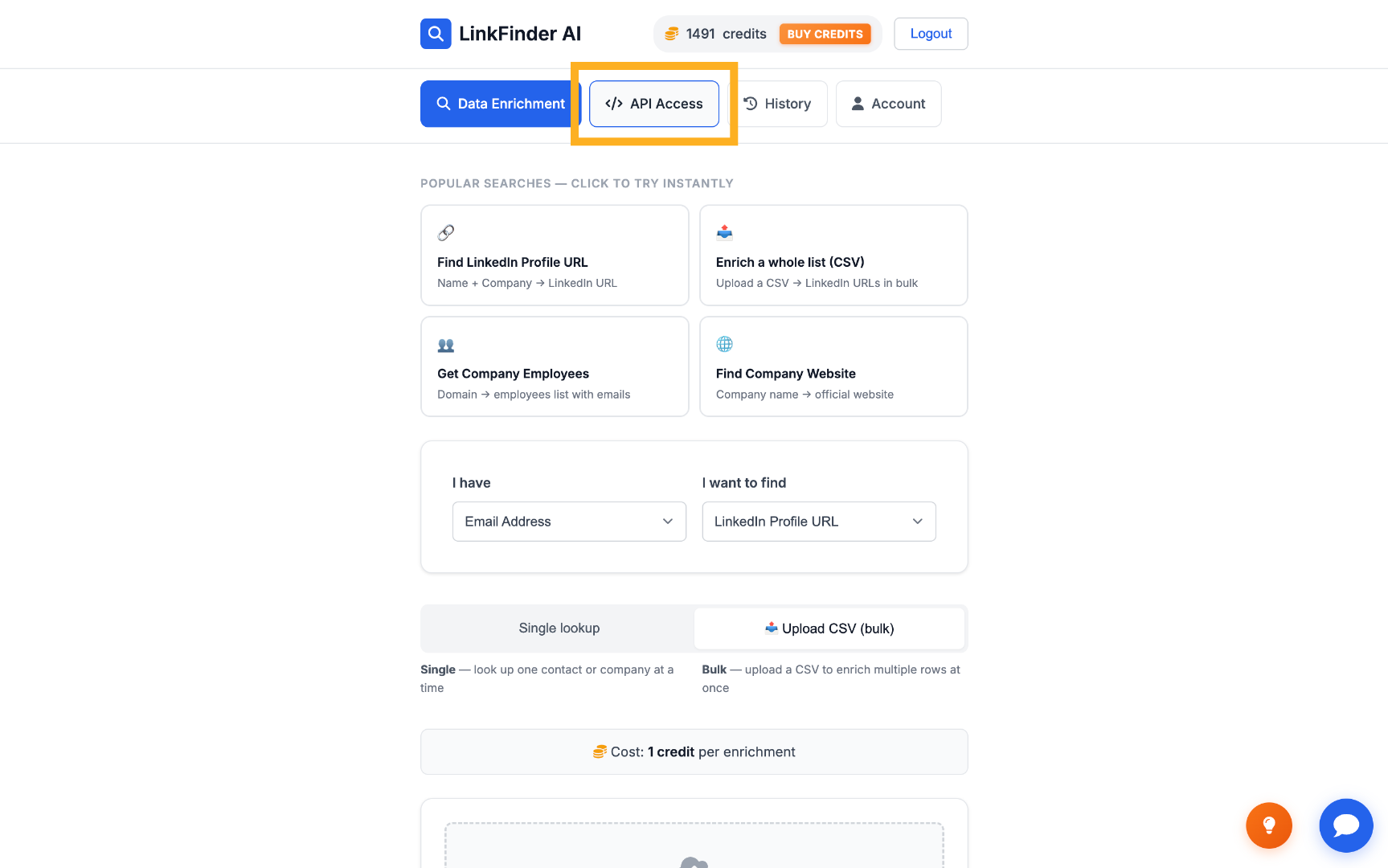
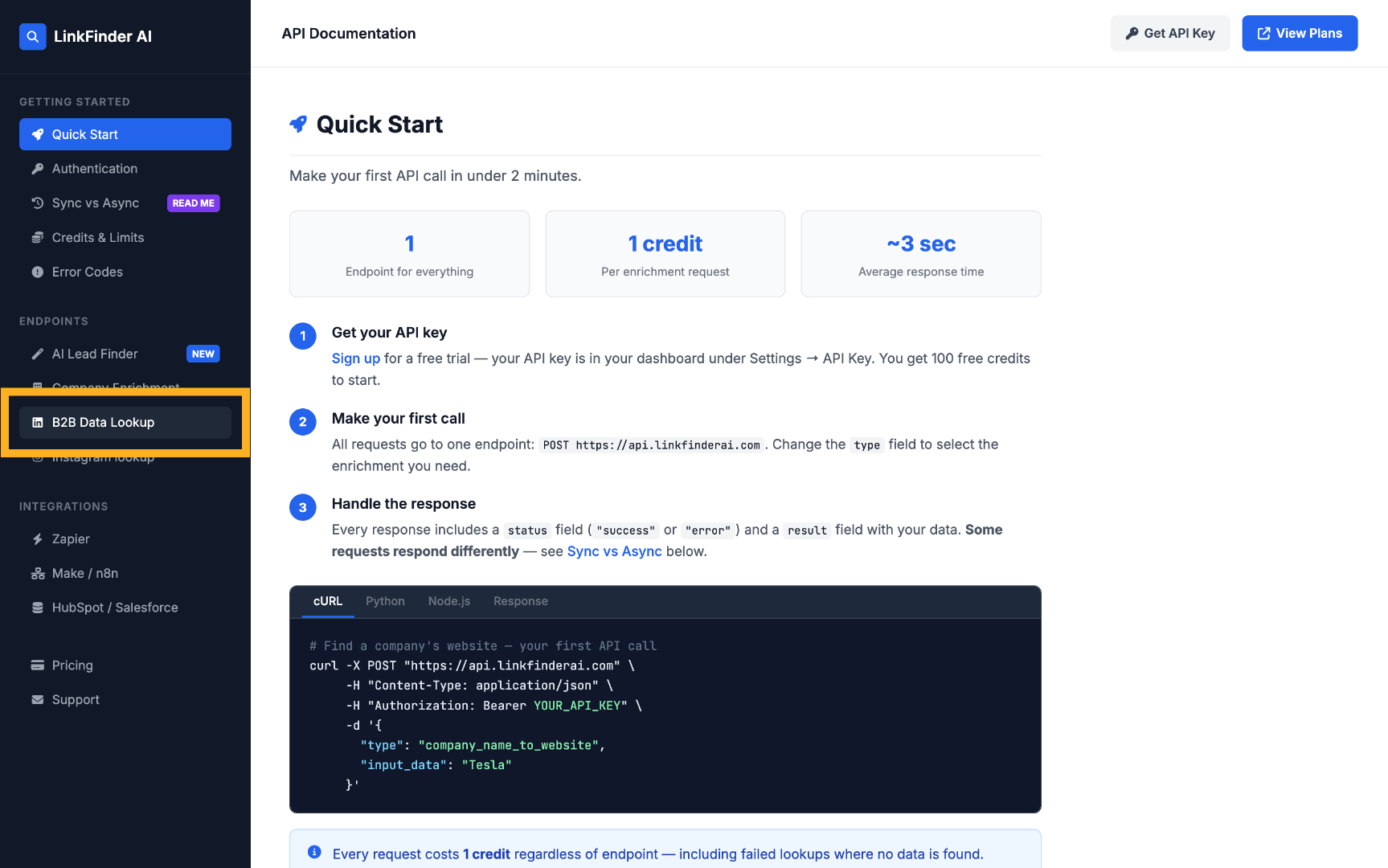
Go to API Access, then View API Docs, and open the B2B Data Lookup section.
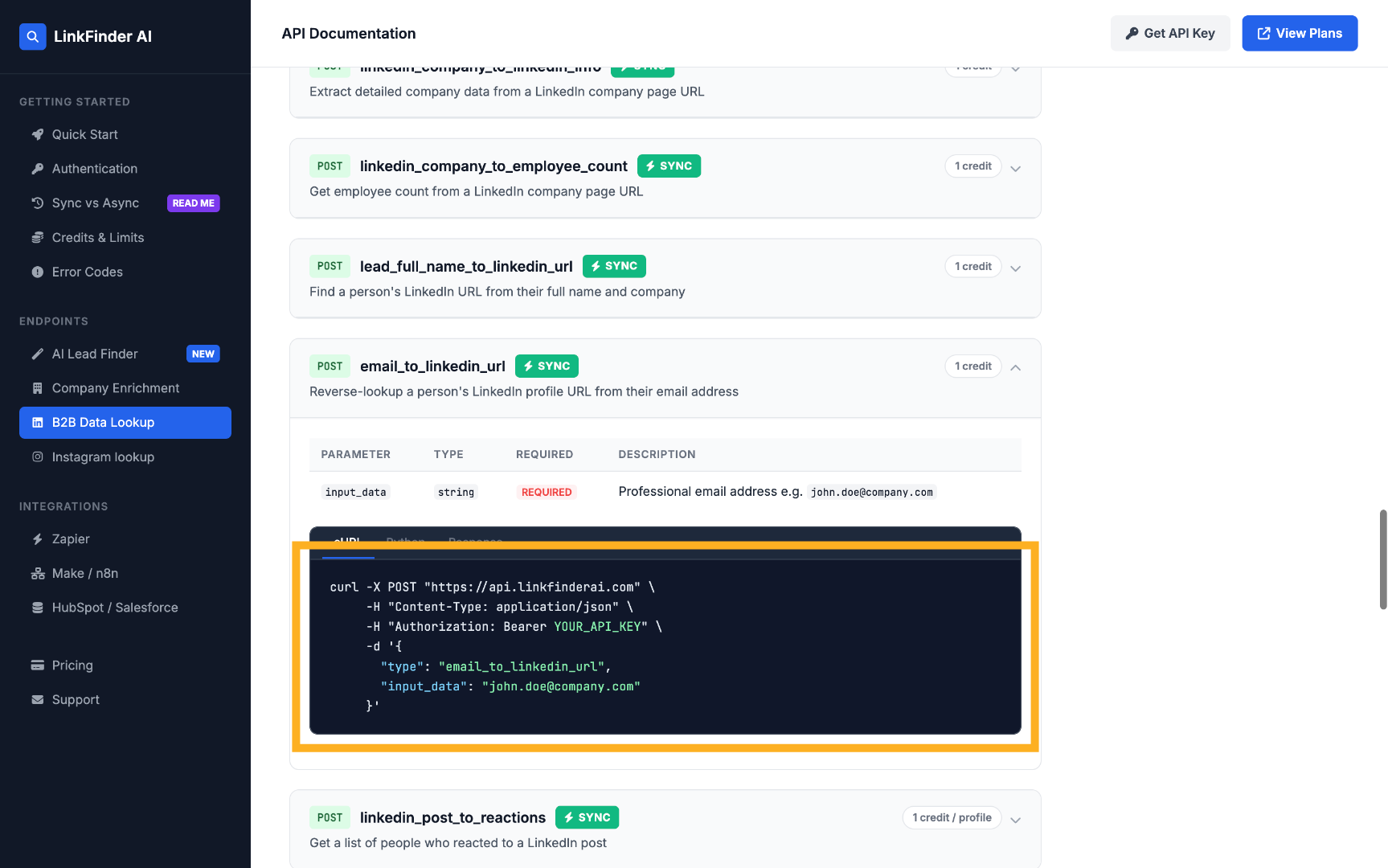
Call the reverse-lookup endpoint
Select the endpoint for reverse-looking-up a LinkedIn profile URL from an email address and review the curl example.