Login Try for free
Free Guide

LinkedIn Company Scraping: How to Pull Data for Many Companies at Once

No LinkedIn login, no browser extension, no manual copy-pasting. Enter a LinkedIn company URL and get back structured profile data directly — one company at a time, in bulk from a CSV, or through an API.

No LinkedIn login required Bulk CSV upload Free credits to start

Full walkthrough: extracting LinkedIn company data with LinkFinder AI · Powered by guidde

Pulling data off a company's LinkedIn page by hand — name, follower count, industry, the About section — doesn't scale past a handful of accounts. Doing it for a whole prospect list means either a browser extension fighting LinkedIn's anti-scraping measures, or hours of manual copy-pasting.

LinkFinder AI takes a LinkedIn company URL and returns the structured profile data directly, no login or extension involved. This guide covers three ways to do that: a single lookup for one company, a bulk CSV upload for a whole list, and an API endpoint for wiring it into your own tools.

1

Extract data from a single LinkedIn company URL

The quickest path when you only need one company's profile — for example, while qualifying an account before outreach.

1

Create a free account

Go to linkfinderai.com and sign up — new accounts start with free credits to use on company lookups.
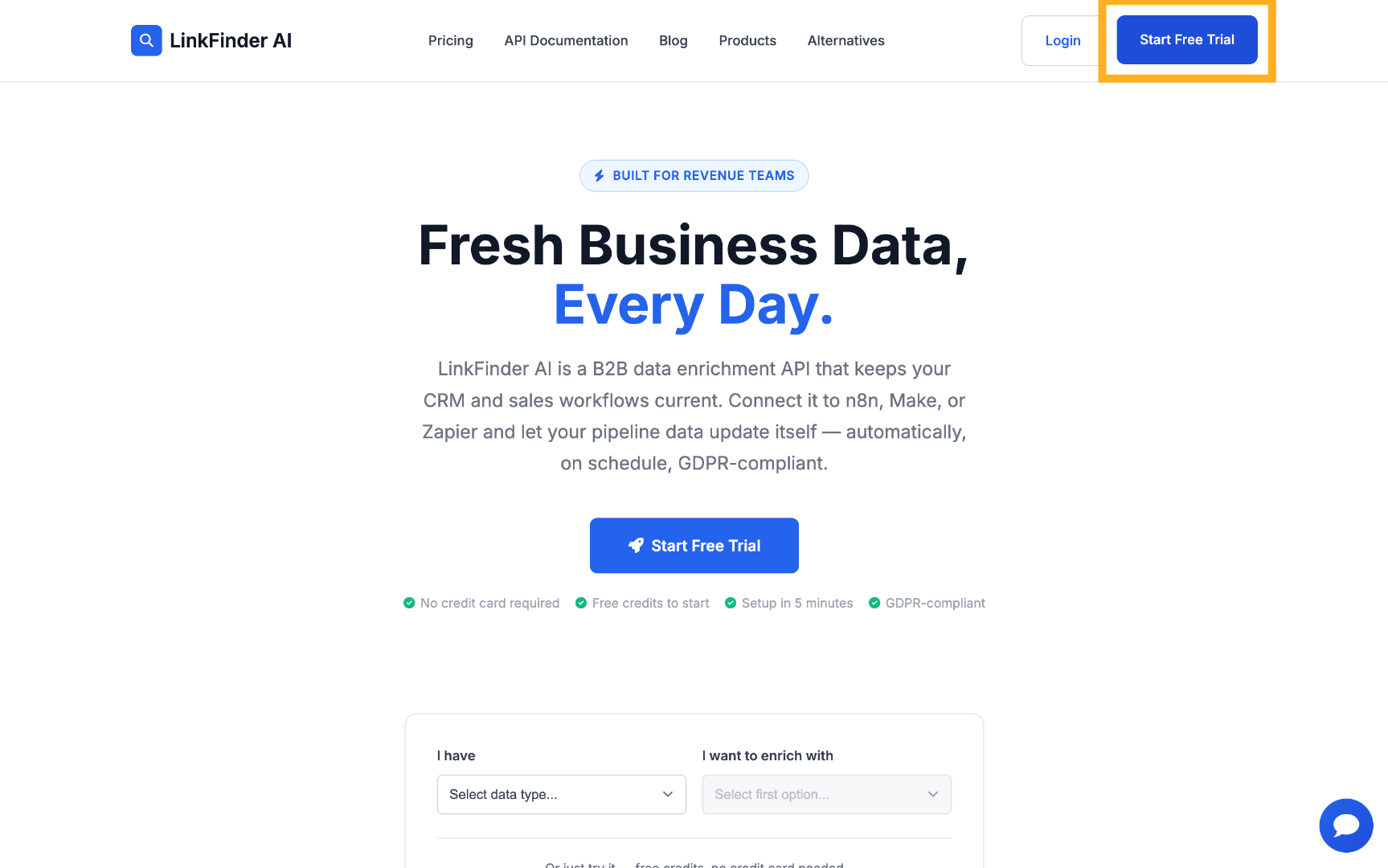
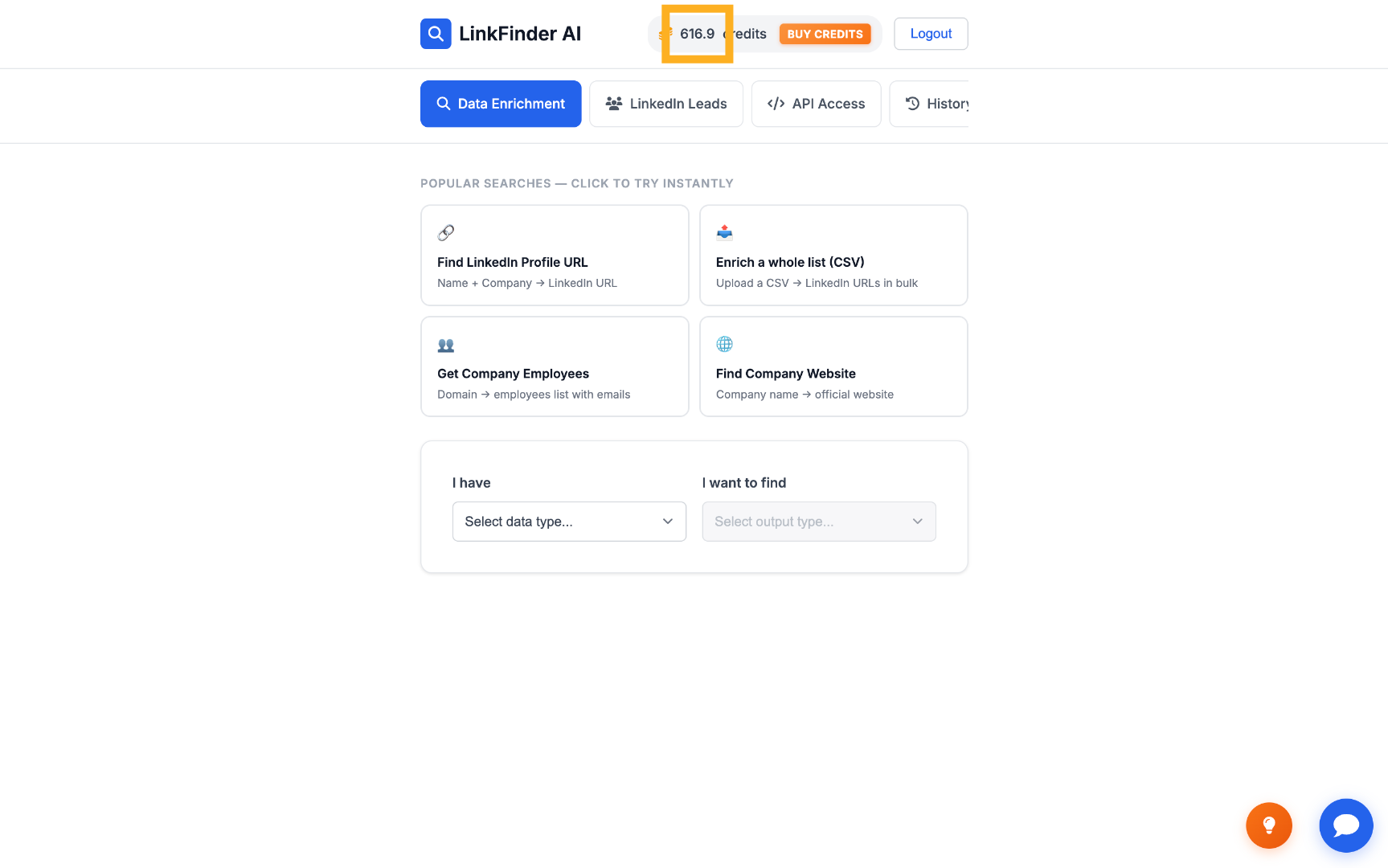
Start a free trial account View available free credits
2

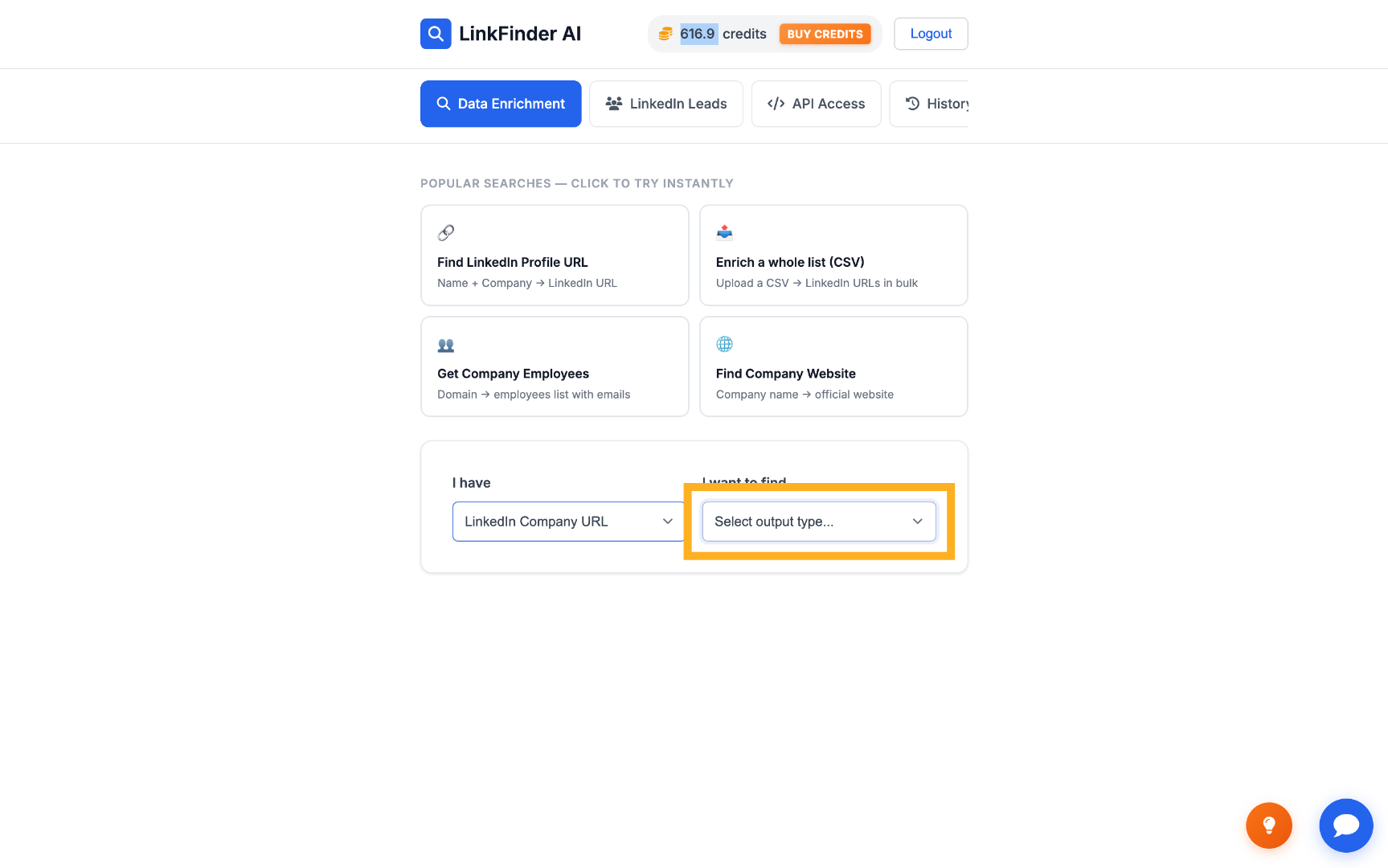
Select the input and output data types

Choose LinkedIn Company URL as the input type, and LinkedIn Company Info as the output type.
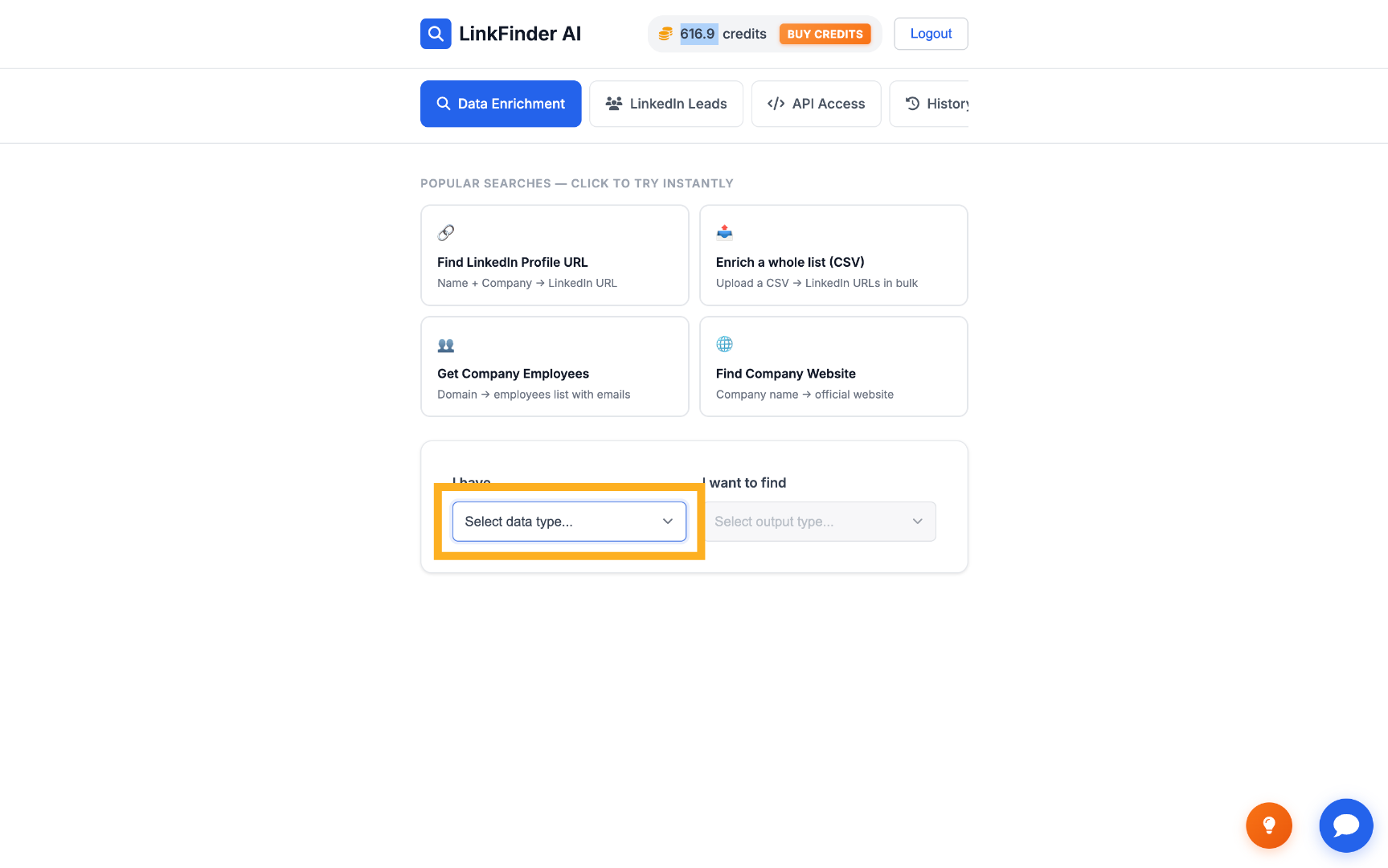
Select LinkedIn Company URL as the input type Select LinkedIn company info as the output type
3

Paste the company's LinkedIn URL and enrich

Paste the LinkedIn company URL into the input field and click "Enrich Data" — the result includes the company's name, followers, and About section.
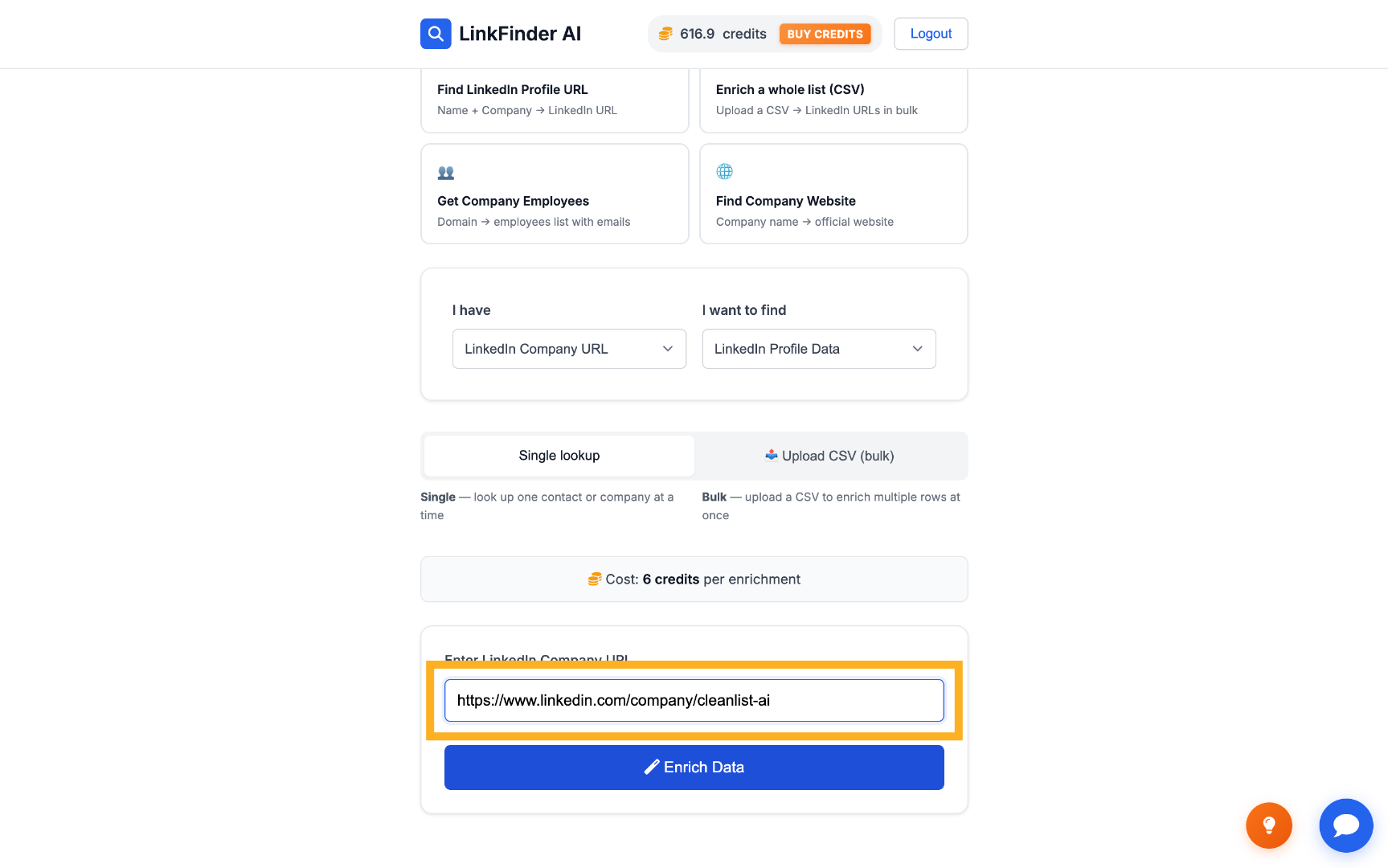
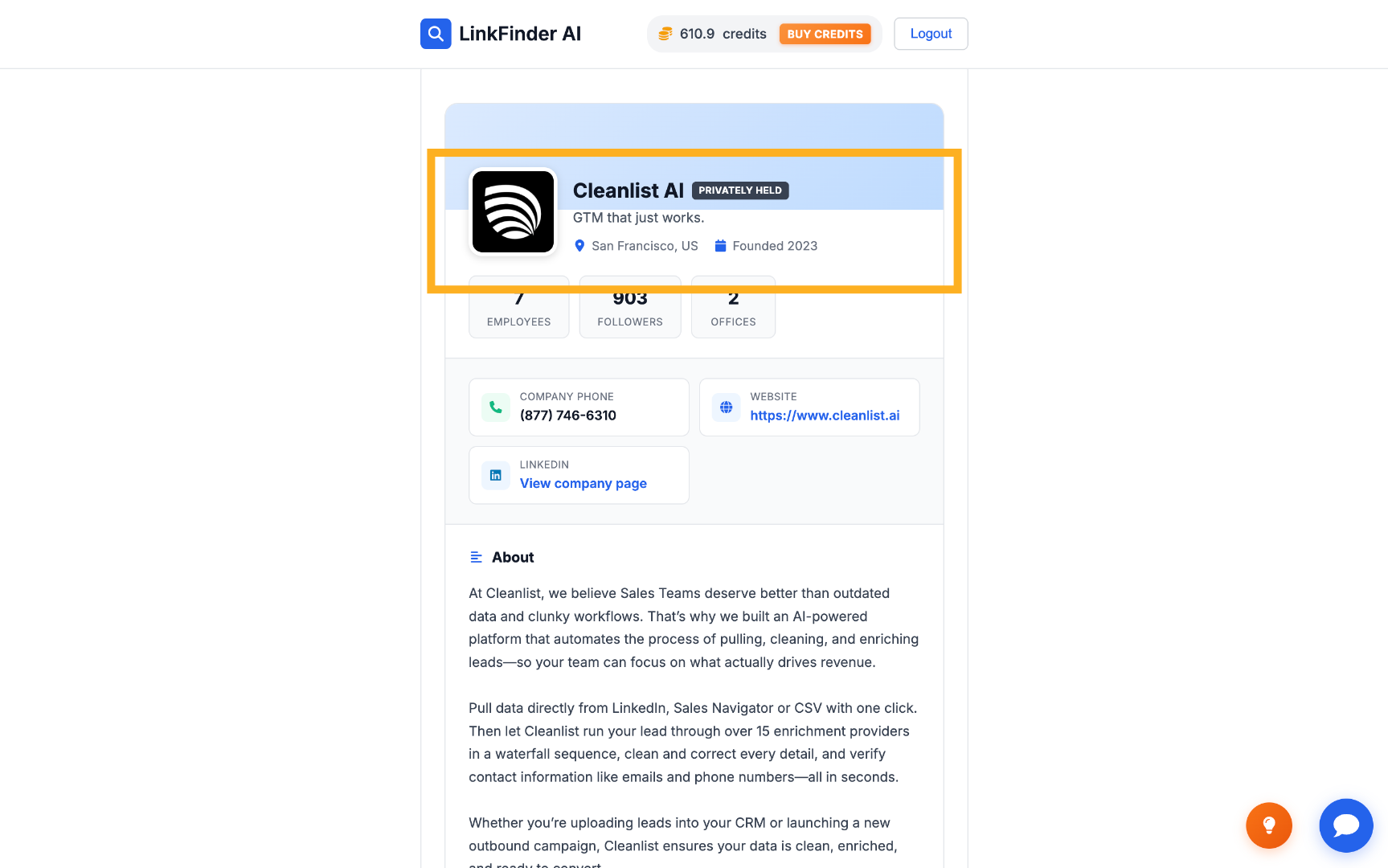
Enter the LinkedIn company URL View the enriched company data result
2

Bulk extract data for a CSV list of LinkedIn company URLs

When you have a whole prospect list instead of one company, upload a CSV of LinkedIn company URLs and let LinkFinder AI enrich every row at once.

1

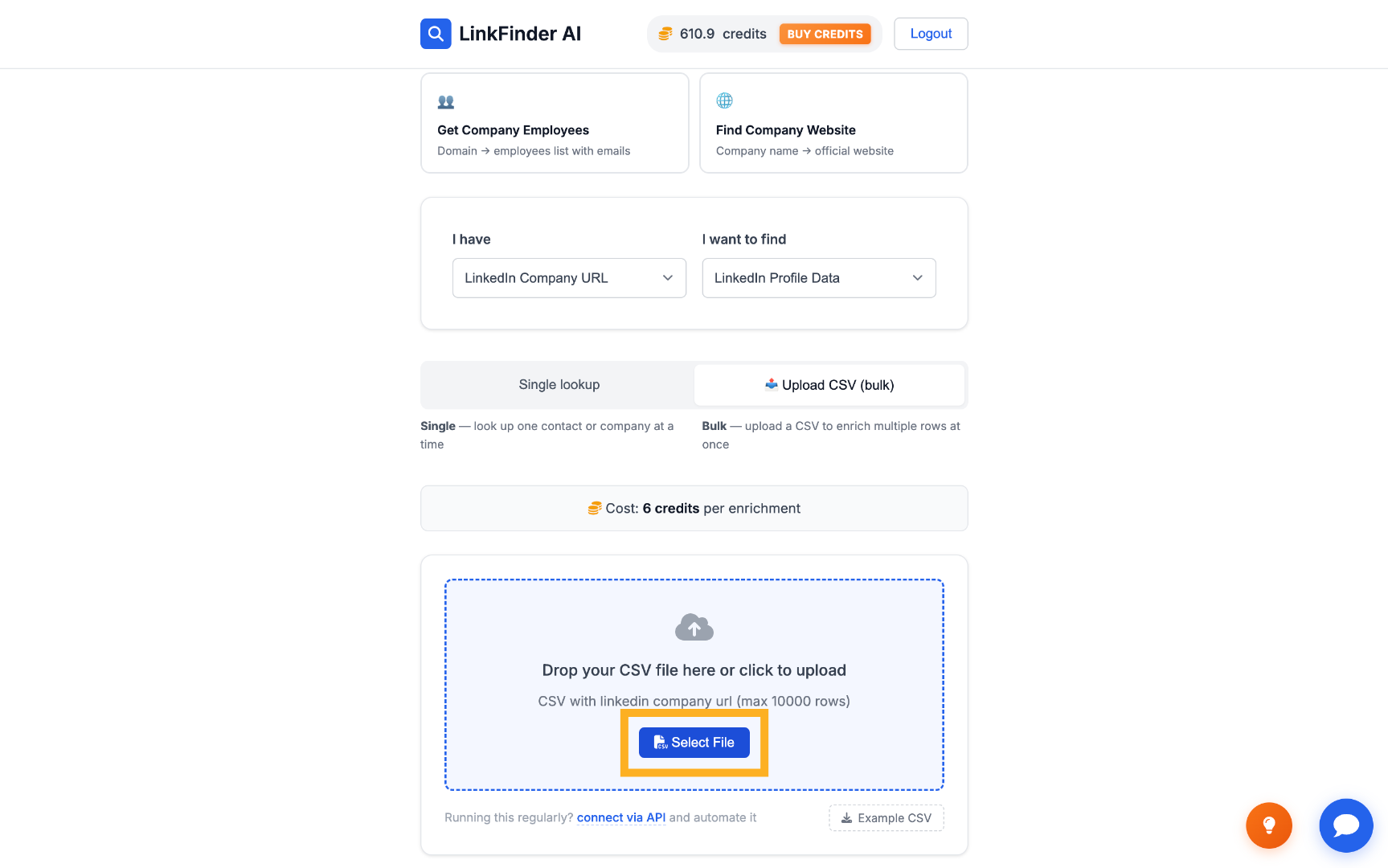
Switch to the CSV upload option

On the same screen, choose the option to upload a CSV instead of the single-URL form.
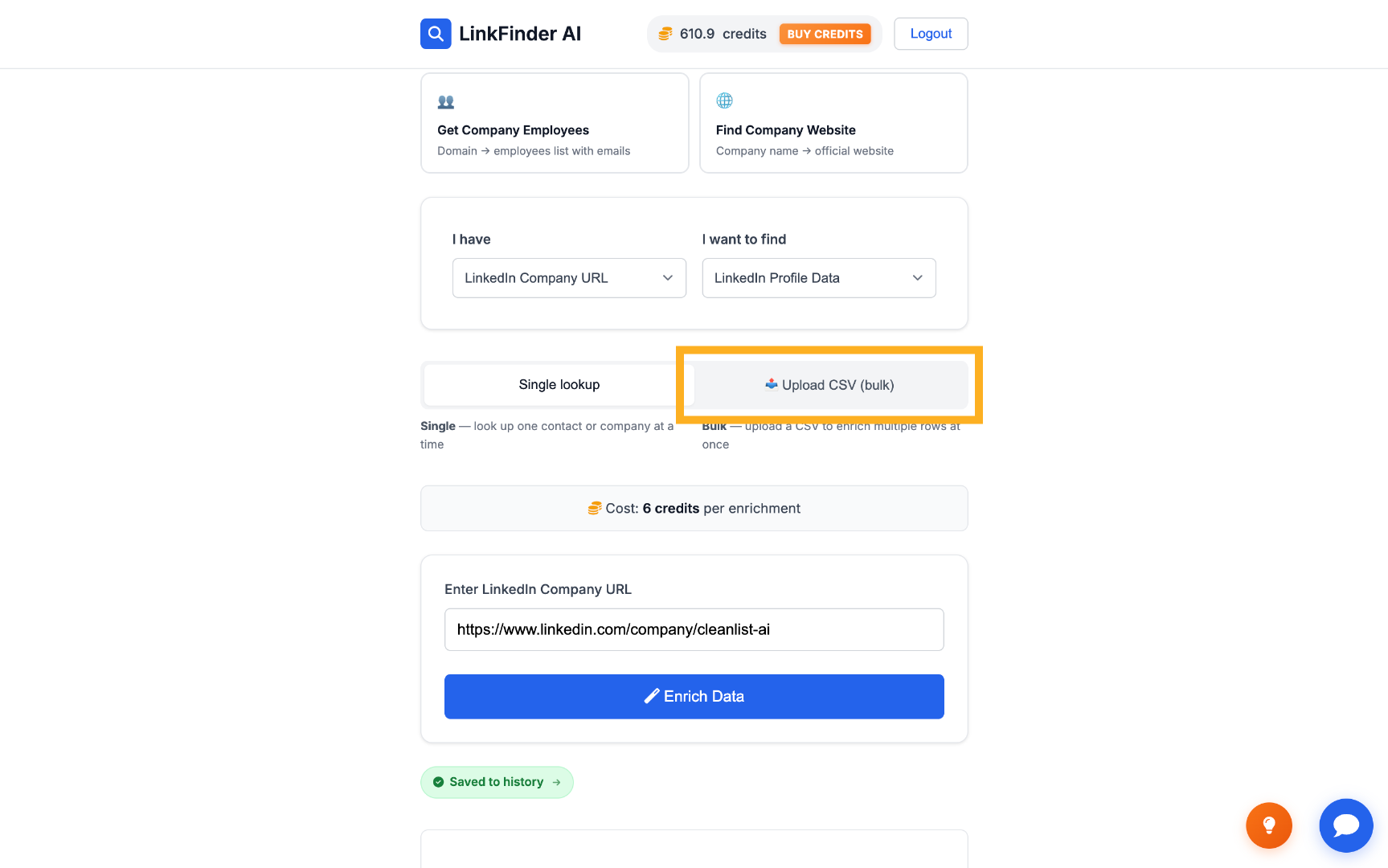
Open the bulk CSV upload option Select the CSV file to upload
2

Process the list

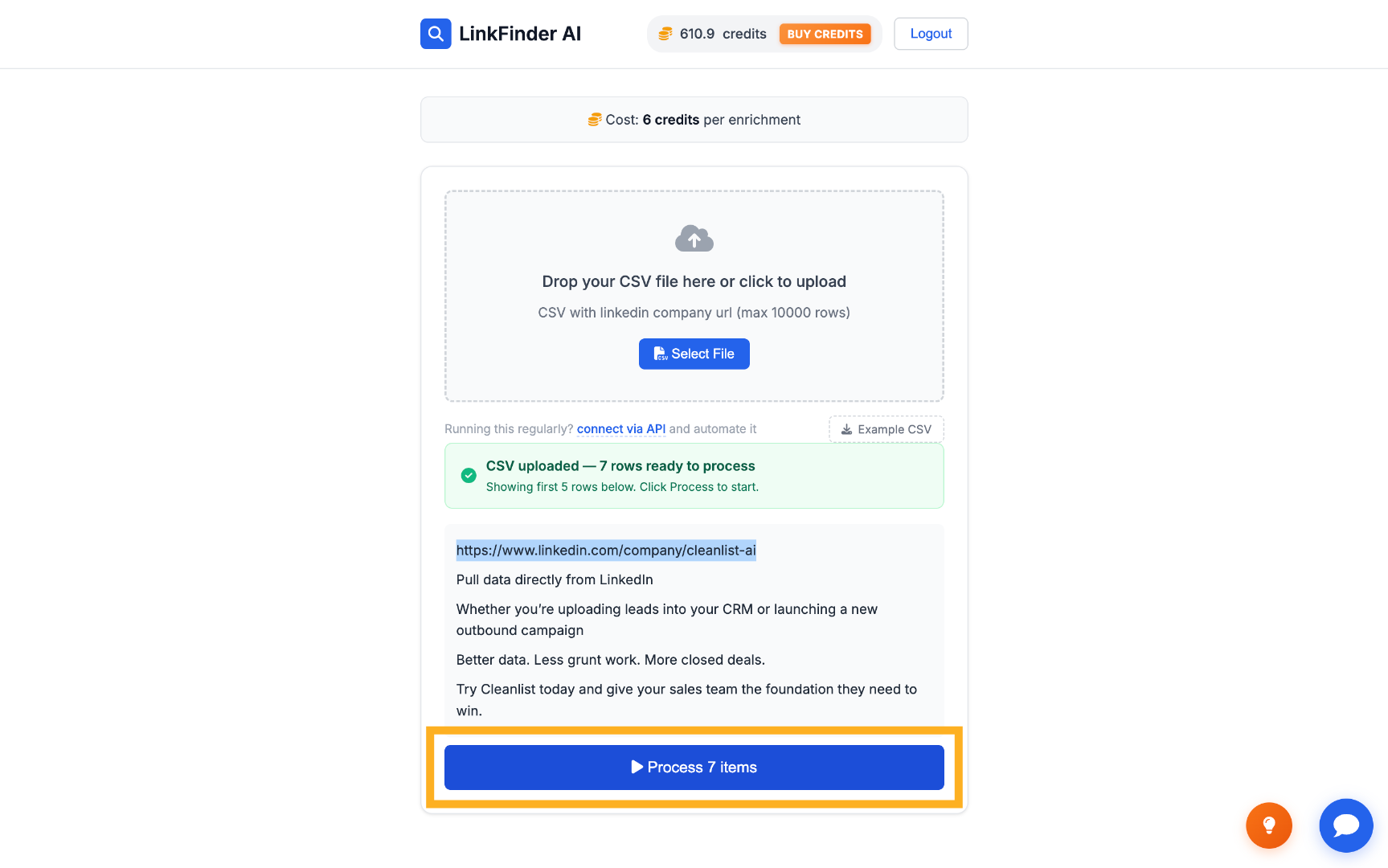
Each row in the CSV — a LinkedIn company URL — can be processed individually or as a batch.
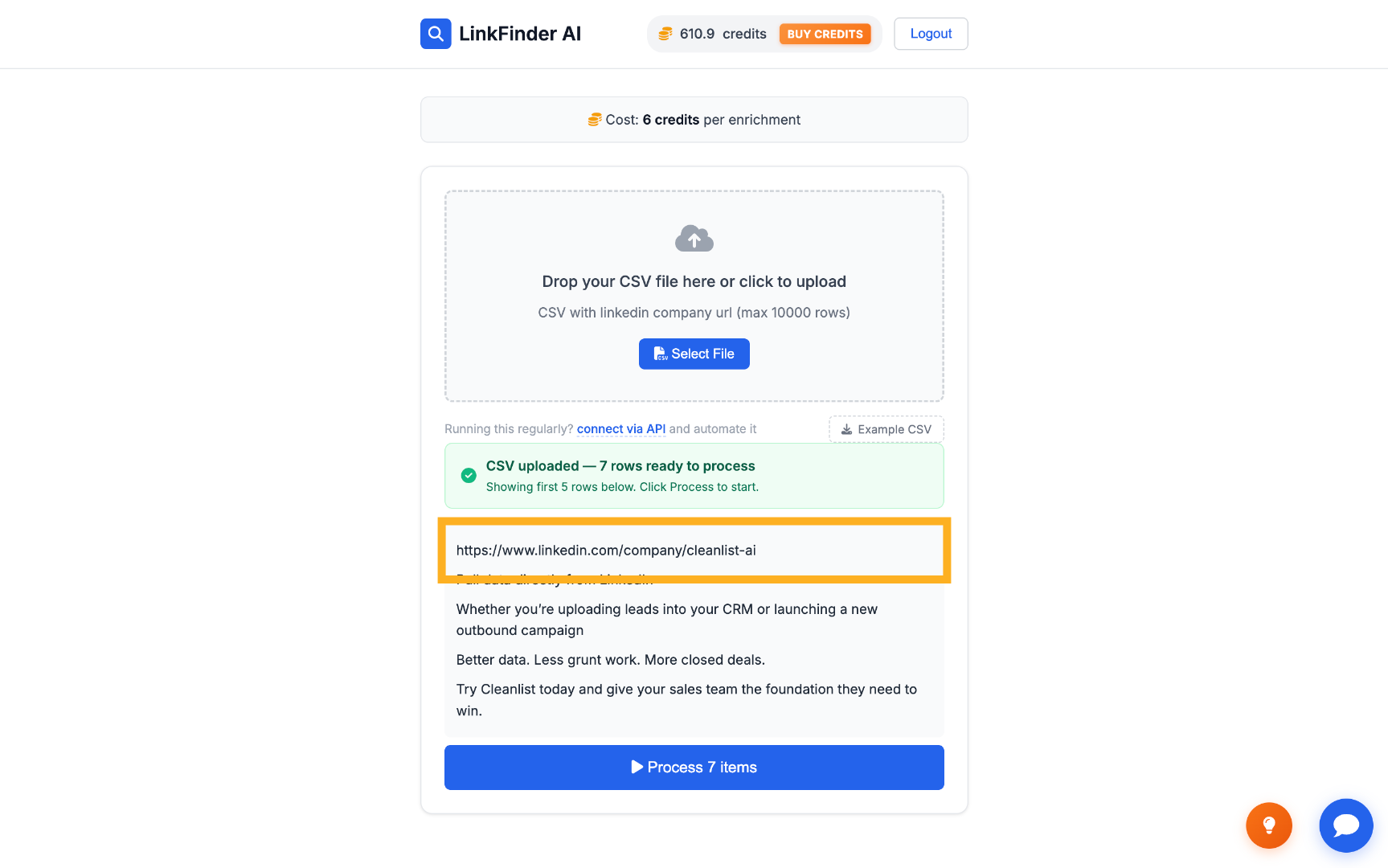
Access each LinkedIn URL row Process the CSV items
3

Export the enriched data

Once processing finishes, click "Export" to download the full list with each company matched to its enriched LinkedIn data.
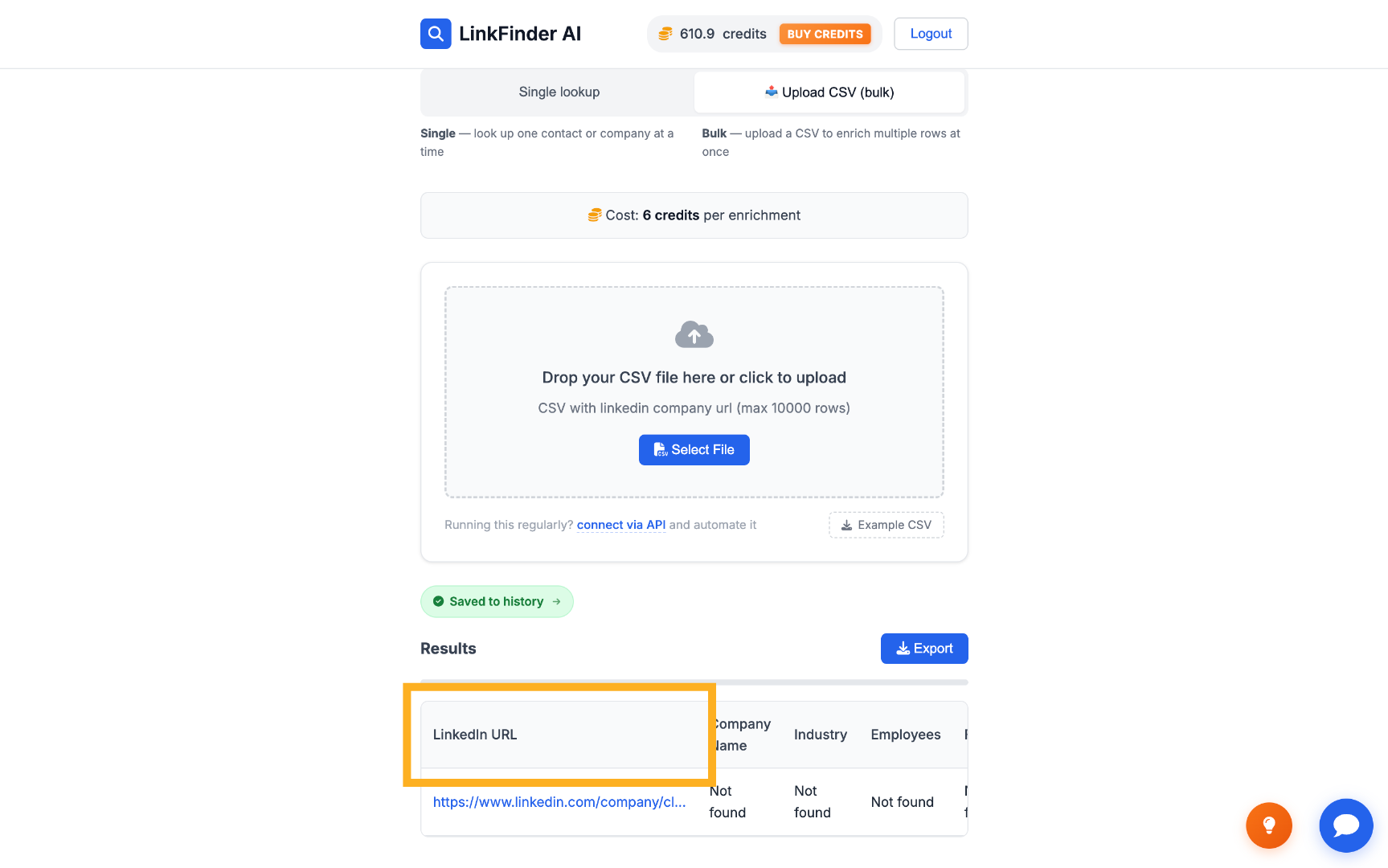
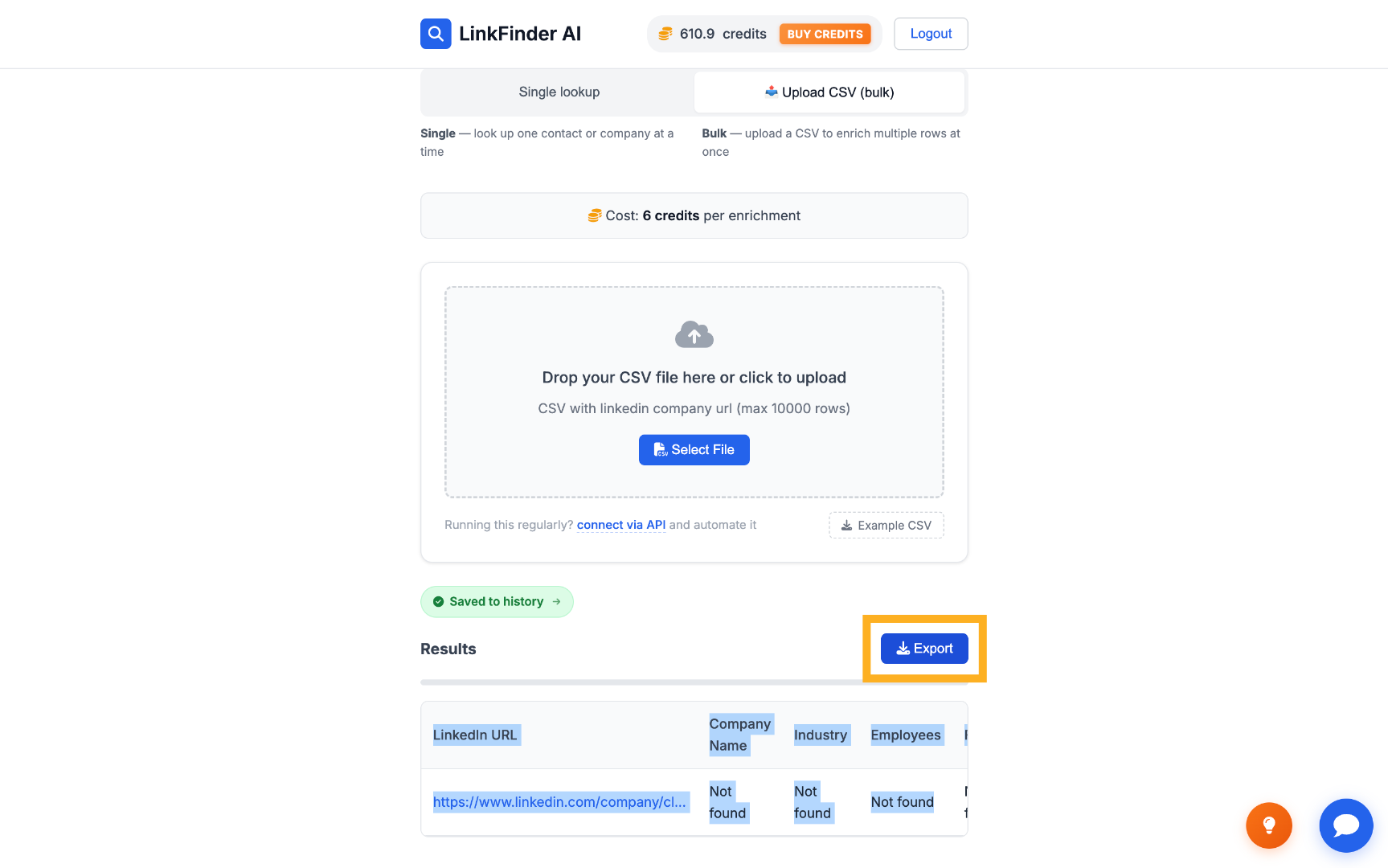
View the enriched LinkedIn URL column Export the enriched company data
De-duplicate your list before uploading. Running the same company URL twice costs two lookups instead of one.
3

Scrape LinkedIn company data programmatically via API

For developers who want to trigger the scrape from their own code, CRM, or automation tool instead of the dashboard.

1

Get your API key

Sign up for free — your key is in your dashboard under Settings → API Key. New accounts start with 25 credits.
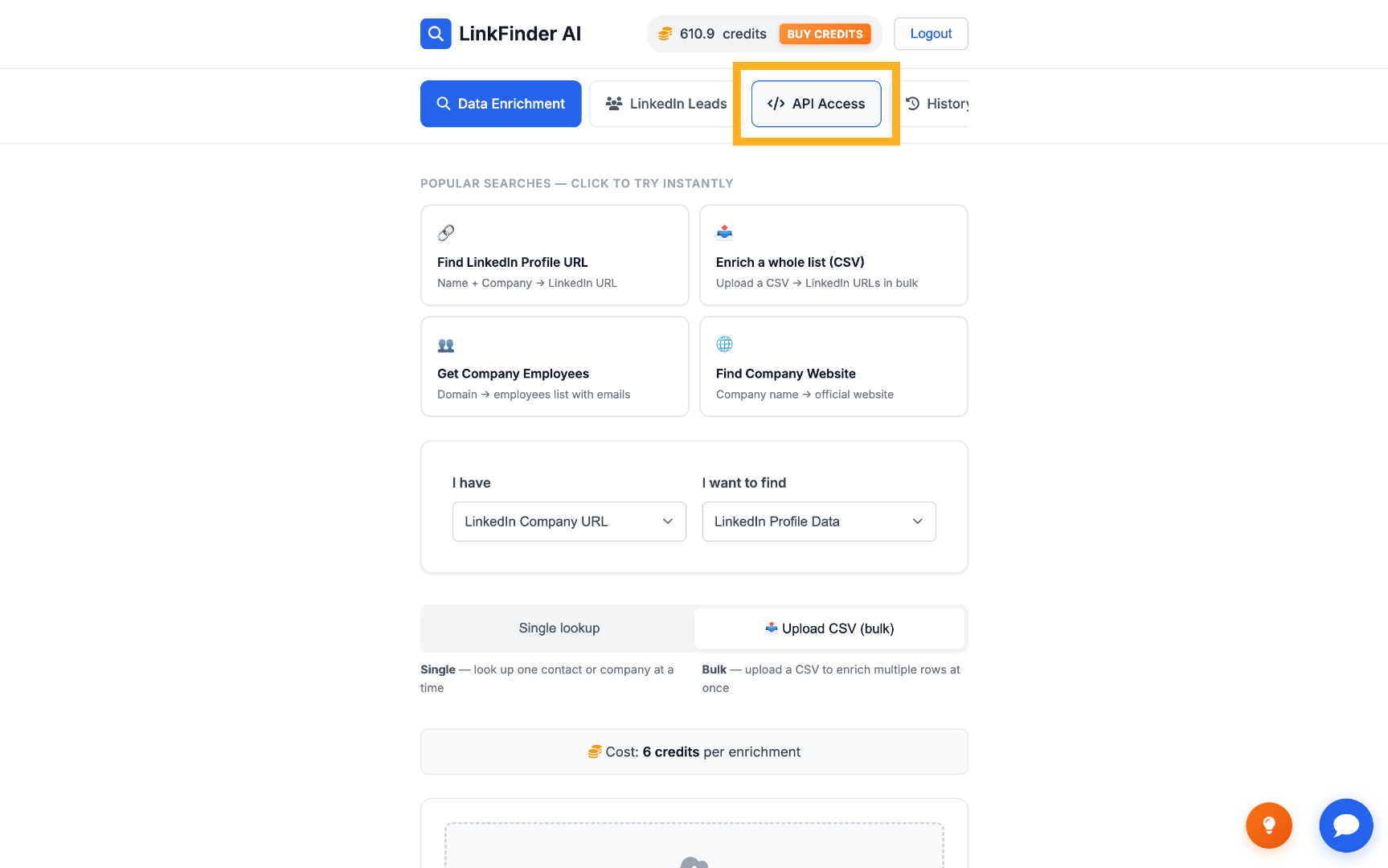
Access the API section
2

Call the endpoint with your API key

Send a POST request with type set to linkedin_company_to_linkedin_info and input_data set to the company's LinkedIn URL:

cURL
curl -X POST https://api.linkfinderai.com \
  -H "Authorization: Bearer YOUR_API_KEY" \
  -H "Content-Type: application/json" \
  -d '{
    "type": "linkedin_company_to_linkedin_info",
    "input_data": "https://www.linkedin.com/company/stripe"
  }'

Every request costs one credit, so it's worth de-duplicating a list before running it through the API.

The full endpoint reference, request/response shapes, and rate limits are documented on the API documentation page.

Tips for a cleaner scrape

Use the canonical company URL

Strip tracking parameters and use the base linkedin.com/company/{slug} URL for the most reliable match.

Clean your list before a bulk run

De-duplicate rows and remove dead links before uploading a CSV — a clean list processes faster and costs fewer credits.

No LinkedIn login needed

Because the lookup doesn't require a LinkedIn session or browser extension, there's no account to rate-limit or get flagged.

Re-check stale accounts periodically

Follower counts and About sections change. Re-running an older account list every few months keeps data current.

Frequently Asked Questions

Structured profile data from the company's LinkedIn page — name, follower count, industry, and the About section — returned from a single LinkedIn company URL.
Yes. Upload a CSV of LinkedIn company URLs and LinkFinder AI processes the whole list in bulk, returning a downloadable file with each company's enriched data.
No. LinkFinder AI works entirely from the LinkedIn company URL — there's no LinkedIn login, browser extension, or manual scraping involved.
Yes. The linkedin_company_to_linkedin_info endpoint accepts a LinkedIn company URL in a single POST request and returns the same structured company data available in the dashboard.
You can create a free account and run your first company lookups on free credits. Paid plans add higher volume, bulk CSV processing, and full API access.

Scrape your first LinkedIn company free

Enter a company URL, upload a CSV for bulk lookups, or call the API directly — start on the free plan, no credit card required.

Get started free

No credit card required · Free plan available · API on every plan

Explore more in LinkedIn Data, Scraping & APIs

See the full topic → LinkedIn Data, Scraping & APIs hub